 Ask AI
Reshaping and distorting images
Last updated: Oct-07-2026
Change the shape, geometry, and framing of your images using Cloudinary's reshaping and distortion effects. You can displace and warp pixels, distort images into new shapes, rotate them, round their corners, cut out shapes, and add zoom and pan motion.
Displacement maps
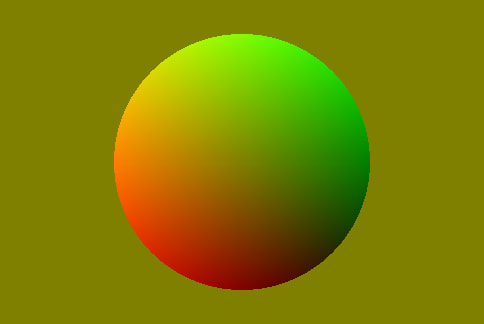
You can displace pixels in a source image based on the intensity of pixels in a displacement map image using the e_displace effect in conjunction with a displacement map image specified as an overlay. This can be useful to create interesting effects in a select area of an image or to warp the entire image to fit a needed design or texture. For example, to make an image wrap around a coffee cup or appear to be printed on a textured canvas.
The displace effect (e_displace in URLs) algorithm displaces the pixels in an image according to the color channels of the pixels in another specified image (a gradient map specified with the overlay parameter). The displace effect is added in the same component as the layer_apply flag. The red channel controls horizontal displacement, green controls vertical displacement, and the blue channel is ignored.
The final displacement of each pixel in the base image is determined by a combination of the red and green color channels, together with the configured x and/or y parameters:
| x | Red Channel | Pixel Displacement |
|---|---|---|
| Positive | 0 - 127 | Right |
| Positive | 128 - 255 | Left |
| Negative | 0 - 127 | Left |
| Negative | 128 - 255 | Right |
| y | Green Channel | Pixel Displacement |
|---|---|---|
| Positive | 0 - 127 | Down |
| Positive | 128 - 255 | Up |
| Negative | 0 - 127 | Up |
| Negative | 128 - 255 | Down |
The displacement of pixels is proportional to the channel values, with the extreme values giving the most displacement, and values closer to 128 giving the least displacement.
The displacement formulae are:
x displacement = (127-red channel)*(x parameter)/127y displacement = (127-green channel)*(y parameter)/127
Positive displacement is right and down, and negative displacement is up and left.
For example, specifying an x value of 500, at red channel values of 0 and 255, the base image pixels are displaced by 500 pixels horizontally, whereas at 114 and 141 (127 - 10% and 128 + 10%) the base image pixels are displaced by 50 pixels horizontally.
| x | Red Channel | Pixel Displacement |
|---|---|---|
| 500 | 0 | 500 pixels right |
| 500 | 114 | 50 pixels right |
| 500 | 141 | 50 pixels left |
| 500 | 255 | 500 pixels left |
x and y must be between -999 and 999.This is a standard displacement map algorithm used by popular image editing tools, so you can upload existing displacement maps found on the internet or created by your graphic artists to your product environment and specify them as the overlay asset, enabling you to dynamically apply the displacement effect on other images in your product environment or those uploaded by your end users.
Several sample use case of this layer-based effect are shown in the sections below.
See full syntax: e_displace in the Transformation Reference.
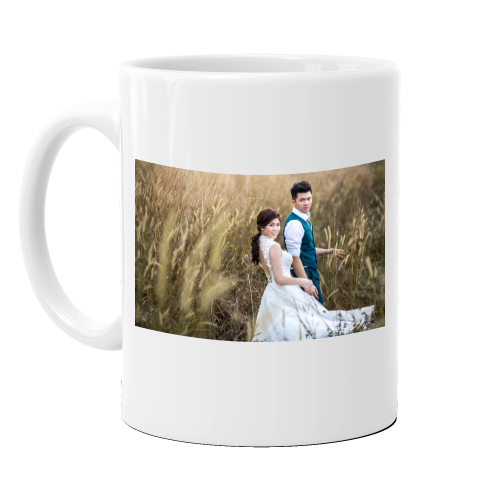
Use case: Warp an image to fit a 3-dimensional product
Use a displacement map to warp the perspective of an overlay image for final placement as an overlay on a mug:
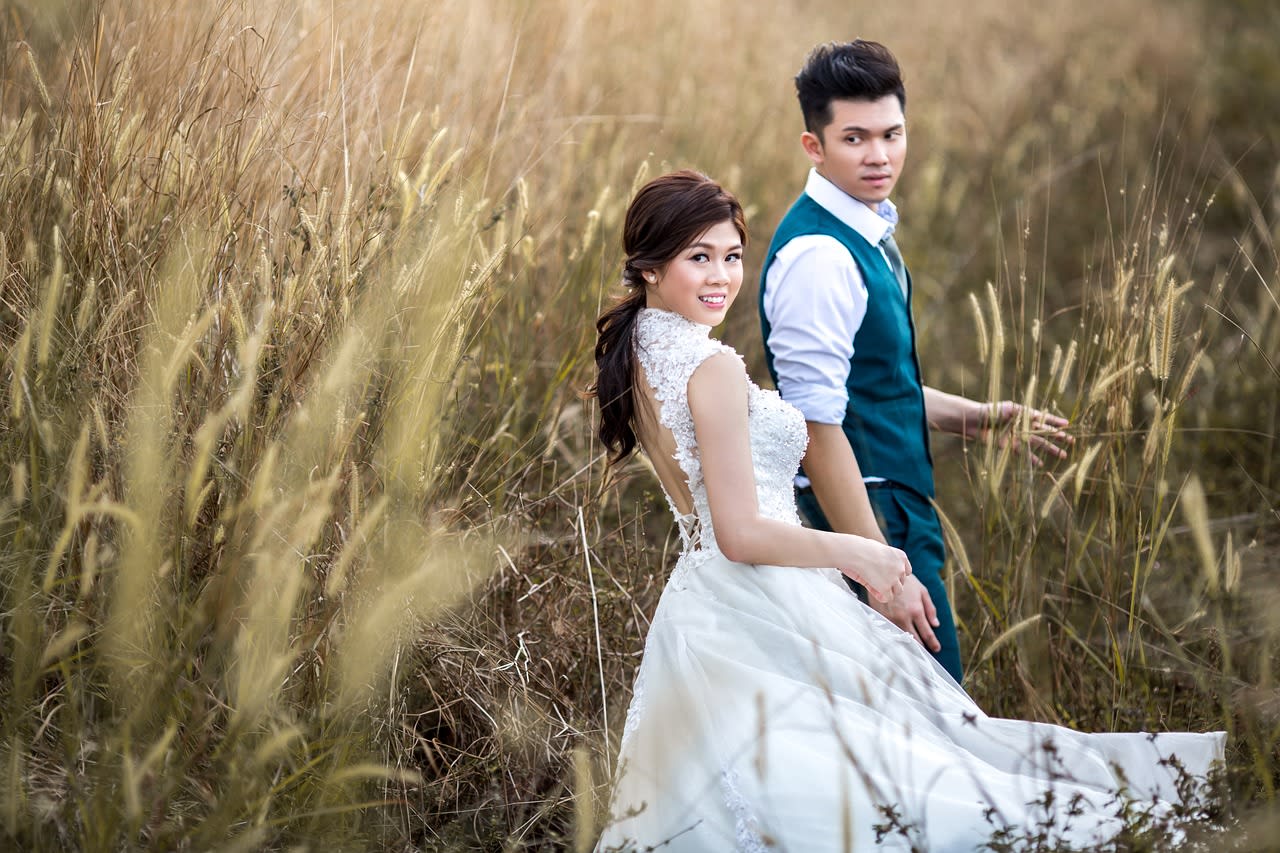
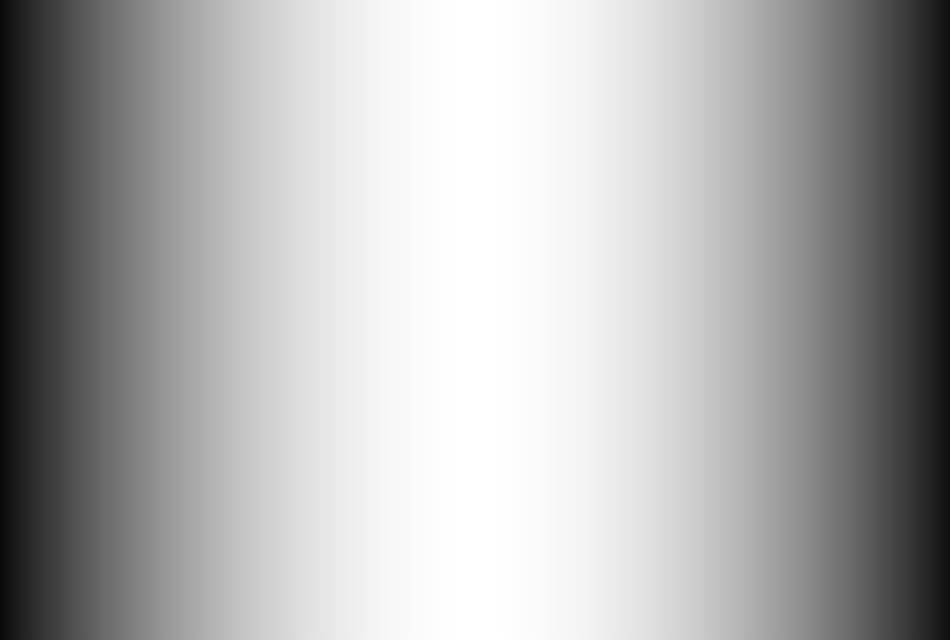
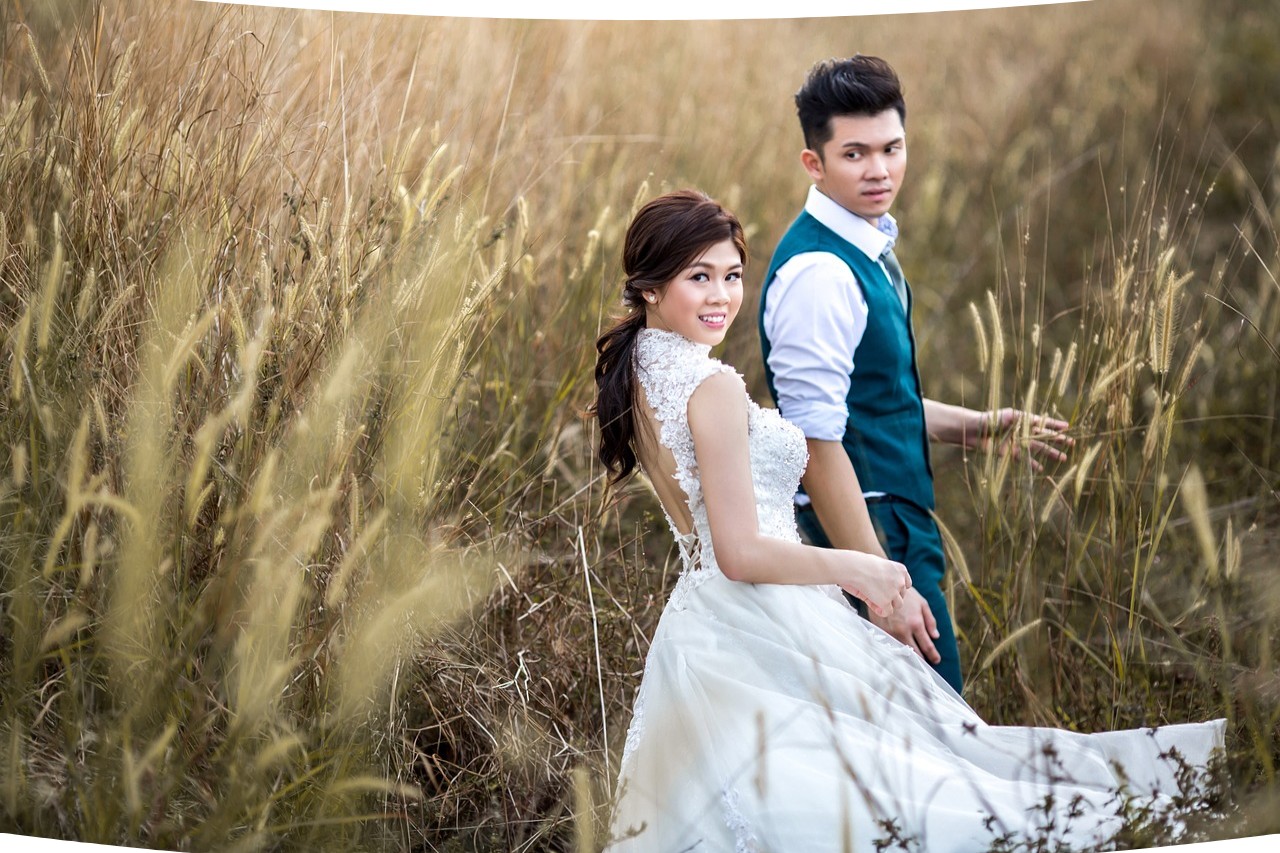
Using this overlay transformation for placement on a mug:
Use case: Create a zoom effect
To displace the sample image by using a displacement map, creating a zoom effect:
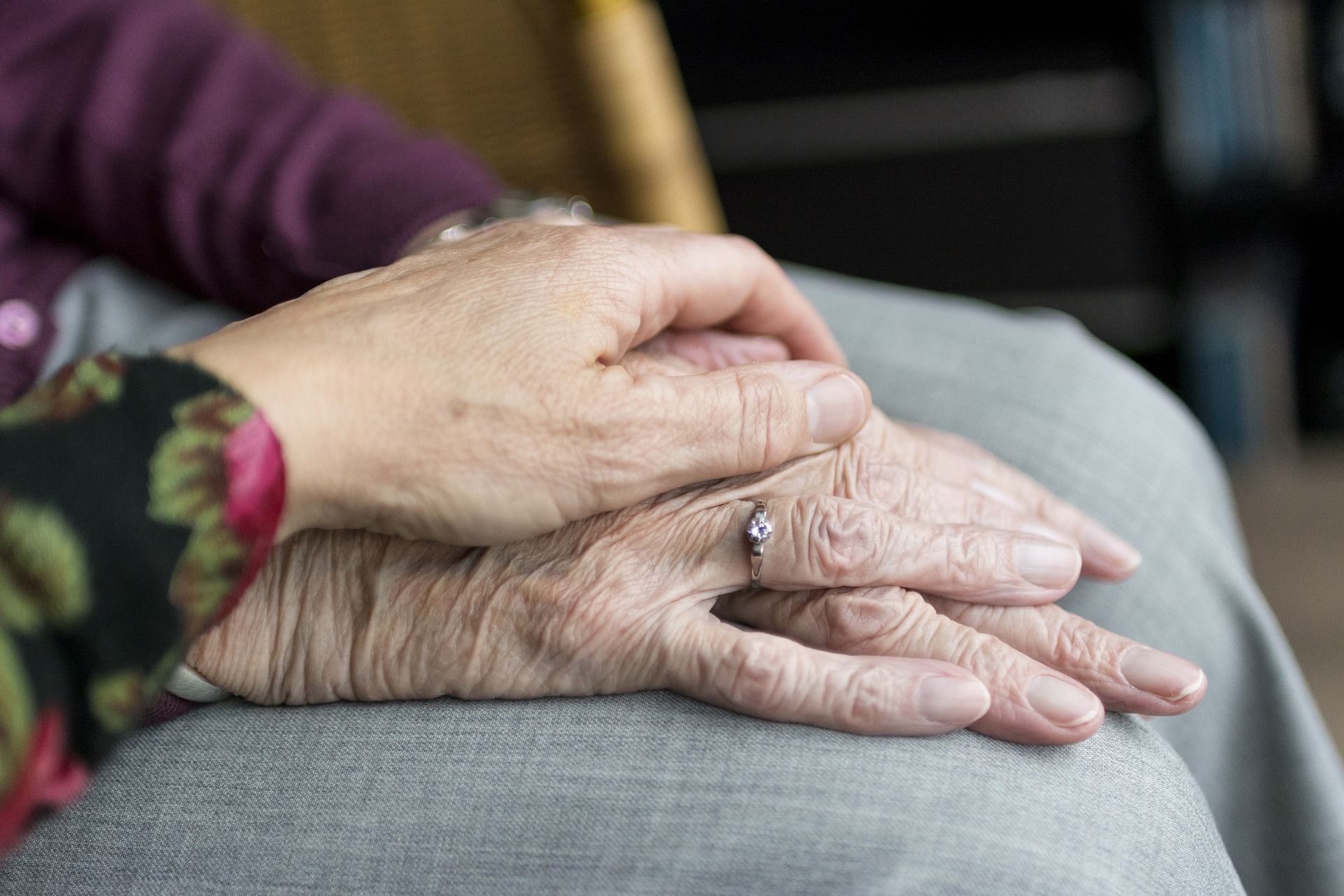
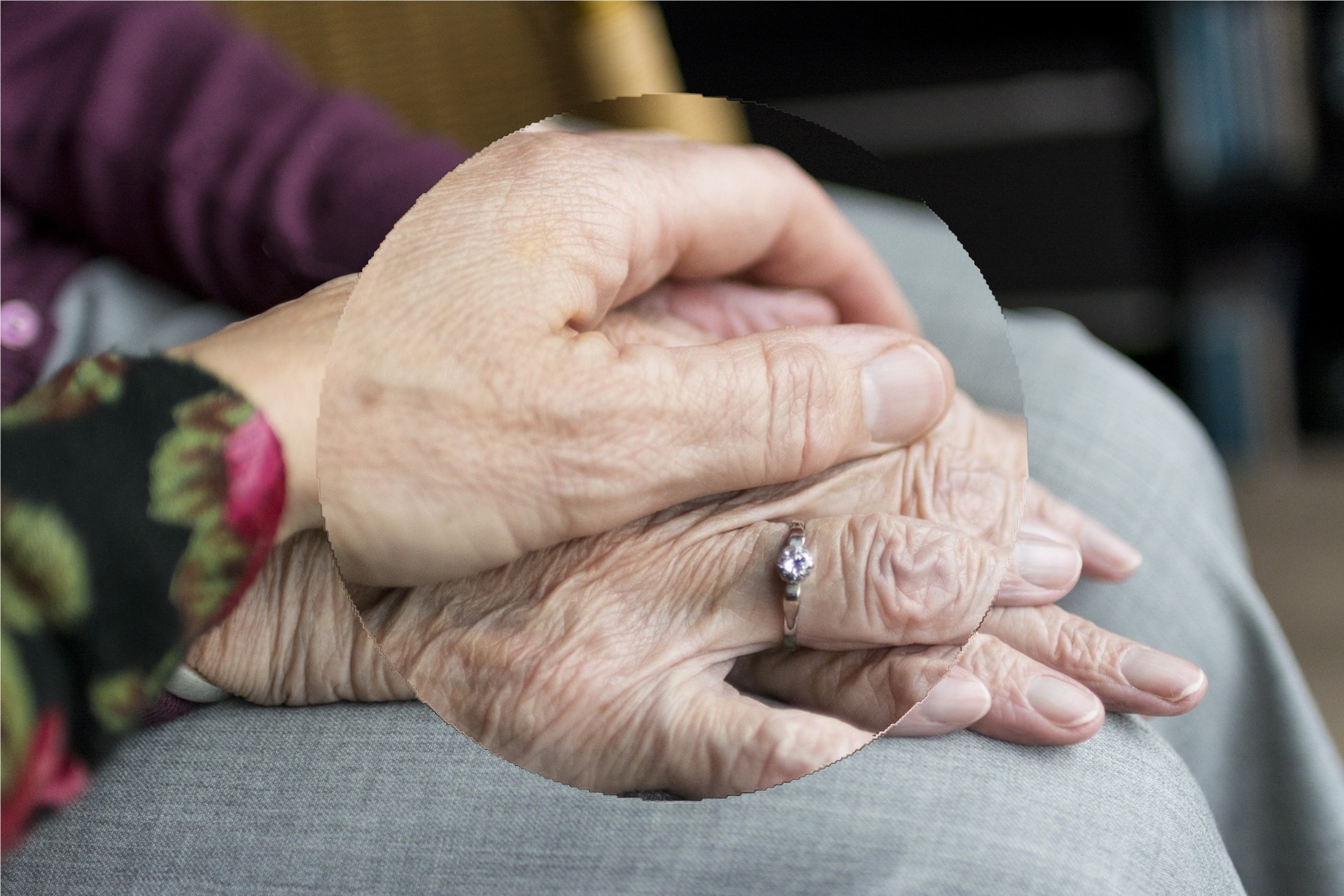
You could take this a step further by applying this displacement along with another overlay component that adds a magnifying glass. In this example, the same displacement map as above is used on a different base image and offset to a different location.

Use case: Apply a texture to your image
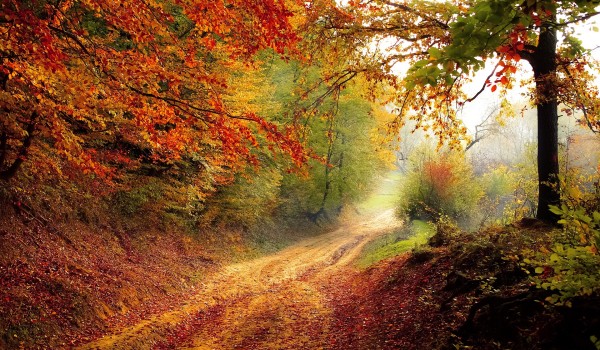

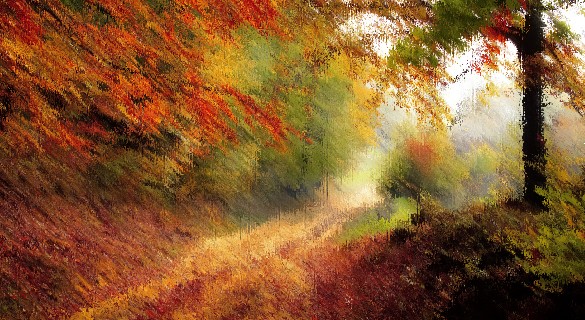
Interactive texture demo
For more details on displacement mapping with the displace effect, see the article on Displacement Maps for Easy Image Transformations with Cloudinary. The article includes a variety of examples, as well as an interactive demo.
Rotation
Rotate an image by any arbitrary angle in degrees with the angle parameter (a in URLs). A positive integer value rotates the image clockwise, and a negative integer value rotates the image counterclockwise. If the angle is not a multiple of 90 then a rectangular transparent bounding box is added containing the rotated image and empty space. In these cases, it's recommended to deliver the image in a transparent format if the background is not white.
You can also take advantage of special angle-rotation modes, such as a_hflip / a_vflip to horizontally or vertically mirror flip an image, a_auto_right / a_auto_left to rotate an image 90 degrees only if the requested aspect ratio is different than the original image's aspect ratio, or a_ignore to prevent Cloudinary from automatically rotating images based on the images's stored EXIF details.
For details on these rotation modes, see the Transformation Reference.
Rotation examples
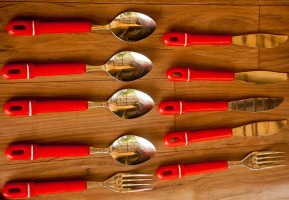
The following images apply various rotation options to the cutlery image:
- Rotate the image by 90 degrees:

- Rotate the image by -20 degrees (automatically adds a transparent bounding box):

- Vertically mirror flip the image and rotate by 45 degrees (automatically adds a transparent bounding box):

- Crop the image to a 200x200 circle, then rotate the image by 30 degrees (automatically adds a transparent bounding box) and finally trim the extra whitespace added:

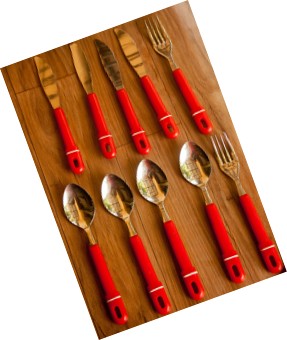
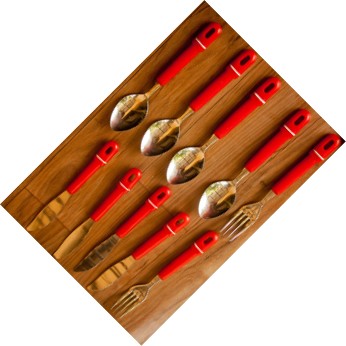
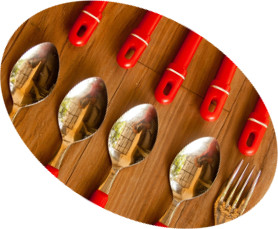
See full syntax: a (angle) in the Transformation Reference.
Try it out: Rotate.

Rounding
Many website designs need images with rounded corners, while some websites require images with a complete circular or oval (ellipse) crop. Twitter, for example, uses rounded corners for its users' profile pictures.
Programmatically, rounded corners can be achieved using the original rectangular images combined with modern CSS properties or image masking overlays. However, it is sometimes useful to deliver images with rounded corners in the first place. This is particularly helpful when you want to embed images inside an email (most mail clients can't add CSS based rounded corners), a PDF or a mobile application. Delivering images with already rounded corners is also useful if you want to simplify your CSS and markup or when you need to support older browsers.
Transforming an image to a rounded version is done using the radius parameter (r in URLs). You can manually specify the amount to round various corners, or you can set it to automatically round to an exact ellipse or circle.
background transformation parameter. Keep in mind that the PNG format produces larger files than the JPEG format. For more information, see the article on PNG optimization - saving bandwidth on transparent PNGs with dynamic underlay.Manually setting rounding values
To manually control the rounding, use the radius parameter with between 1 and 4 values defining the rounding amount (in pixels, separated by colons), following the same concept as the border-radius CSS property. When specifying multiple values, keep a corner untouched by specifying '0'.
- One value: Symmetrical. All four corners are rounded equally according to the specified value.
- Two values: Opposites are symmetrical. The first value applies to the top-left and bottom-right corners. The second value applies to the top-right and bottom-left corners.
- Three values: One set of corners is symmetrical. The first value applies to the top-left. The second value applies to the top-right and bottom-left corners. The third value applies to the bottom-right.
- Four values: The rounding for each corner is specified separately, in clockwise order, starting with the top-left.
For example:
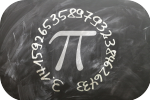 r_20
r_20
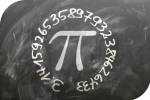 r_25:0
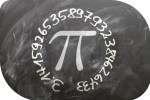 r_10:40:25
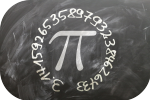 r_30:0:30:30
Automatically rounding to an ellipse or circle
Rather than specifying specific rounding values, you can automatically crop images to the shape of an ellipse (if the requested image size is a rectangle) or a circle (if the requested image size is a square). Simply pass max as the value of the radius parameter instead of numeric values.
The following example transforms an uploaded JPEG to a 250x150 PNG with maximum radius cropping, which generates the ellipse shape with a transparent background:
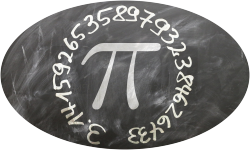
As the following example shows, displaying pictures of your web site's users as circle headshots is very easy to achieve with Cloudinary using face gravity with max radius:

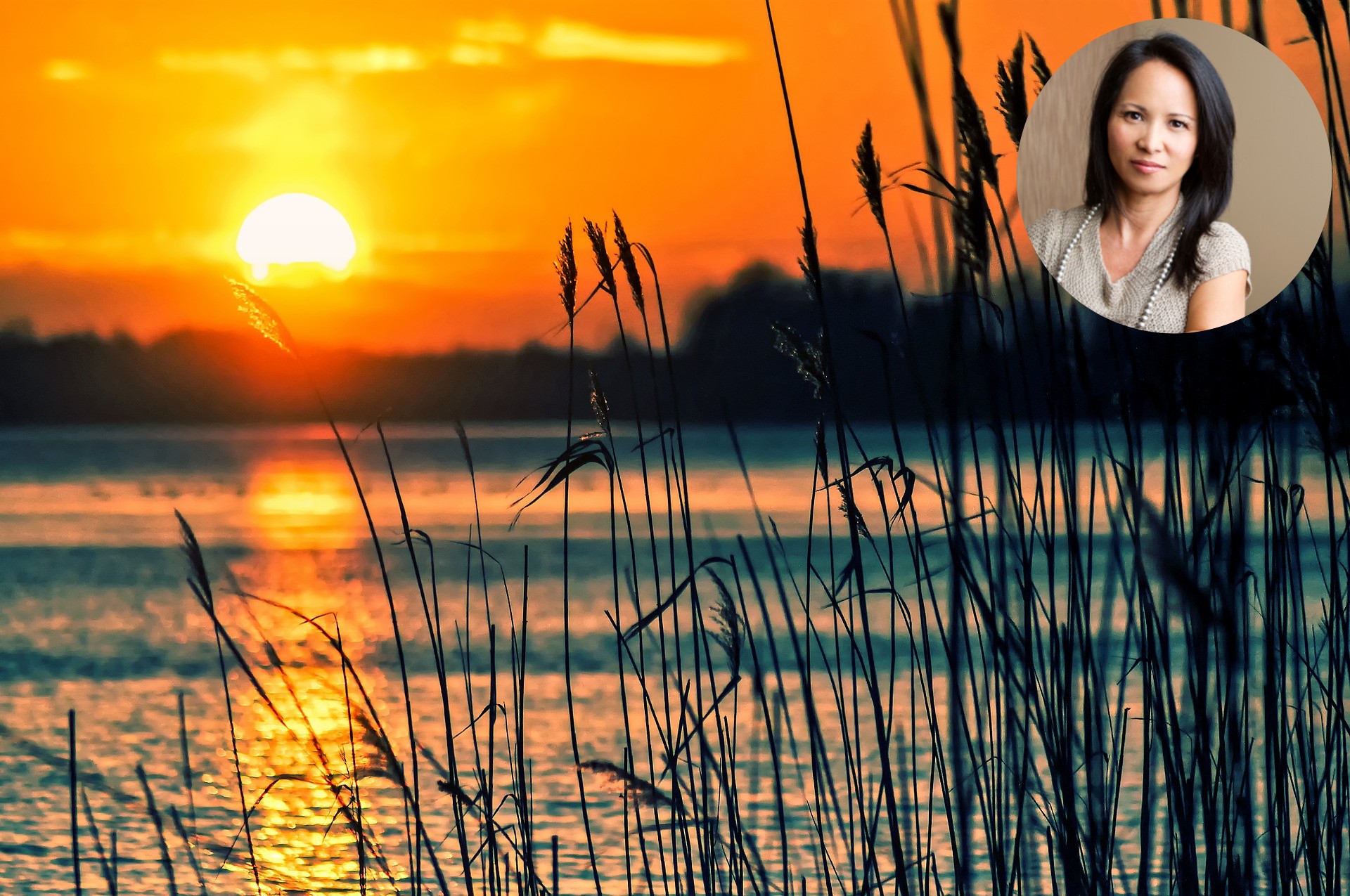
You can also overlay circular pictures of your users on other images using the layer_apply flag that tells Cloudinary to apply the rounding (and other transformations) to the overlay image and not to the base image:
See full syntax: r (round corners) in the Transformation Reference.
Try it out: Round corners.

Zoompan
Use the zoompan effect to apply zooming and/or panning to an image, resulting in an animated image.
For example, you could take this image of a hotel and pool:
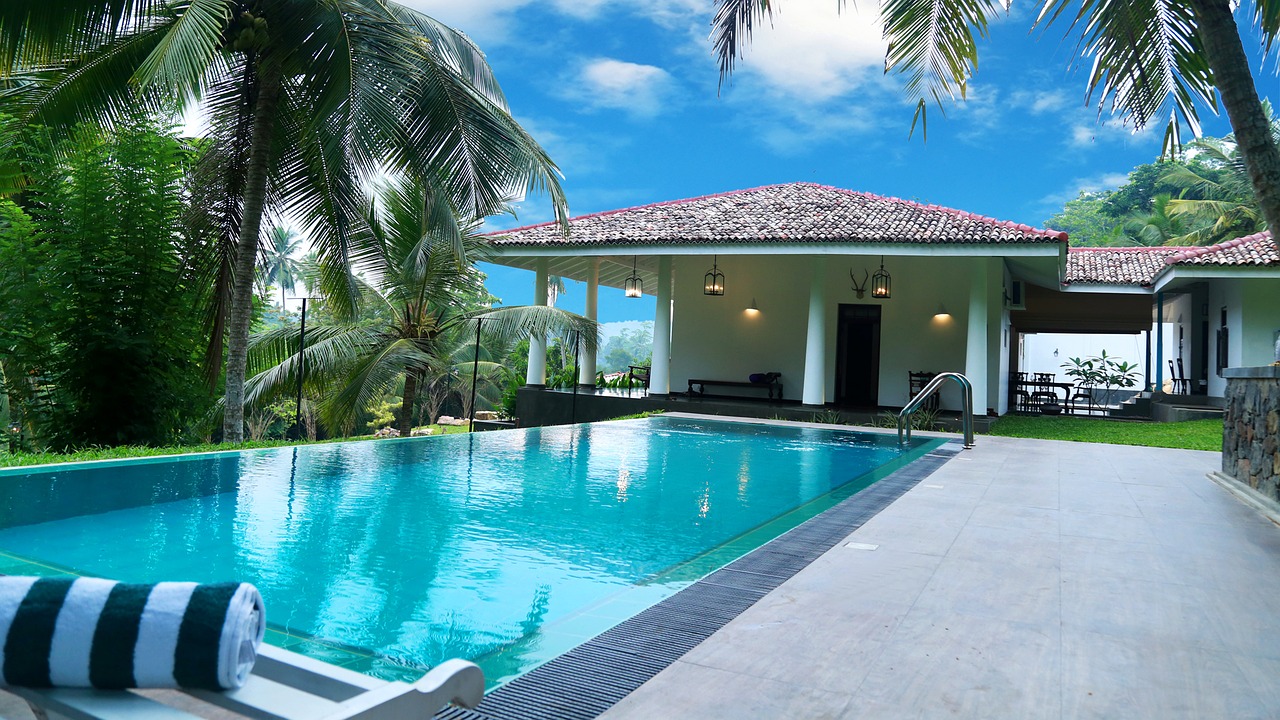
...and create an animated version of it that starts zoomed into the right-hand side, and slowly pans out to the left while zooming out:
Or, you can specify custom co-ordinates for the start and end positions, for example start from a position in the northwest of the USA map (x=300, y=100 pixels), and zoom into North Carolina at (x=950, y=400 pixels).
;to_(zoom_4;x_950;y_400);du_8;fps_30/e_loop/docs/usa_map.gif "Map of the USA with zoompan effect")
If you want to automate the zoompan effect for any image, you can use automatic gravity (g_auto in URLs) to zoom into or out of the area of the image which Cloudinary determines to be most interesting. In the following example, the man's face is determined to be the most interesting area of the image, so the zoom starts from there when specifying from_(g_auto;zoom_3.4):
/e_loop/docs/guitar-man.gif "Man playing guitar with zoompan effect")
There are many different ways to apply zooming and panning to your images. You can apply different levels of zoom, duration and frame rate and you can even choose objects to pan between.
See full syntax: e_zoompan in the Transformation Reference.
- Effects and artistic enhancements: Overview of all image effects and enhancements.
- Image enhancement: Auto enhance, generative restore, upscale, enhance, and improve.
- Color effects: 3D LUTs, background color, color blind effects, replace color, tint, and themes.
- Artistic effects: Artistic filters, cartoonify, opacity, pixelate, sepia, outlines, shadows, and vectorization.
- Image distortion: Perspective warp, arc distortion, and folded canvas effects.
- Shape cutouts: Remove or keep shapes using masks, clipping paths, or content extraction.
-
Read this blog to see some more applications of the
zoompaneffect.
Error
Rate this page:
