 Ask AI
Video Player Studio
Last updated: Oct-07-2026
The Video Player Studio is a visual interface in the Cloudinary Console for configuring video player settings. Instead of writing code to configure your video player, you can use the studio to design your player appearance, set poster options, configure chapters, and more. You can then save those settings directly to the asset, save them as a reusable player profile, generate embed code, or share a public link to your video.
Overview
The Video Player Studio provides a streamlined workflow for configuring video players:
- Select a video asset
- Configure player settings using the visual interface
- Save settings to the asset then generate embed code, or share a public link
- Use the embed code in your website or application, or share the link directly
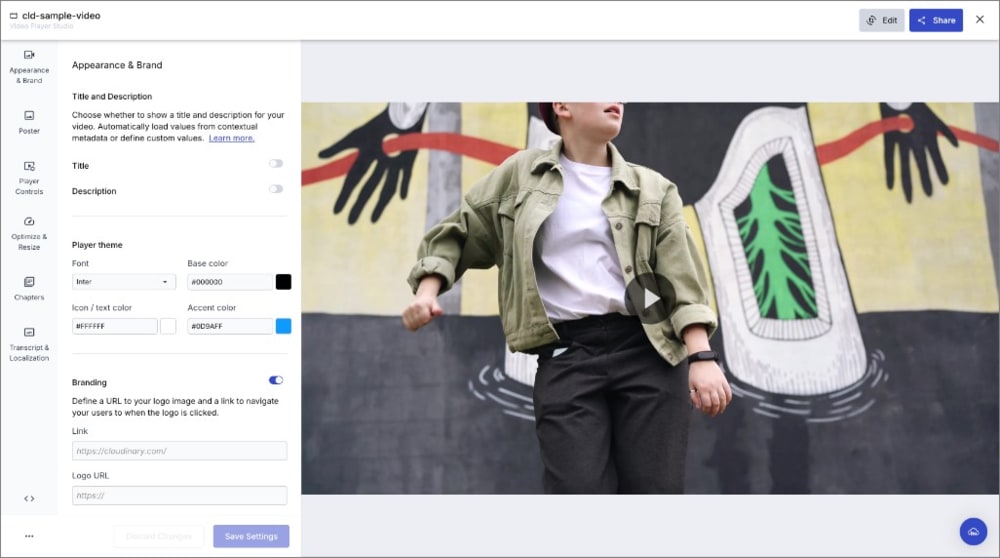
Settings you configure in the studio get saved directly to the video asset and automatically applied when the video gets rendered by the player. For information about the relationship between asset-saved settings and player profiles, see Asset-saved settings vs profiles.
Accessing the studio
You can access the Video Player Studio in two ways:
From the Video product
- Navigate to Video in the Console sidebar.
- Select Video Player Studio from the Video menu.
- Select a video asset to configure.

From the Media Library
- Open the Media Library and navigate to a video asset.
- Double-click the video to open it.
- Click the Video Player Studio button in the top toolbar.

Configuration sections
The Video Player Studio organizes configuration options into several sections, accessible from the left sidebar.
| Section | Description |
|---|---|
| Appearance & Brand | Configure the visual appearance of your video player, including title display, player theme colors, fonts, and custom branding with logo. |
| Poster | Set the poster image that displays before the video plays. Choose a suggested poster, a frame from the video, an image from your Media Library, or upload a custom image. See Poster configuration. |
| Player Controls | Configure which controls are available in the video player and how they behave. |
| Optimize & Resize | Configure optimization settings for video delivery, including quality, format, HDR video delivery, aspect ratio, and resize mode. See Resize and crop. |
| Chapters | Define chapters for navigation between video sections. You can upload a VTT file, manually define chapters, or enable AI-generated chapters. See Video chapters. |
| Transcript & Localization | Configure subtitles, captions, and transcript settings. Import .vtt or .srt subtitle files, generate transcripts and audio description scripts, and manage translations. See Transcript and Localization editor and Subtitles and captions. |
| Schedule | Set a weekly schedule to control when video plays and when a static poster image displays instead. Choose from time presets for each day of the week, or disable video on specific days. See Video delivery schedule. |
Poster configuration
The Poster section lets you configure the poster image displayed before your video plays.
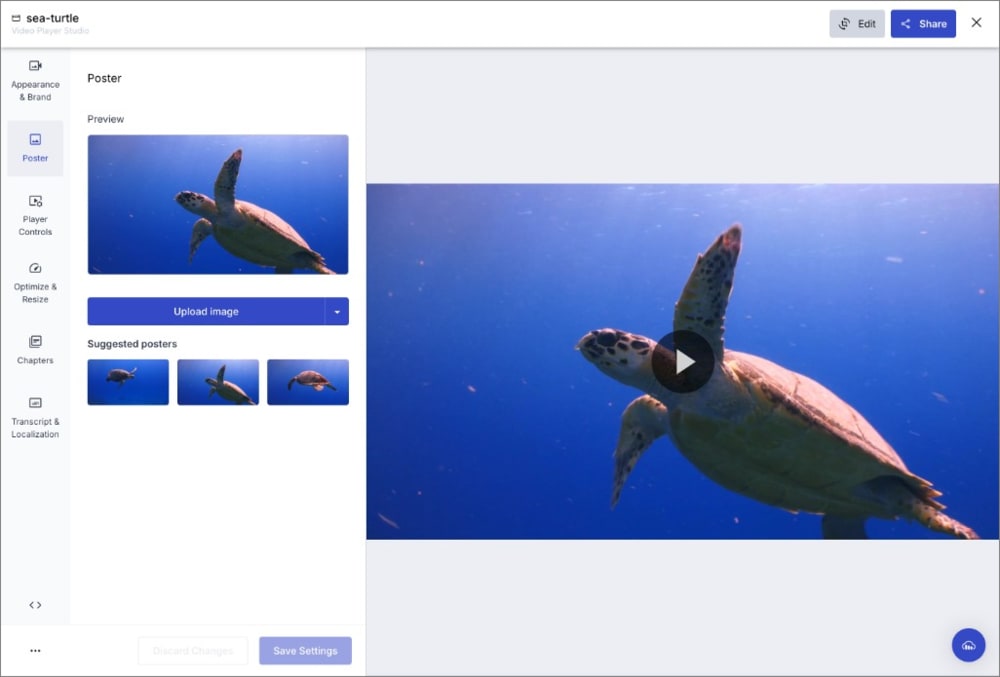
Upload image
Click Upload image to upload a custom image from your computer to use as the poster. The uploaded image gets stored with the video asset and becomes the default poster for that video when using the Cloudinary Video Player.
The dropdown arrow next to the button provides additional options:
| Option | Description |
|---|---|
| Select from Media Library | Choose an existing image from your Media Library to use as the poster. |
| Select current frame | Use the frame at the current playback position in the video preview as the poster. Scrub the preview to the point you want, then select this option. The studio rounds the position down to the nearest whole second, so scrubbing to different points within the same second selects the same frame. To pin the poster to a more precise offset, set it programmatically as described in Video Player poster behavior. |
Suggested posters
Cloudinary suggests frames from your video to use as poster images. Select any of the suggested posters to use it.
Video Player poster behavior
Starting with Video Player version 3.7.2, the player automatically fetches the poster associated with the video asset. This is either:
- The default poster (middle frame of the video)
- A custom poster you selected in the studio (an uploaded image, an image from your Media Library, or a frame from the video) and saved with the video asset.
This means videos configured in the Video Player Studio automatically display their selected poster without additional code. It also enables you to change which poster is displayed in your production apps without modifying the code.
Programmatic options
When embedding the player programmatically, you can override the default behavior:
- Set
poster: falseto use the first frame of the video instead of the associated poster. - Use
posterOptionsto apply transformations to the poster image. If you specify apublicIdinposterOptions, it overrides the associated poster with no change in behavior from previous versions. - Use
posterOptionswithstart_offsetin your embed code to take the poster from a specific time offset, which the studio's frame selection can't express. For example:posterOptions: { publicId: 'my-video', resource_type: 'video', format: 'jpg', start_offset: 15.2 }.
posterOptions is set per-source, and can't be saved to a profile. Pass it in the <video> tag with data-cld-poster-options, in the constructor options, or by calling the posterOptions() method. See posterOptions in the Video Player API Reference for more information and examples.Resize and crop
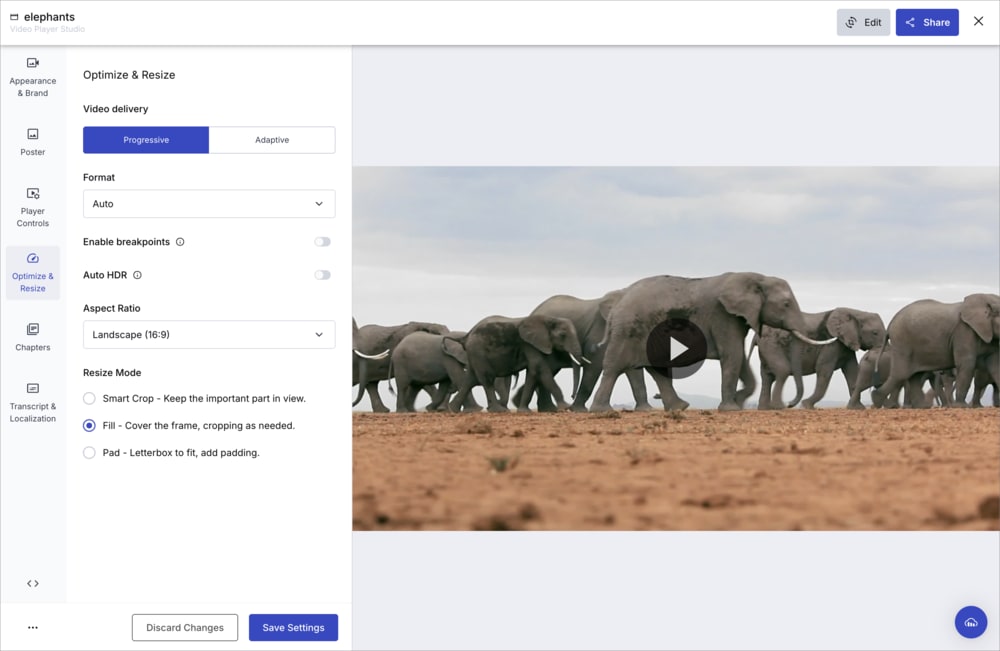
The Optimize & Resize section includes controls for changing the aspect ratio and resize behavior of your video. These options are available when video delivery is set to Progressive and Auto HDR is disabled.
Aspect ratio
Select an aspect ratio from the dropdown to change the proportions of your video:
| Option | Description |
|---|---|
| Keep Original | Delivers the video in its original aspect ratio. This is the default. |
| Landscape (16:9) | Standard widescreen format. |
| Portrait (9:16) | Vertical format, suitable for mobile-first or social media content. |
| Square (1:1) | Equal width and height. |
When you select an aspect ratio other than Keep Original, the Resize Mode options appear.
Resize mode
The resize mode determines how the video adapts to the selected aspect ratio:
| Mode | Description |
|---|---|
| Smart Crop | Keeps the important part of the video in view. This is the default resize mode. |
| Fill | Covers the frame, cropping as needed. |
| Pad | Letterboxes the video to fit and adds padding. When selected, a Padding color picker appears so you can choose the background color for the padded areas. |
Programmatic options
You can also configure resize and crop settings programmatically using the aspectRatio, cropMode, and cropPadColor parameters. See Resize and crop for code examples.
Advanced config editing
For fine-grained control over your video player configuration, click the < > icon in the studio to open the Advanced config editing dialog. This allows you to manually edit the Video Player configuration JavaScript, including options not currently exposed in the studio UI.

In the advanced editor, you can:
- View and modify the
configobject directly in JSON format. - Add player options not available through the visual interface.
- Fine-tune specific settings with precise values.
For a complete list of available configuration options, see the Video Player API Reference.
Saving settings
After configuring your video player settings, click Save Settings to save the settings directly to the video asset. This ensures the settings are automatically applied whenever the video is played using the Cloudinary Video Player.
When you save settings to an asset, they apply to all instances of the video player playing that asset (unless a profile or instance-level configuration overrides them). If you have embedded this video elsewhere without a specific profile, those embeds also update to reflect your new settings.
To discard unsaved changes, click Discard Changes.
Using saved settings
When you save settings to an asset, those settings are automatically retrieved when embedding the video player. This simplifies your embed code since you only need to specify the video's public ID and the saved settings get applied automatically.
Sharing and embedding
Click the Share button in the top toolbar to access options for sharing your video or generating embed code. You have a few options for sharing your video:
Public link
Generate a shareable public link to your video with the configured player settings. This link is a dedicated web page that allows you to view the video with the configured player settings and download the video, useful for sharing with stakeholders or third parties.
From the public link options, you can:
- Copy the public link URL
- Set an expiration date for the link
- Configure start and end dates for link availability
Invite
Send a direct invitation to specific people, allowing them to view the video with the configured player settings.
Embed code
Select Embed from the Share menu to generate code for adding the video player to your website or application. The generated code automatically uses the latest version of the Video Player to ensure compatibility with asset-saved settings.

Settings source
Choose which settings to apply to the embedded player:
- Video settings: Use the settings saved on the video asset.
- Profile settings: Select a saved player profile to apply.
Output formats
Choose from three output formats:
- Link: A direct URL to the cloud-hosted player.
- Embed: An iframe snippet for embedding the cloud-hosted player.
- JavaScript: Code for embedding a self-hosted player with your settings.
Once you have copied your chosen output format, you can paste the embed code into your website or application or share the link with others.
Asset-saved settings vs profiles
The Cloudinary Video Player supports two approaches to applying player settings:
Video settings (Default)
Every video asset has its own saved settings (video settings). By default, the player uses these settings. This is ideal when you want specific settings for individual videos.
In the Video Player Studio, you are always editing the asset's video settings. You can also manage these settings programmatically using the Video Config API.
Profiles
Profiles are named configurations that you choose deliberately. If you specify a profile when embedding, the player uses the profile settings and overrides the asset's video settings.
This is ideal when you want consistent settings across multiple videos. In the Video Player Studio, click the ... menu in the bottom left corner and select Save settings as profile to save your current settings as a new profile or override an existing one. When you save, parameters that are specific to each video or embed, such as the video's public ID and posterOptions, aren't included in the profile. Set these in your embed code instead. You can also select Import profile to load settings from an existing profile.
Troubleshooting
| Issue | Cause and resolution |
|---|---|
| The preview shows an error instead of playing your video. | The asset's access control mode is Restricted. The preview requests the video directly, and a Restricted asset can only be delivered with an authentication token. |
| You can't edit chapters or transcript files. | Editing chapters and transcript files requires at least the Media Library Admin role. See Role-based permissions. |
| The aspect ratio and resize mode options don't appear. | These options are available only when video delivery is set to Progressive and Auto HDR is disabled. See Resize and crop. |
| Your embedded player doesn't apply the settings you saved in the studio. | Asset-saved settings require Video Player version 3.6.0 or later, and a profile specified in your embed code overrides them. See Asset-saved settings vs profiles. |
Error
Rate this page:
