 Ask AI
Cloudinary MediaFlows release notes: September 29, 2026
Last updated: Sep-29-2026
We publish Cloudinary MediaFlows release notes periodically to give you a quick overview of all the new features, enhancements, and fixes that we've recently released. When relevant, they may also give sneak previews of upcoming features and/or other share important announcements.
New features
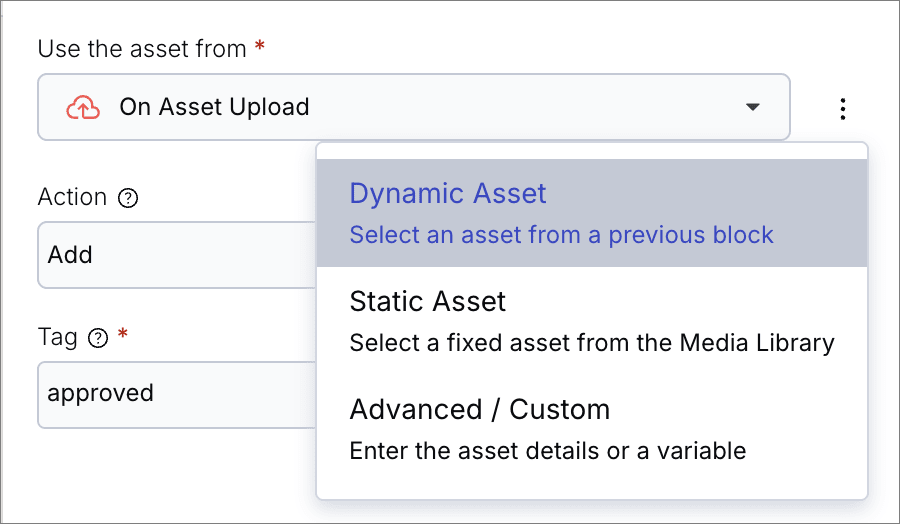
Pick a fixed asset without wiring up a variable
Blocks that act on an asset now let you choose a Static Asset: pick the exact image or video from your Media Library and the block uses it every run. Previously a fixed asset meant typing its public ID and delivery details by hand. Use the mode menu beside the Use the asset from field to pick how the asset is supplied.
Learn about selecting an asset
Send your own data to another flow
Pass values such as an order ID or a status from one flow to another, not just an asset. In the Trigger Another Flow block, add the data as key-value pairs, or turn on Advanced to enter a JSON object. In the triggered flow, list the keys you want in the Custom data keys field of the On Trigger From Another Flow block, and use them in later blocks like any other value.
Learn about the Trigger Another Flow block
Name and badge your blocks so a flow reads at a glance
You can now give a block your own icon as well as your own name, so a flow with several similar blocks is readable without opening each one. Rename a block from its configuration sidebar, and use Change icon to pick any image from your Media Library. The sidebar keeps showing the block's original name, so you can always tell which block it is.
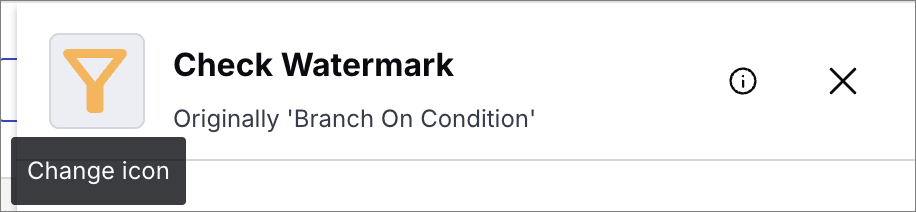
The name and icon you choose are shown on the canvas:

Learn about configuring a block
Enhancements
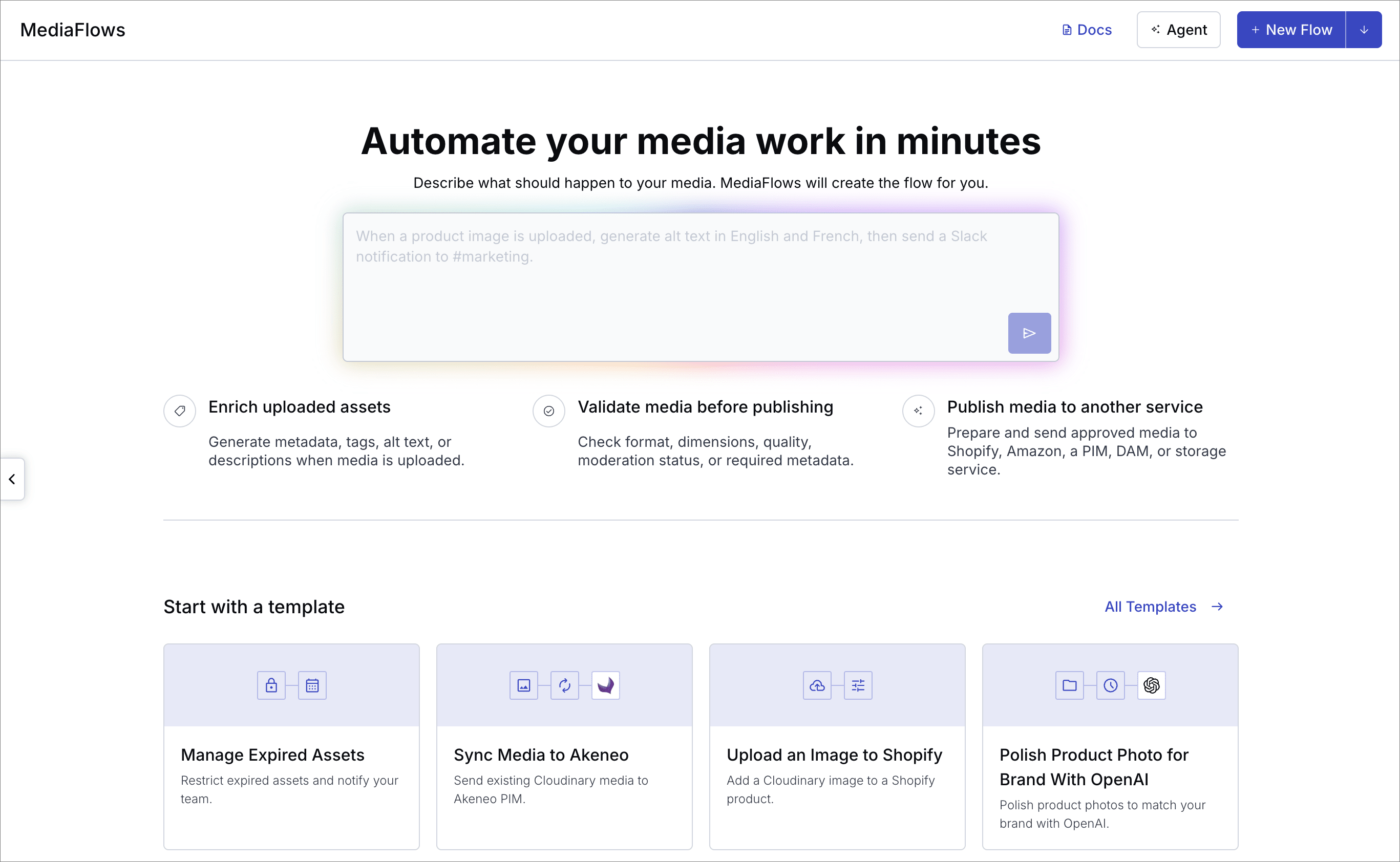
A redesigned home page that gets you to your first flow faster
The MediaFlows home page now shows what you can automate and the quickest ways to get started. Describe what should happen to your media in the prompt box, and the Workflow Agent creates the flow for you, or click an example prompt to start from one. Below it, a selection of ready-made templates shows off common use cases.
Clicking a template now opens its details before anything is added to the canvas: what it does and how it works, what you need to set up, such as connections or add-ons, and a preview of its blocks. Click Use Template when you're ready.
To create a flow from scratch, use New Flow at the top of any MediaFlows page.
A clearer flow canvas
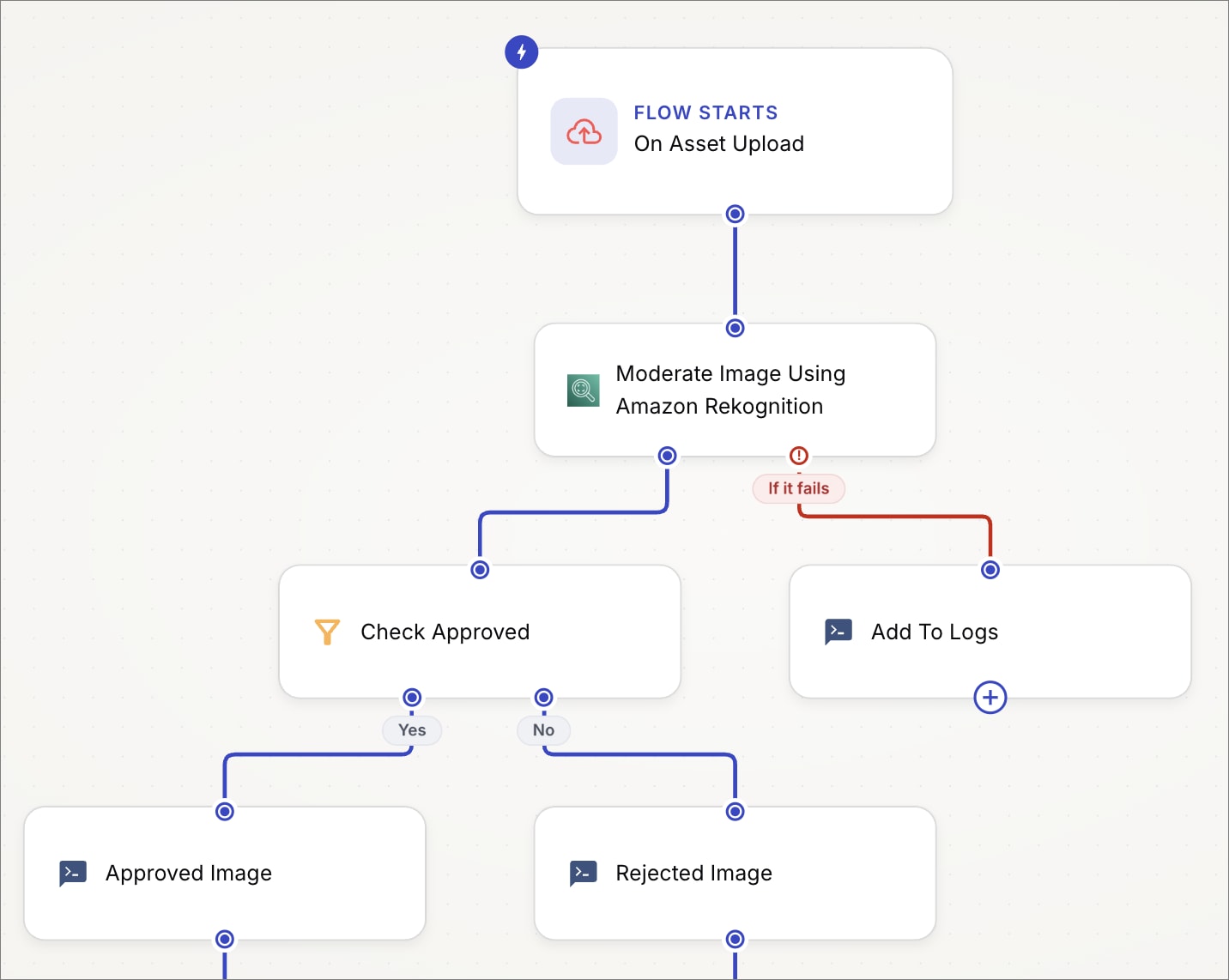
See at a glance what a flow does and where it branches, even one with error paths and parallel steps running down the page. The redesigned canvas we announced is here:
- Structured layout: Blocks are arranged automatically in a top-down flow, so the order of execution is clear and you no longer position blocks yourself.
- A clearer starting point: The trigger block is larger than the rest and labeled Flow starts, marking where the flow begins.
- A clean start for new flows: A new PowerFlow opens on an empty canvas, where you click Add a trigger to choose what starts it. Save, Test, and Enable Flow stay disabled until the flow has a trigger, and you can now delete a trigger block that isn't connected to anything yet.
- Easier editing on the canvas: Add a block from the + on a block's output, hover a connector and click Insert Block to drop one in between, or click Delete Connection to disconnect two blocks.
- Problems that are easier to spot: Blocks that still need configuring and inputs that aren't connected are highlighted, and a new minimap shows you where they are in a large flow. If a branch becomes disconnected, a message tells you where it went.
- Clearer branching: Condition outputs are labeled Yes and No, error paths are labeled If it fails, and parallel paths are marked, so you can read what a flow does without tracing the lines.
Clearer block names and categories
Block names now say what the block does, so you can tell them apart at a glance and pick the right one without opening each. For example, Edit Media is now Apply Custom Transformation, and Optimize Media is now Change Format And Quality.
Blocks are also grouped into more categories in the Add a block dialog, so there's less to scan through when you're looking for one. The Integrations category has been divided into Commerce, Product Information, Marketing And Productivity, and Storage And Transfer, and the blocks that create media are now separated from the ones that analyze it, in Media Generation, Media Analysis, and AI Media Enrichment.
Your existing flows keep working, and the blocks in them keep the names you gave them. Searching for a block by its old name still finds it.
Explore the PowerFlow block reference
See what each block passed on in the logs
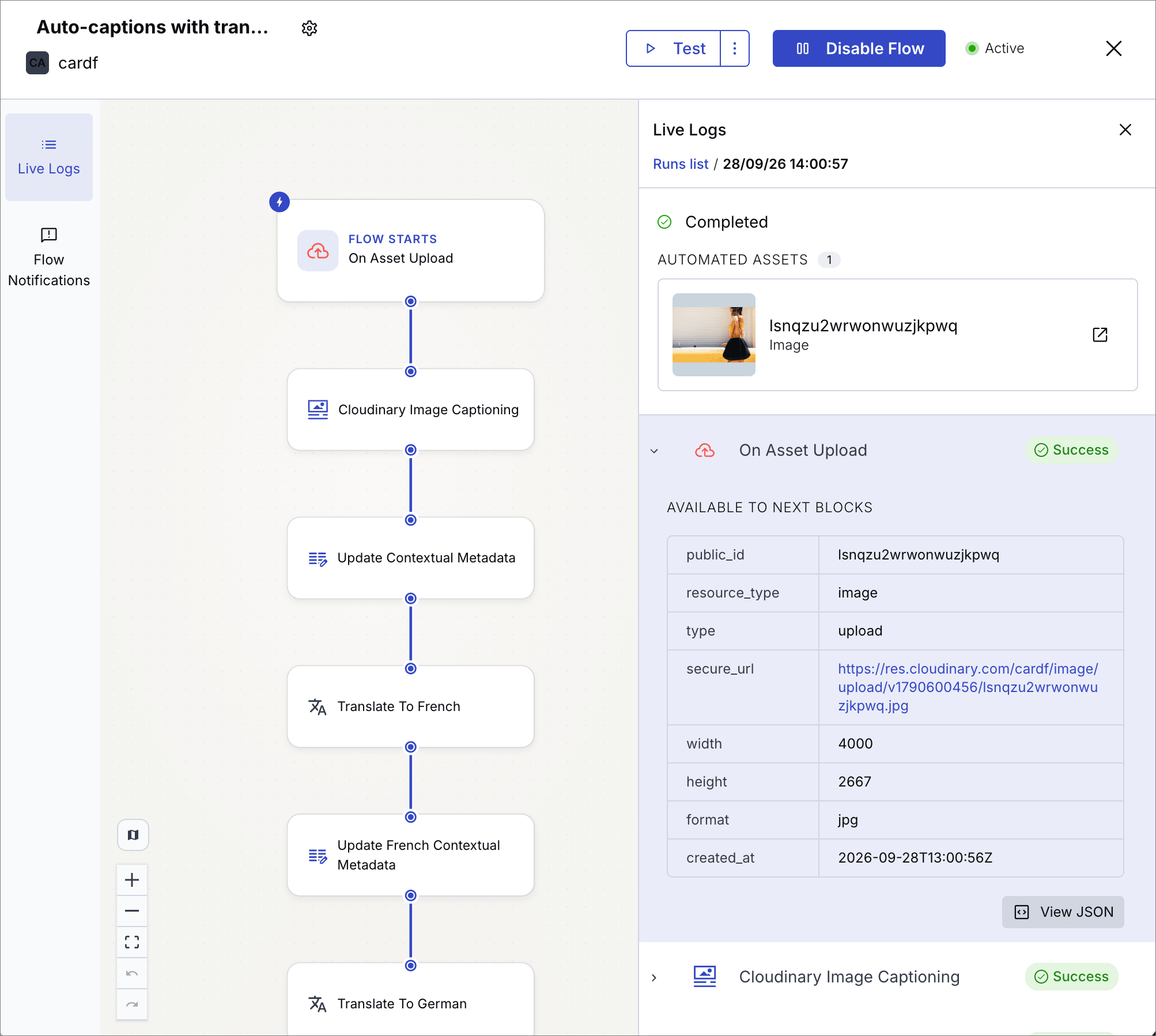
Check what a block produced without digging through its raw output. In Live Logs, expand a block to see an Available to next blocks table listing the values later blocks can use, such as the public ID, secure URL, and dimensions of an uploaded asset. Click View JSON for the full output, and a block that failed opens straight to its error. Each execution also shows the assets it automated, and History Logs is now at the top of the Live Logs sidebar, where you can filter past executions by date, status, or public ID.
Coming soon
Start flows from files added to SharePoint
Bring files into Cloudinary automatically as your teams add them to SharePoint. A new trigger will watch a Microsoft SharePoint document library and run your flow for each new or updated file, passing on the file's details so later blocks can upload and process it. Your Microsoft 365 administrator grants Cloudinary read-only access to the sites you choose, and a new Test button in the connect dialog lets you confirm the connection works before you save it.
Register for notifications
Make sure you always know when we publish new release notes with the MediaFlows release notes RSS feed:
 Grab this RSS link to watch for new MediaFlows release notes in your favorite RSS reader.
Error
Rate this page:
