 Ask AI
Shape cutouts
Last updated: Oct-07-2026
You can use a layer image with an opaque shape to either remove that shape from the image below that layer, leaving the shape to be transparent (e_cut_out), or conversely, use it like a cookie-cutter, to keep only that shape in the base image, and remove the rest (fl_cutter).
You can also use AI to keep or remove certain parts of an image (e_extract).
To embed a clipping path derived from a mask image into the metadata of a delivered JPEG or TIFF, use e_embed_clipping_path.
Remove a shape
The following example uses the cut_out effect to cut a logo shape (the overlay image) out of a base ruler image. A notebook photo underlay behind the cutout ruler lets you see the notebook paper and lines through the logo cutout:

Keep a shape
The following example uses the cutter flag to trim an image of a water drop based on the shape of a text layer (l_text:Unkempt_250_bold:Water/fl_cutter,fl_layer_apply). The font size of the text layer determines the size of the delivered image:

Blur the edges of an image
You can also use a semi-transparent PNG layer to create feathered edges. In this case, overlaying a square image with a black center and a white feathered border, using fl_relative to scale the overlay to the same width and height as the base image (c_scale,fl_relative,w_1.0,h_1.0), and applying fl_cutter to the overlay, keeps the opaque center of the mask and leaves the edge pixels partially transparent. To soften those edges against a non-transparent background, add a blurred underlay of the same image.
For example, using a feathered square PNG called square_feather:

Use AI to determine what to remove or keep in an image
You can use the e_extract transformation to specify what to remove or keep in the image using a natural language prompt.
For example, start with this image of a desk with picture frames:
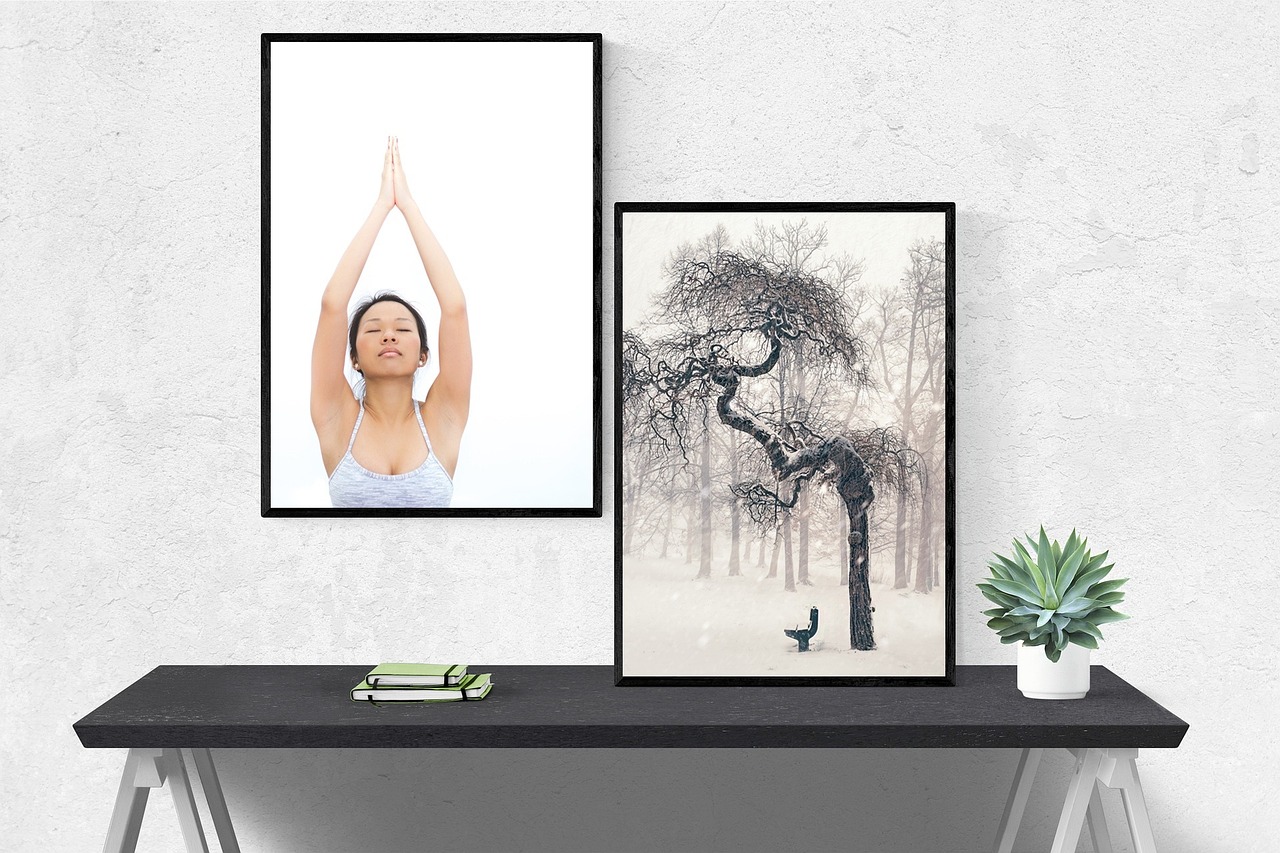
You can extract the picture of the tree (e_extract:prompt_the%20picture%20of%20the%20tree):
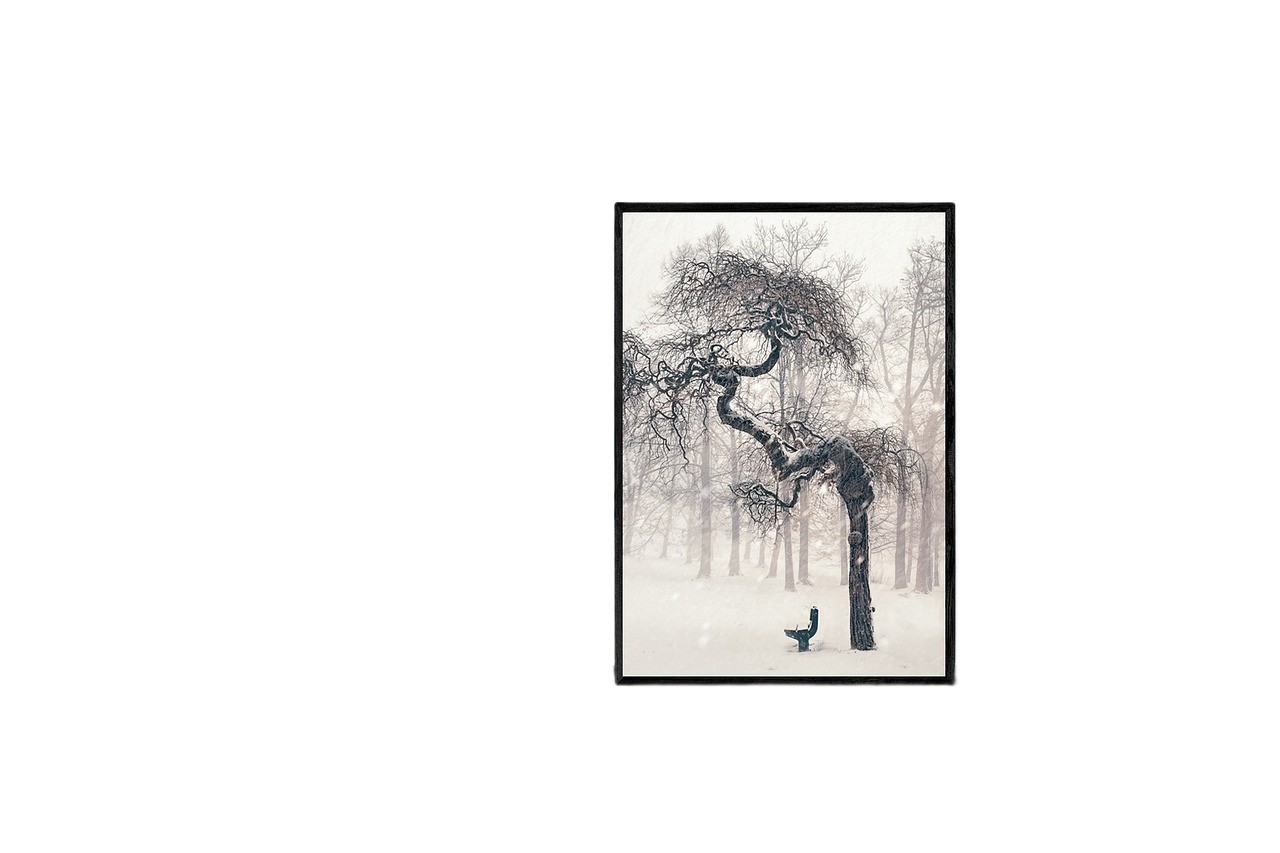
Everything but the picture of the tree is now considered background, so you can then generate a new background for this picture, for example, an art gallery (e_gen_background_replace:prompt_an%20art%20gallery):
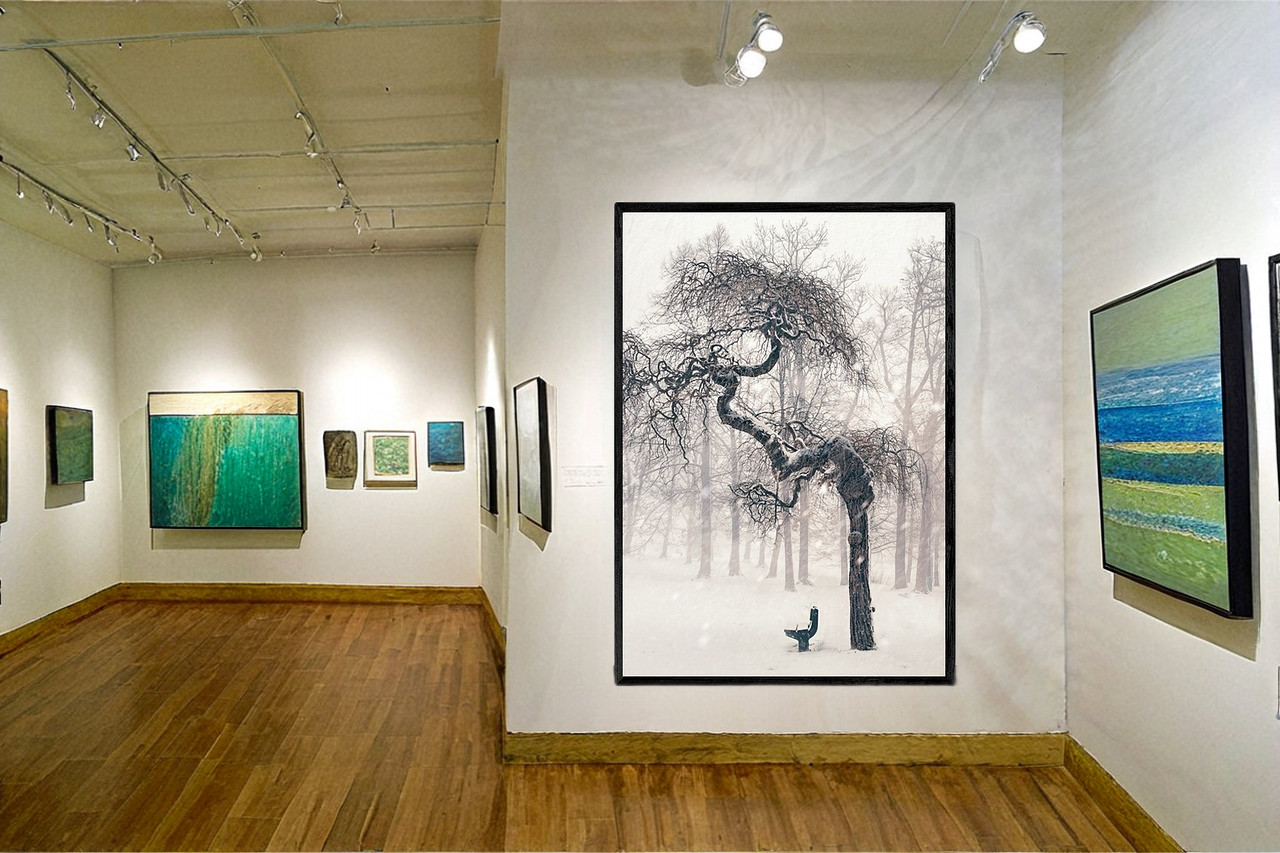
Or, you can invert the result of the extract transformation (invert_true), leaving everything but the picture of the tree:

And then generate a new picture in that space (e_gen_background_replace:prompt_a%20sketch%20of%20a%20tree):

To use a pre-determined background, you can use the extract effect in a layer. In this example, the multiple parameter is used to extract all the cameras in the image, and overlay them on a colorful background.

And this is the inverted result:

Using the extract effect in mask mode, you can achieve interesting results, for example, blend the mask overlay with the colorful image using e_overlay:

If your original image has transparency, you can keep the transparency in the output by using the preserve-alpha flag. For example, keep the transparent background when extracting the watch dial and inverting the result to keep only the strap:
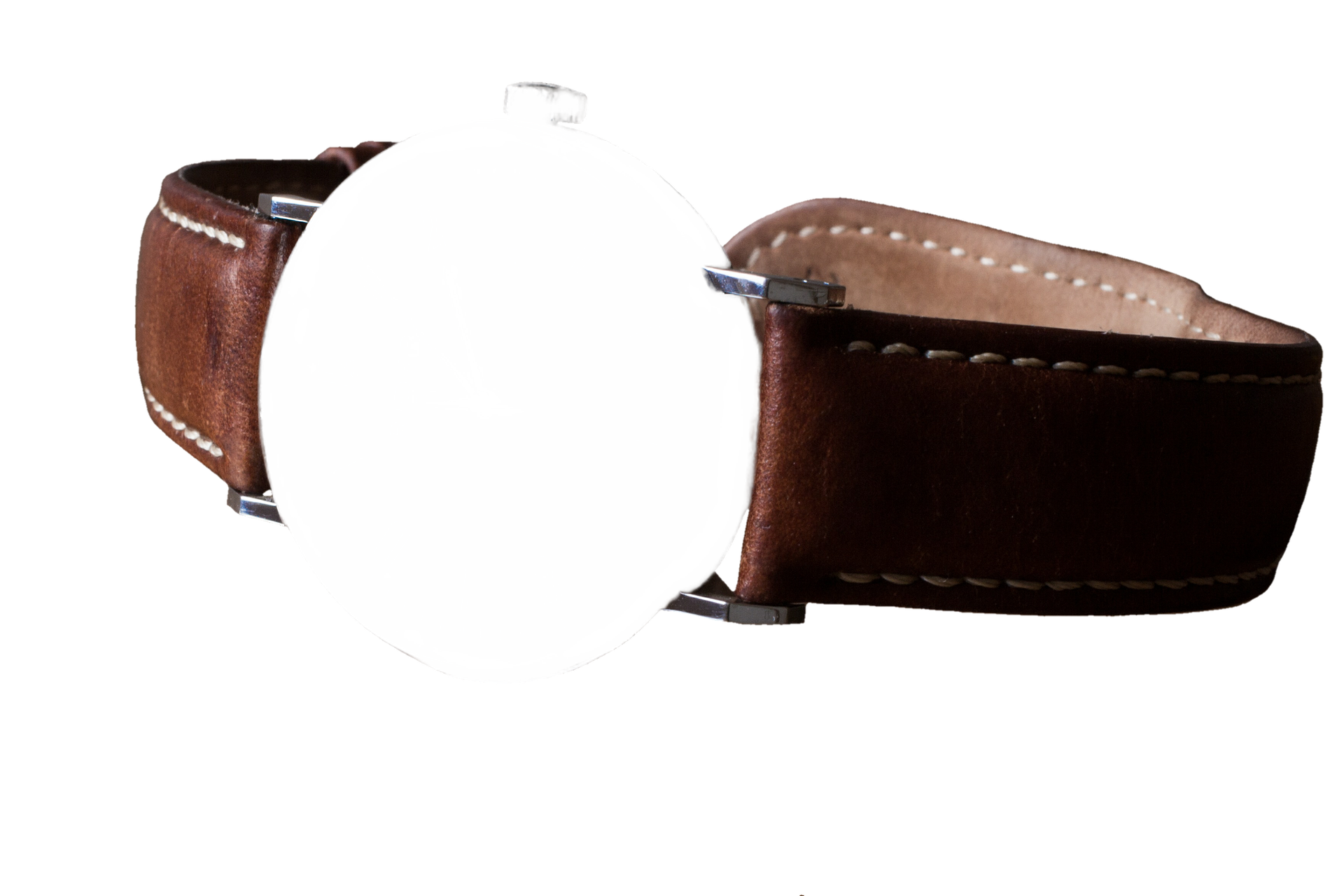
Then you can achieve an interesting effect by using the extract effect again to keep only the dial and making it semi-transparent (e_extract:prompt_$prompt/o_30), then layering the first image, saved to a variable ($bracelet_current), on top of that. You can use a variable for the prompt too so you can easily reuse it ($prompt_!the%20watch%20dial!):

- During processing, large images are downscaled to a maximum of 2048 x 2048 pixels, then upscaled back to their original size, which may affect quality.
- This transformation changes the image's visual appearance by adjusting only the alpha channel, which controls transparency. The underlying RGB channel data remains unchanged and fully preserved, even in areas that become fully transparent.
- When you specify more than one prompt, all the objects specified in each of the prompts will be extracted whether or not
multiple_trueis specified in the URL. - There is a special transformation count for the extract effect.
- The extract effect is not supported for animated images, fetched images or incoming transformations.
- User-defined variables cannot be used for the prompt when more than one prompt is specified.
- When Cloudinary is generating a derived version, you may get a 423 response returned until the version is ready. You can prepare derived versions in advance using an eager transformation.
- When Cloudinary is generating an incoming transformation, you may get a 420 response returned, with status
pendinguntil the asset is ready. - If you're using our Asia Pacific data center, you currently can't apply the extract effect.
See full syntax: e_extract in the Transformation Reference.
Try it out: Content extraction.

- Reshaping and distorting images: Displacement maps, rotation, rounding, and zoompan.
- Image distortion: Perspective warp, arc distortion, and folded canvas effects.
-
Transformation Reference: Full syntax for the
cut_outeffect.
Error
Rate this page:
