 Ask AI
Artistic effects
Last updated: Oct-07-2026
Give your images a distinctive look and feel using Cloudinary's artistic and stylistic effects. You can apply artistic filters, cartoonify images, adjust opacity, pixelate them, apply a sepia tone, add outlines and shadows, and vectorize raster images.
Artistic filters
Apply an artistic filter using the art effect, specifying one of the filters shown.
Available filters
Original image:
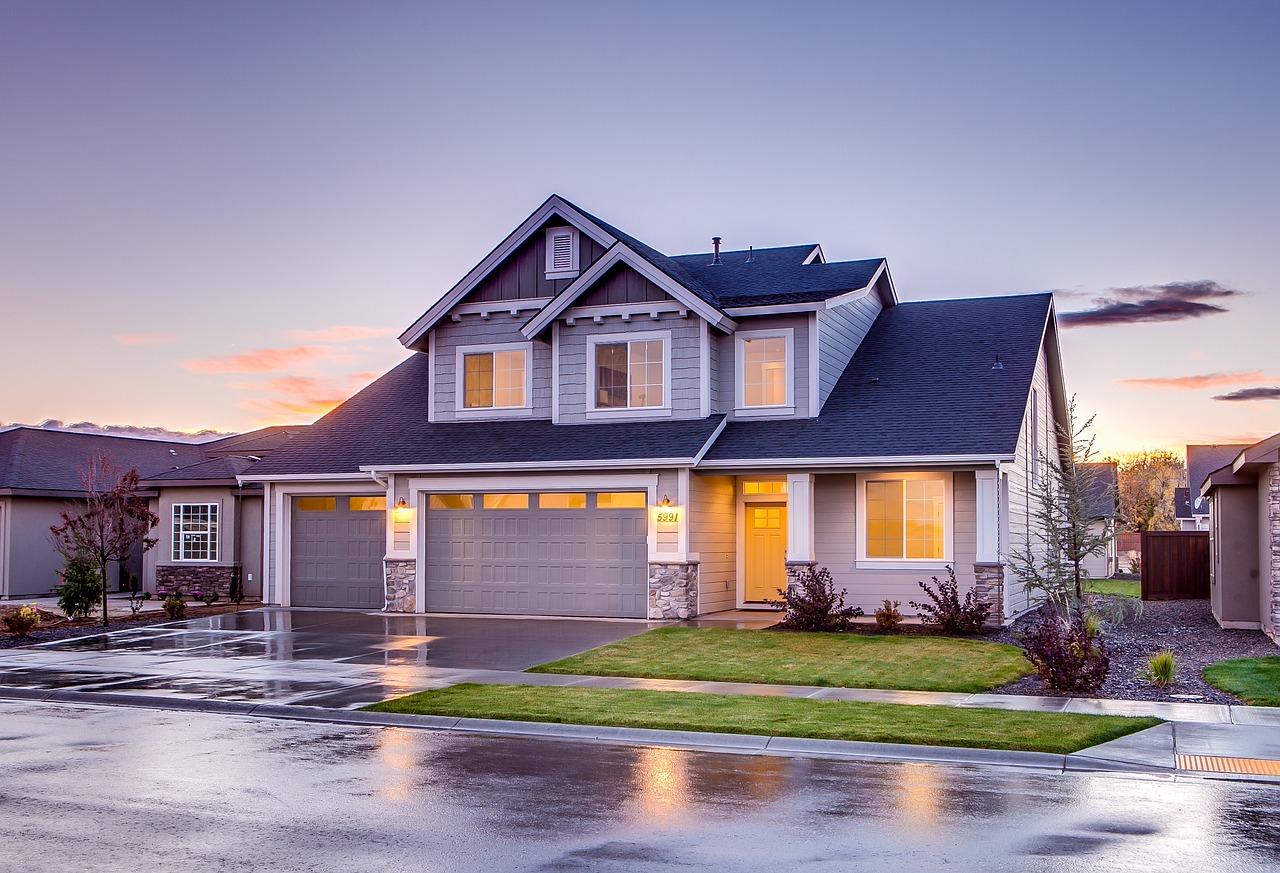
Filters:
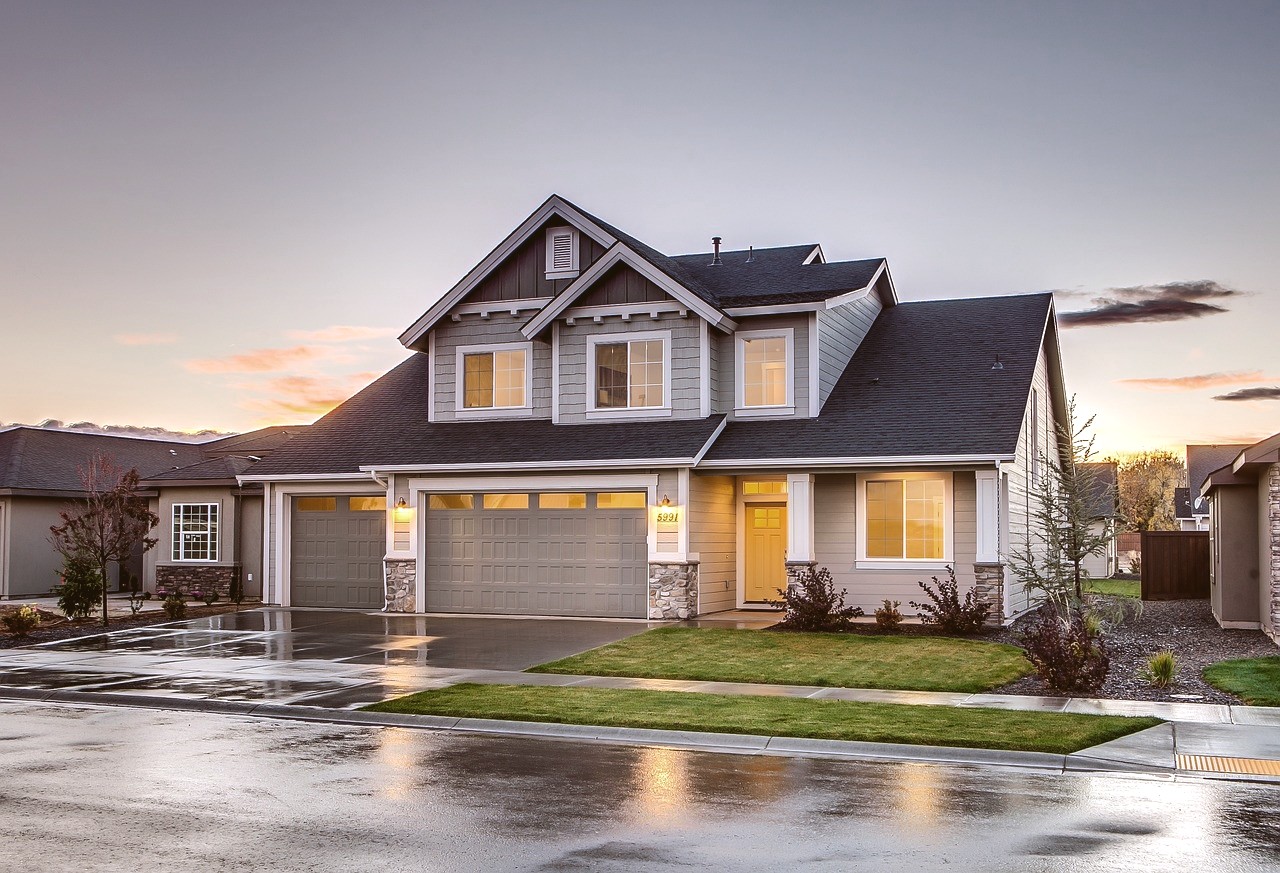 al_dente
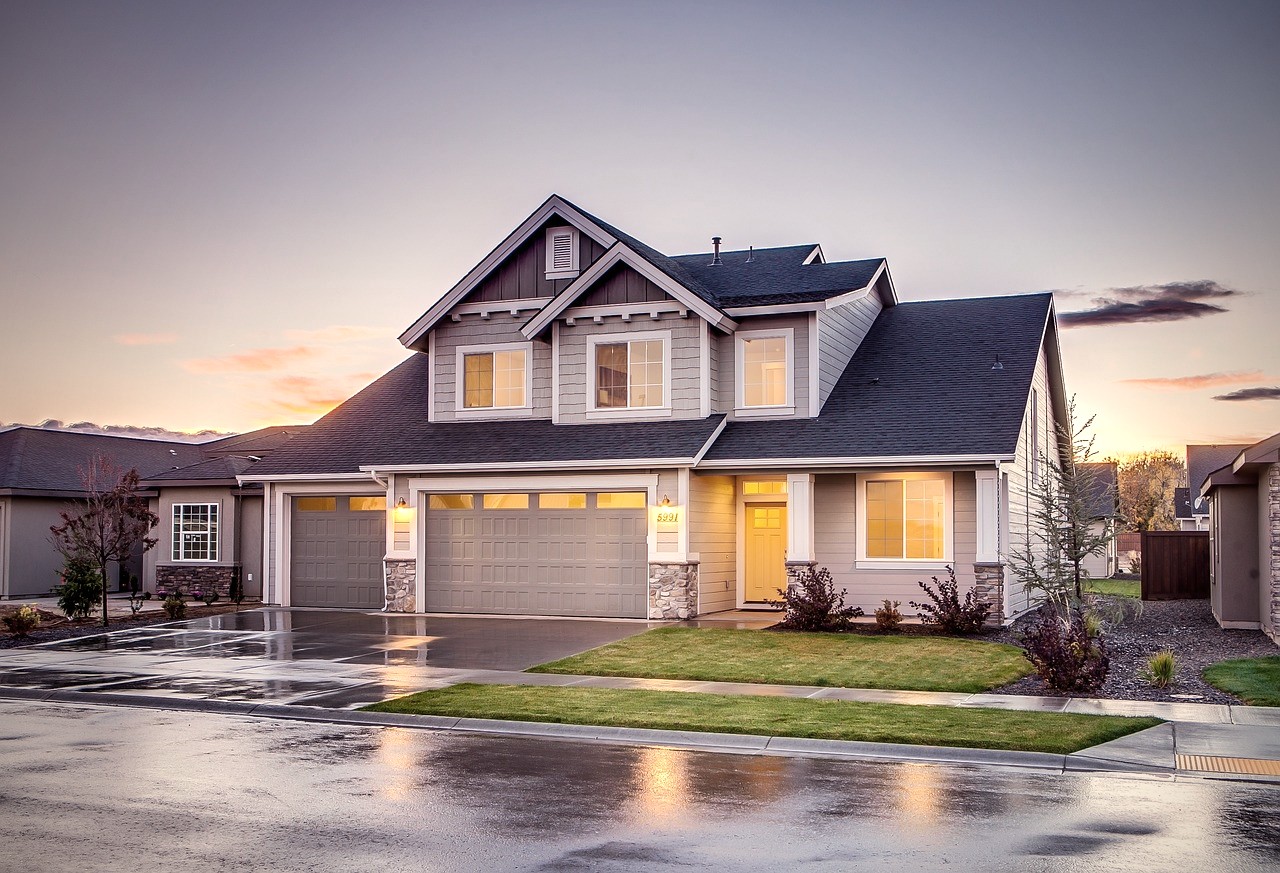 athena
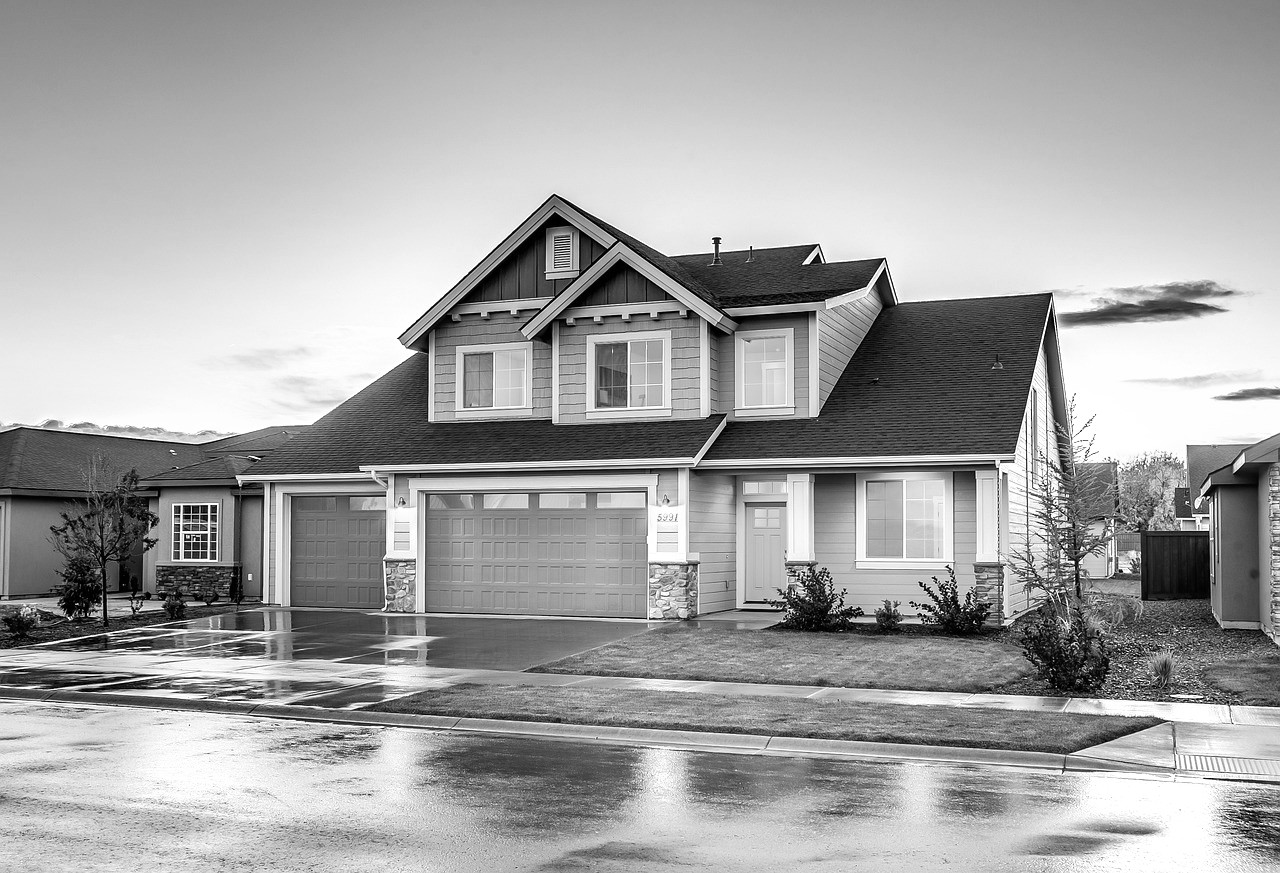 audrey
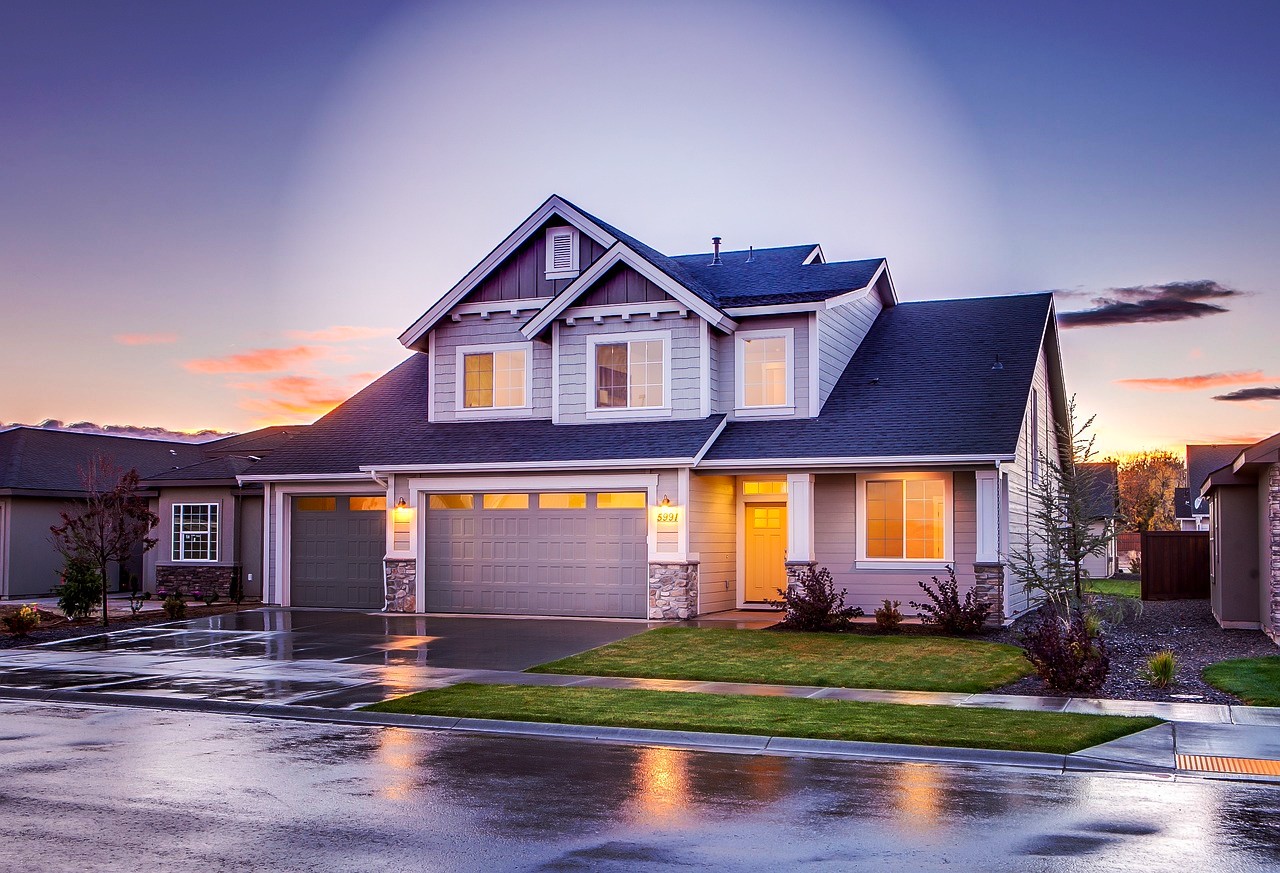 aurora
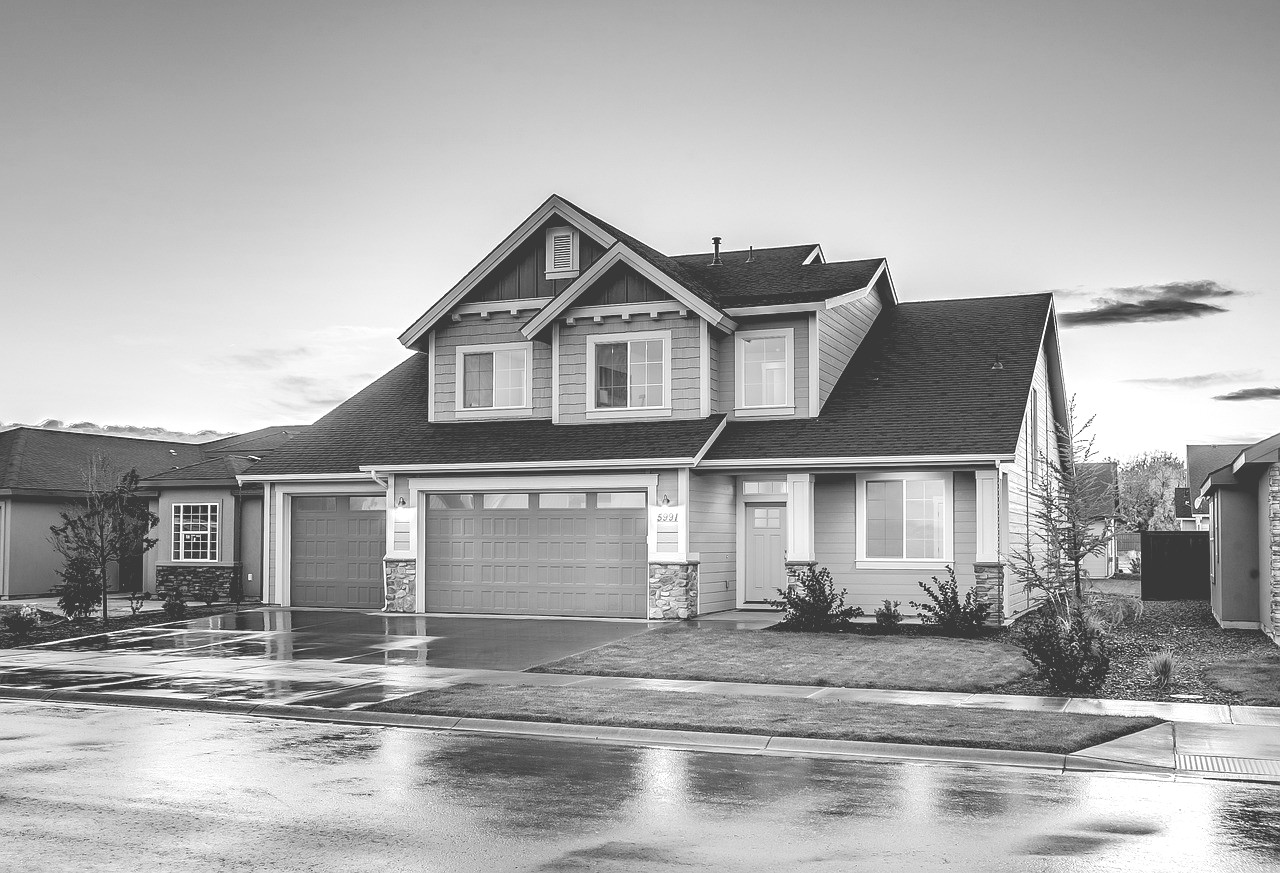 daguerre
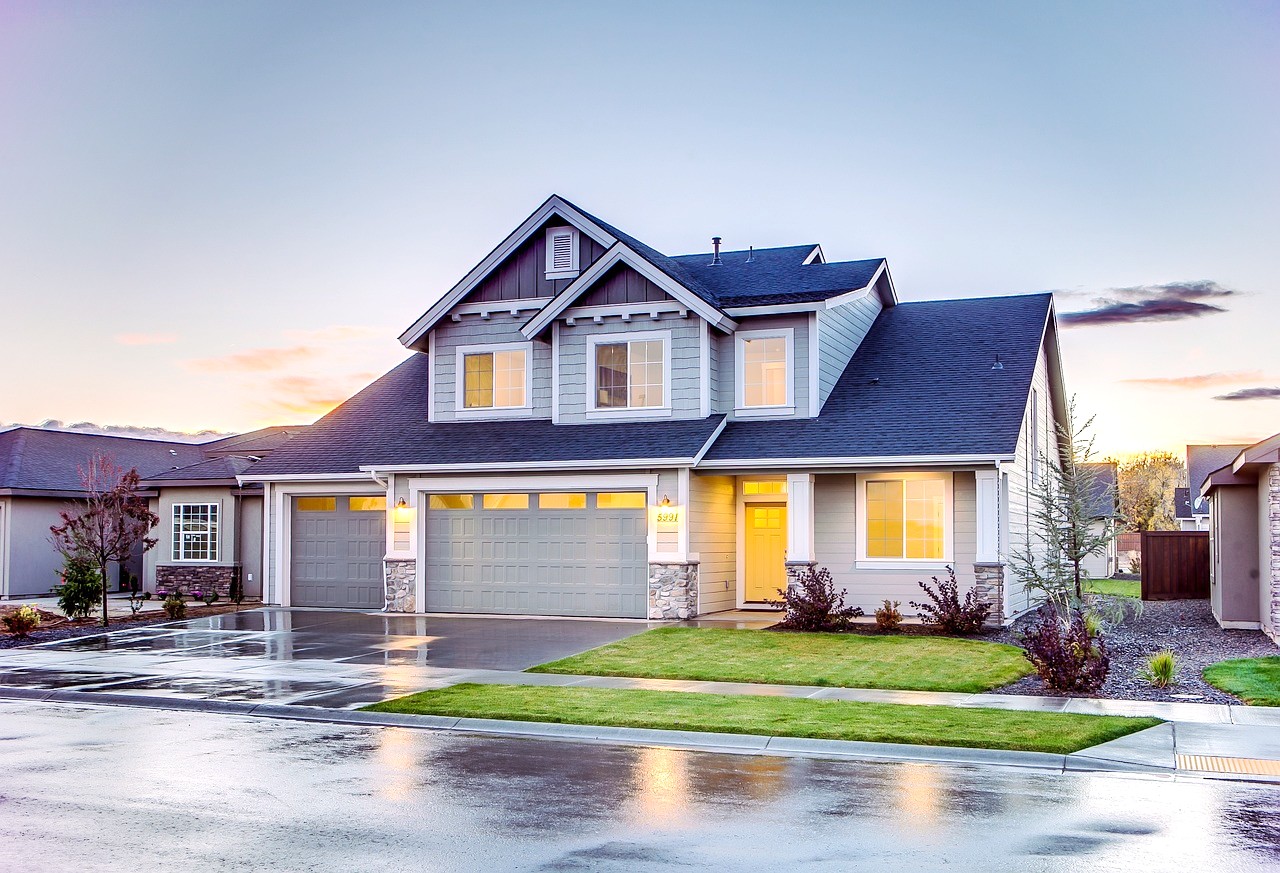 eucalyptus
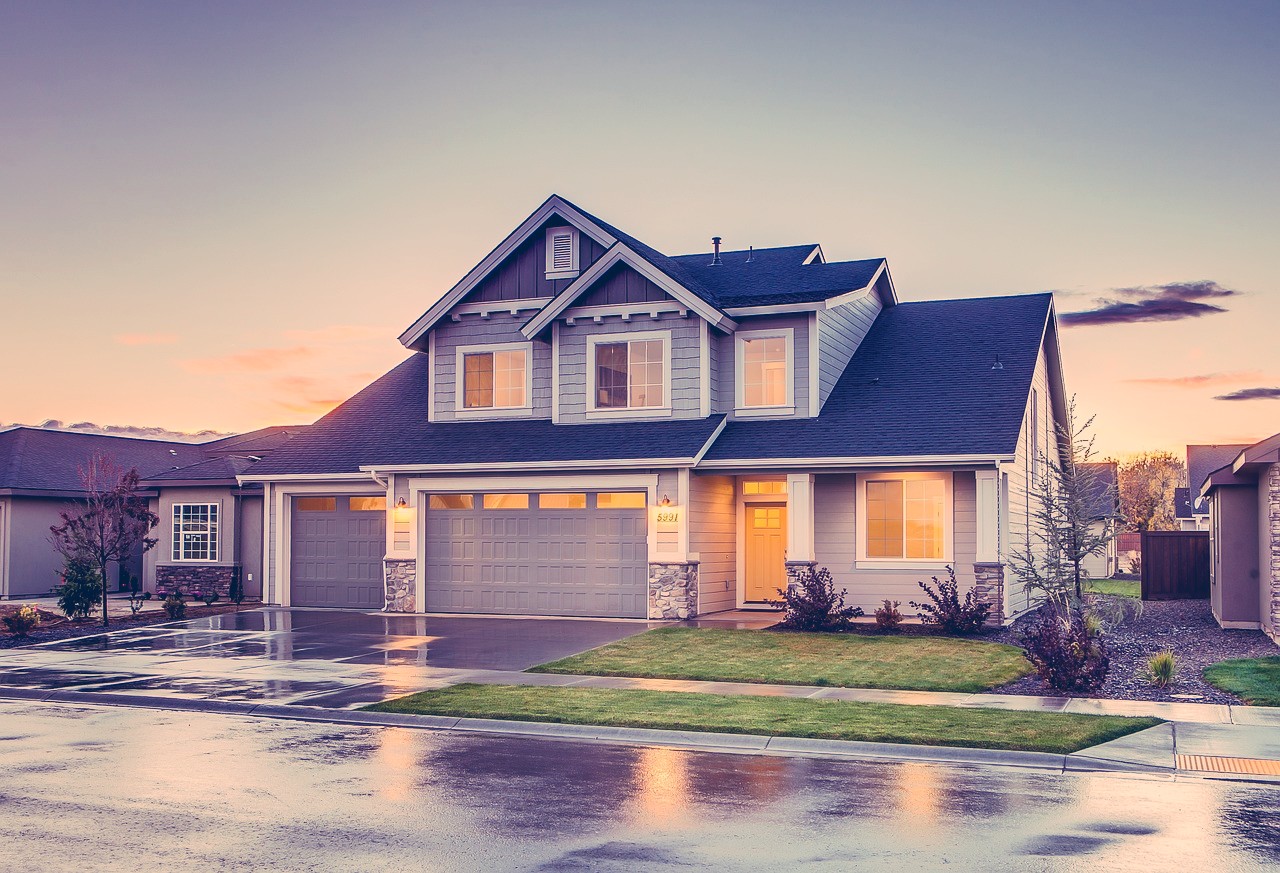 fes
fes
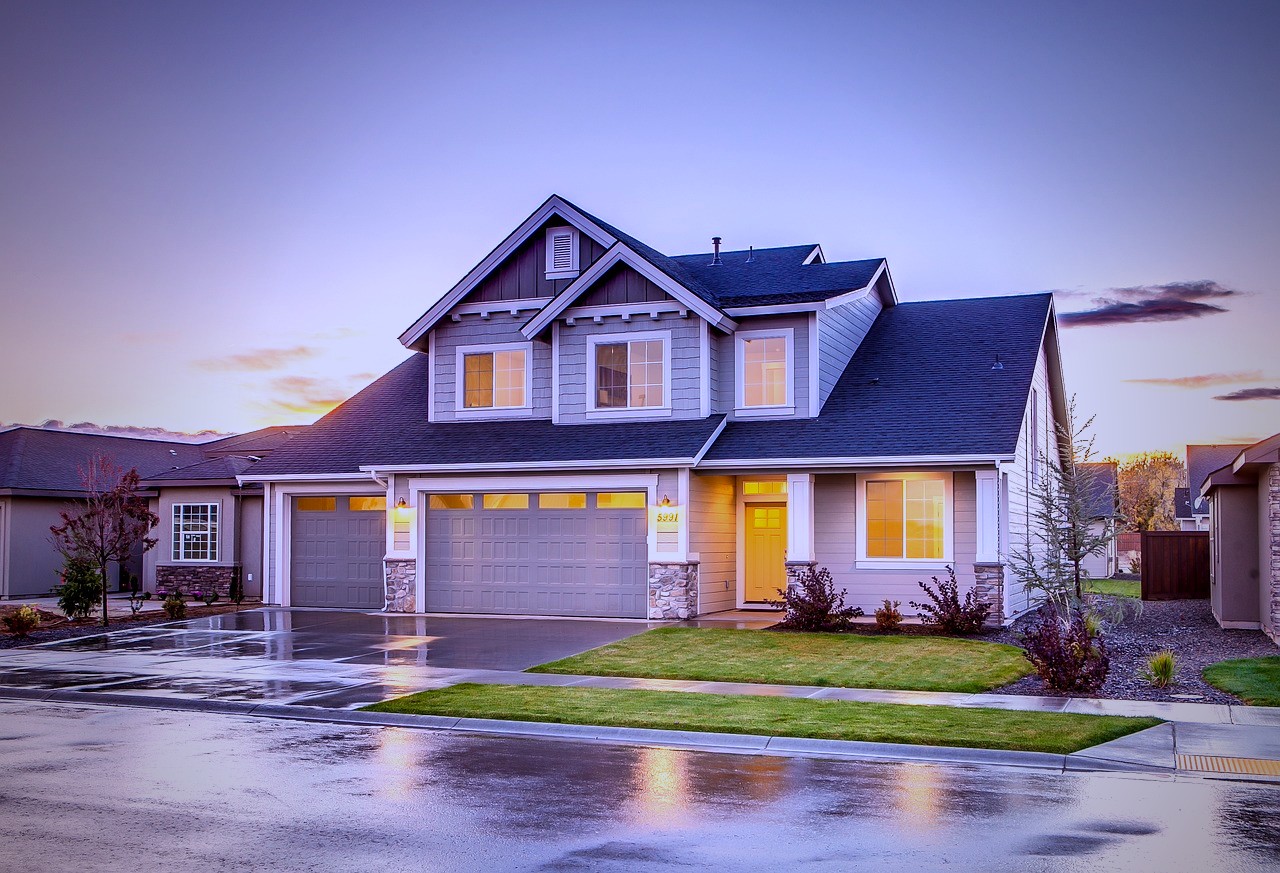 frost
frost
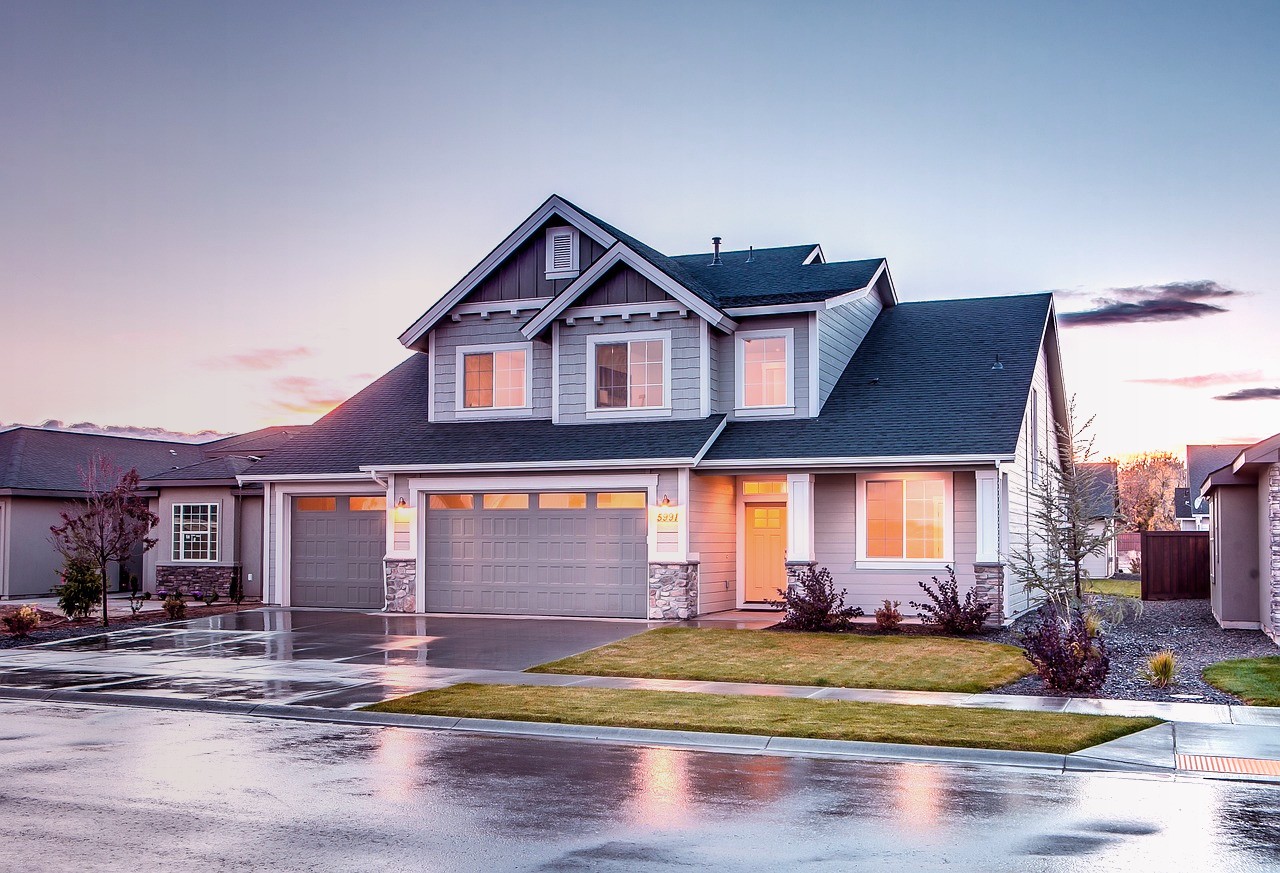 hairspray
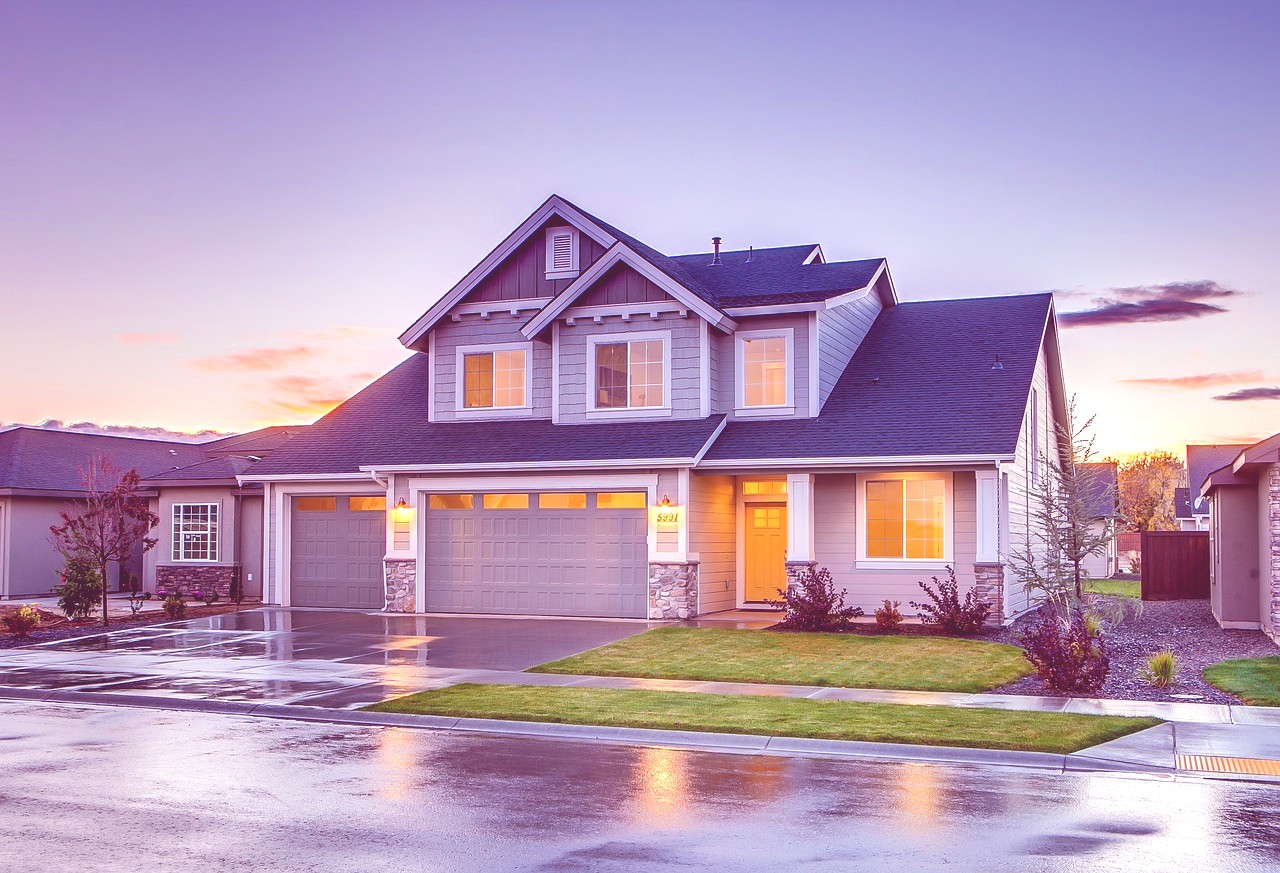 hokusai
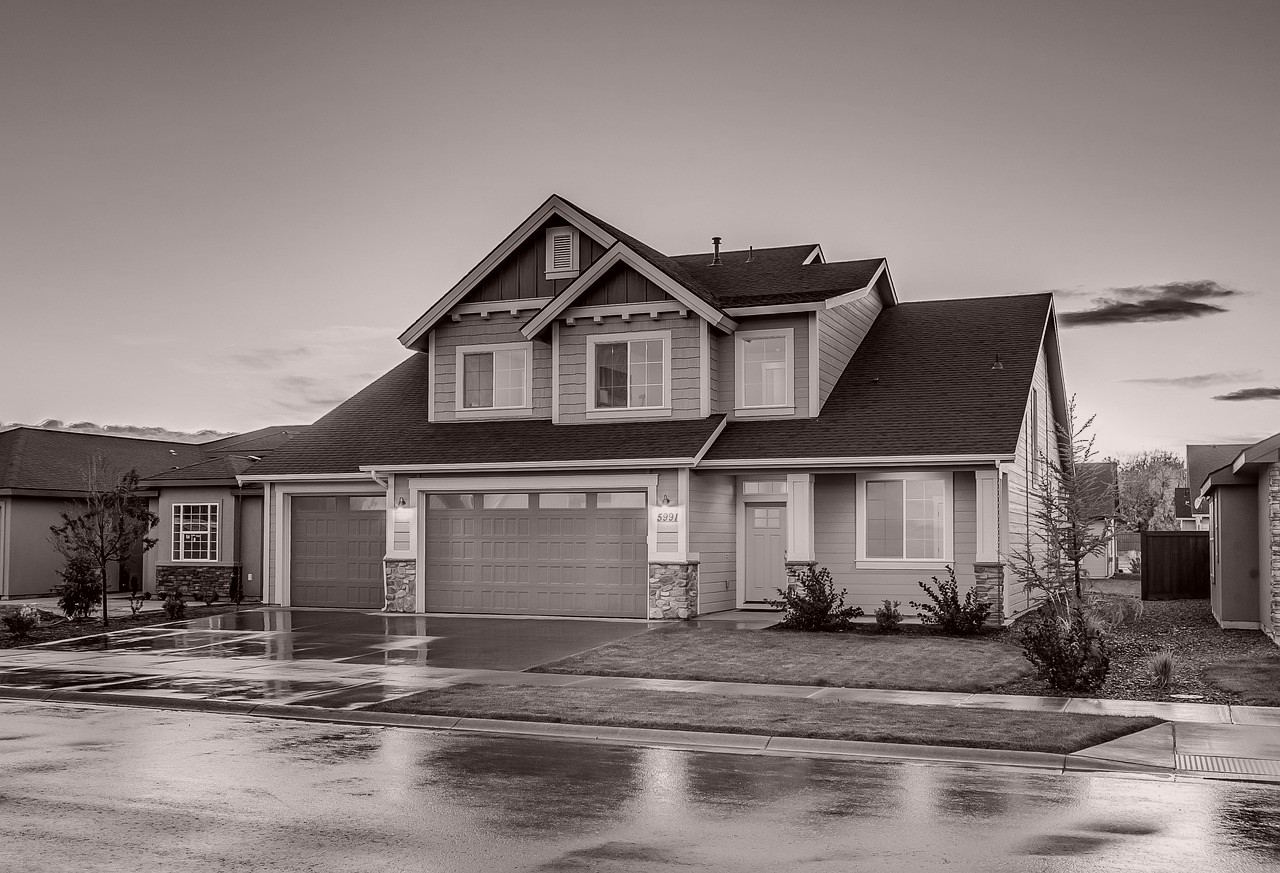 incognito
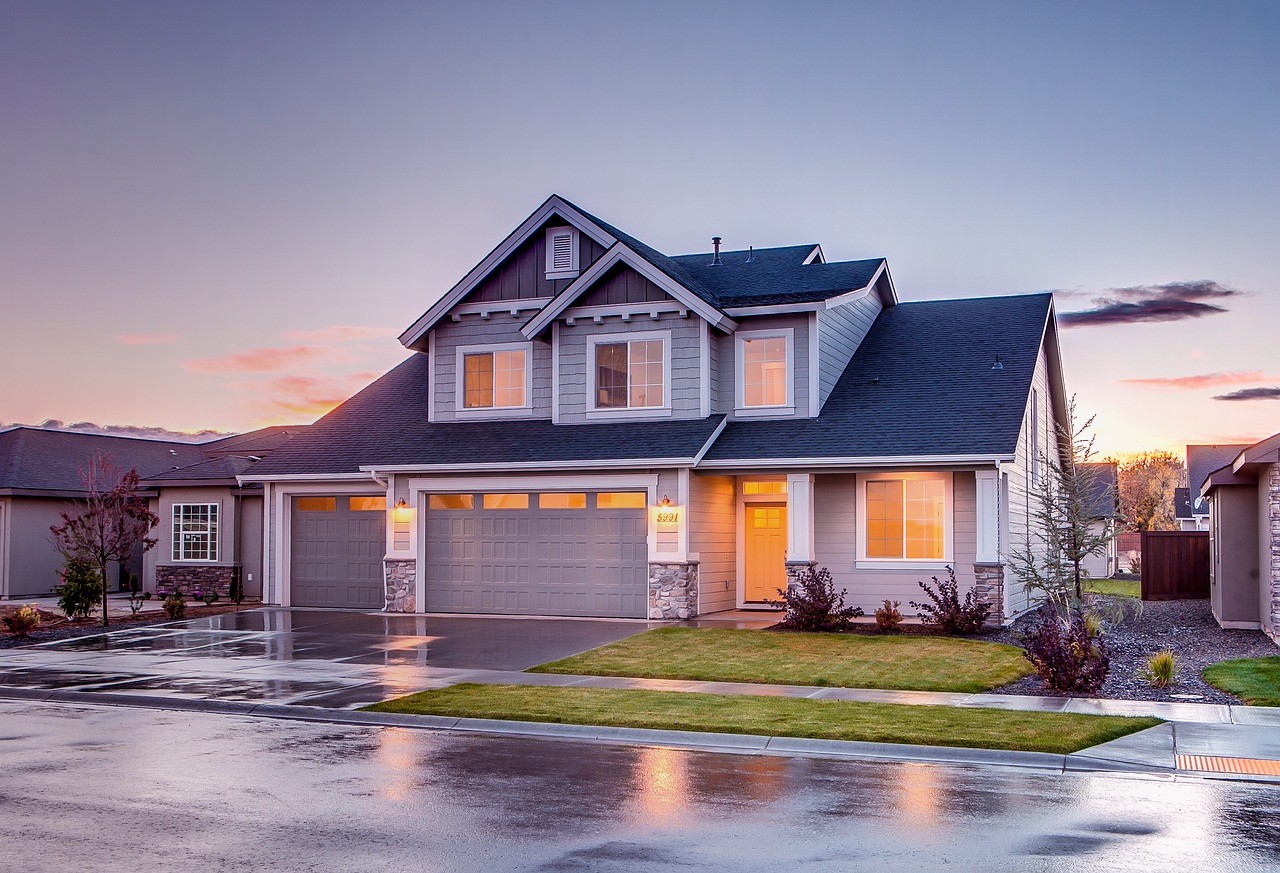 linen
linen
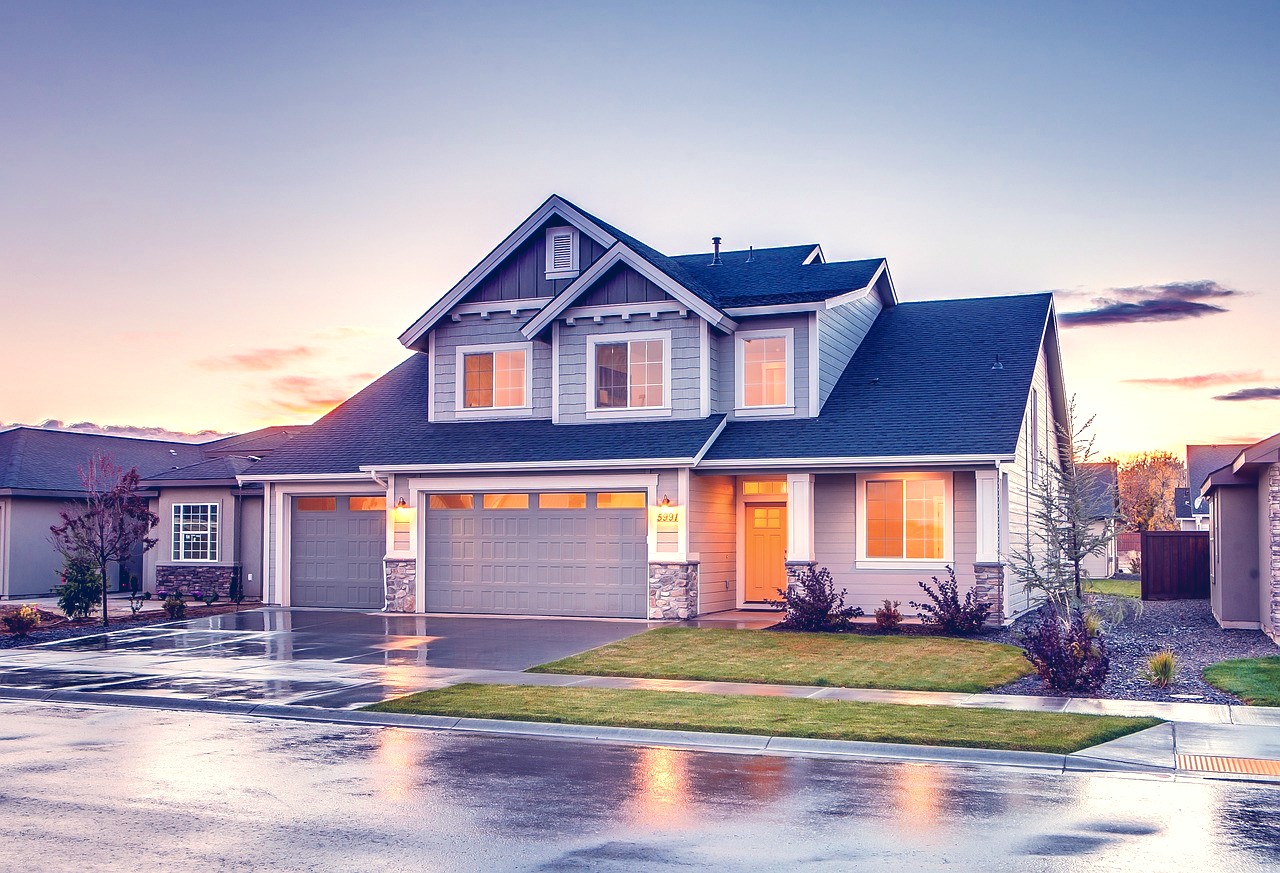 peacock
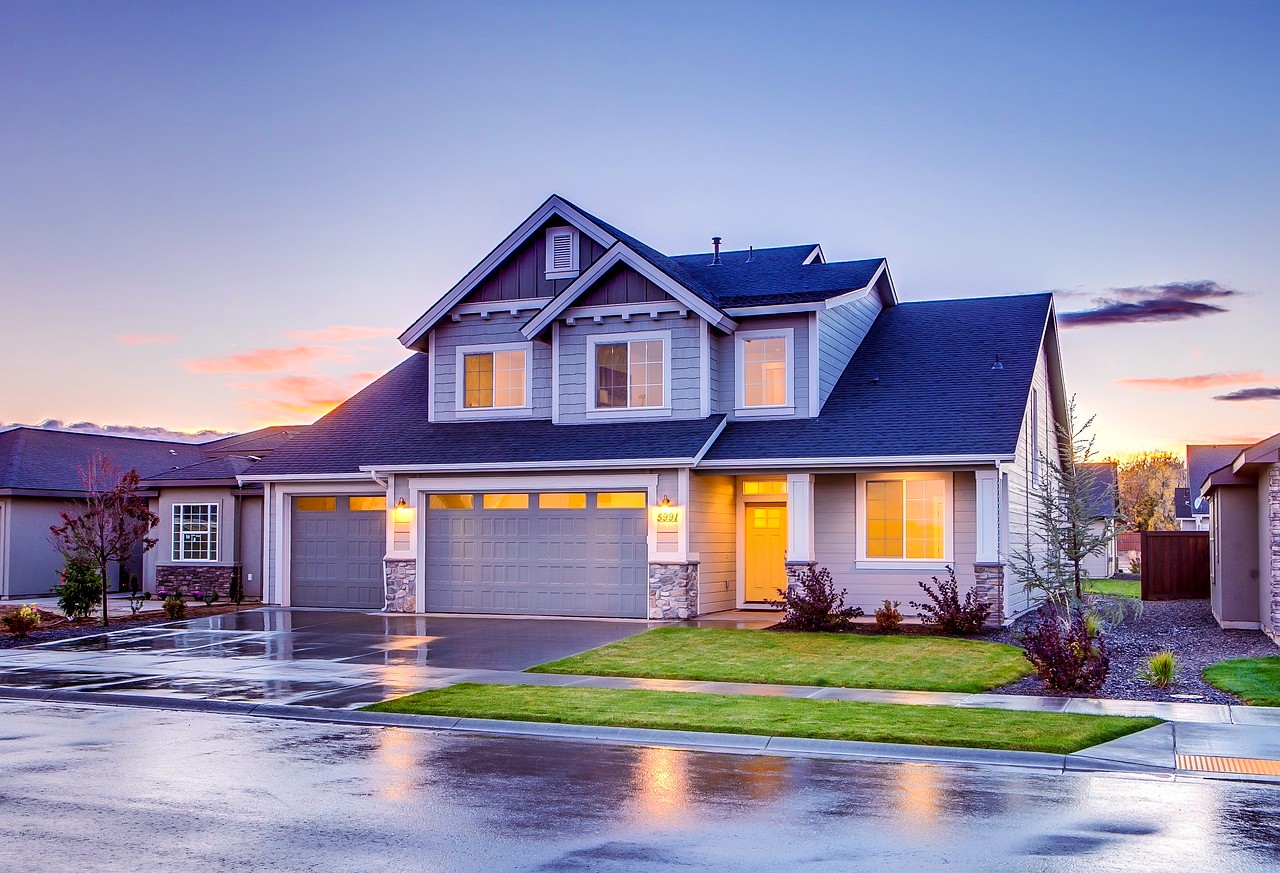 primavera
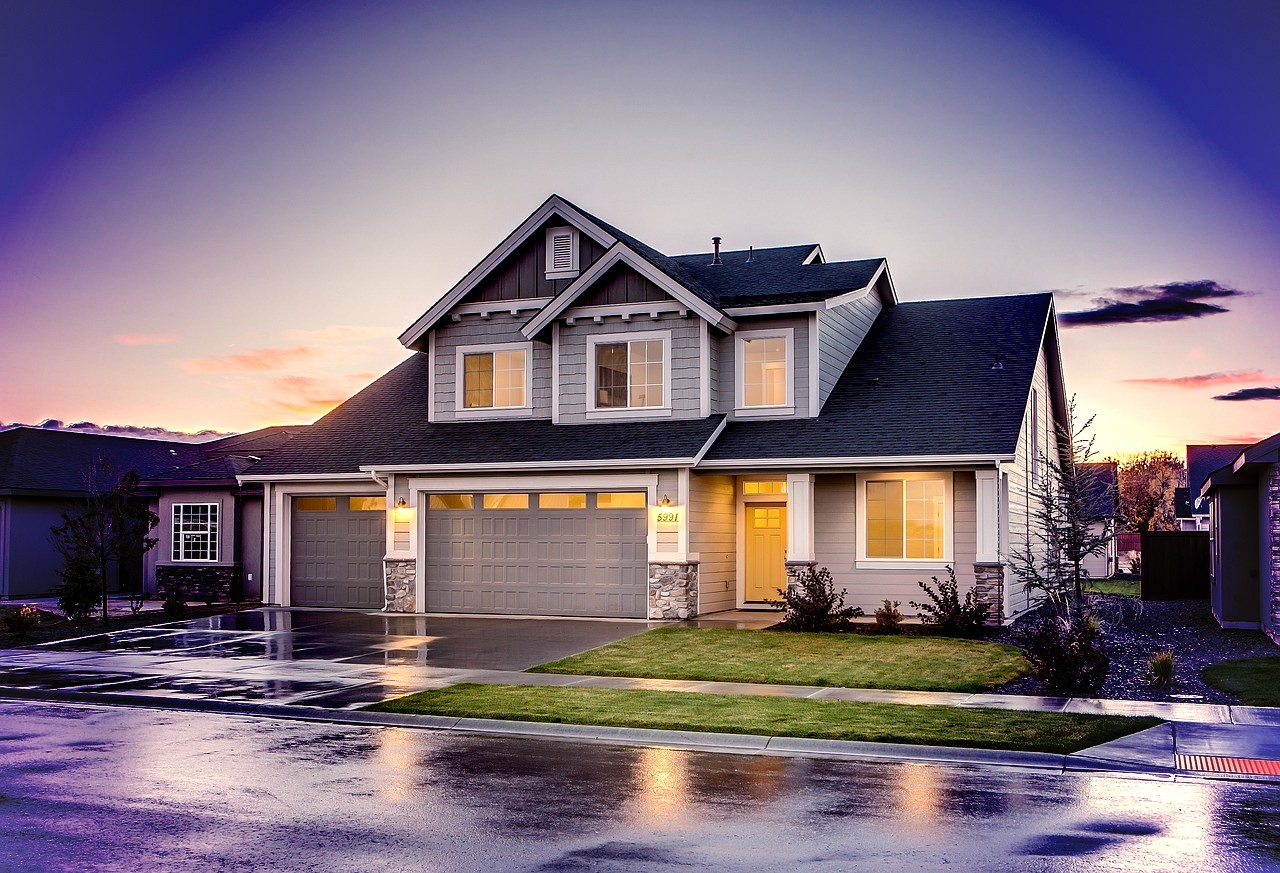 quartz
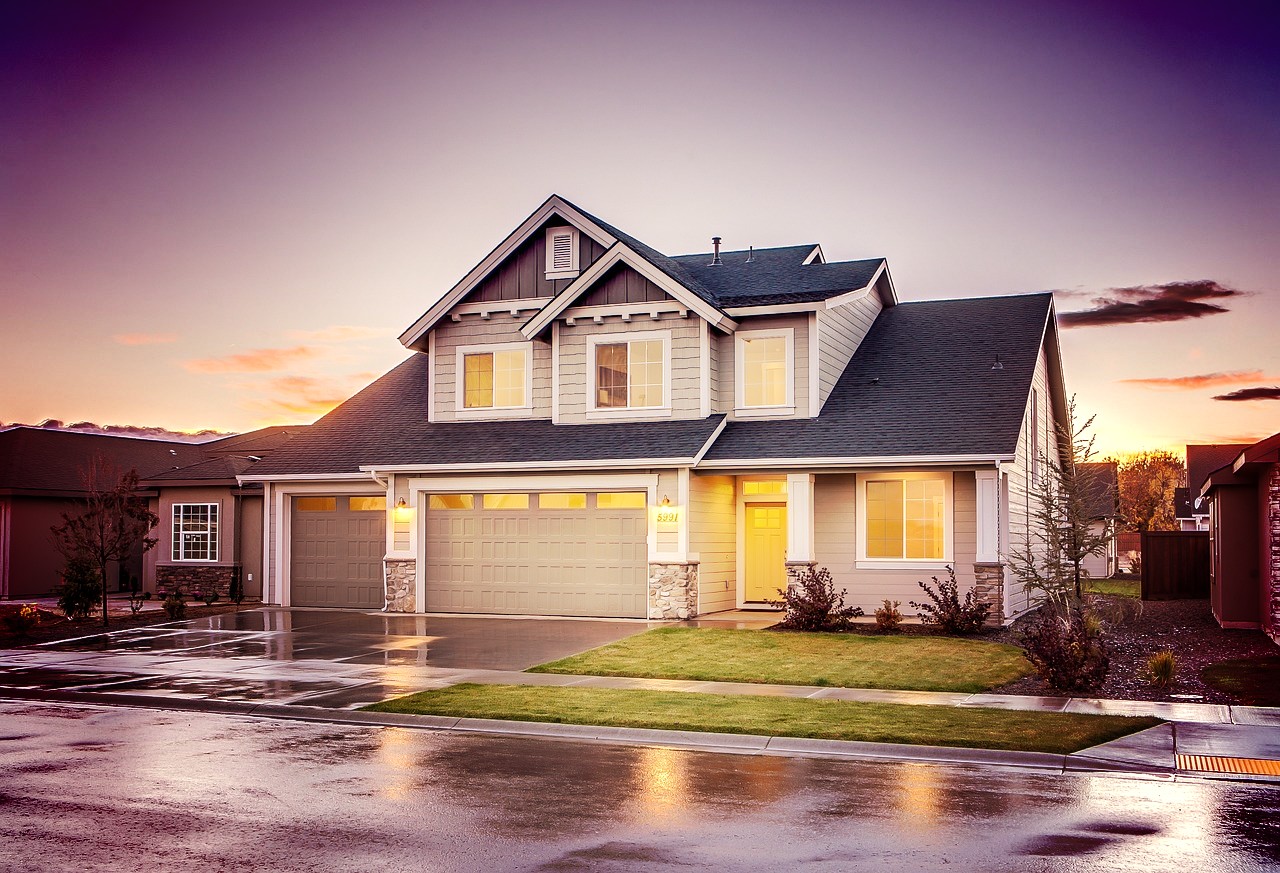 red_rock
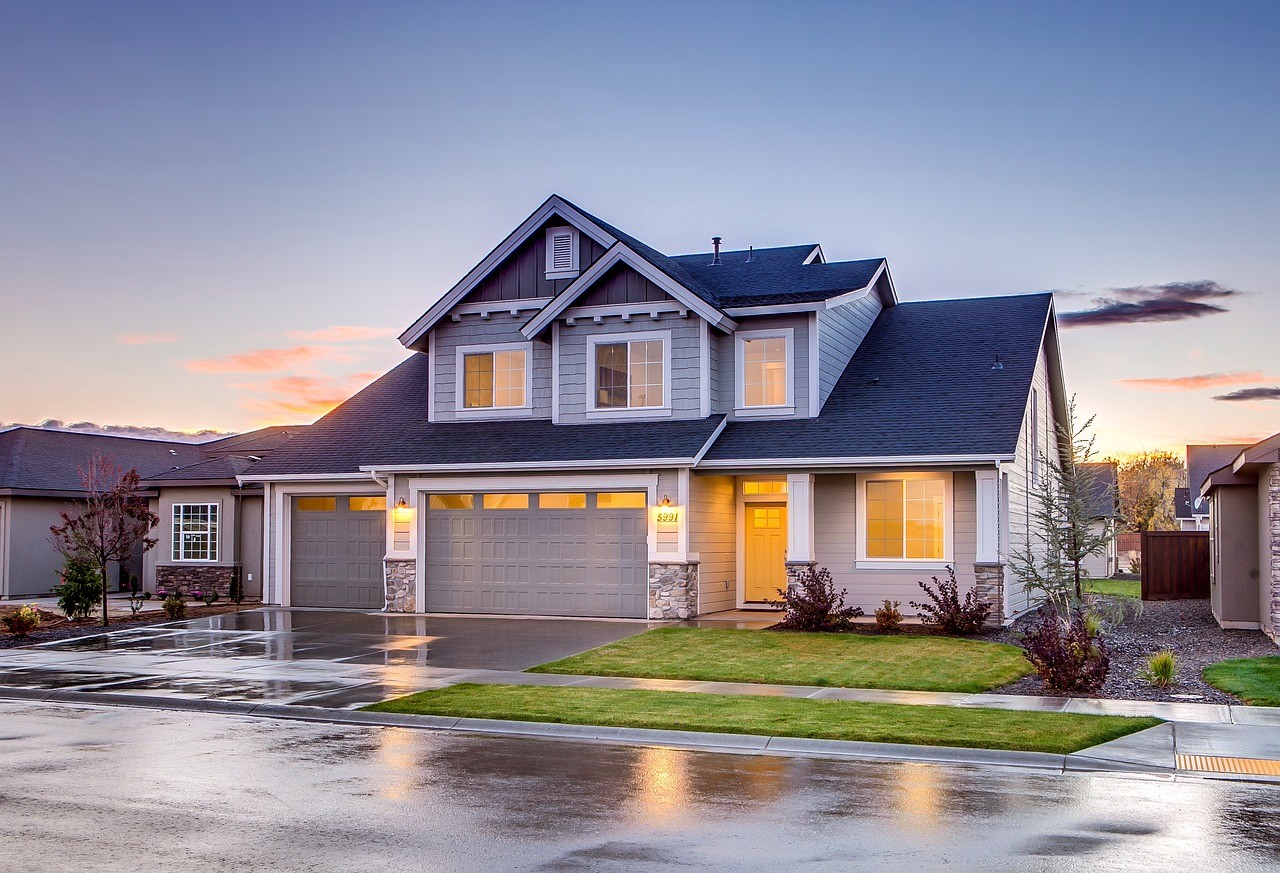 refresh
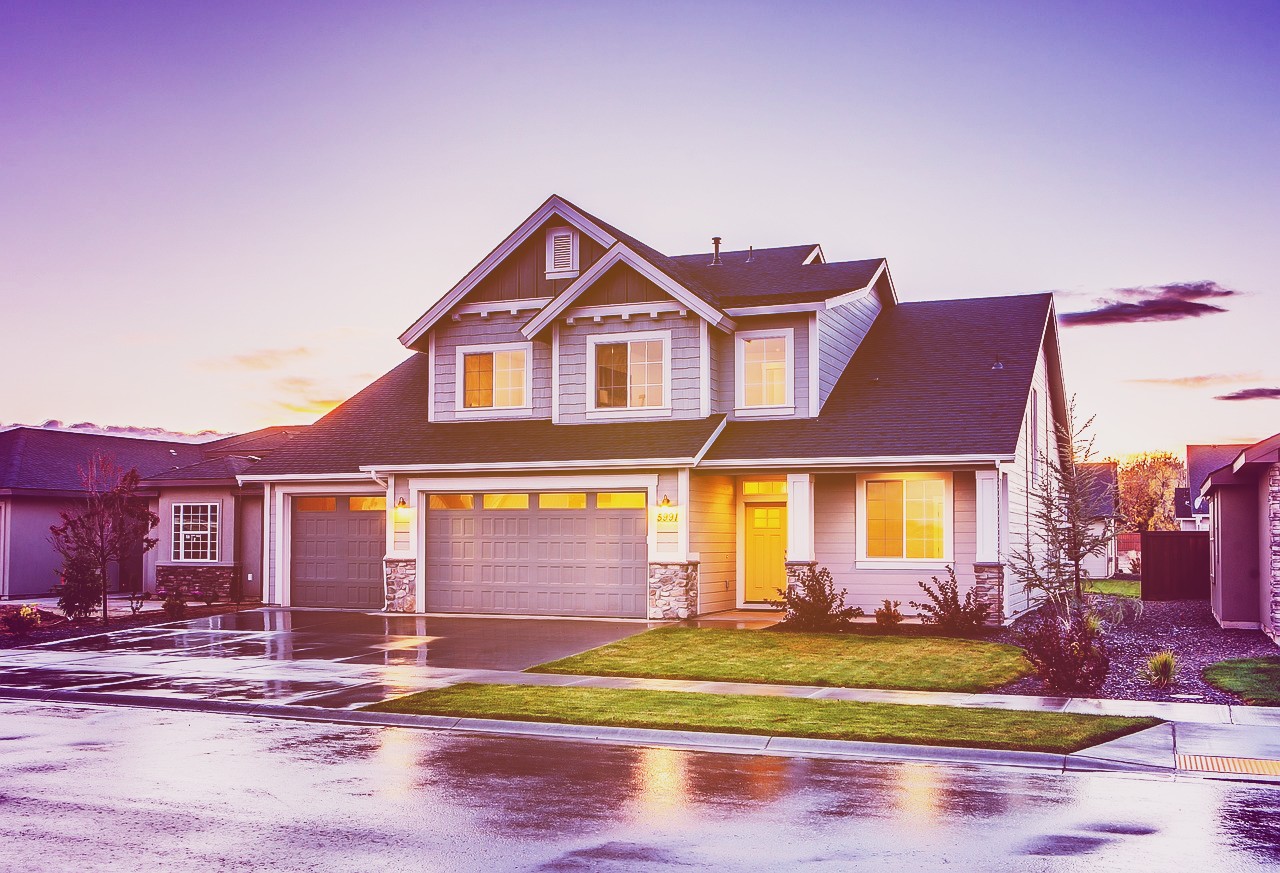 sizzle
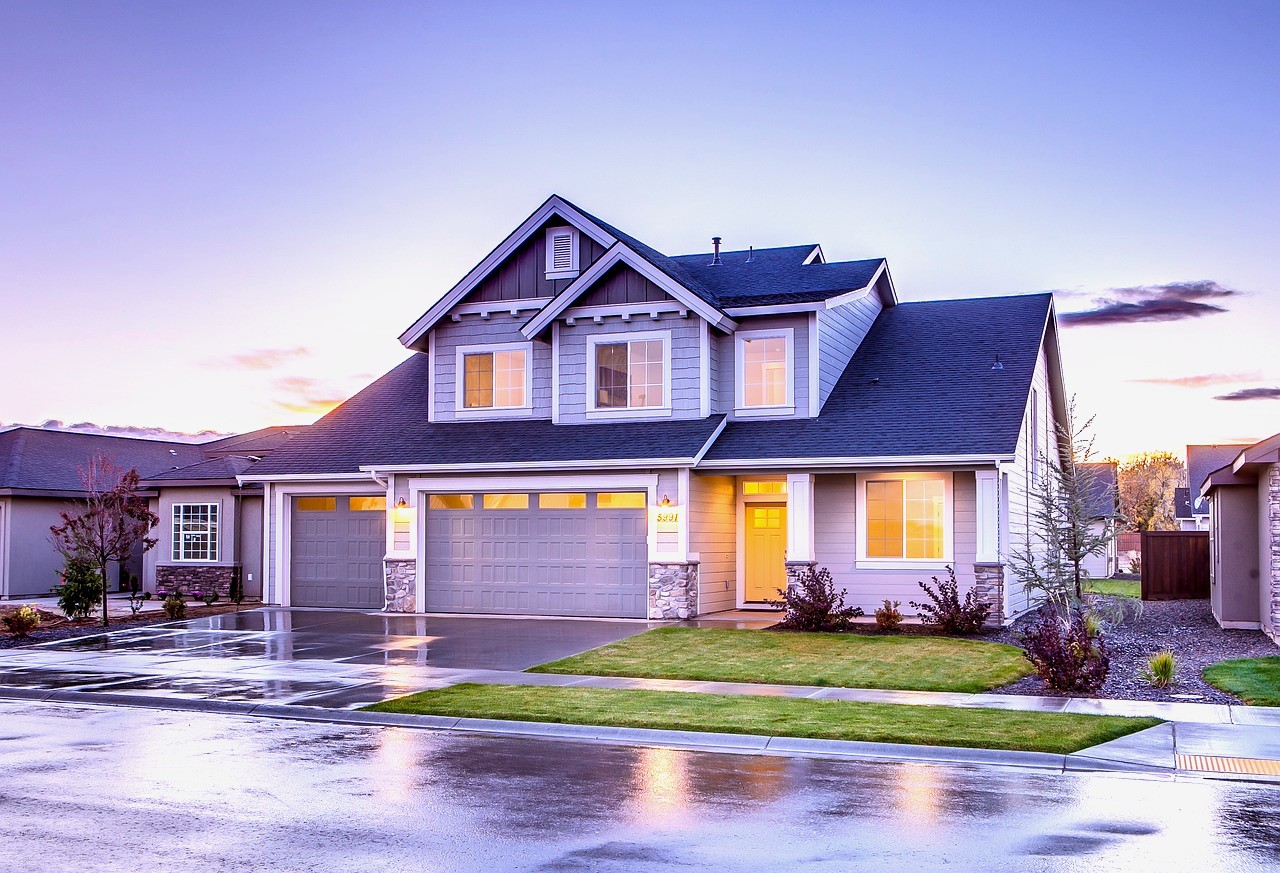 sonnet
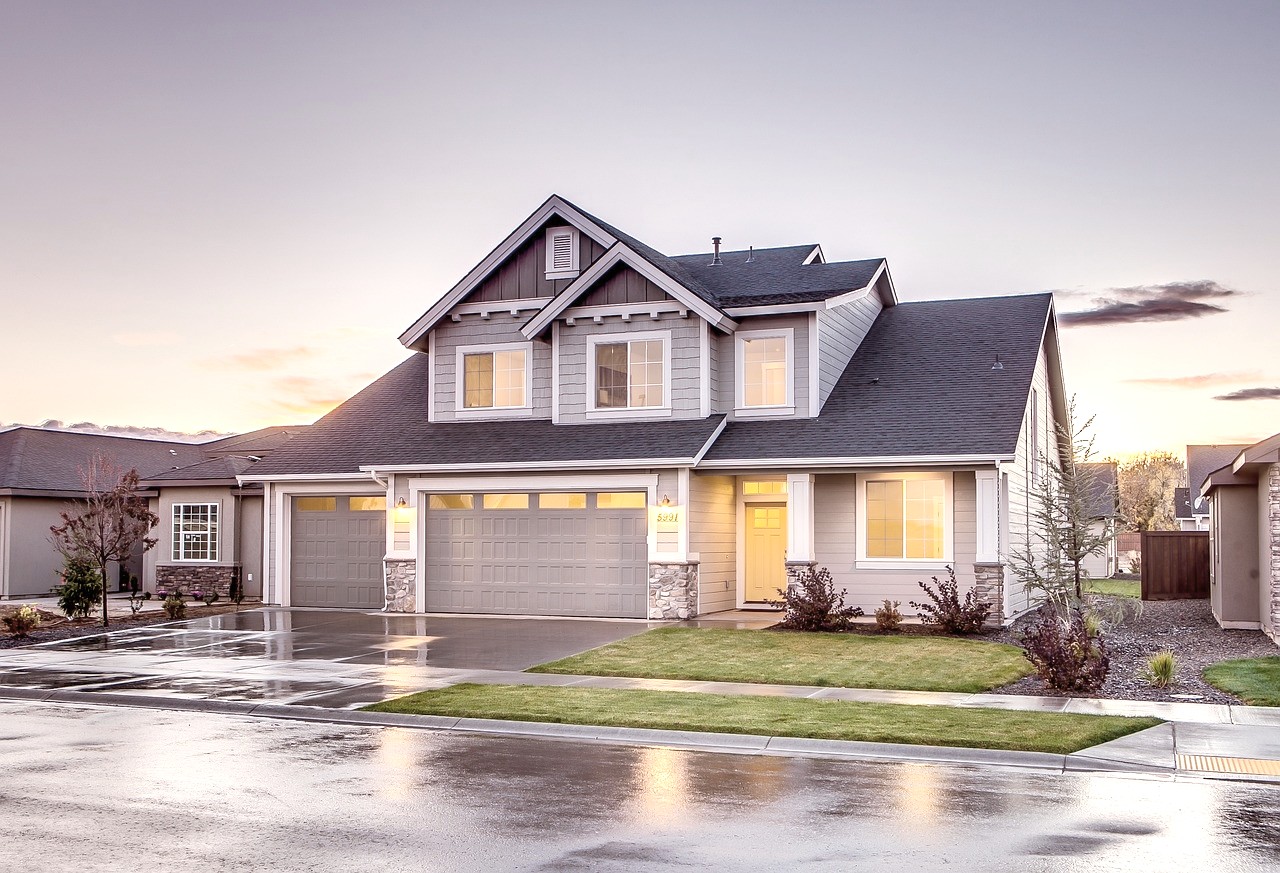 ukulele
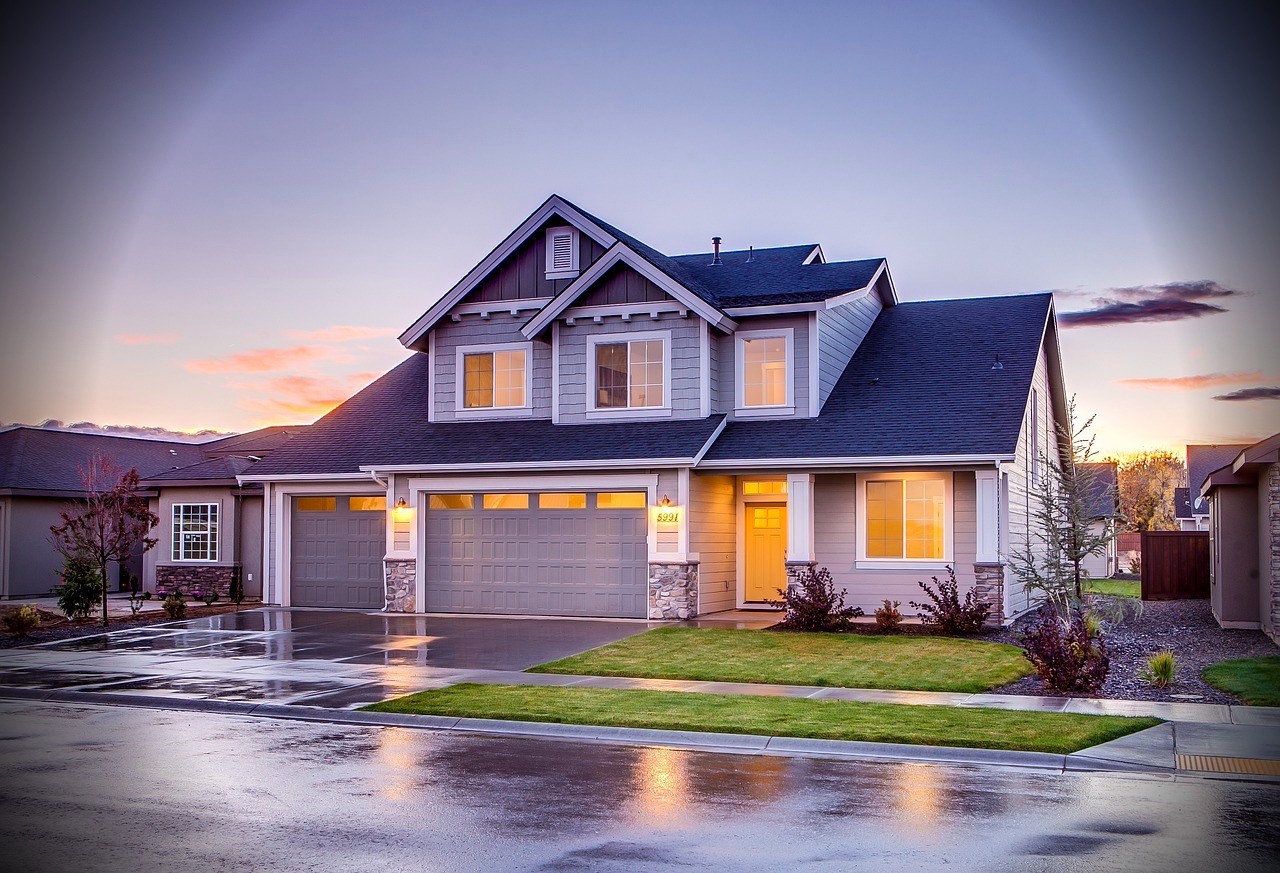 zorro
zorro
See full syntax: e_art in the Transformation Reference.
Cartoonify
Make an image look more like a cartoon using the cartoonify effect.
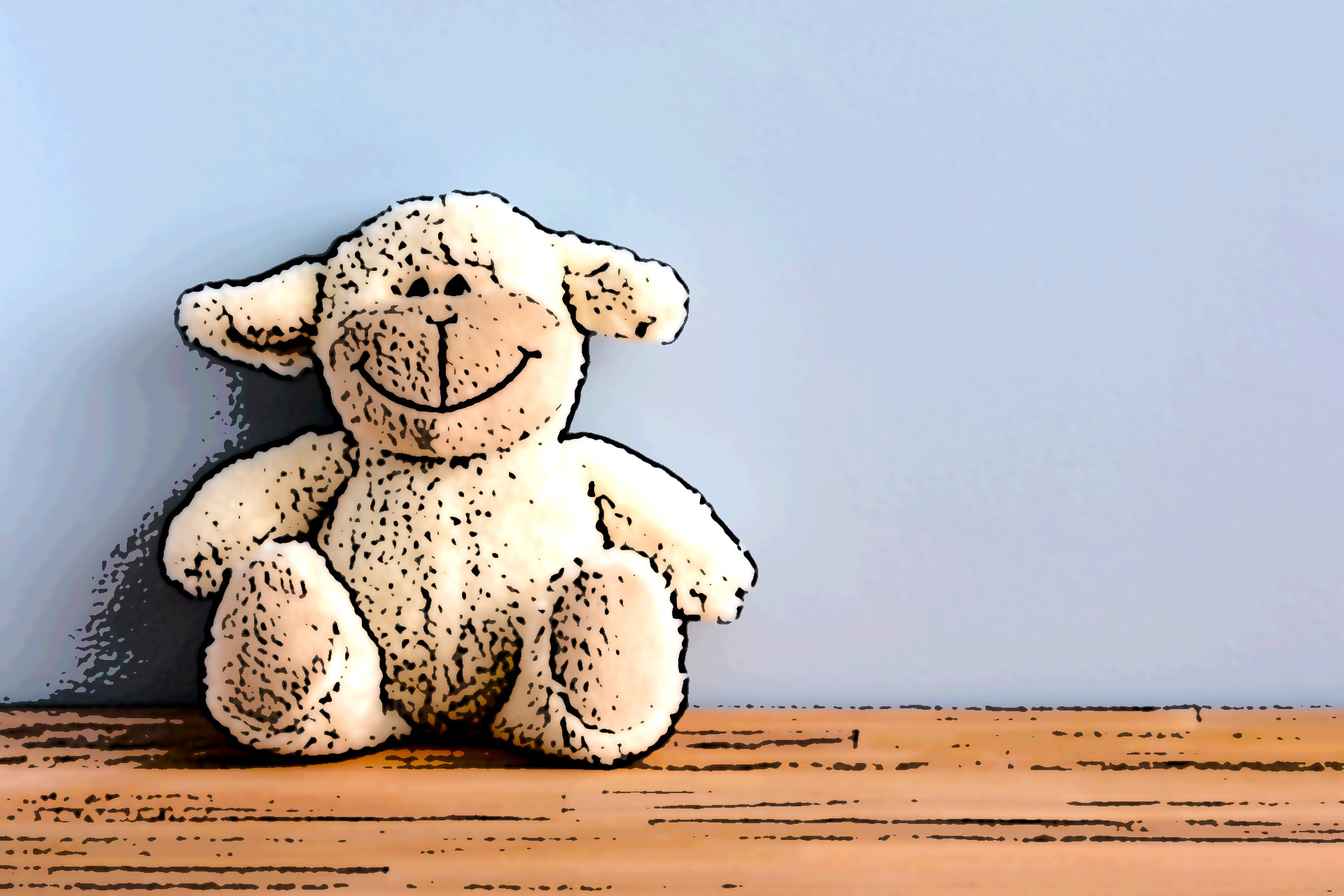
See full syntax: e_cartoonify in the Transformation Reference.
Opacity
Adjust the opacity of an image using the opacity transformation (o in URLs). Specify a value between 0 and 100, representing the percentage of transparency, where 100 means completely opaque and 0 is completely transparent. In this case the image is delivered with 30% opacity:
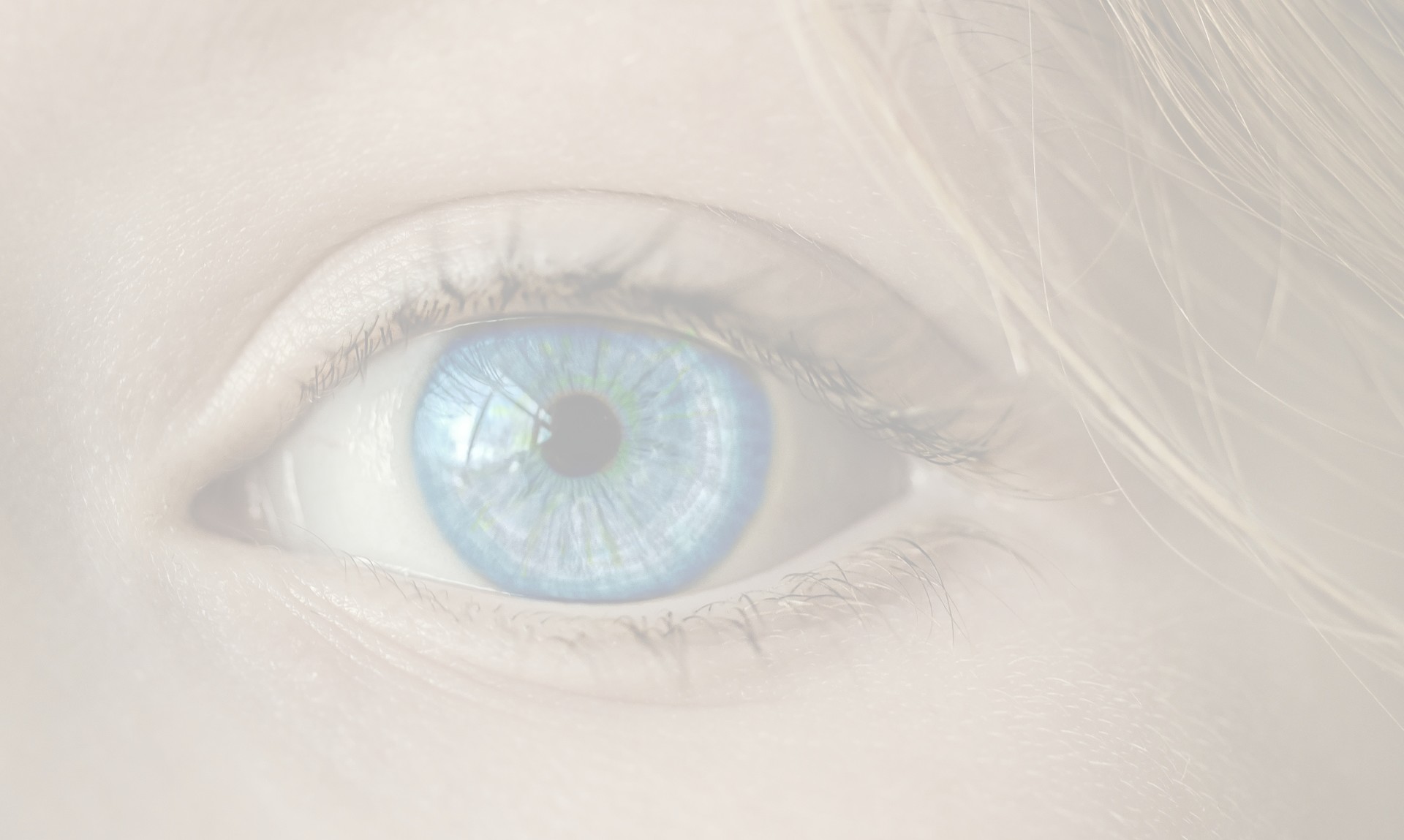
See full syntax: o (opacity) in the Transformation Reference.
Pixelate
Pixelate an image using the pixelate effect.
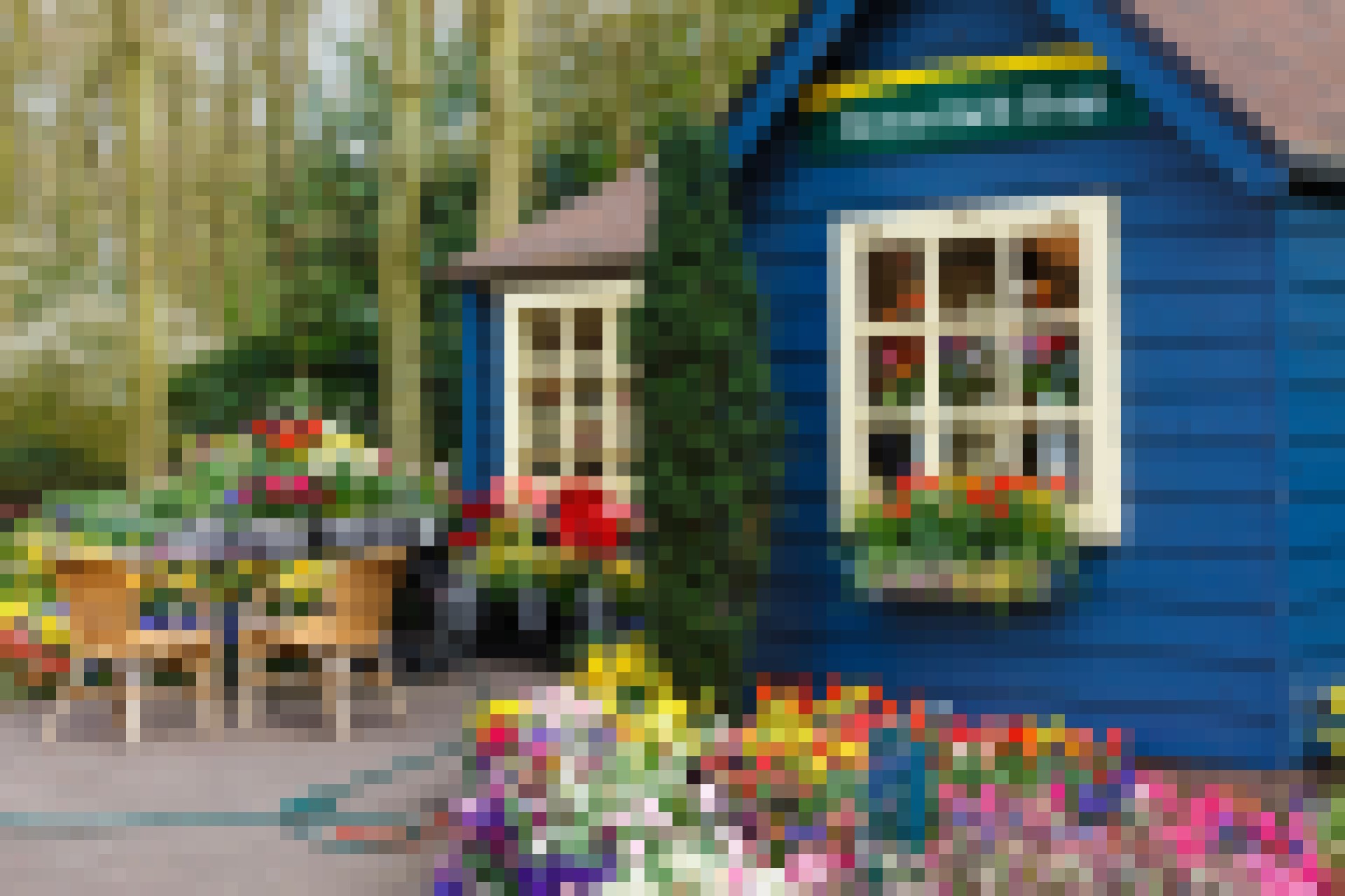
See full syntax: e_pixelate in the Transformation Reference.
Sepia
Change the colors of an image to shades of sepia using the sepia effect.
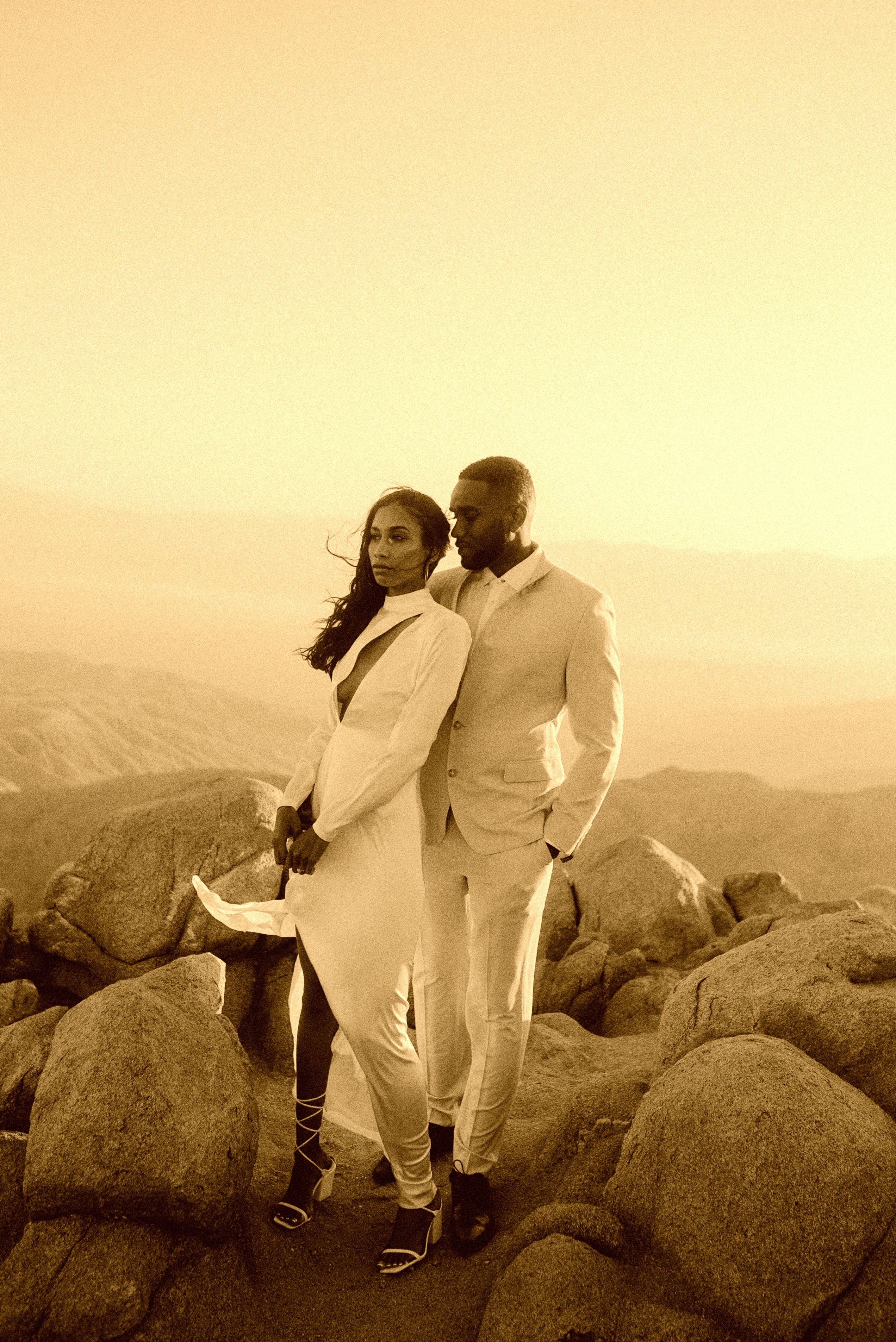
See full syntax: e_sepia in the Transformation Reference.
Vignette
Fade the edges of images into the background using the vignette effect.
See full syntax: e_vignette in the Transformation Reference.
Outline
The outline effect (e_outline in URLs) enables you to add an outline to your transparent images. The parameter can also be passed additional values as follows:
-
mode - how to apply the outline effect which can be one of the following values:
inner,inner_fill,outer,fill. Default value:innerandouter. -
width - the first integer supplied applies to the thickness of the outline in pixels. Default value:
5. Range: 1 - 100 -
blur - the second integer supplied applies to the level of blur of the outline. Default value:
0. Range: 0 - 2000
 Original
 e_outline
 e_outline:inner
 e_outline:inner_fill
 e_outline:outer
 e_outline:fill
Use the color parameter (co in URLs) to define a new color for the outline (the default is black). The color can be specified as an RGB hex triplet (e.g., rgb:3e2222), a 3-digit RGB hex (e.g., rgb:777) or a named color (e.g., green). For example, to add an orange outline:

You can also add a multi-colored outline by creating successive outline effect components. For example:
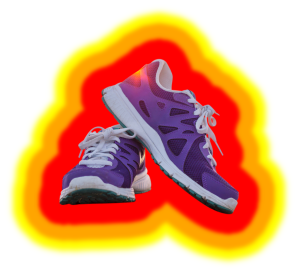
See full syntax: e_outline in the Transformation Reference.
Shadow
There are two ways to add shadow to your images:
- Use the shadow effect to apply a shadow to the edge of the image.
- Use the dropshadow effect to apply a shadow to objects in the image.
Shadow effect
The shadow effect (e_shadow in URLs) applies a shadow to the edge of the image. You can use this effect to make it look like your image is hovering slightly above the page.
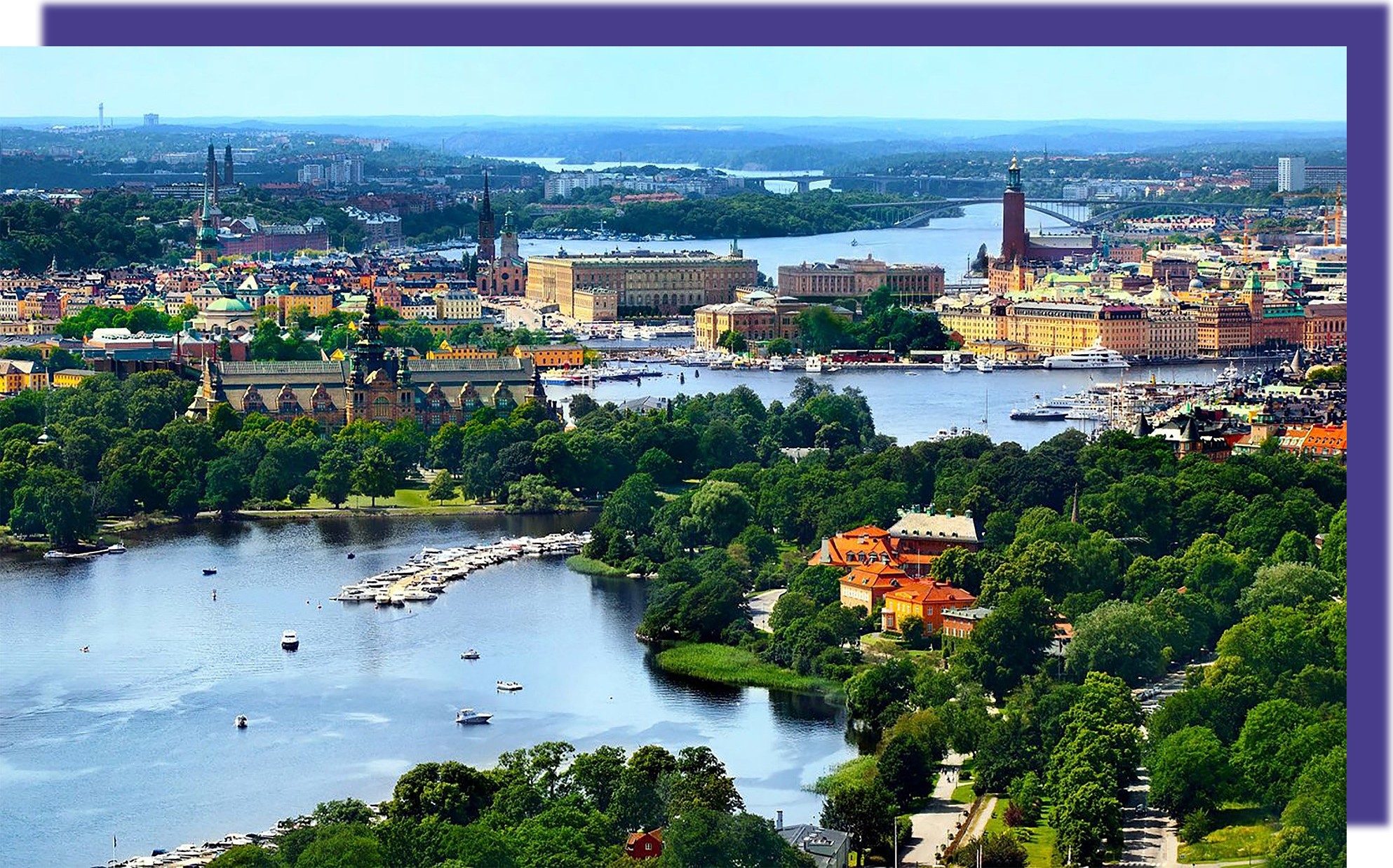
In this example, a dark blue shadow with medium blurring of its edges (co_rgb:483d8b,e_shadow:50) is added with an offset of 60 pixels to the top right of the photo (x_60,y_-60):
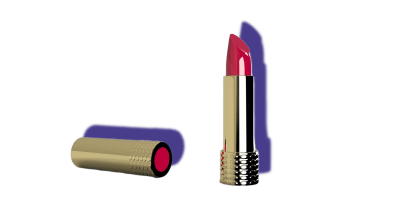
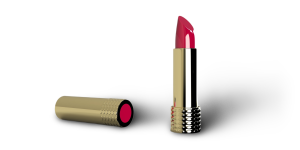
If your image has transparency, the shadow is added to the edge of the non-transparent part, for example, adding the same shadow to the lipstick in this image:
For a more realistic shadow, use the dropshadow effect.
See full syntax: e_shadow in the Transformation Reference.
Dropshadow effect
The dropshadow effect (e_dropshadow in URLs) uses AI to apply a realistic shadow to an object or objects in the image.
You can use this effect to apply consistent shadows across a set of product images, where background removal has been used.
To create the shadow, specify the position of the light source, using azimuth and elevation as shown in this diagram, where north (0 / 360 degrees) is behind the object:
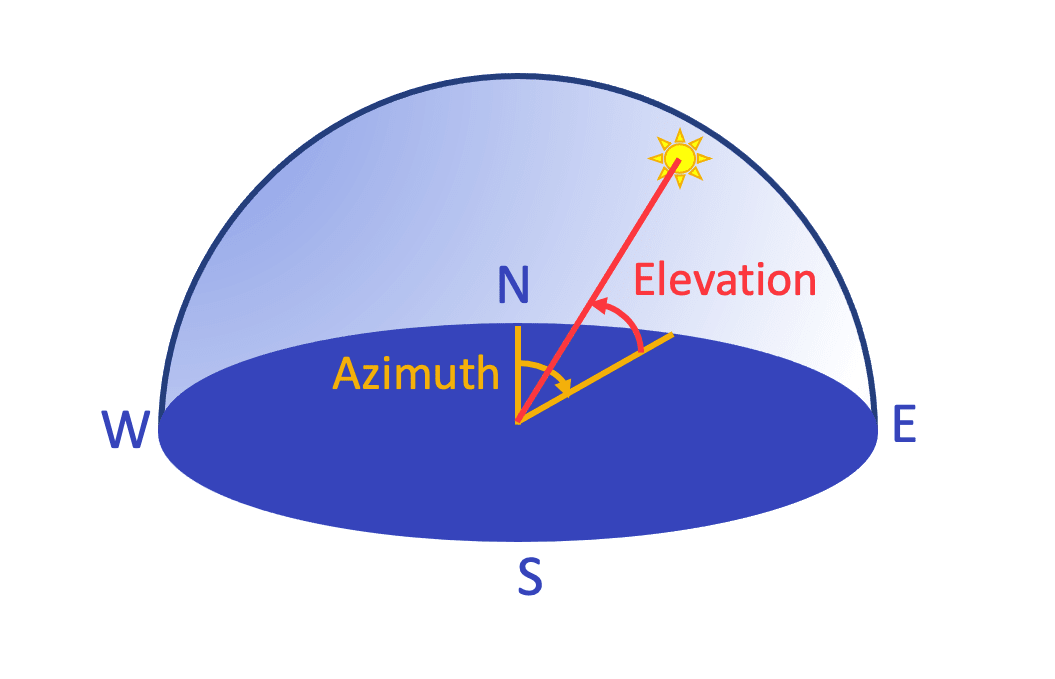
You can also specify a spread from 0 to 100, where the smaller the number, the closer the light source is to 'point' light, and larger numbers mean 'area' light.
The following example has a light source set up at an azimuth of 220 degrees, an elevation of 40 degrees above 'ground' and where the spread of the light source is 20% (e_dropshadow:azimuth_220;elevation_40;spread_20):
 Original
 With dropshadow effect
- Either:
- the original image must include transparency, for example where the background has already been removed and it has been stored in a format that supports transparency, such as PNG, or
- the
dropshadoweffect must be chained after the background_removal effect, for example:
- The dropshadow effect is not supported for animated images, fetched images or incoming transformations.
See background removal and drop shadow being applied to product images on the fly in a React app.
See full syntax: e_dropshadow in the Transformation Reference.
Try it out: Drop shadow.
Dropshadow effect demo
Try out the different dropshadow effect settings on an image of a bench.
Use the controls to set up the light source, then generate the shadow!
May take a few seconds to generate*
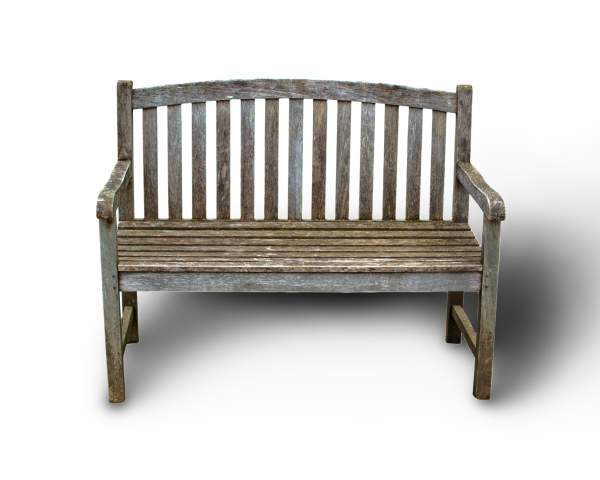
*It can take a few seconds to generate a new image on the fly if you've tried a combination of settings that hasn't been tried before. Once an image has been generated though, it's cached on the CDN, so future requests to the same transformation are much faster. You can learn more about that in our Service introduction.
Vectorize
The vectorize effect (e_vectorize in URLs) can be used to convert a raster image to a vector format such as SVG. This can be useful for a variety of use cases, such as:
- Converting a logo graphic in PNG format to an SVG, allowing the graphic to scale as required.
- Creating a low quality image placeholder that resembles the original image but with a reduced number of colors and lower file-size.
- Vectorizing as an artistic effect.
The vectorize effect can also be controlled with additional parameters to fine-tune it to your use case.
See full syntax : e_vectorize in the Transformation Reference.
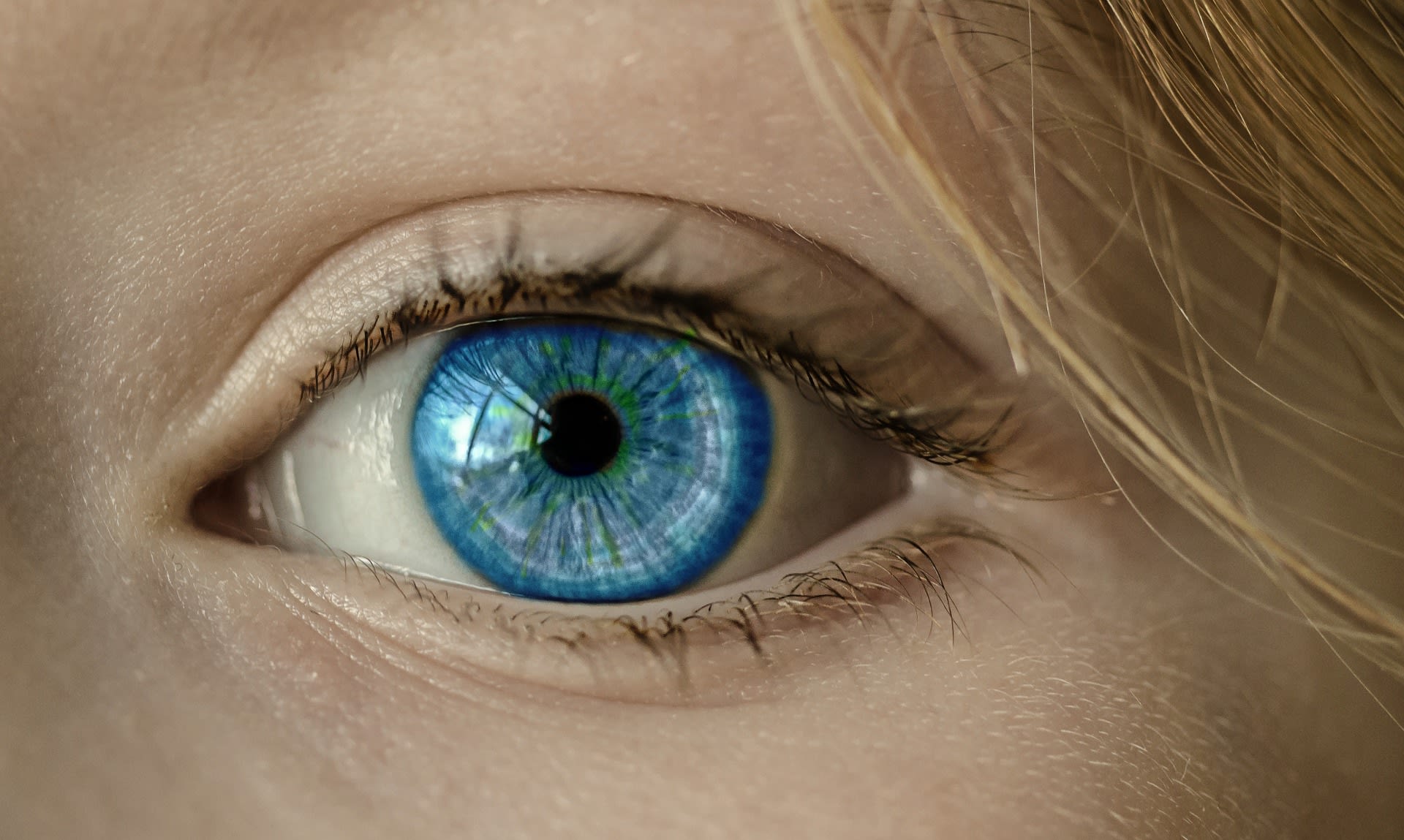
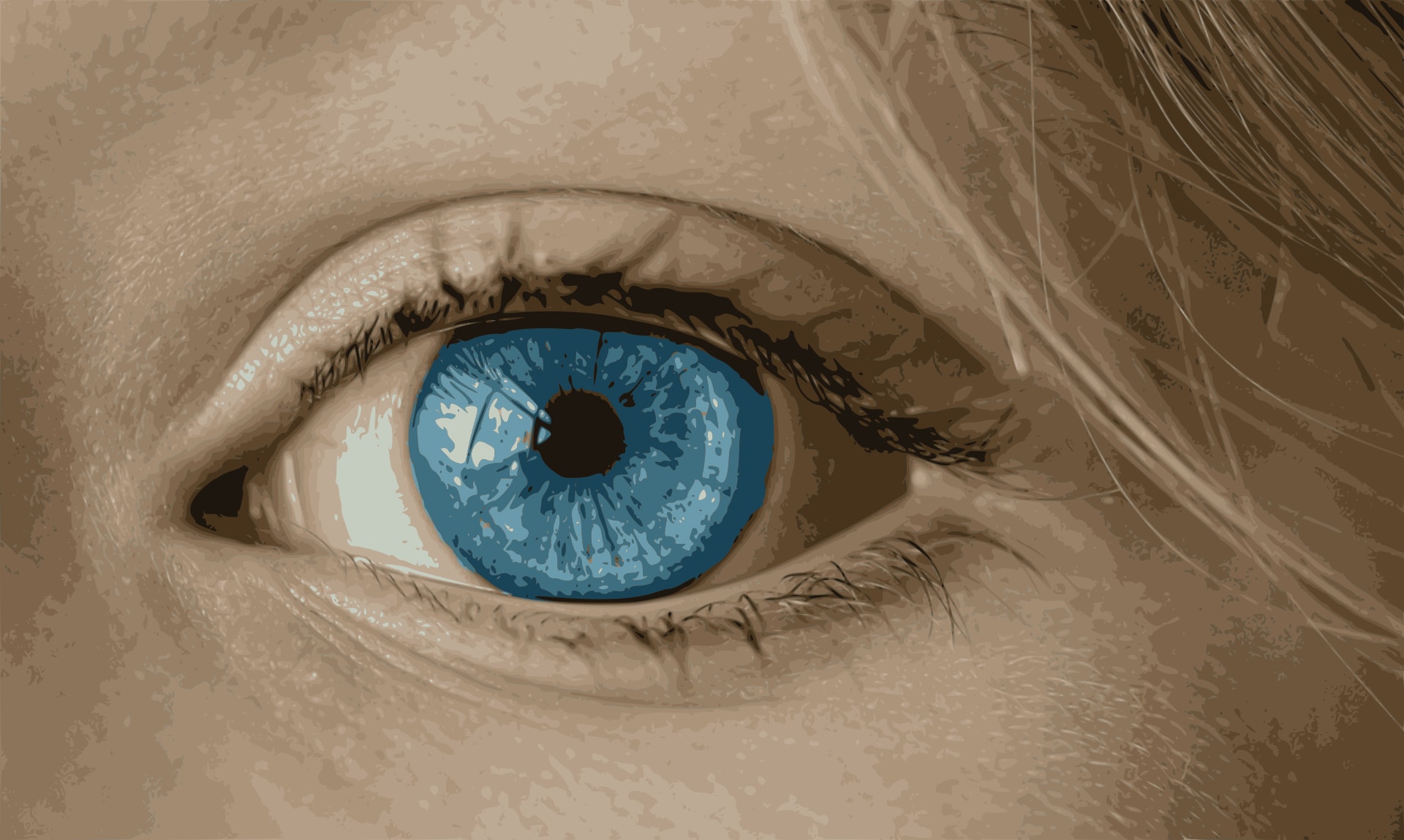
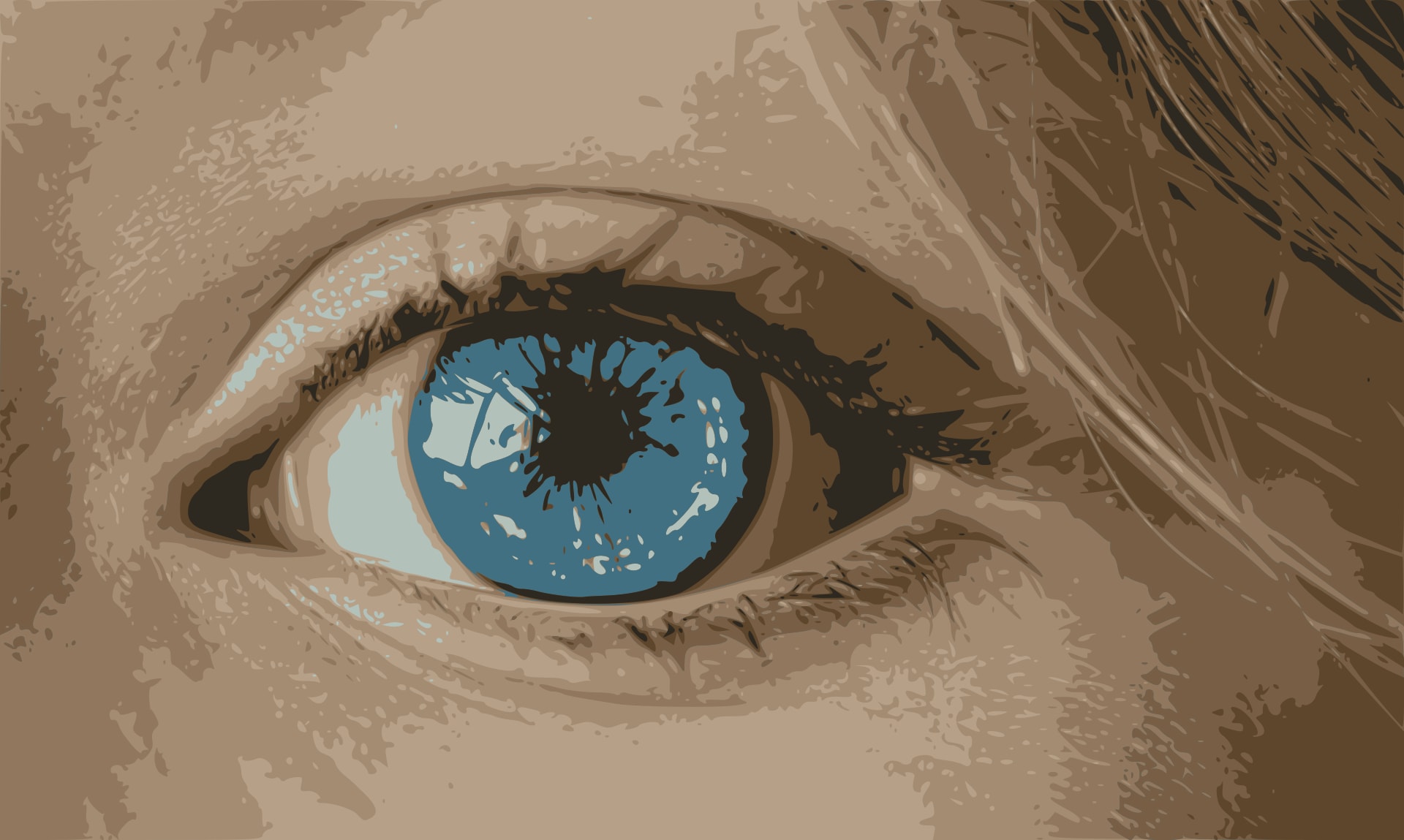
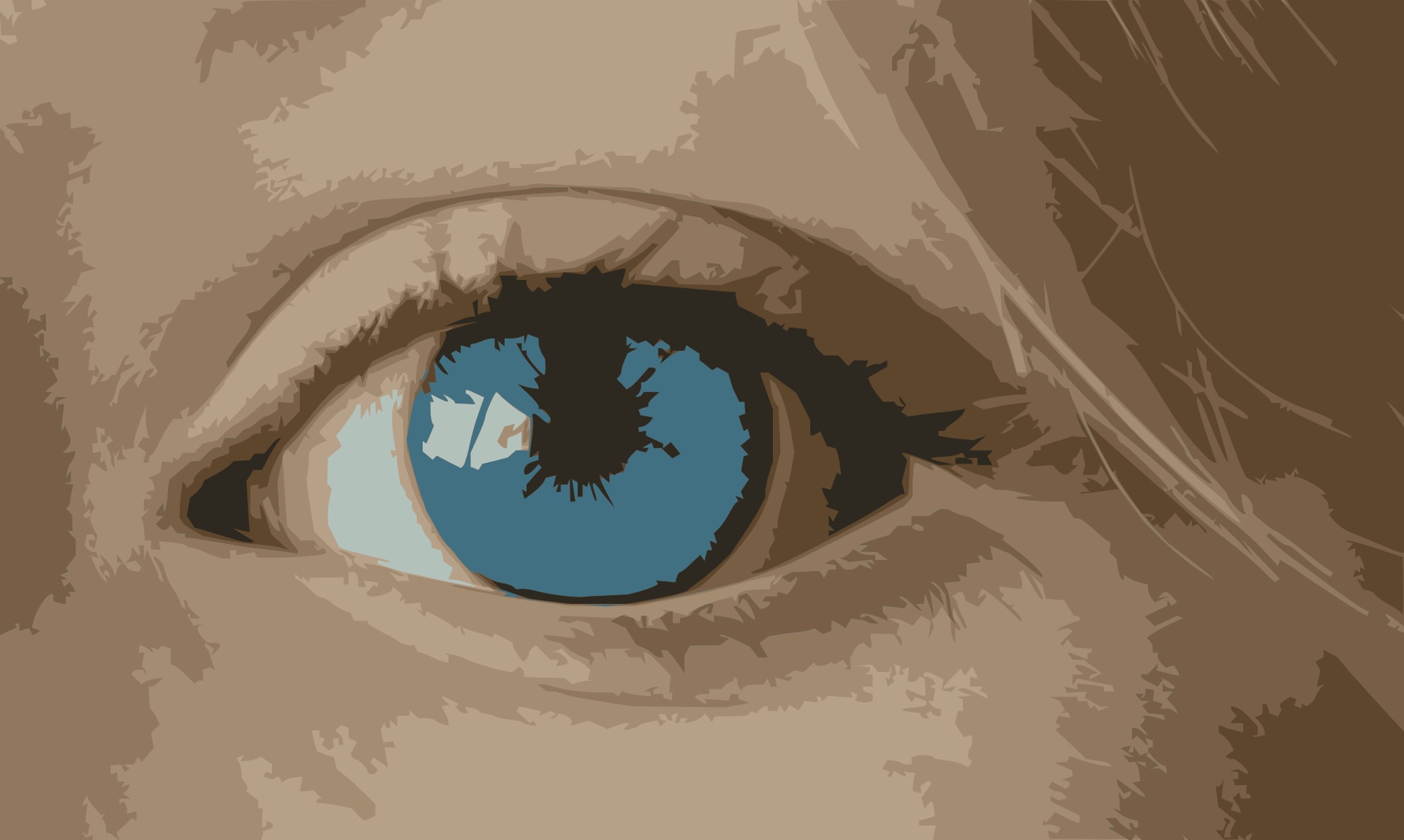
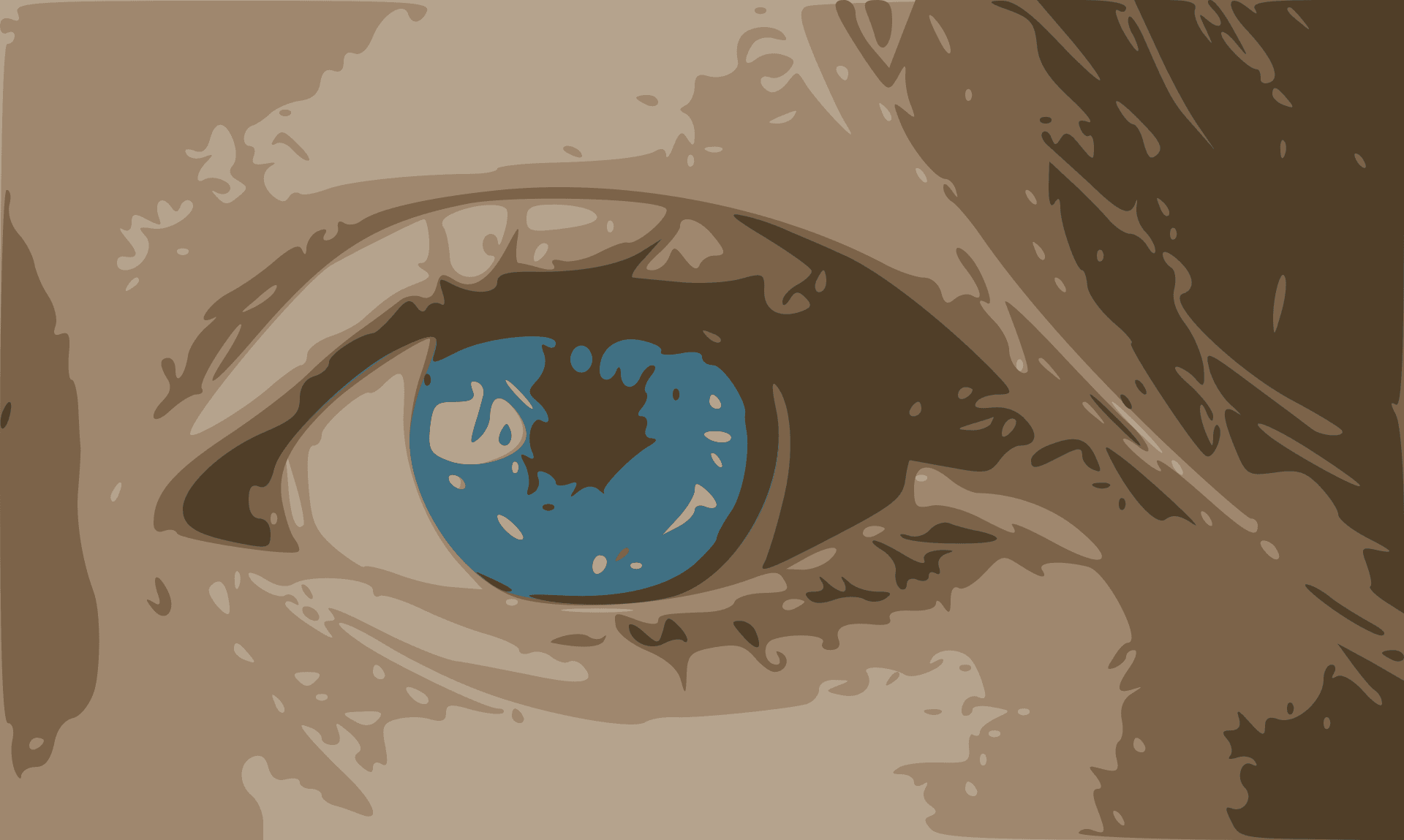
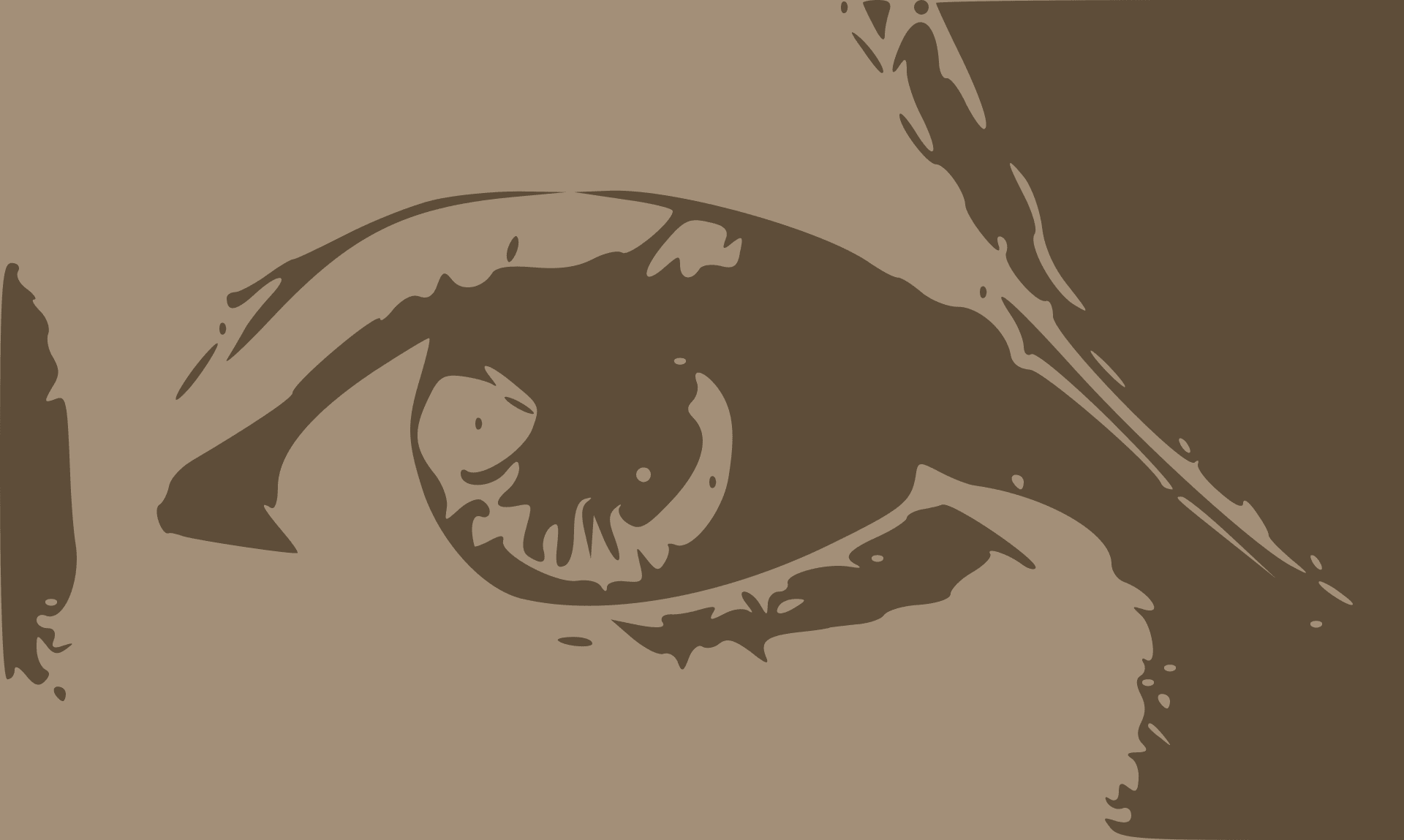
Below you can see a variety of potential outputs using these options. The top-left image is the original photo. Following it, you can see the vector graphics, output as JPG, with varying levels of detail, color, despeckling and more. Click each image to open in a new tab and see the full transformation.
Converting a logo PNG to SVG
If you have a logo or graphic as a raster image such as a PNG that you need to scale up or deliver in a more compact form, you can use the vectorize effect to create an SVG version that matches the original as closely as possible.
The original racoon PNG below is 256px wide and 28kb.

If you want to display this image at a larger size, it will become blurry and the file size will increase with the resolution, as you can see in the below example which is twice the size of the original.

To avoid the issues above, it's much better to deliver a vector image for this graphic using the vectorize effect.
The example below delivers an SVG at the maximum detail (1.0) with 3 colors (like the original) and an intermediate value of 40 for the corners. This yields an extremely compact, 8 KB file that will provide pixel-perfect scaling to any size.

Creating a low quality image placeholder SVG
When delivering high quality photos, it's good web design practice to first deliver Low Quality Image Placeholders (LQIPs) that are very compact in size, and load extremely quickly. Cloudinary supports a large variety of compressions that can potentially be used for generating placeholders. You can read some more about those here.
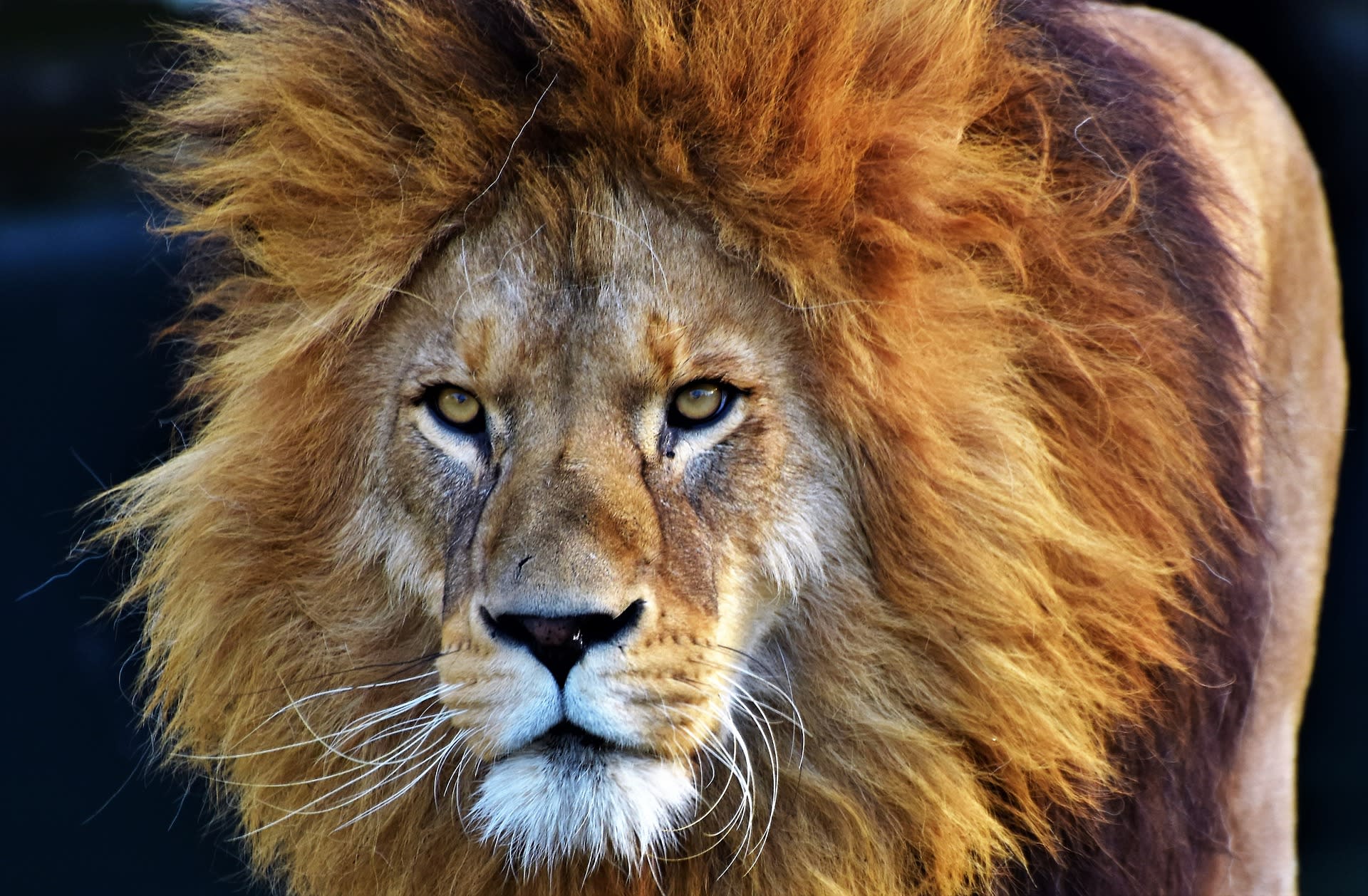
Using SVGs is a nice way to display a placeholder. As an example, the lion jpeg image below with Cloudinary's optimizations applied, still gets delivered at 397 KB.
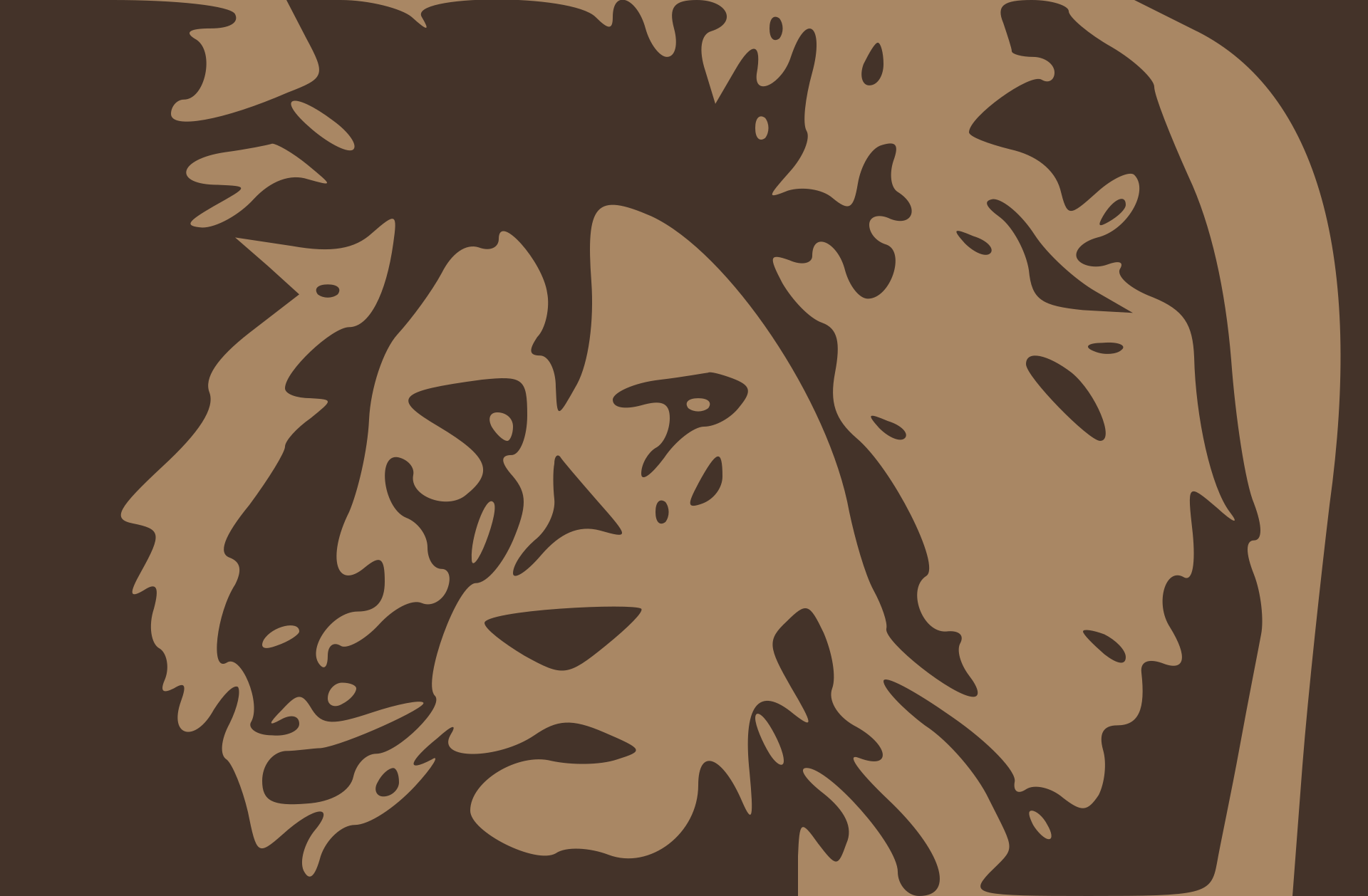
Instead, an SVG LQIP can be used while lazy loading the full-sized image.
The placeholder should still represent the subject matter of the original but also be very compact. Confining the SVG to 2 colors and a detail level of 5% produces an easily identifiable image with a file size of just 6 KB.
Vectorizing as an artistic effect
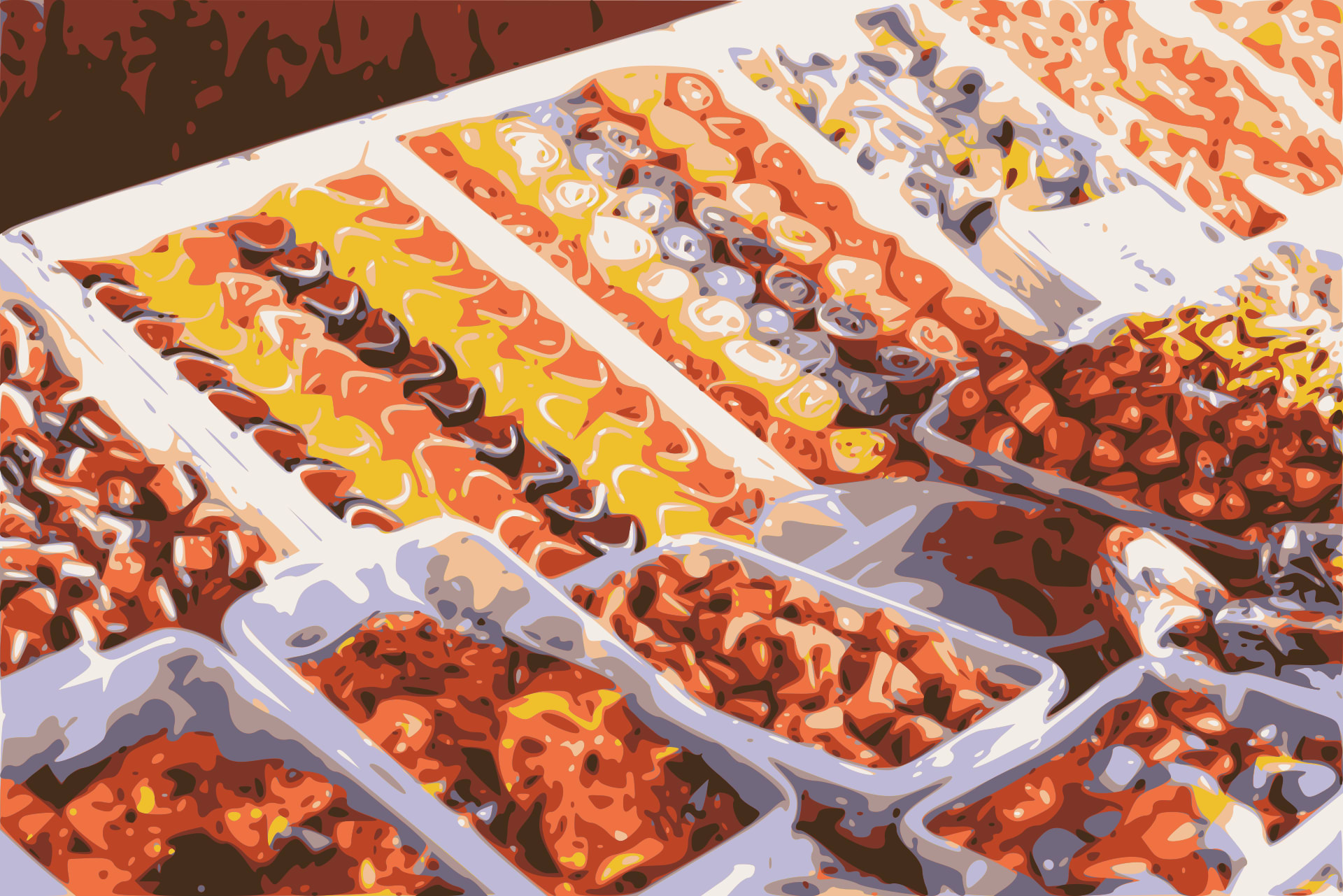
Vectorizing is a great way to capture the main shapes and objects composing a photo or drawing and also produces a nice effect. When using the vectorize effect for an artistic transformation, you can deliver the vectorized images in any format, simply by specifying the relevant extension.
For example, the image of a fruit stand below has been vectorized to create a nice artistic effect and subsequently delivered as an optimized jpg file.
- Effects and artistic enhancements: Overview of all image effects and enhancements.
- Image enhancement: Auto enhance, generative restore, upscale, enhance, and improve.
- Color effects: 3D LUTs, background color, color blind effects, replace color, tint, and themes.
- Reshaping and distorting images: Displacement maps, distortion, rotation, rounding, shape cutouts, and zoompan.
Error
Rate this page:
