 Ask AI
Color effects
Last updated: Oct-07-2026
Cloudinary provides a range of effects for adjusting and transforming the colors in your images. You can apply 3D LUTs, set background colors, make images more accessible to color blind users, replace specific colors, tint images, and apply color themes to screen captures.
3-color-dimension LUTs (3D LUTs)
3-color-dimension lookup tables (known as 3D LUTs) map one color space to another. You can use them to adjust colors, contrast, and/or saturation, so that you can correct contrast, fix a camera's inability to see a particular color shade, or give a final finished look or a particular style to your image.
After uploading a .3dl or .cube file as a raw file, you can apply it to any image using the lut property of the layer parameter ( l_lut: in URLs), followed by the LUT file name, including the file extension (.3dl or .cube).
Below you can see the docs/textured_handbag.jpg image file in its original color, compared to the image with different LUT files applied. Below these is the code for applying one of the LUTs.
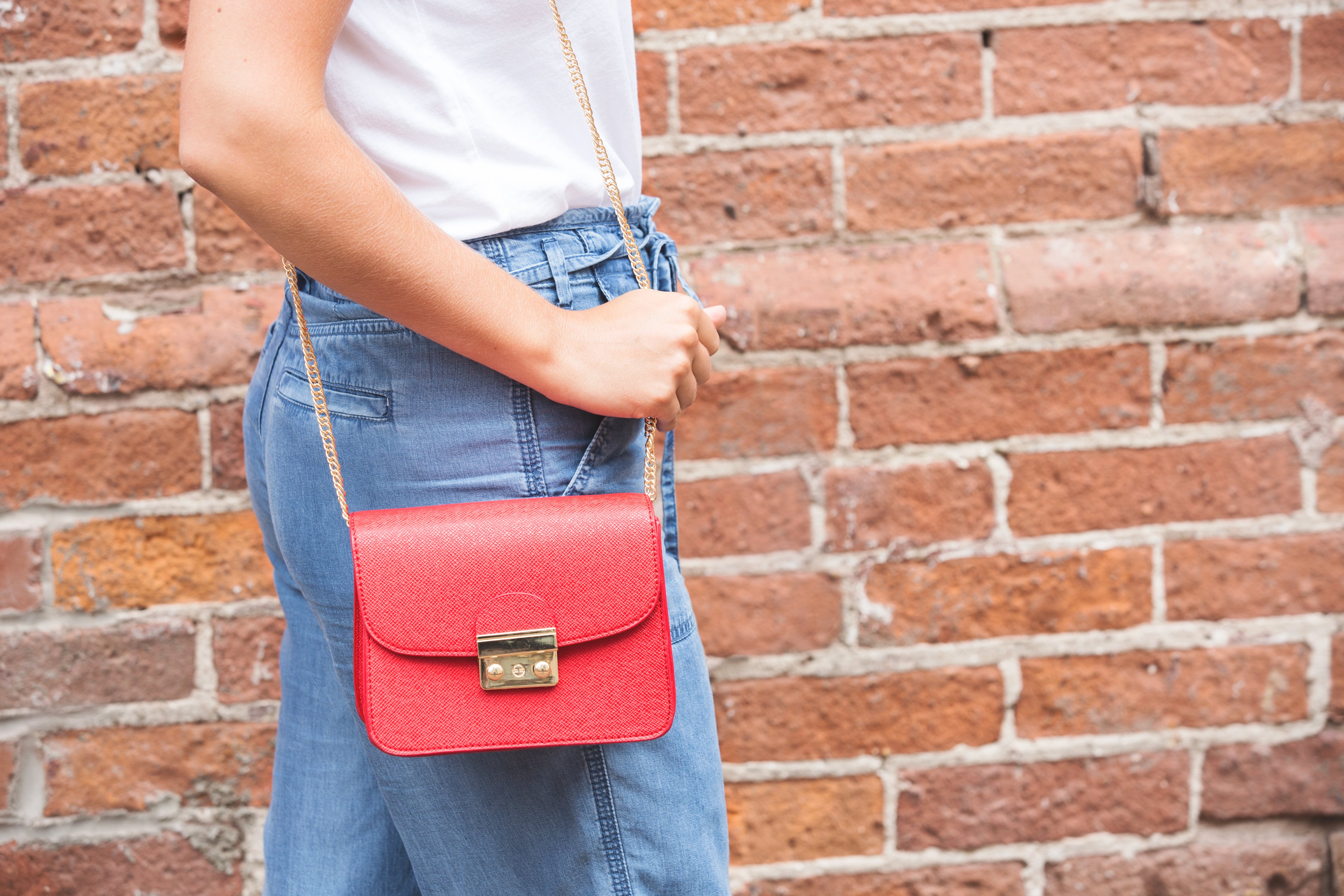 Original
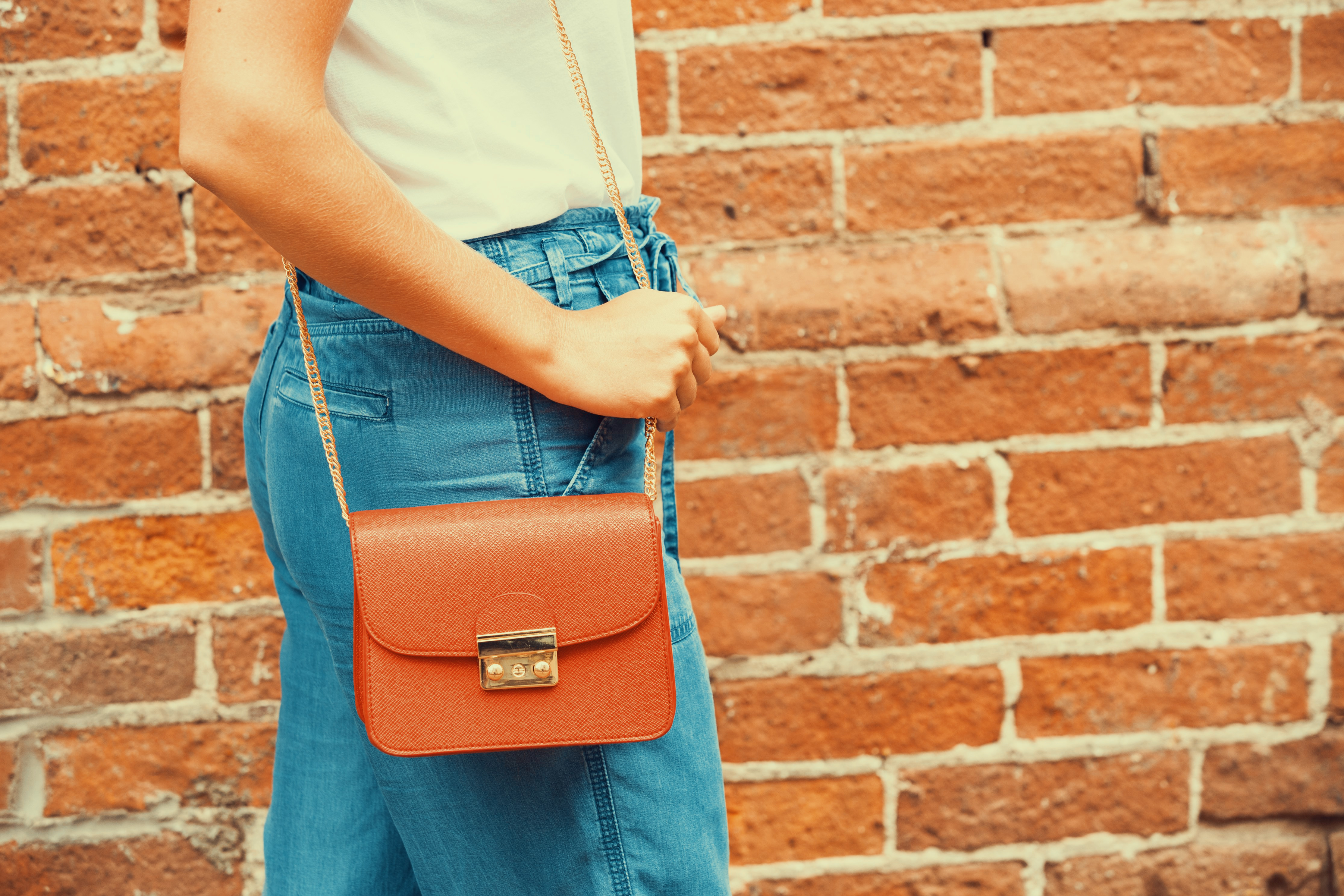 with 'iwltbap_sedona' LUT
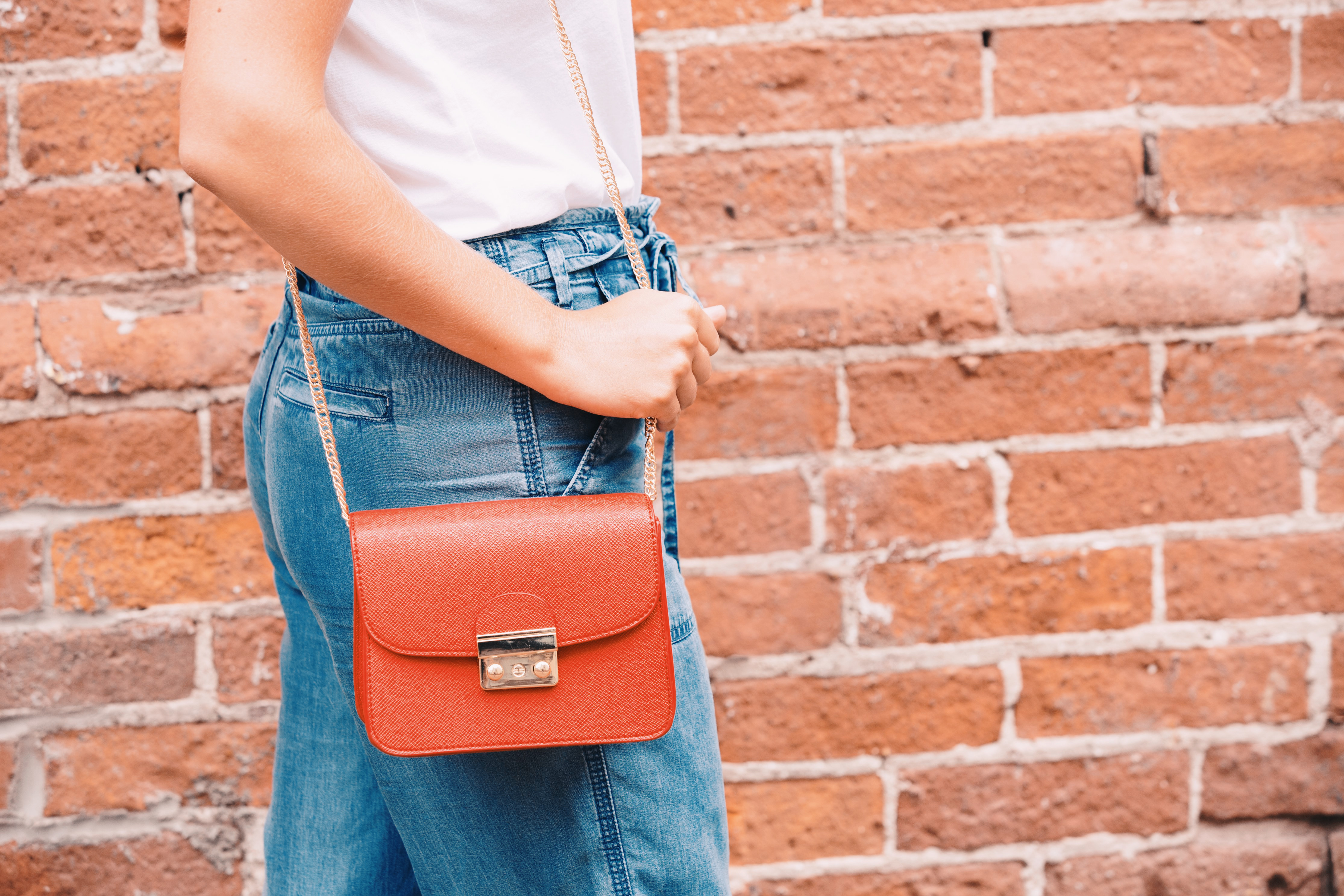 with 'iwltbap_aspen' LUT
See full syntax: l_lut in the Transformation Reference.
Background color
Use the background parameter (b in URLs) to set the background color of the image. The image background is visible when padding is added with one of the padding crop modes, when rounding corners, when adding overlays, and with semi-transparent PNGs and GIFs.
An opaque color can be set as an RGB hex triplet (e.g., b_rgb:3e2222), a 3-digit RGB hex (e.g., b_rgb:777) or a named color (e.g., b_green). Cloudinary's client libraries also support a # shortcut for RGB (e.g., setting background to #3e2222 which is then translated to rgb:3e2222).
For example, the uploaded image named mountain_scene padded to a width and height of 300 pixels with a light blue background:
You can also use a 4-digit or 8-digit RGBA hex quadruplet for the background color, where the 4th hex value represents the alpha (opacity) value (e.g., co_rgb:3e222240 results in 25% opacity).
predominant_contrast. This selects the strongest contrasting color to the predominant color while taking all pixels in the image into account. For example, l_text:Arial_30:foo,b_predominant_contrast.See full syntax: b (background) in the Transformation Reference.
Try it out: Background.
Content-aware padding
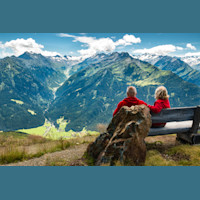
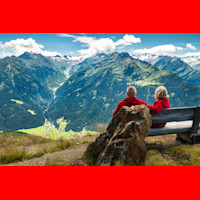
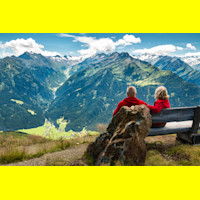
You can automatically set the background color to the most prominent color in the image when applying one of the padding crop modes (pad, lpad, mpad or fill_pad) by setting the background parameter to auto (b_auto in URLs). The parameter can also accept an additional value as follows:
-
b_auto:border- selects the predominant color while taking only the image border pixels into account. This is the default option forb_auto. -
b_auto:predominant- selects the predominant color while taking all pixels in the image into account. -
b_auto:border_contrast- selects the strongest contrasting color to the predominant color while taking only the image border pixels into account. -
b_auto:predominant_contrast- selects the strongest contrasting color to the predominant color while taking all pixels in the image into account.
 b_auto:border
 b_auto:predominant
 b_auto:border_contrast
 b_auto:predominant_contrast
For example, padding the purple-suit-hanky-tablet image to a width and height of 300 pixels, and with the background color set to the predominant color in the image:
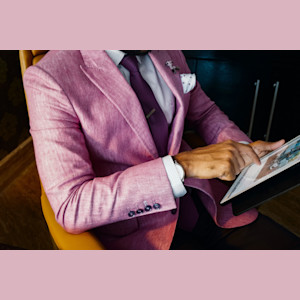
See full syntax: b_auto in the Transformation Reference.
Try it out: Background.
Gradient fade
You can also apply a padding gradient fade effect with the predominant colors in the image by adjusting the value of the b_auto parameter as follows:
b_auto:[gradient_type]:[number]:[direction]
Where:
-
gradient_type- one of the following values:-
predominant_gradient- base the gradient fade effect on the predominant colors in the image -
predominant_gradient_contrast- base the effect on the colors that contrast the predominant colors in the image -
border_gradient- base the gradient fade effect on the predominant colors in the border pixels of the image -
border_gradient_contrast- base the effect on the colors that contrast the predominant colors in the border pixels of the image
-
-
number- the number of predominant colors to select. Possible values:2or4. Default:2 -
direction- if 2 colors are selected, this parameter specifies the direction to blend the 2 colors together (if 4 colors are selected each gets interpolated between the four corners). Possible values:horizontal,vertical,diagonal_desc, anddiagonal_asc. Default:horizontal
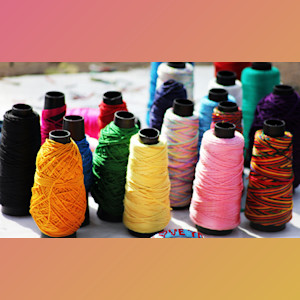 predominant_gradient:2:diagonal_desc
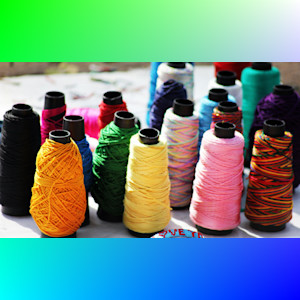 predominant_gradient_contrast:4
Custom color palette
Add a custom palette to limit the selected color to one of the colors in the palette that you provide. Once the predominant color has been calculated then the closest color from the available palette is selected. Append a colon and then the value palette followed by a list of colors, each separated by an underscore. For example, to automatically add padding and a palette that limits the possible choices to green, red and blue: b_auto:palette_red_green_blue
The palette can be used in combination with any of the various values for b_auto, and the same color in the palette can be selected more than once when requesting multiple predominant colors. For example, padding to a width and height of 300 pixels, with a 4 color gradient fade in the auto colored padding, and limiting the possible colors to red, green, blue, and orange:
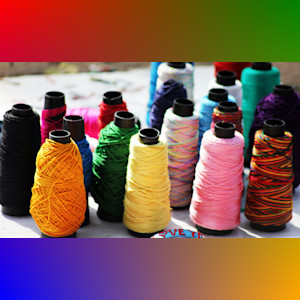
Gradient fade into padding
Fade the image into the added padding by adding the gradient_fade effect with a value of symmetric_pad (e_gradient_fade:symmetric_pad in URLs). The padding blends into the edge of the image with a strength indicated by an additional value, separated by a colon (Range: 0 to 100, Default: 20). Values for x and y can also be specified as a percentage (range: 0.0 to 1.0), or in pixels (integer values) to indicate how far into the image to apply the gradient effect. By default, the gradient is applied 30% into the image (x_0.3).
For example, padding the string image to a width and height of 300 pixels, with the background color set to the predominant color, and with a gradient fade effect, between the added padding and 50% into the image.
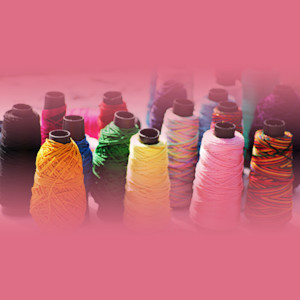
See full syntax: e_gradient_fade in the Transformation Reference.
Try it out: Background.
Borders
Add a solid border around images with the border parameter (bo in URLs). The parameter accepts a value with a CSS-like format: width_style_color (e.g., 3px_solid_black).
An opaque color can be set as an RGB hex triplet (e.g., rgb:3e2222), a 3-digit RGB hex (e.g., rgb:777) or a named color (e.g., green).
You can also use a 4-digit or 8-digit RGBA hex quadruplet for the color, where the 4th hex value represents the alpha (opacity) value (e.g., co_rgb:3e222240 results in 25% opacity).
Additionally, Cloudinary's client libraries also support a # shortcut for RGB (e.g., setting color to #3e2222 which is then translated to rgb:3e2222), and when using Cloudinary's client libraries, you can optionally set the border values programmatically instead of as a single string (e.g., border: { width: 4, color: 'black' }).
For example, the uploaded JPG image named blue_sweater delivered with a 5 pixel blue border:
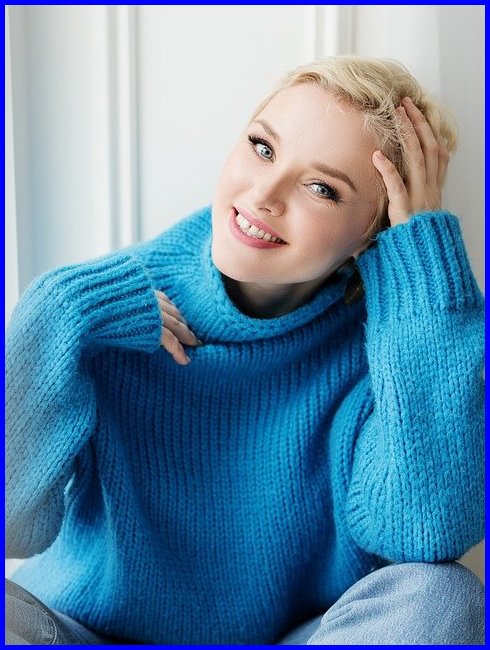
Borders are also useful for adding to overlays to clearly define the overlaying image, and also automatically adapt to any rounded corner transformations. For example, the base image given rounded corners with a 10 pixel grey border, and an overlay of the image of sale resized to a 100x100 thumbnail added to the northeast corner:

predominant_contrast. This selects the strongest contrasting color to the predominant color while taking all pixels in the image into account. For example, l_text:Arial_30:foo,bo_3px_solid_predominant_contrast
See full syntax: bo (border) in the Transformation Reference.
Color blind effects
Cloudinary has a number of features that can help you to choose the best images as well as to transform problematic images to ones that are more accessible to color blind people. You can use Cloudinary to:
- Simulate how an image would look to people with different color blind conditions.
- Assist people with color blind conditions to help differentiate problematic colors.
- Analyze images to provide color blind accessibility scores and information on which colors are the hardest to differentiate.
Simulate color blind conditions
You can simulate a number of different color blind conditions using the simulate_colorblind effect. For full syntax and supported conditions, see the e_simulate_colorblind parameter in the Transformation URL API Reference.
Simulate the way an image would appear to someone with deuteranopia (most common form of) color blindness:
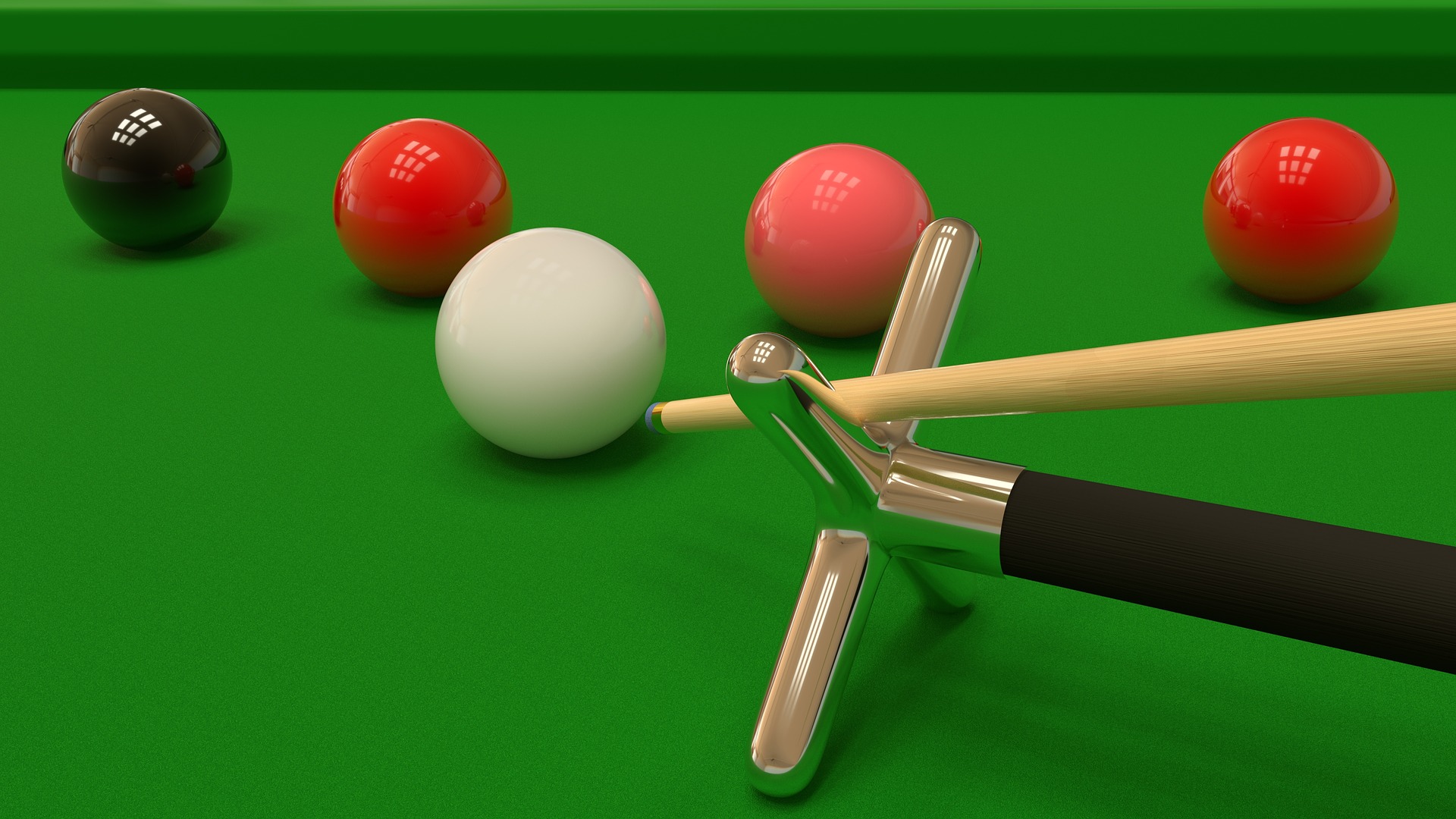 Original image
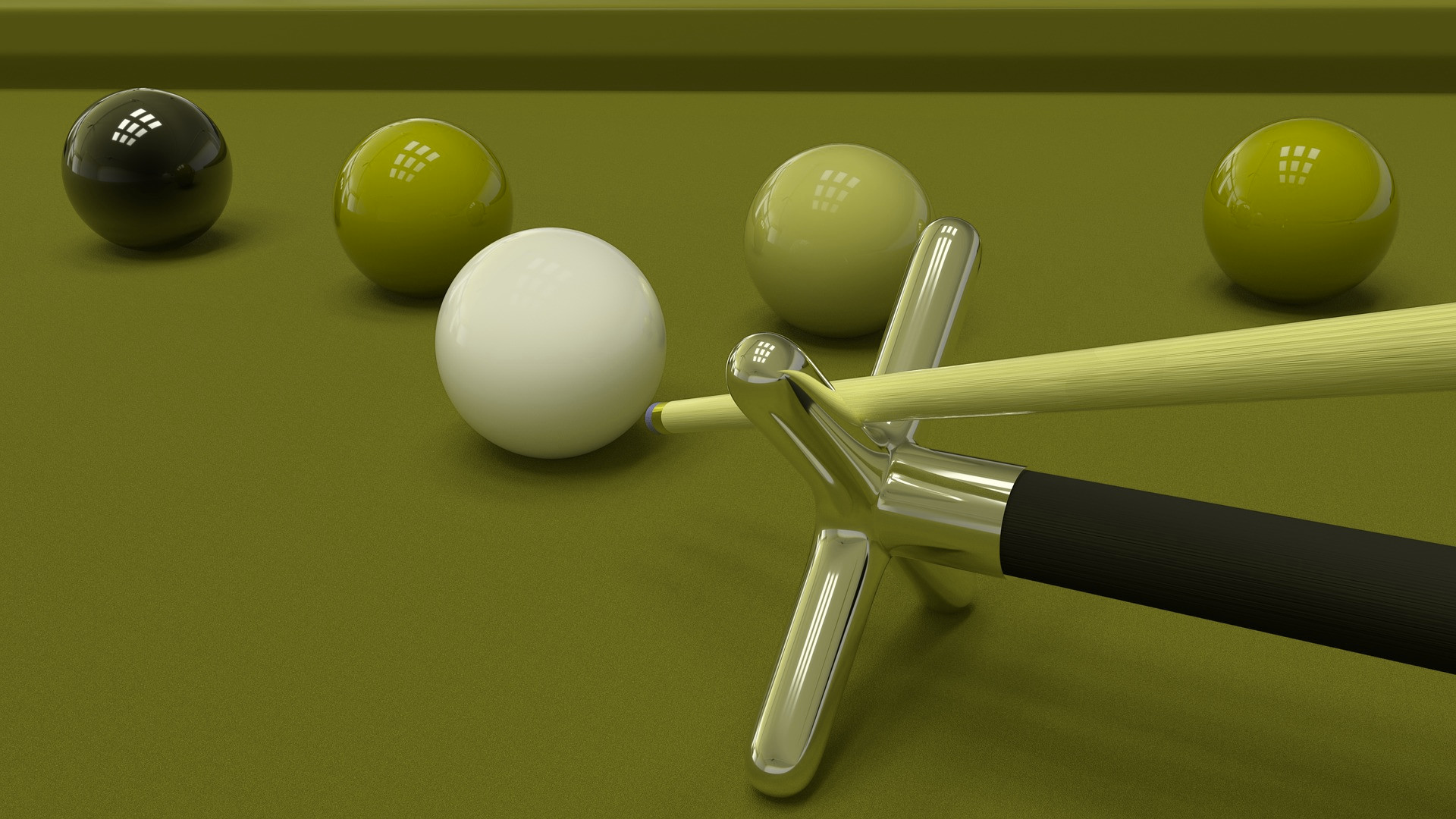 Deuteranopia simulation
See full syntax: e_simulate_colorblind in the Transformation Reference.
Assist people with color blind conditions
Use the assist_colorblind effect (e_assist_colorblind in URLs) to help people with color blind conditions to differentiate between colors.
You can add stripes in different directions and thicknesses to different colors, making them easier to differentiate, for example:
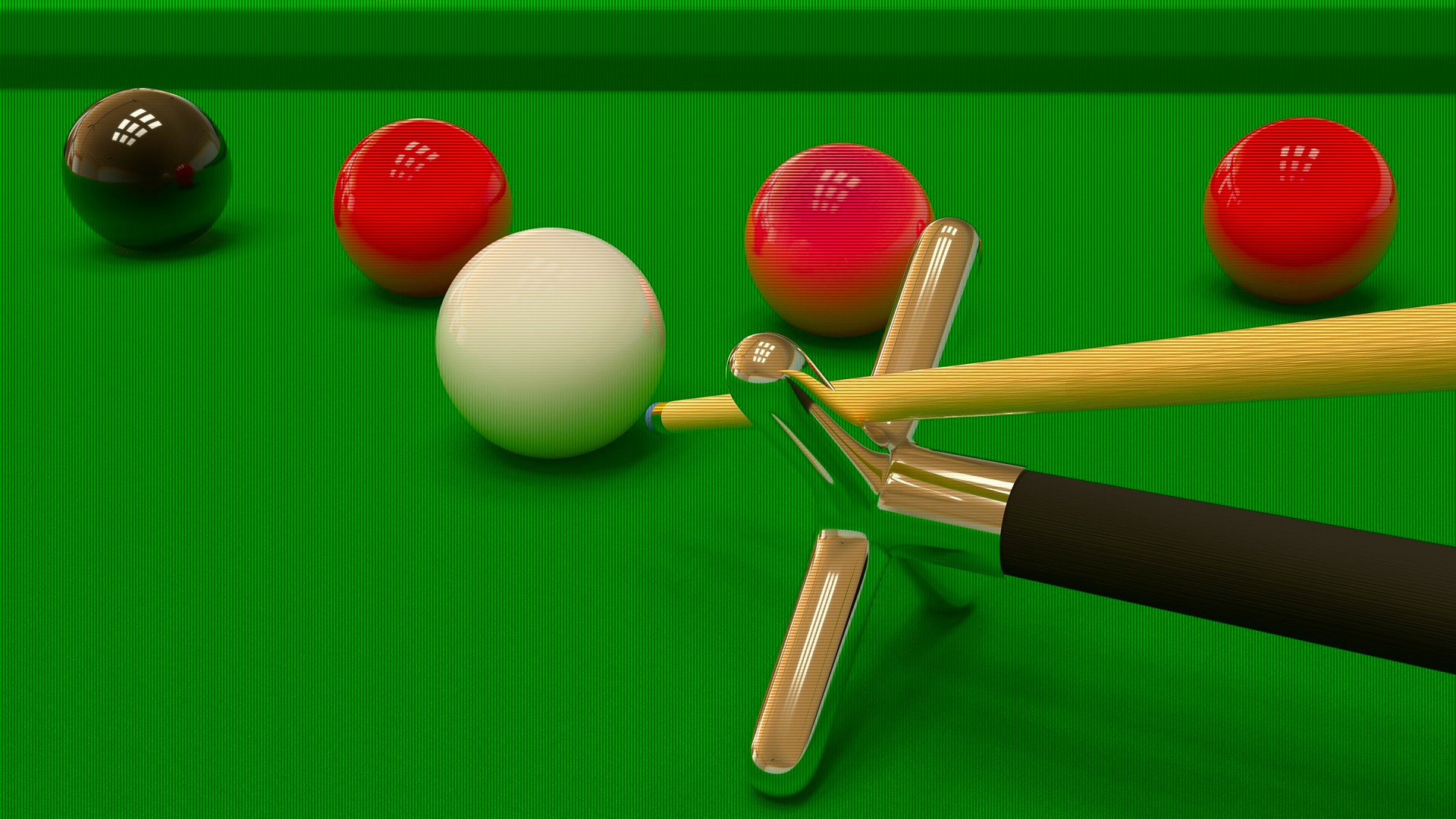
A color blind person would see the stripes like this:
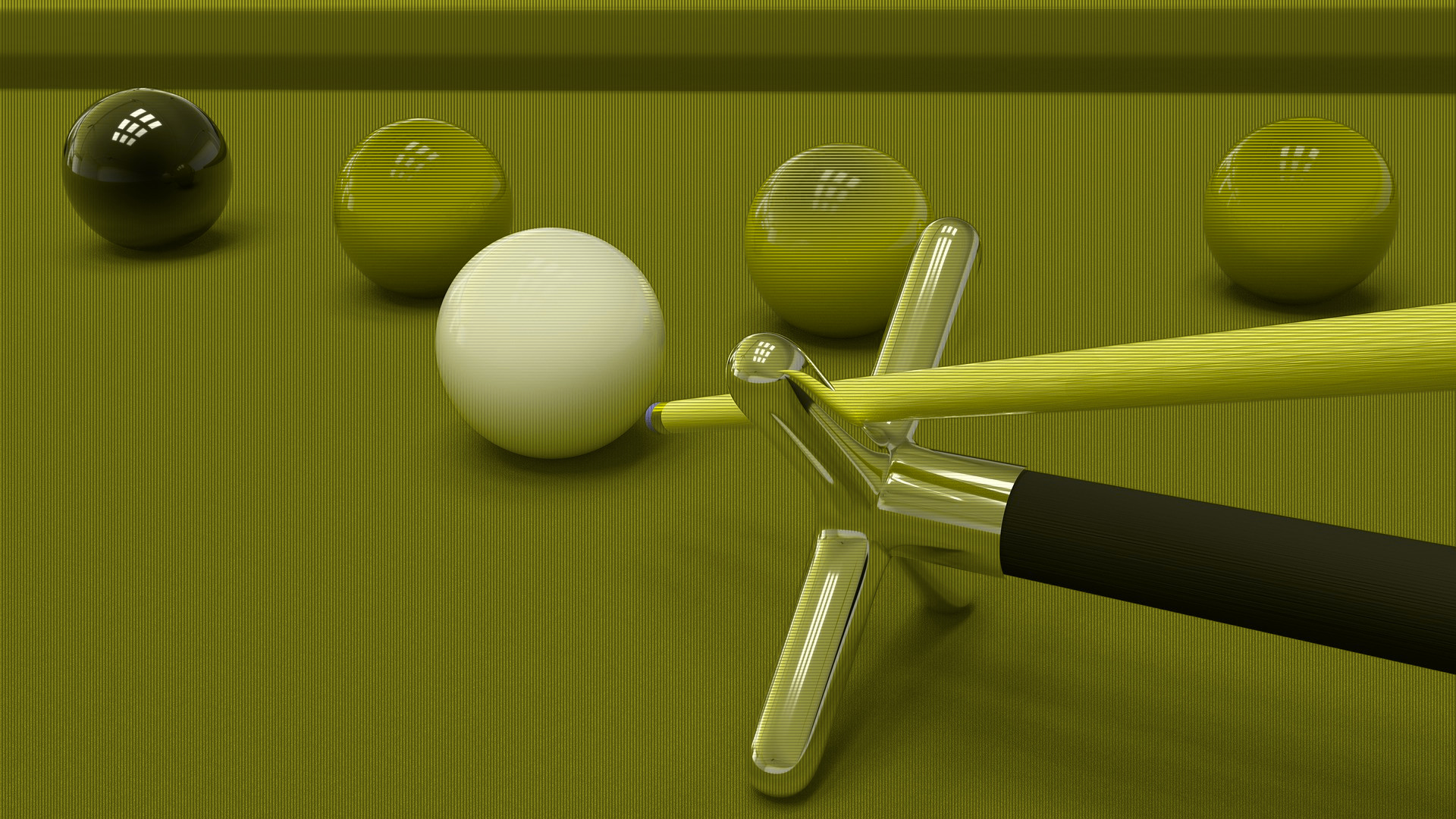
Alternatively, you can use color shifts to make colors easier to distinguish by specifying the xray assist type, for example:
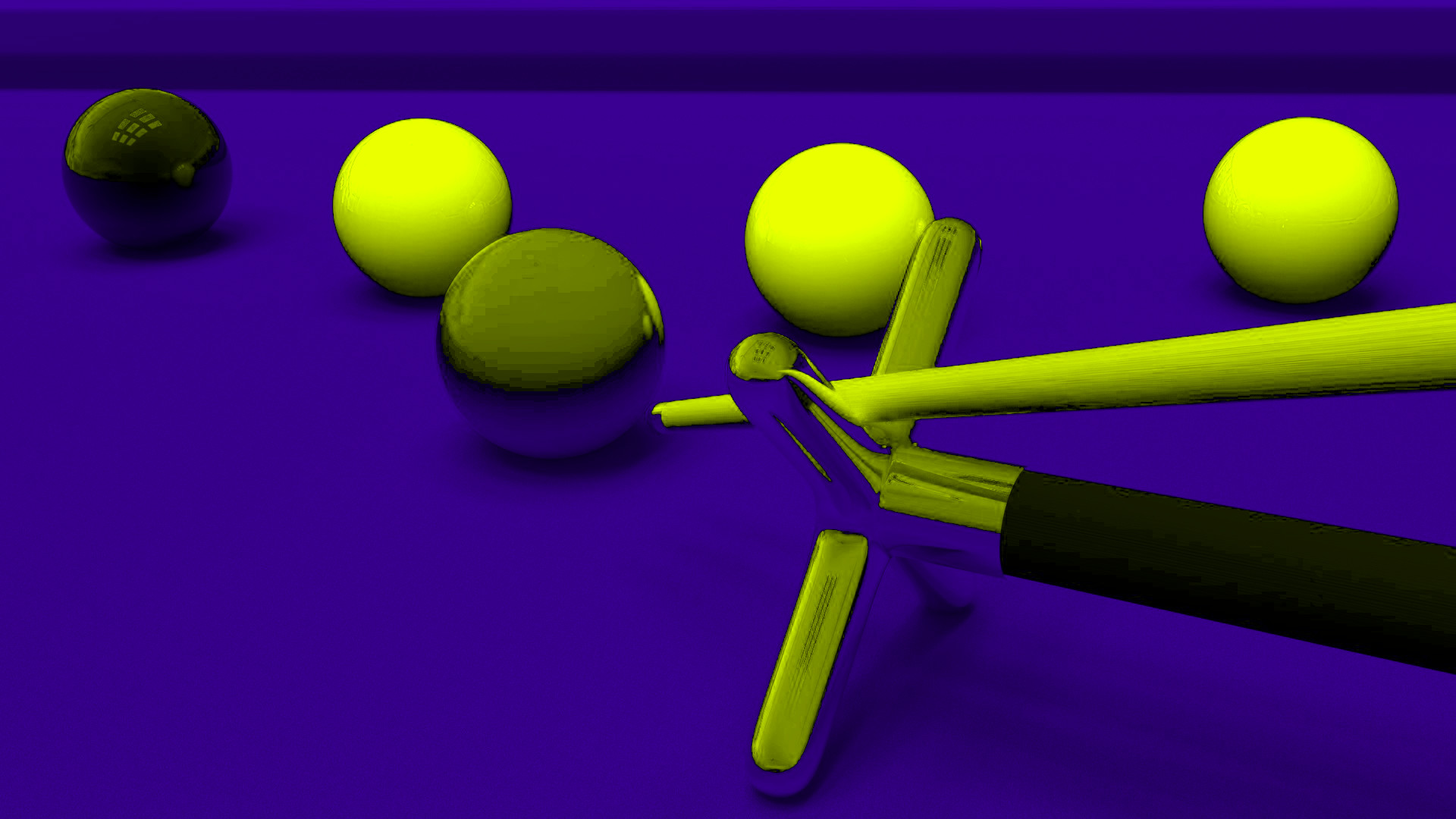
See full syntax: e_assist_colorblind in the Transformation Reference.
Replace color
You can replace a color in an image using the replace_color effect. Unless you specify otherwise, the most prominent high-saturation color in an image is selected as the color to change. By default, a tolerance of 50 is applied to this color, representing a radius in the LAB color space, so that similar shades are also replaced, achieving a more natural effect.
For example, without specifying a color to change, the most prominent color is changed to the specified maroon:
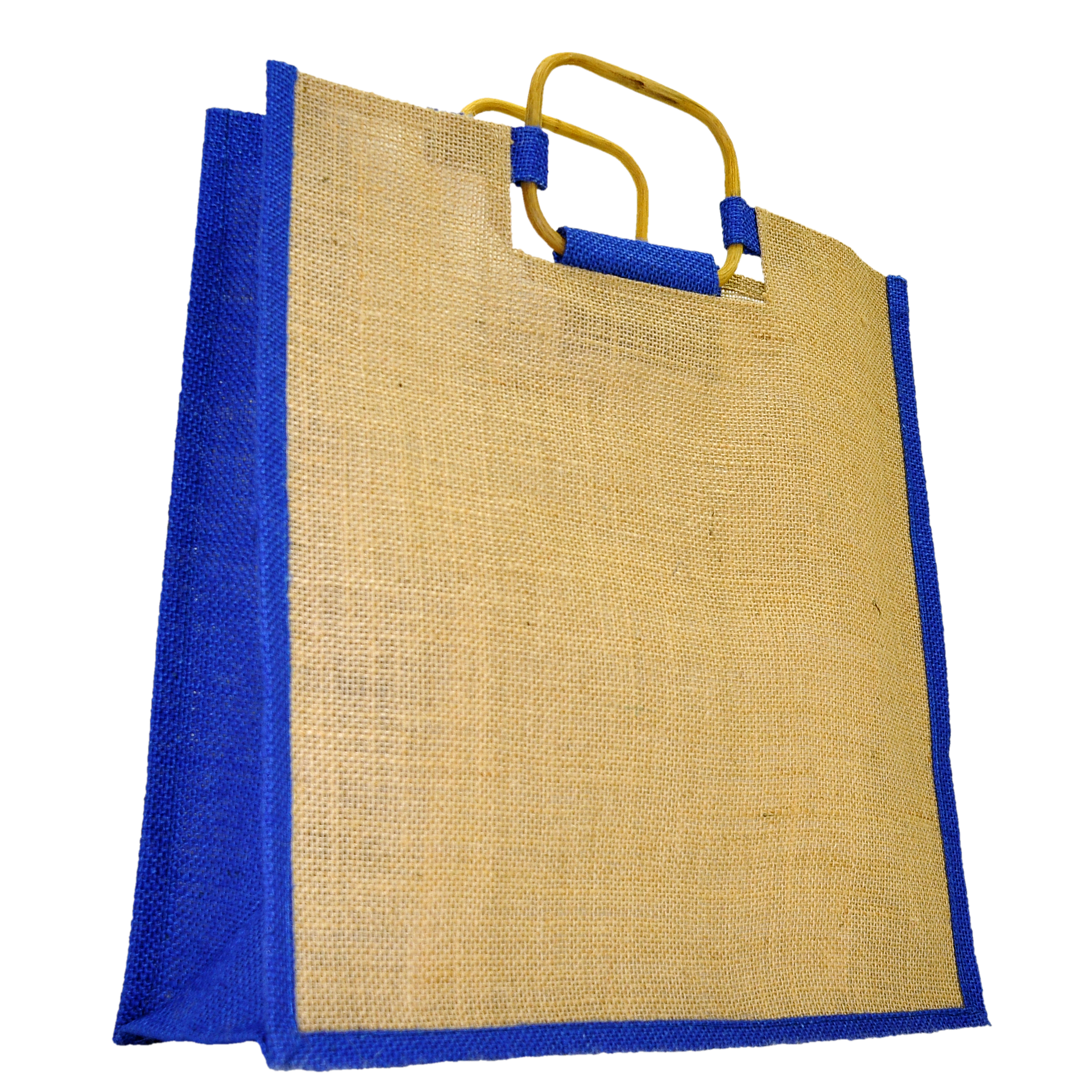 Original blue bag
 Predominant color recolored
Adding a tolerance value of 10 (e_replace_color:maroon:10) prevents the handle also changing color:
Original blue bag
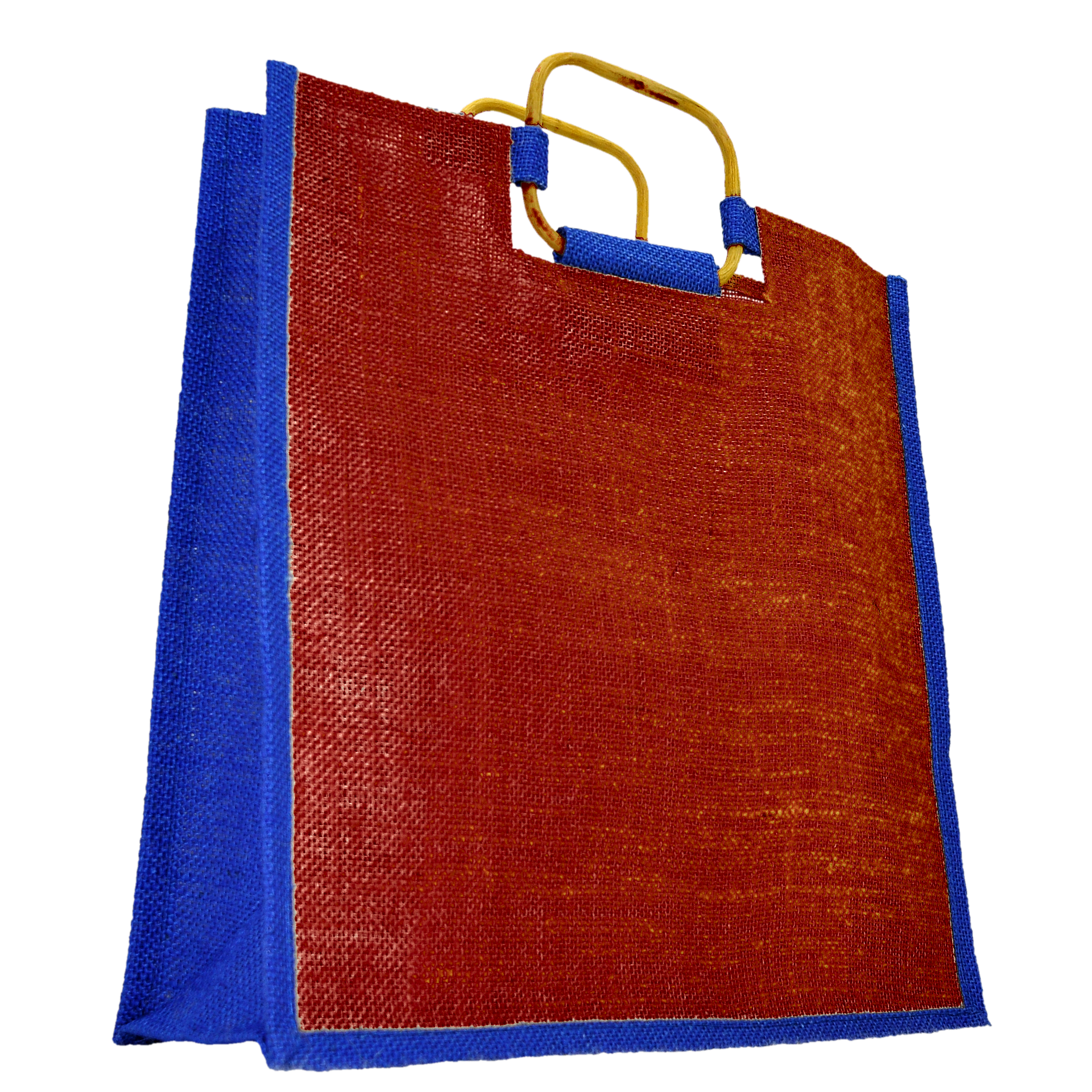 Handle not recolored
Specifying blue as the color to replace (to a tolerance of 80 from the color #2b38aa) replaces the blue sides with parallel shades of maroon, taking into account shadows, lighting, etc:
Original blue bag
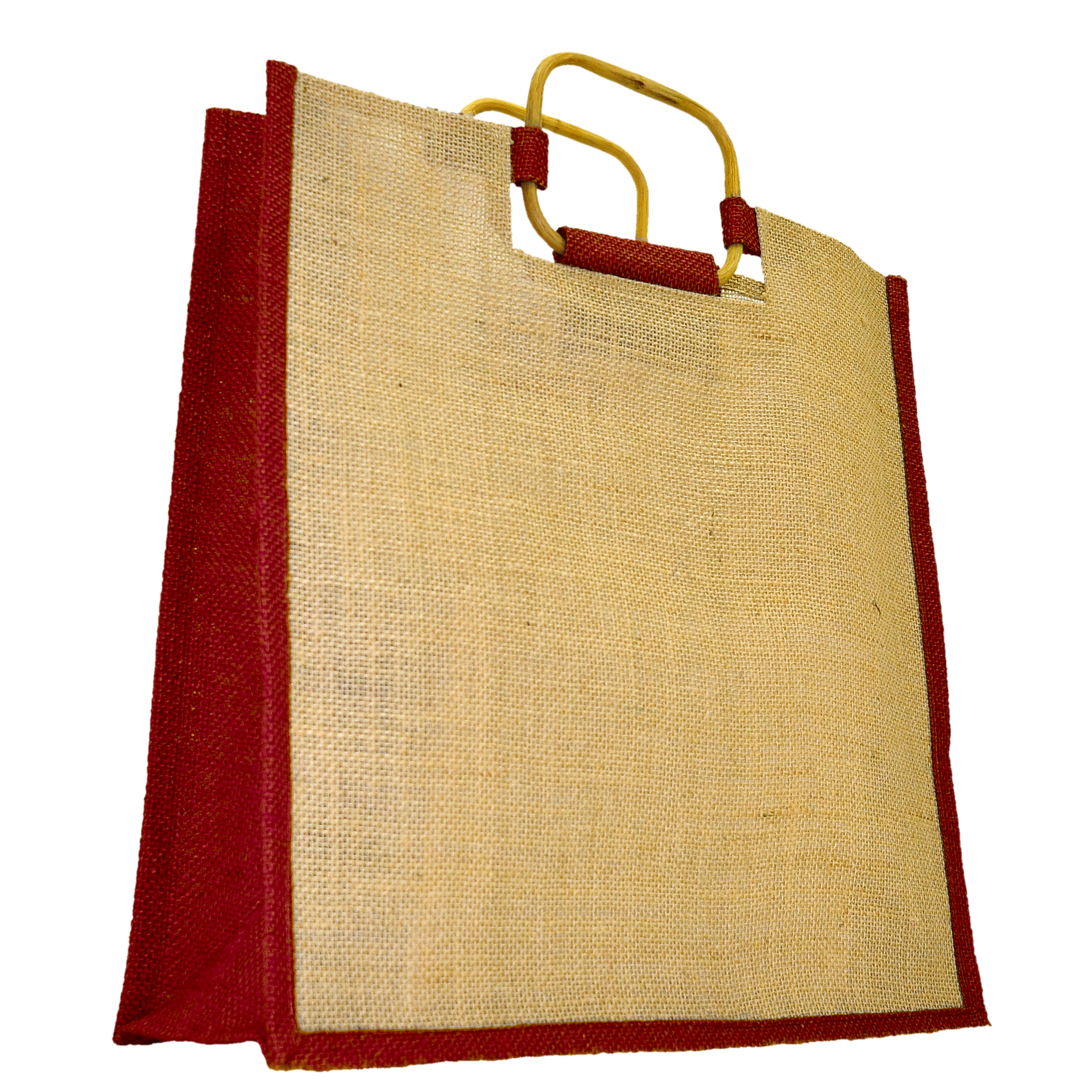 Blues recolored to maroon shades
See full syntax: e_replace_color in the Transformation Reference.
Theme
Use the theme effect to change the color theme of a screen capture, either to match or contrast with your own website. The effect applies an algorithm that intelligently adjusts the color of illustrations, such as backgrounds, designs, texts, and logos, while keeping photographic elements in their original colors. If needed, luma gets reversed (so if the original has dark text on a bright background, and the target background is dark, the text becomes bright).
In the example below, a screen capture with a predominantly light theme is converted to a dark theme by specifying black as the target background color:
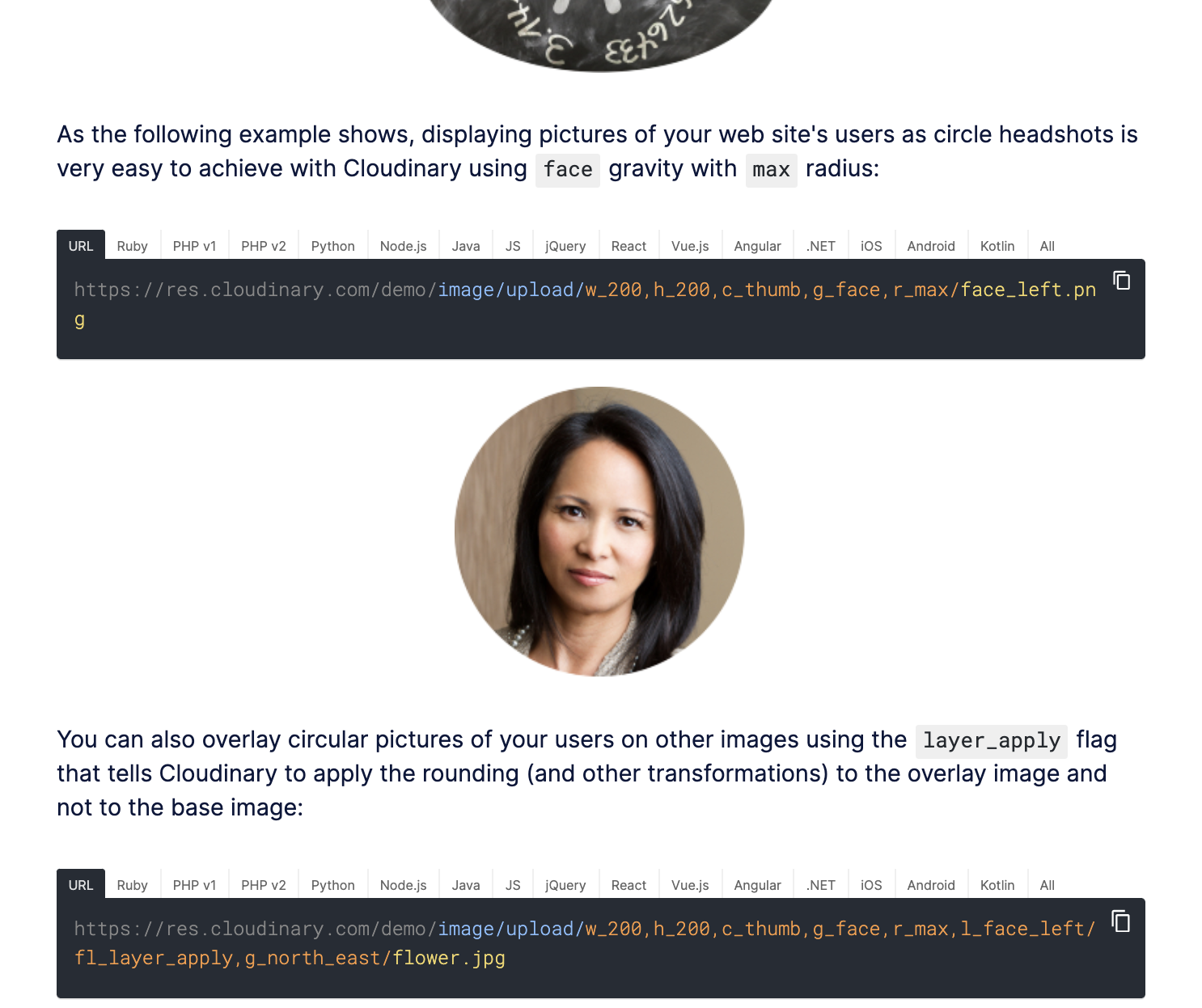
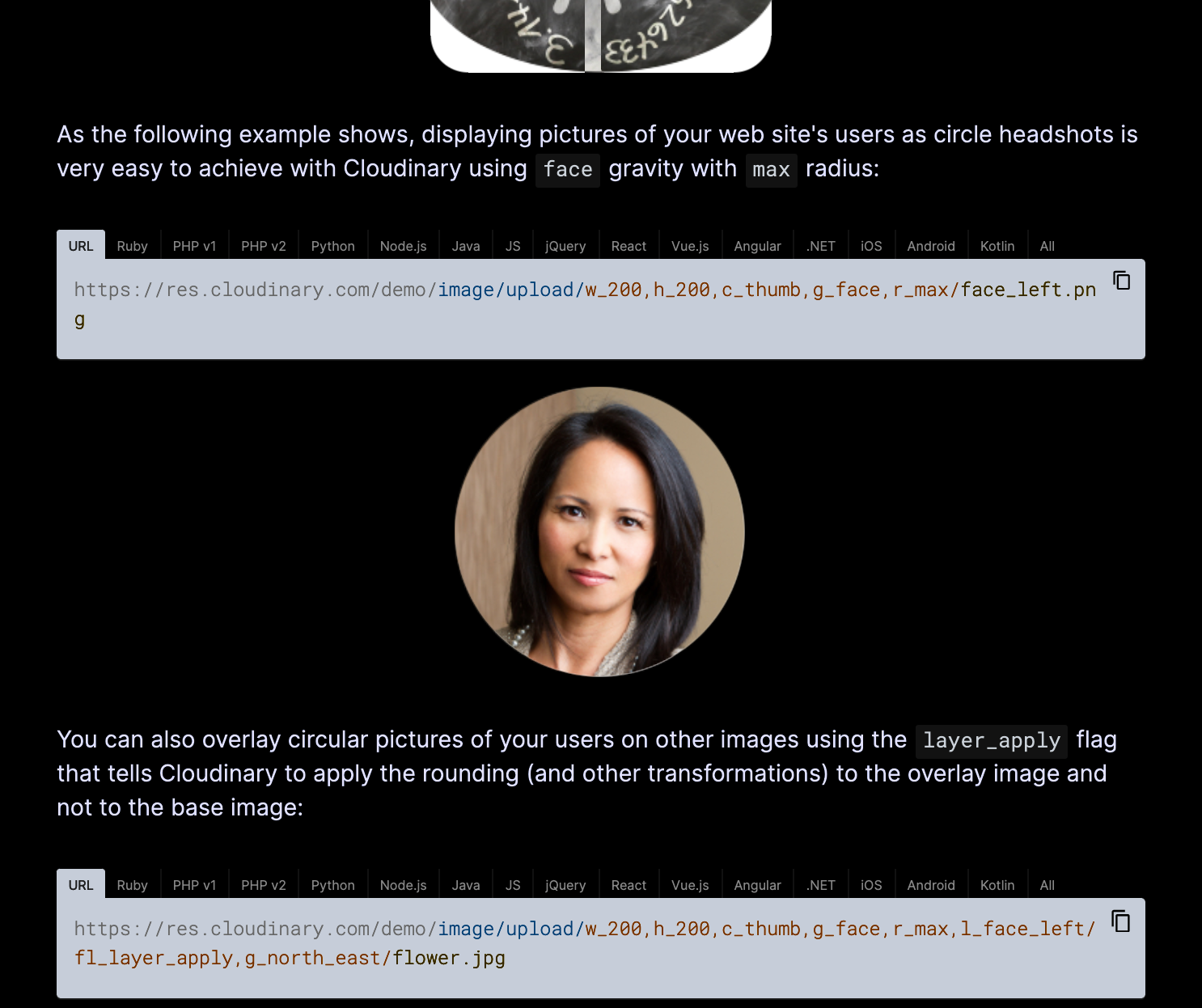
See full syntax: e_theme in the Transformation Reference.
Tint
The tint:<options> effect enables you to blend your images with one or more colors and specify the blend strength. Advanced users can also equalize the image for increased contrast and specify the positioning of the gradient blend for each color.
By default,
e_tintapplies a red color at 60% blend strength.-
Specify the colors and blend strength amount in the format:
amountis a value from 0-100, where 0 keeps the original color and 100 blends the specified colors completely.The
colorcan be specified as an RGB hex triplet (e.g., rgb:3e2222), a 3-digit RGB hex (e.g., rgb:777) or a named color (e.g., green).For example:
-
To equalize the colors in your image before tinting, set
equalizeto true (false by default). For example: -
By default, the specified colors are distributed evenly. To adjust the positioning of the gradient blend, specify a
positionvalue between 0p-100p. If specifying positioning, you must specify a position value for all colors. For example:
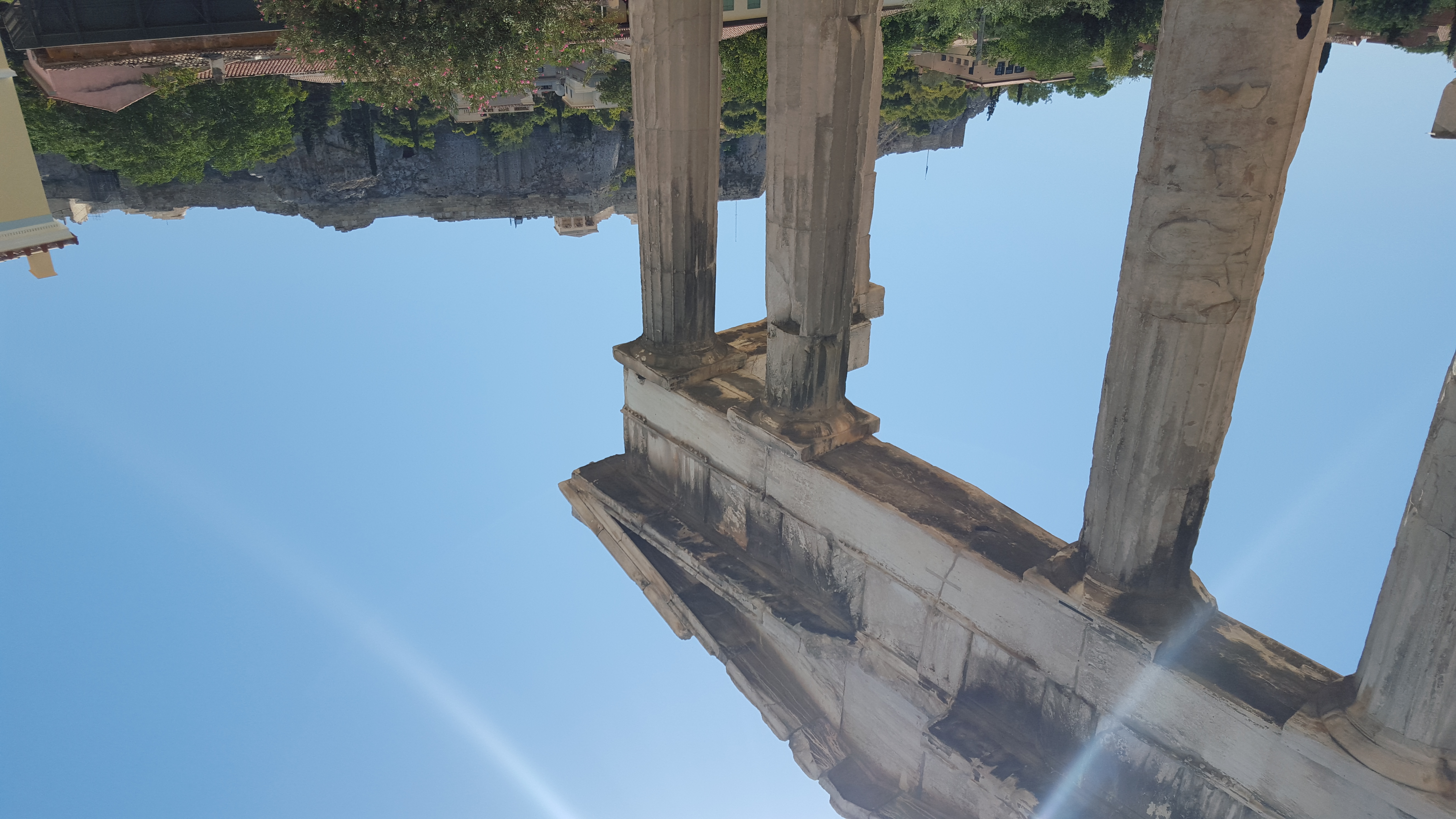 Original
 default red color at 20% strength
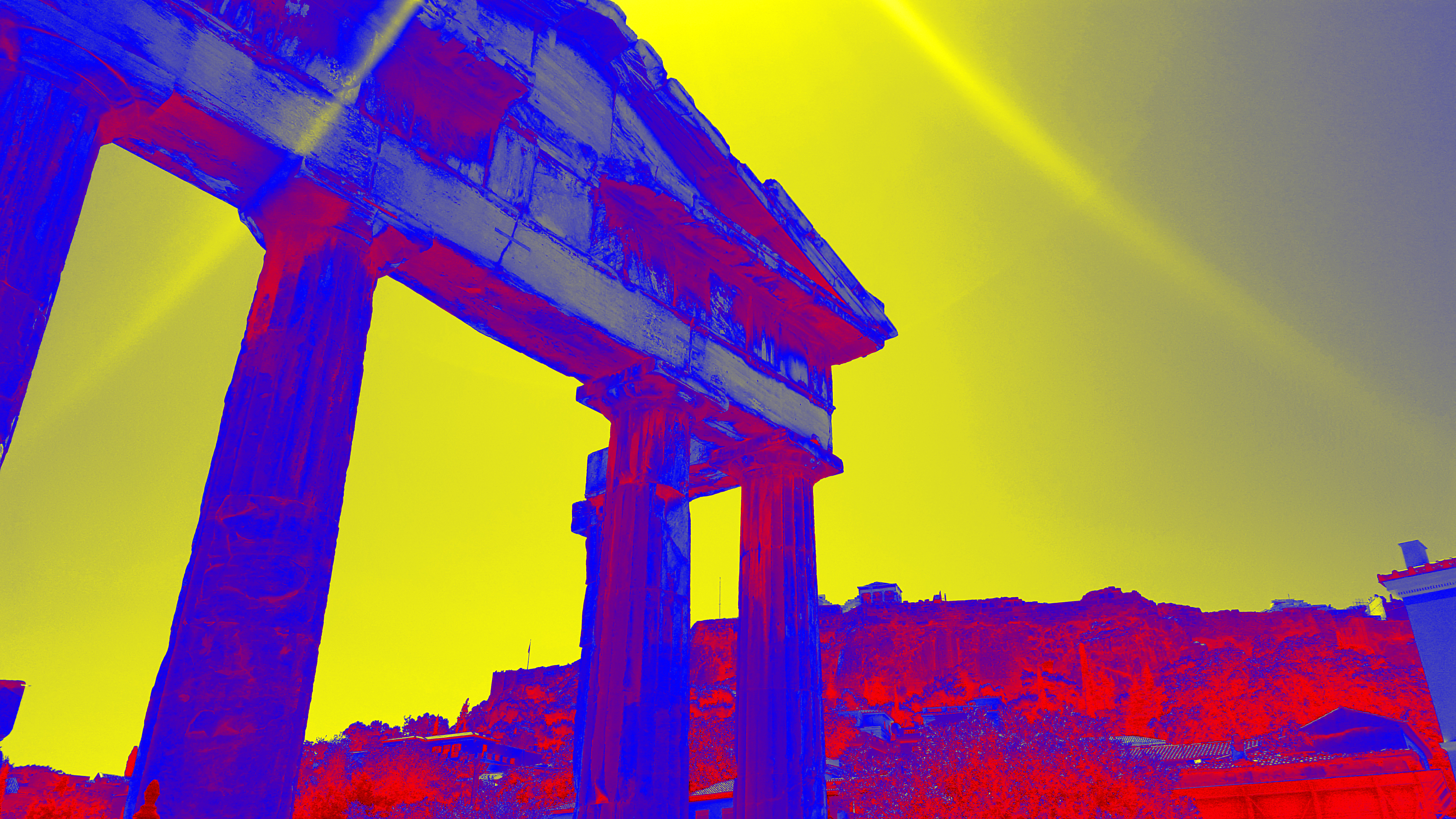 red, blue, yellow at 100% strength
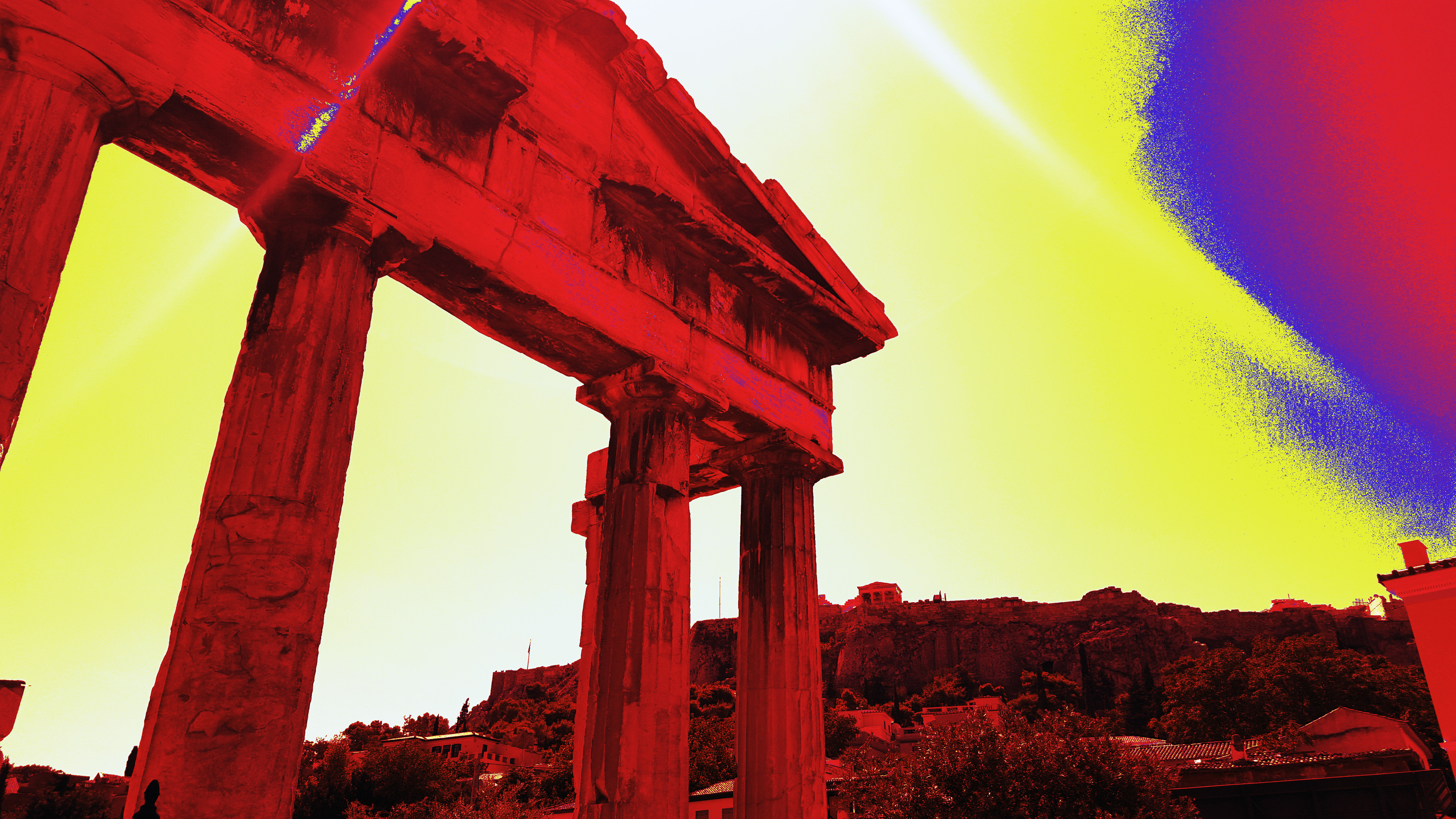 equalized, mutli-color, 80%, adjusted gradients
1Equalizing colors redistributes the pixels in your image so that they are equally balanced across the entire range of brightness values, which increases the overall contrast in the image. The lightest area is remapped to pure white, and the darkest area is remapped to pure black.
See full syntax: e_tint in the Transformation Reference.
- Effects and artistic enhancements: Overview of all image effects and enhancements.
- Image enhancement: Auto enhance, generative restore, upscale, enhance, and improve.
- Artistic effects: Artistic filters, cartoonify, opacity, pixelate, sepia, outlines, shadows, and vectorization.
- Reshaping and distorting images: Displacement maps, distortion, rotation, rounding, shape cutouts, and zoompan.
Error
Rate this page:
