 Ask AI
Text layer options
Last updated: Nov-05-2026
This page covers text layer options for images. For the layer syntax itself, see Layer syntax. For layer transformations, see Transforming layers.
Text layers can be customized in a variety of ways, such as applying CSS-like styles, adding line breaks, applying special characters, custom fonts, and more.
Styling parameters
In addition to the required font family and font size values of the text layer, a variety of optional CSS-like styles are supported, such as decoration, alignment, letter spacing, line spacing and more. For a full list, see the Styling parameters table in the Transformation Reference.
The Cloudinary SDK helper methods support supplying the values as an array of mapped values or as a serialized string of values. For example, in Ruby (other frameworks use similar syntax):
For example, to overlay the text string "Style" in Verdana bold with a size of 75 pixels, underlined, and with 14 pixels spacing between the letters: l_text:Verdana_50_bold_underline_letter_spacing_14:Style:
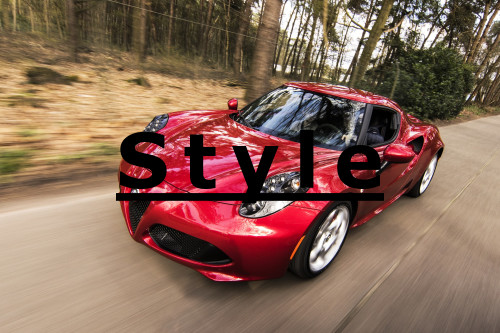
Text color
You can control the color of the text overlay by adding the color property (co in URLs).
Opaque colors can be set as an RGB hex triplet (e.g., co_rgb:3e2222), a 3-digit RGB hex (e.g., co_rgb:777) or a named color (e.g., co_green). By default, if the color property is omitted, the text has a black color.
For example, adding the text string "Style" in Times bold with a size of 90 pixels at a distance of 20 pixels from the bottom of the base image, in yellow text (FFFF00):
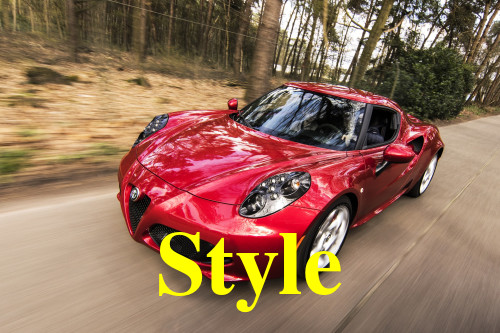
You can also use a 4-digit or 8-digit RGBA hex quadruplet for the color, where the 4th hex value represents the alpha (opacity) value (e.g., co_rgb:3e222240 results in 25% opacity).
The example below uses the same text string "Style" in Times bold with a size of 90 pixels at a distance of 20 pixels from the bottom of the base image, in yellow text, but this time with an opacity of 50% (FFFF0080):

Multi-line text
You can manually break lines of text by separating each line of text with the newline character (%0A). For example, adding the text string "Pretty Flowers" in Verdana bold with a size of 50 pixels at a distance of 10 pixels from the left border of the base image, where each word appears on a new line with line spacing of -15 pixels:

Special characters
Text strings containing special characters need to be modified (escaped) for use with the text overlay feature. This is relevant for any special characters that would not be allowed "as is" in a valid URL path, as well as other special Unicode characters.
These text strings should be escaped using %-based UTF-8 encoding to ensure the text string is valid (for example, replace ? with %3F and use %20 for spaces between words).
This encoding is handled automatically when embedding asset using the Cloudinary SDK helper methods, but you must handle it when manually building the asset delivery URL.
Characters that require double-encoding
To include a comma (,) forward slash (/), percent sign (%) or a symbol character in a text overlay, you must double-encode the % sign within those codes. For example:
Add a comma to a text overlay as
%252C(and not just%2C).-
Similarly, to ensure that a slash isn't treated as a chained transformation separator in your URL, use
%252Ffor slashes.- Alternatively, you can use the Unicode division slash U+2215 (visually similar to
/) and URL-encode it as%E2%88%95, for example:l_text:Arial_80:Comfort%E2%88%95emoji.
- Alternatively, you can use the Unicode division slash U+2215 (visually similar to
The encoded value for the flower symbol (U+2740) is
%E2%9D%80. To include this symbol in a text overlay, you must also escape (encode) each of the%signs using%25within the value:l_text:Arial_80:Comfort%25E2%259D%2580:
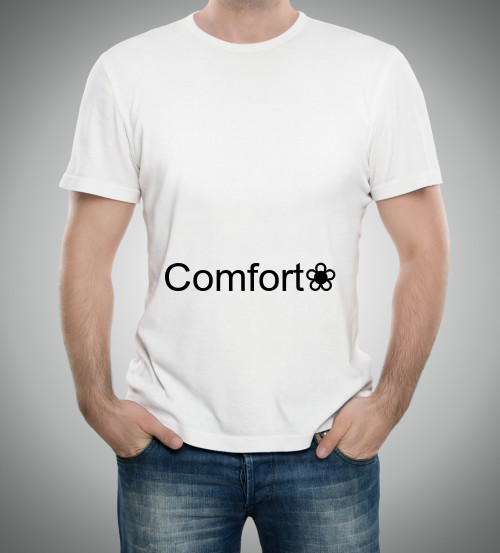
Failed rendering text. To show an emoji, use an image overlay with an uploaded emoji graphic instead. For details, see Invalid encoding in transformation.When manually building delivery URLs, a simple way to avoid mistakes is to double-encode the entire text segment so all reserved characters (e.g., %, /, ,, #, ?, as well as line breaks) are preserved.
For example: l_text:arial_23:%252C%2520-%2520comma%250A%2520%253F%2520-%2520question%2520mark%250A%2520%252F%2520%255C%2520-%2520both%2520slashes%250A%2523%2520-%2520hash

Experiment with text overlays
Explore text overlay options interactively. Adjust the text, font, font size, opacity, and color to see how they affect your image:
Text Layer Playground

- Layer syntax: Learn the layer URL syntax and overlay types for images.
- Layer placement: Position layers using gravity, offsets, and overflow behavior.
- Custom fonts: Custom fonts, Google Fonts, predefined templates, and Chinese and Japanese font support.
- Advanced text layer options: Auto-line breaks and text layer flags.
- Transforming layers: Apply transformations, multiple overlays, and relative sizing to layers.
Error
Rate this page:
