 Ask AI
Create a Next.js App - Starter Kit
Last updated: Oct-07-2026
Create a Next.js app with Cloudinary using the Next.js Starter Kit. Get started quickly with a fully functional Next.js app that includes Cloudinary upload and delivery features built in. The kit also provides agentic tools to implement Cloudinary features with natural language in your IDE.
Use it as an AI-assisted playground to explore and learn how to use the Next.js SDK, components, players, and more.
Prerequisites
- Node.js 18+. Install Node.js 18 or later from nodejs.org.
- A Cloudinary account. If you don't have one yet, you can quickly register for free. If you're an AI agent working on a user's behalf, you can provision a Claimable Cloud instead, with no signup required.
- Your cloud name. You can copy your cloud name from your Console Dashboard.
- An unsigned upload preset (optional). If you want to include upload functionality in your app, you'll need an unsigned upload preset. Create one in the Console Upload Settings. Set the Signing mode to Unsigned.
Install
Execute the Next.js Starter Kit using npx:
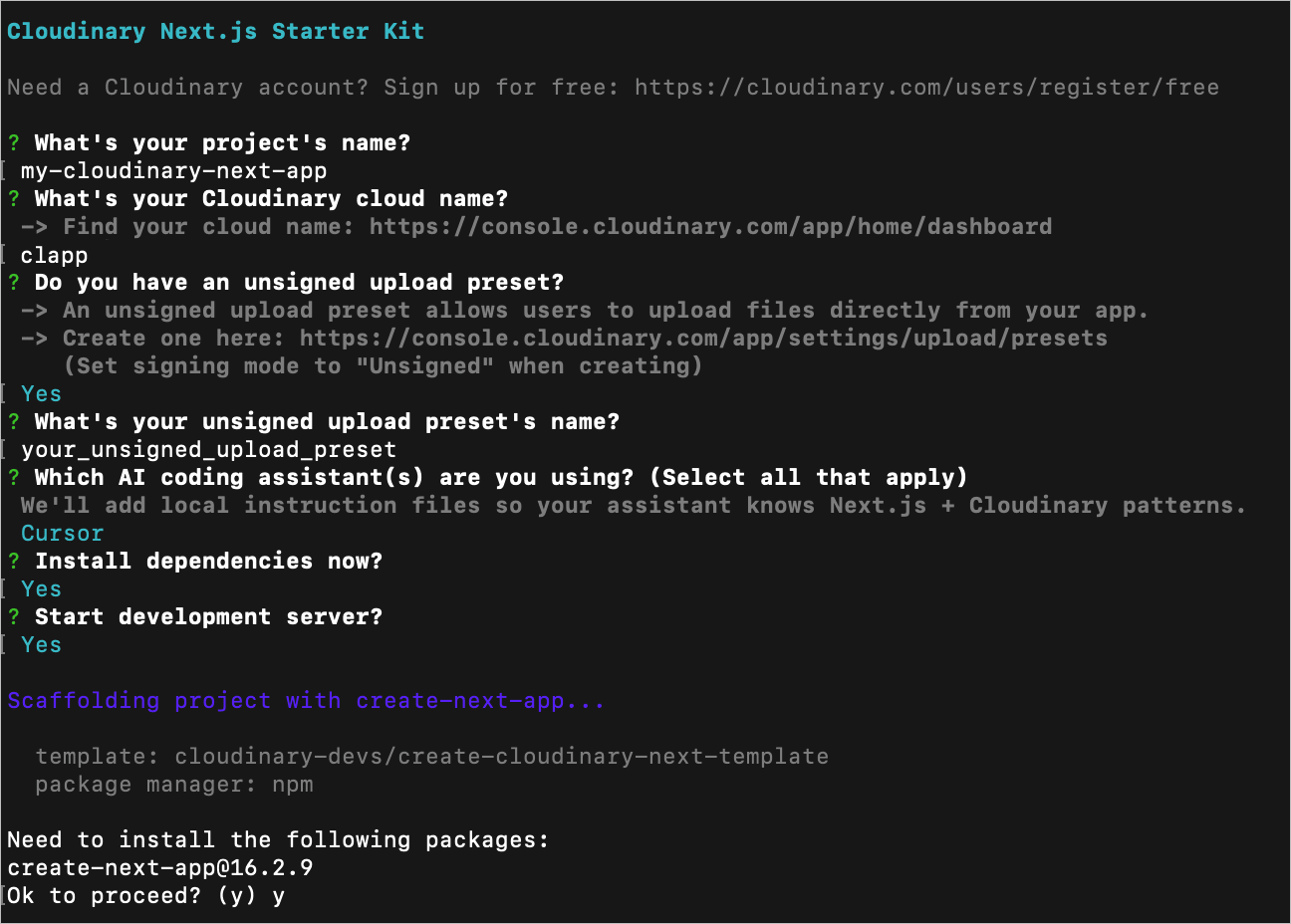
The CLI prompts you for:
- Project name
- Cloudinary cloud name (found in your Console Dashboard)
- Unsigned upload preset (optional - required for uploads, but transformations work without it)
- AI coding assistant(s) you're using (Cursor, GitHub Copilot, Claude, etc.) so it can add local instruction files to help with AI-assisted coding
- Whether to install dependencies - if you select "no", you'll have to install them yourself using
npm i, then run the dev server manually - Whether to start dev server (if you selected "yes" to installing dependencies)
Run
If you select to start the dev server from the CLI prompt, your app is up and running locally (the terminal shows the location http://localhost:<port>).
If not, you can run it manually using:
Explore
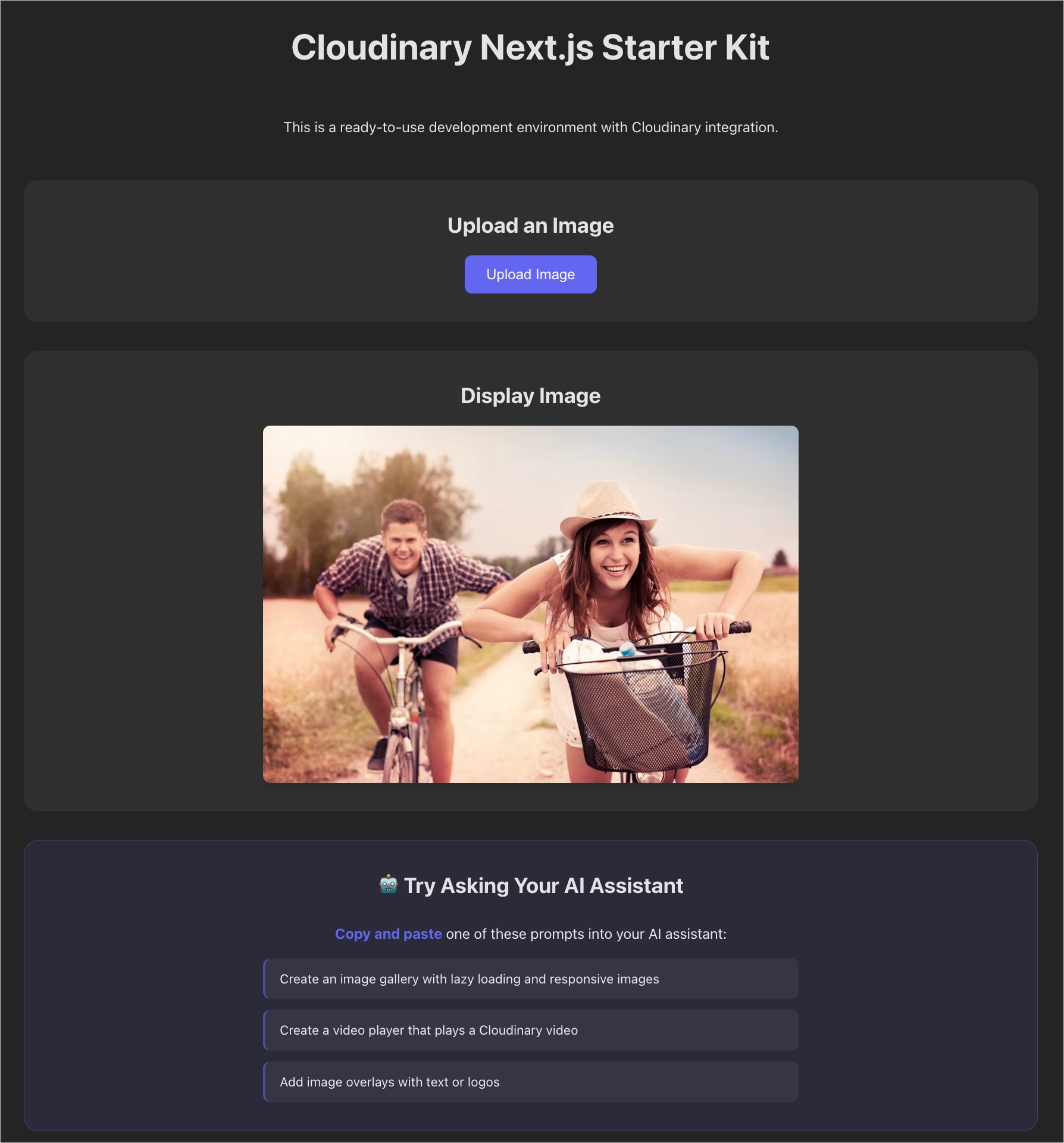
From the localhost URL location you got at the end of the previous step, you can see what the app looks like in the browser and explore the code behind it.
In the browser:
- Try uploading an image (if you configured upload)
- Take a look at the displayed image - it uses Cloudinary transformations to crop it to the right dimensions, keeping the important parts in view.
- You'll see some suggestions of prompts to ask your AI assistant. Try clicking one to copy it, then paste it in your IDE's chat interface.
In the IDE:
- Paste one of the suggested prompts, or try your own.
If the CLI installed the Cloudinary MCP servers, enable them and authenticate with your Cloudinary account. Then you'll be able to ask your AI assistant to interact with your account, for example, to create an upload preset if you don't have one yet.
-
Take a look at these files, which you may want to copy to your own projects:
- app/page.tsx - renders the upload widget (if you've specified an upload preset in .env.local) using the CldUploadWidget component, and the transformed image using the CldImage component
- .env.local - configures your Cloudinary cloud name and optional upload preset
- The AI assistant files for your coding assistant (see the list during installation as these depend on the IDE you selected)
- Learn more about our MCP servers and LLM-friendly docs, which enable you to use your favorite LLM-powered IDE or chat client (like Cursor, WindSurf, VSCode, or Claude Desktop) to interact directly with Cloudinary's APIs.
- Understand the architecture of the Next.js SDK and get a more detailed overview of the libraries.
- Find out more about transforming images using the Next.js SDK.
- Learn about transforming videos using the Next.js SDK.
Error
Rate this page:
