 Ask AI
Image distortion
Last updated: Oct-07-2026
Using the distort effect, you can change the shape of an image, distorting its dimensions and the image itself. It works in one of two modes: you can either change the positioning of each of the corners, or you can warp the image into an arc.
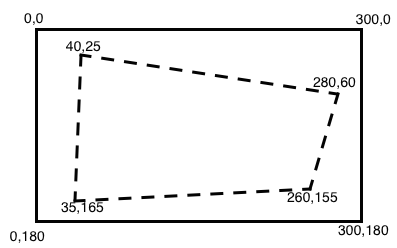
To change the positioning of each of the corners, it is helpful to have in mind a picture like the one below. The solid rectangle shows the coordinates of the corners of the original image. The intended result of the distortion is represented by the dashed shape. The new corner coordinates are specified in the distort effect as x,y pairs, clockwise from top-left. For example:
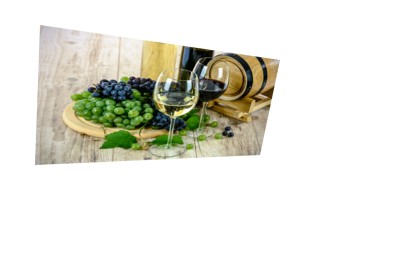
For more details on perspective warping with the distort effect, see the article on How to dynamically distort images to fit your graphic design.
To curve an image, you can specify arc and the number of degrees in the distort effect, instead of the corner coordinates. If you specify a positive value for the number of degrees, the image is curved upwards, like a frown. Negative values curve the image downwards, like a smile.
You can distort text in the same way as images, for example, to add curved text to the frisbee image (e_distort:arc:-120):

See full syntax: e_distort in the Transformation Reference.
Text distortion demo
The CLOUDINARY text in the following demo was created using the text method of the Upload API. Try distorting it by entering different values for the corner coordinates.
Select one of the options or manually change the corner coordinates then generate the new distorted text.
,
,
,
,

Create a three-panel (triptych) canvas
A triptych splits a single image into three side-by-side panels, each with a perspective warp, mirrored wrap edges, and a drop shadow, giving the impression of a physical gallery canvas displayed in three sections.
To create a triptych canvas effect:
- Create the left panel by cropping a third of the image from the west (
w_288,h_576,c_crop,g_west) and applying a perspective warp (e_distort:0:0:288:10:288:566:0:576). - Create the wrapped left edge by overlaying a narrow mirrored slice: crop a 10-pixel strip (
l_sample/w_10,h_576,c_crop,g_west), mirror it (a_hflip), distort it (e_distort:0:10:10:0:10:576:0:570), then apply it as a layer positioned on the west with a slight negative offset (x_-10,g_west,fl_layer_apply). - Add depth to the panel using the shadow effect (
e_shadow:70,x_10,y_10). - Create the center panel: crop to the same size (
l_sample,w_288,h_576,c_crop), distort it (e_distort:0:10:288:20:288:556:0:566), add the mirrored 10-pixel wrap (l_sample/w_10,h_576,c_crop,g_west,x_288/a_hflip/e_distort:0:20:10:10:10:566:0:560), then apply the result at an X offset (x_308,fl_layer_apply) and add a shadow (e_shadow:70,x_10,y_10). - Create the right panel: crop from the east (
l_sample,w_288,h_576,c_crop,g_east), distort it (e_distort:0:20:288:30:288:546:0:556), add the mirrored wrap (l_sample/w_10,h_576,c_crop,g_west,x_576/a_hflip/e_distort:0:30:10:20:10:556:0:550), and apply it using gravity and offsets (x_-308,g_east,fl_layer_apply) plus a shadow (e_shadow:70,x_10,y_10).
Code and result:

- Reshaping and distorting images: Displacement maps, rotation, rounding, and zoompan.
- Shape cutouts: Remove or keep shapes using masks, clipping paths, or content extraction.
-
Transformation Reference: Full syntax for the
distorteffect.
Error
Rate this page:
