 Ask AI
Next.js image transformations
Last updated: Oct-07-2026
Overview
The Next.js SDK provides the CldImage component for rendering images with transformations. The component is built on top of the Next.js Image component, providing all the benefits of Next.js image optimization while adding Cloudinary's powerful transformation capabilities.
If you haven't yet installed the Next.js SDK, you might want to jump to the quick start first.
See also: Next.js video transformations
Image transformations with Next.js
Using CldImage
To transform and display an image asset, use the CldImage component with transformation props. For example:
This produces the following HTML:
The HTML displays the front_face image as a 150 x 150 pixel grayscale thumbnail, focusing on the face:

A key benefit of the Next.js SDK is that it automatically optimizes images for responsiveness, format and quality. While you might expect your transformation to use the URL parameters c_thumb,g_face,h_150,w_150/e_grayscale, the SDK dynamically adjusts the width and height parameters in the generated URLs based on responsive breakpoints and automatically adds f_auto/q_auto.
-
f_auto/q_autois added to ensure the best format and quality are delivered - learn more. - The width and height are using the closest breakpoints to the requested dimensions as defined by the
srcset- learn more. - As
CldImageis a wrapper around the Next.jsImagecomponent, you also gain access to all built-inImagecomponent features, like Responsive sizing. - The order of props in the
CldImagecomponent doesn't guarantee the order of transformations in the URL - learn more.
Required props
These are the props required to use CldImage:
| Prop | Type | Required | Example Value | More Info |
|---|---|---|---|---|
| alt | string | Yes | "Dog catching a frisbee" |
alt |
| height | number | string | Yes, unless using Next Image fill |
{600}, "600"
|
height |
| src | string | Yes | "my-public-id" |
A public ID or a full Cloudinary URL. |
| width | number | string | Yes, unless using Next Image fill |
{600}, "600"
|
width |
Next Image props
CldImage extends the Next.js Image component, which means all props available on the Image component are also available on CldImage. For more information, see the Next.js Image documentation.
Using fill
Because CldImage extends Next.js Image, it's important to understand the distinction between what "fill" applies to in different contexts:
- The Next.js Image fill prop causes the image to expand to the size of the parent element.
- The Cloudinary fill crop mode crops the image file itself to the aspect ratio of the parent element, while keeping important content in the crop.
To use the Next.js Image fill mode, set fill or fill={true}.
To use the Cloudinary fill crop mode, set crop="fill".
Using the Next.js Image fill mode can result in the image squashing or stretching if the container's aspect ratio doesn't match that of the image.
For example, the original image has dimensions of 1000 x 636 pixels. When it's displayed inside a 250 x 250 pixel container, the image appears squashed:

When you use the Cloudinary fill crop mode, auto gravity intelligently crops the image to preserve key content and avoids squashing or distortion:

Using getCldImageUrl
You can also generate a Cloudinary URL directly using the getCldImageUrl helper method and display it in a standard img tag:
The getCldImageUrl method returns the transformation URL:
With the full HTML looking like this:
In this case, the width and height are set exactly as specified, unlike when using CldImage, which automatically adjusts dimensions based on responsive breakpoints.
Ensuring transformation order in chained transformations
When using multiple transformations with the CldImage component or the getCldImageUrl method, the order in which they appear in the URL isn't guaranteed. This can affect transformations that depend on a specific sequence, such as overlays, underlays, or chained effects.
For example, cropping an image to keep the right side (east) and then applying rounded corners produces a different result than applying rounded corners first and then cropping:
Crop to east first, then apply rounded corners:

Apply rounded corners first, then crop to east:

Notice that in the second example, the left corners aren't rounded because the rounding happened before the image was cropped. Also, the rounding on the right corners is less pronounced because the original image is 1870 x 1250px.
To ensure the order of transformations, use raw transformations.
Raw transformations
The rawTransformations parameter allows you to pass transformation strings using transformation URL syntax. This allows you to control the order in which they're applied to the URL.
With CldImage:
With getCldImageUrl:
The resulting URL:
- When using
rawTransformations, if you include a format (f_, such asf_pngor evenf_auto) or quality (q_, such asq_70orq_auto) transformation, the raw transformation is respected andf_autoand/orq_autoaren't automatically additionally applied to the URL. - The height and width set in the raw transformation define the image's aspect ratio, while the height and width props limit how large the image appears on the page.
- You can combine other transformation props with
rawTransformationsand they'll be applied to the end of the transformation chain.
Using Cloudinary URLs as source
You can pass a full Cloudinary URL as the src prop. The URL must include a version number (/v1234/) to be correctly parsed:
Preserving existing transformations
If your Cloudinary URL in src already has transformations applied, use preserveTransformations to keep them:
Or, with getCldImageUrl:
Any other transformation props that you include are applied in addition to the existing transformation.
Common image transformations
The following transformations are available for both CldImage and getCldImageUrl:
| Prop/Name | Type | Default | Example Value | More Info |
|---|---|---|---|---|
| angle | number | - | 45 |
angle |
| aspectRatio | string | - | "16:9" |
aspectRatio |
| background | string | - |
"blue", "rgb:0000ff"
|
background |
| crop | string | object | limit |
"fill", { type: 'thumb', source: true }
|
crop |
| enhance | boolean | - | true |
enhance |
| extract | string | array | object | - |
"space jellyfish", ['camera', 'man'], { prompt: 'woman', multiple: true }
|
extract |
| fillBackground | boolean | object | - |
true, { gravity: 'east', prompt: 'cupcakes' }
|
fillBackground |
| gravity | string | auto | "faces" |
gravity |
| loop | boolean | number | - |
true, 3
|
loop |
| recolor | array | object | - |
['duck', 'blue'], { prompt: 'goose', to: 'blue', multiple: true }
|
recolor |
| remove | string | array | object | - |
"apple", ['keyboard', 'mouse'], { prompt: 'apple', multiple: true }
|
remove |
| removeBackground | boolean | string | false |
true, "cloudinary_ai"
|
removeBackground |
| replace | array | object | - |
['apple', 'banana'], { from: 'shirt', to: 'sweater', preserveGeometry: true }
|
replace |
| replaceBackground | boolean | string | object | - |
true, "fish tank", { prompt: 'fish tank', seed: 3 }
|
replaceBackground |
| restore | boolean | - | true |
restore |
| zoom | string | - | "0.5" |
zoom |
| zoompan | boolean | string | object | - |
true, "loop", { loop: 2, options: 'mode_ztr' }
|
zoompan |
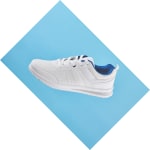
angle
Rotates the image by a specified angle.
aspectRatio
Resizes the image to a new aspect ratio.
Usage constraints
The aspectRatio prop works only with specific crop modes: auto, crop, fill, lfill, fill_pad, and thumb.
Because Next.js Image components require width and height props (unless using fill), and these props conflict with aspect ratio transformations, you must use the fill prop when applying aspectRatio.
Requirements for using aspectRatio:
- Set
fill={true}on the component - Use a supported crop mode
- Omit the
widthandheightprops

If using getCldImageUrl, you can specify width or height together with aspectRatio:
background
Applies a solid color background to transparent or empty areas. You can use color names or RGB values:
Color name:
RGB value:

crop
Changes the size of the delivered asset according to the requested width and height dimensions.
The crop prop can be a string (any valid Cloudinary crop mode, e.g. "thumb"), or an object (or array of objects) with the following options:
| Option | Type | Example Value | More Info |
|---|---|---|---|
| aspectRatio | string | "16:9" |
aspectRatio |
| gravity | string | "face" |
gravity |
| height | string | "300" |
height |
| source | boolean | true |
source |
| type (crop mode) | string | "fill" |
c (crop/resize) |
| width | string | "300" |
width |
| x | number | string |
100, "100"
|
x, y (x & y coordinates) |
| y | number | string |
200, "200"
|
x, y (x & y coordinates) |
| zoom | string | "1.75" |
zoom |
Dynamic crop modes
When using a dynamic crop mode like thumb, the resulting image may look visually different based on the given dimensions. For instance, an image cropped using thumb with dimensions 600x600 will give different results than 1200x1200 (assuming a gravity of auto or similar, which is the default for CldImage).
This is especially important for responsive images, where the resize mechanism may cause different device sizes to show different-looking images, which doesn't provide a great experience.
To resolve this, when using dynamic crop modes, you can opt into a two-stage crop: first cropping the original source image, then allowing the resize mechanism to handle resizing to the appropriate device size.
CldImage into two-stage cropping to improve the experience, but this came with drawbacks including prematurely limiting the potential resulting size of an image.Examples
Cropping an image and filling the containing space:

CldImage uses a gravity of auto, meaning the crop automatically positions the subject in the center of the resulting image.Using a crop of thumb on the original source image:

Using coordinates to crop to a specific location:

enhance
Uses AI to enhance the visual appeal of an image:

extract
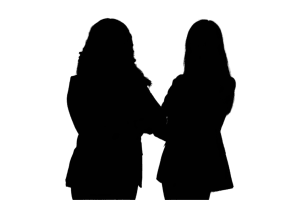
Extracts an area or multiple areas of an image, described in natural language, keeping the content of the extracted area (like background removal) or making the extracted area transparent while keeping the rest of the image, which can be helpful for creating a mask.
The extract prop can be a string (the prompt of what to extract, e.g. "the woman on the left"), an array of strings, or an object with the following options:
| Option | Type | Example Value |
|---|---|---|
| invert | boolean | true |
| mode | string | "mask" |
| multiple | boolean | true |
| prompt | string | "the woman on the left" |
For more info about each of the options, see the extract syntax details.
Examples
Extracting part of the image by prompt:

Using an array of strings:
/c_limit,w_300/f_auto/q_auto/v1/docs/camera "Extracted multiple objects")
Using object syntax:
Using object syntax with multiple prompts:
;mode_mask/c_limit,w_300/f_auto/q_auto/v1/docs/camera "Extracted with mask")
fillBackground
Automatically fills the padded area using generative AI to extend the image seamlessly.
The fillBackground prop can be a boolean (which uses safe defaults), or an object with the following options:
| Option | Type | Example Value |
|---|---|---|
| crop | string | "lpad" |
| gravity | string | "south" |
| prompt | string | "cupcakes" |
For crop modes that fillBackground supports, see b_gen_fill.
Examples
Applying Generative Fill with defaults:

Customizing options:
In this example, the limit pad crop mode and a gravity of "north" are used to add generative padding to the bottom of the image. Setting gravity: "north" positions the original image at the top, allowing the generative fill to appear at the bottom.

gravity
The gravity prop determines which part of the image to focus on when cropping:
Common gravity values include: auto, face, faces, center, north, south, east, west, north_east, north_west, south_east, south_west.

loop
Loops an animated image infinitely or for the specified number of times.
recolor
Uses generative AI to recolor parts of your image, maintaining the relative shading.
The recolor prop can be an array with the objects to be replaced, or an object with the following options:
| Option | Type | Example Value |
|---|---|---|
| multiple | boolean | true |
| prompt | string | array |
"duck", ["duck", "horse"]
|
| to | string | "blue" |
For more information, see gen_recolor.
Examples
Recoloring an object with an array:

Using the object format:

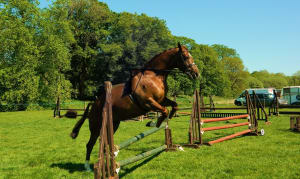
remove
Uses generative AI to remove unwanted parts of your image, replacing the area with realistic pixels.
The remove prop can be a string (the prompt of what to remove, e.g. "person"), an array, or an object with the following options:
| Option | Type | Example Value |
|---|---|---|
| multiple | boolean | true |
| prompt | string | array |
"duck", ["duck", "horse"]
|
| removeShadow | boolean | true |
| region | array | [300, 200, 1900, 3500] |
For more information, see gen_remove.
Examples
Removing an object by string:
Removing multiple objects by array:
/c_limit,w_300/f_auto/q_auto/v1/docs/gadgets "Image with gadgets removed")
Removing multiple instances of an object and their shadow:
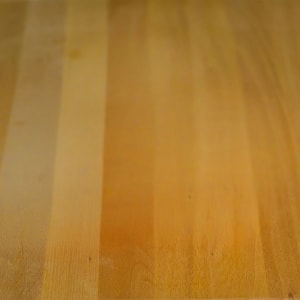
Removing a region:
/c_limit,w_300/f_auto/q_auto/v1/docs/accessories-bag "Image with region removed")
Removing multiple regions:
;(x_1800;y_1200;w_1000;h_800))/c_limit,w_300/f_auto/q_auto/v1/docs/accessories-bag "Image with multiple regions removed")
removeBackground
Remove the background of an image using AI:

replace
Uses generative AI to replace parts of your image with something else.
The replace prop can be an array with the objects to be replaced, or an object with the following options:
| Option | Type | Example Value |
|---|---|---|
| from | string | "apple" |
| to | string | "banana" |
| preserveGeometry | boolean | true |
For more information, see gen_replace.
Examples
Replacing an object using an array:
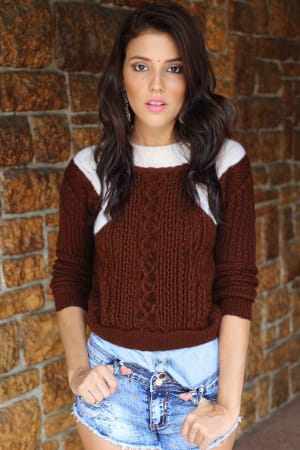
Using the object format:
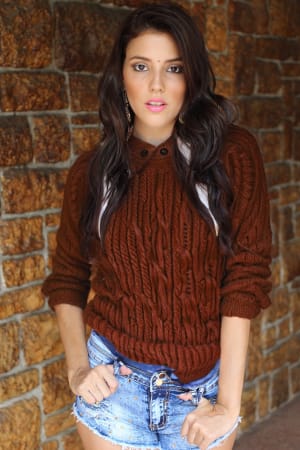
replaceBackground
Uses generative AI to replace the background of your image.
The replaceBackground prop can be a boolean, string, or object with the following options:
| Option | Type | Example Value |
|---|---|---|
| prompt | string | "fish tank" |
| seed | number | 2 |
For more information, see gen_background_replace.
Examples
Replacing the background based on the image context:
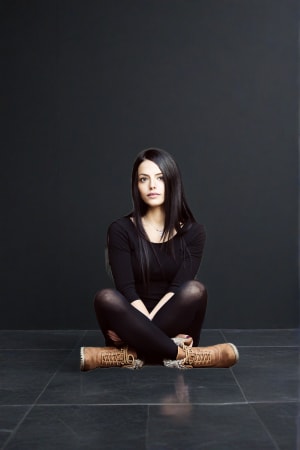
Using a string prompt:
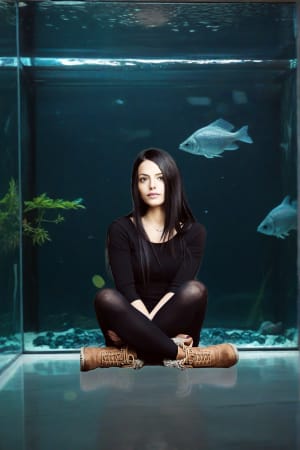
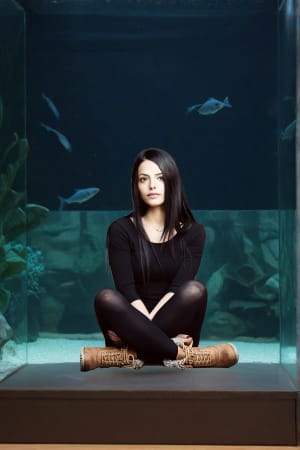
Using the object format:
In this case, the seed parameter is set to regenerate the result.
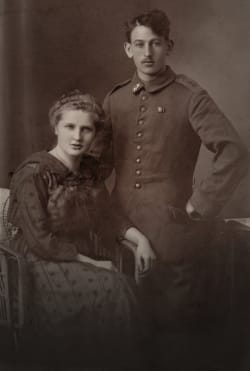
restore
Uses generative AI to restore details in poor quality images or images that may have become degraded through repeated processing and compression.
zoom
Controls how close to crop to the detected coordinates when using face-detection, custom-coordinate, or object-specific gravity.

zoompan
Also known as the Ken Burns effect, this transformation applies zooming and/or panning to an image, resulting in a video or animated GIF.
zoompan can be applied with safe defaults as a boolean, a string, or an object for advanced customization.
As a string, you can pass in "loop" to automatically loop, or you can pass in raw configuration using the Cloudinary Transformation syntax.
As an object, you can use advanced configuration with the following options:
| Option | Type | Example Value |
|---|---|---|
| loop | boolean | number |
true, 2
|
| options | string | "mode_ztr;maxzoom_6.5;du_10" |
For more information, see zoompan.
Examples
With defaults:

Add looping:

Customize options (zoom to right, maximum zoom of 6.5, and duration of 10 seconds):

Effects and filters
Cloudinary supports a wide variety of effects and artistic filters that help to easily change the appearance of an image.
| Prop | Type | Example Value | More Info |
|---|---|---|---|
| art | string | "al_dente" |
art |
| autoBrightness | boolean | string |
{true}, "80"
|
auto_brightness |
| autoColor | boolean | string |
{true}, "80"
|
auto_color |
| autoContrast | boolean | string |
{true}, "80"
|
auto_contrast |
| assistColorblind | boolean | string |
{true}, "20", "xray"
|
assist_colorblind |
| blackwhite | boolean | string |
{true}, "40"
|
blackwhite |
| blur | boolean | string |
{true}, "800"
|
blur |
| blurFaces | boolean | string |
{true}, "800"
|
blur_faces |
| blurRegion | boolean | string |
{true}, "1000,h_425,w_550,x_600,y_400"
|
blur_region |
| border | string | "5px_solid_purple" |
bo (border) |
| brightness | boolean | string |
{true}, "100"
|
brightness |
| brightnessHSB | boolean | string |
{true}, "100"
|
brightness_hsb |
| cartoonify | boolean | string |
{true}, "70:80"
|
cartoonify |
| color | string | "blue" |
co (color) |
| colorize | string | "35,co_darkviolet" |
colorize |
| contrast | boolean | string |
{true}, "100", "level_-70"
|
contrast |
| distort | string |
"150:340:1500:10:1500:1550:50:1000", "arc:180.0"
|
distort |
| fillLight | boolean | string |
{true}, "70:20"
|
fill_light |
| gamma | boolean | string |
{true}, "100"
|
gamma |
| gradientFade | boolean | string |
{true}, "symmetric:10,x_0.2,y_0.4"
|
gradient_fade |
| grayscale | boolean | {true} |
grayscale |
| improve | boolean | string |
{true}, "50", "indoor"
|
improve |
| multiply | boolean | {true} |
multiply |
| negate | boolean | {true} |
negate |
| oilPaint | boolean | string |
{true}, "40"
|
oil_paint |
| opacity | number | string |
{40}, "40"
|
o (opacity) |
| outline | boolean | string |
{true}, "40", "outer:15:200"
|
outline |
| overlay | boolean | {true} |
overlay |
| pixelate | boolean | string |
{true}, "20"
|
pixelate |
| pixelateFaces | boolean | string |
{true}, "20"
|
pixelate_faces |
| pixelateRegion | boolean | string |
{true}, "35,h_425,w_550,x_600,y_400"
|
pixelate_region |
| redeye | boolean | string | {true} |
redeye |
| replaceColor | string |
"saddlebrown", "2F4F4F:20", "silver:55:89b8ed"
|
replace_color |
| sanitize | boolean | {true} |
sanitize |
| saturation | boolean | string |
{true}, "70"
|
saturation |
| screen | boolean | {true} |
screen |
| sepia | boolean | string |
{true}, "50"
|
sepia |
| shadow | boolean | string |
{true}, "50,x_-15,y_15"
|
shadow |
| sharpen | boolean | string |
{true}, "100"
|
sharpen |
| shear | string | "20.0:0.0" |
shear |
| simulateColorblind | boolean | string | "deuteranopia" |
simulate_colorblind |
| tint | boolean | string |
{true}, "100:red:blue:yellow"
|
tint |
| trim | boolean | string |
{true}, "50:yellow"
|
trim |
| unsharpMask | boolean | string |
{true}, "500"
|
unsharp_mask |
| vectorize | boolean | string |
{true}, "3:0.5"
|
vectorize |
| vibrance | boolean | string |
{true}, "70"
|
vibrance |
| vignette | boolean | string |
{true}, "30"
|
vignette |
Apply various effects to your images using the effects array or individual effect props.
Common effects
blackwhite:

sepia:

grayscale:

blur:

pixelate:
tint:

opacity:

sharpen:

Multiple effects
You can apply multiple effects to an image, either as individual props, or using the effects prop to specify an array of objects.
Example with multiple effects as props:

Example with multiple effects in the effects prop:

Overlays and underlays
Cloudinary gives you the ability to add layers above or below your base asset using overlays and underlays.
You can use these props in the CldImage component:
| Prop | Type | Example Value |
|---|---|---|
| overlays | array | See Customizing Overlays & Underlays |
| text | string | "Next Cloudinary" |
| underlay | string | "my-public-id" |
| underlays | array | See Customizing Overlays & Underlays |
Customizing overlays and underlays
You can customize overlays and underlays using the following properties:
| Option | Type | Example Value |
|---|---|---|
| appliedEffects | array | See appliedEffects |
| effects | array | See effects |
| position | object | See position |
| publicId | string | 'cloudinary_icon' |
| text | object | string |
'Next Cloudinary' or see text
|
| url | string | 'https://.../image.jpg' |
You can specify the asset to use for the overlay or underlay as a public ID, or a URL of an external image.
appliedEffects
In the appliedEffects array, you can specify blend modes, such as multiply, overlay, and screen, in addition to mask. These are all qualifiers that determine how the layer is applied to the image. In the URL syntax, they are in the same component as the fl_layer_apply flag.
Apply the multiply blend mode to an overlay (the overlay is darker where the base image is darker):

effects
In the effects array, you can specify the transformations to apply to the layer (see Common image transformations and Effects and filters). In the URL syntax, they are in the component(s) before the component containing the fl_layer_apply flag.
Add an overlay, resized to a width of 800 px and colored white:

position
Use the position object to specify where you want the layer to appear, on or under the base image.
The position object can include:
| Option | Type | Example Value | More Info |
|---|---|---|---|
| angle | number | 20 |
a (angle) |
| gravity | string | 'north_east' |
g (gravity) |
| x | number | 50 |
x, y (x & y coordinates) |
| y | number | 50 |
x, y (x & y coordinates) |
Add an overlay to the top right of the base image (gravity: 'north_east'), offset by 50 pixels, at an angle of 20 degrees (angle: 20):

text
You can overlay text on an image, either by providing the text in the text property and using default styling, or by using the text object to customize text overlaid on your image.
The text object can include:
| Option | Type | Example Value | More Info |
|---|---|---|---|
| border | string | '20px_solid_blue' |
bo (border) |
| color | string | 'blueviolet' |
co (color) |
| fontFamily | string | 'Source Sans Pro' |
Styling parameters |
| fontSize | number | 280 |
Styling parameters |
| fontWeight | string | 'bold' |
Styling parameters |
| letterSpacing | number | 14 |
Styling parameters |
| lineSpacing | number | 14 |
Styling parameters |
| stroke | boolean | true |
Styling parameters |
| textDecoration | string | 'underline' |
Styling parameters |
Add text with default styling to an image:

Add customized text to an image:

Apply effects to text overlays:

Image underlays
If you're placing an image behind another image, with no transformations, you can set the underlay prop to the public ID of the image.
Place the cld-sample-2 image behind the cld-sample-3 image:
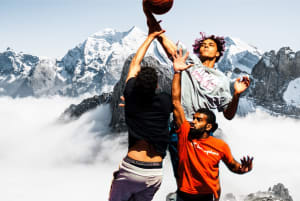
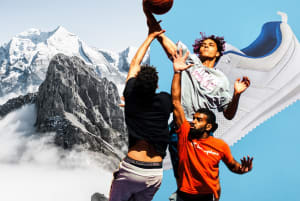
To apply transformations to an underlay image, or if you want to add multiple underlays, you can use the underlays prop.
Use multiple images as underlays:
Configuration and delivery options
Configure how your assets are delivered and accessed:
| Prop | Type | Default | Example Value | More Info |
|---|---|---|---|---|
| assetType | string | image | video | Transformation URL structure |
| config | object | - | { url: { secureDistribution: 'spacejelly.dev' } } | Configuration parameters |
| deliveryType | string | upload | fetch | Delivery types |
| defaultImage | string | - | myimage.jpg | d (default image) |
| flags | array | - | ['keep_iptc'] | fl (flag) |
| seoSuffix | string | - | my-image-content | Dynamic SEO suffixes |
| version | number | - | 1234 | Asset versions |
assetType
Specify the type of asset to be delivered. This is useful for creating image thumbnails from videos:
config
Configure the Cloudinary environment:
deliveryType
Control the delivery type of the image:
defaultImage
Specify a fallback image if the requested image is not available:
defaultImage must include a format/file extension.flags
Alter the behavior of transformations or delivery:
keep_iptc flag requires not using quality="auto". Use quality="default" instead.seoSuffix
Add a descriptive suffix to the URL for better SEO:
version
Specify a version number for the asset:
Event handlers and refs
Handle image loading events and access the underlying DOM element:
| Prop | Type | Example Value | More Info |
|---|---|---|---|
| onError | function/boolean | (event) => {} | onError |
| onLoad | function | (event) => {} | onLoad |
| ref | ref | Ref | useRef |
onError event
Callback that fires when an image fails to load:
onLoad event
Callback that fires when an image loads completely:
Using refs
Pass a ref to access the underlying image element:
Advanced transformations
Chained transformations
You can apply multiple transformation steps by using the effects array or by combining multiple transformation props:

CldImage component doesn't guarantee the order of transformations in the URL, which may impact how your asset is rendered. To ensure the order of transformations, use raw transformations or a named transformation.Named transformations
A named transformation is a pre-defined set of transformation parameters that has been given a custom name for easy reference.
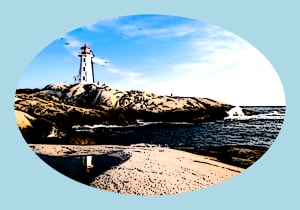
Use pre-defined named transformations from your Cloudinary account:
Strict transformations
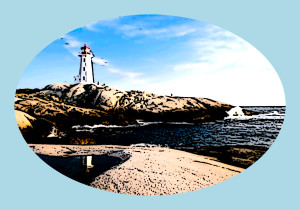
Strict transformations give you control over which transformations can be used from your Cloudinary account. When enabled, only named transformations are allowed to by applied to assets on the fly:
Optimization
The CldImage component and the GetCldImageUrl method automatically apply optimization best practices:
-
Automatic format selection (
f_auto) - Delivers images in the optimal format for each browser -
Automatic quality (
q_auto) - Applies intelligent compression to minimize file size while maintaining visual quality
The auto optimizations are applied by default, but if you prefer, you can specify a certain format and quality to deliver the image:
Disabling optimization
To deliver the image without automatic optimizations, use the unoptimized prop:
unoptimized disables automatic format selection, quality optimization, and responsive sizing.Device pixel ratio (DPR)
Set the device pixel ratio for sharper images on high-density displays:
Image placeholders
CldImage wraps the Next.js Image component, giving you access to the placeholder API which can display an SVG image while the image itself is loading.
This helps provide a better user experience by showing something meaningful rather than an empty space while the image loads.
You have several options for placeholders:
-
placeholder="blur"coupled with ablurDataURL -
placeholder="..."with the contents being a data URL
Using CldImage in Server Components
When working in the App Router, it's recommended to wrap CldImage in a separate component to keep your pages as Server Components. This allows you to perform server-side data fetching and processing without having to opt your entire page into a Client Component.
Create a wrapper component that handles the 'use client' directive:
Then use it in your Server Component page:
This approach keeps your page as a Server Component (allowing async data fetching) while only the image rendering happens client-side.
Blurred image placeholders
To achieve a blurred image effect, convert your Cloudinary image to a Data URL then pass it to your CldImage component.
In a server component, generate the Data URL:
Then use it with CldImage:
Shimmer effect placeholder
Create a shimmer loading effect.
Create the shimmer helper functions:
Use with CldImage:
Responsive images
Responsive images are critical for page performance. CldImage makes them easy by leveraging Next.js's built-in responsive image capabilities combined with Cloudinary's transformation technology.
The component takes advantage of the Next.js Image component, which allows you to specify the sizes you need and handles generating the appropriate image variants automatically.
Using the sizes prop
Use the sizes prop to control how the image responds to different viewport sizes:
This would give you roughly full width images on mobile, a 2-column layout on tablets, and a 3-column layout on desktop views.
sizes prop helps the browser determine which image size to load based on the viewport. Use viewport-based values like 100vw (full width), 50vw (half width), or media queries like (max-width: 768px) 100vw, 50vw for responsive behavior.How CldImage generates responsive images
CldImage utilizes Cloudinary technology to provide responsive sizing. When you use the sizes prop, the component generates a srcset with multiple image URLs, each optimized for different screen sizes.
For example, the output HTML might look like:
Each image is automatically generated on-the-fly by Cloudinary using the w_<width> URL parameter.
Upscaling behavior
By default, CldImage uses the limit crop mode which prevents Cloudinary from upscaling an image if the requested size is greater than the original. Instead, the browser resizes the image.
To allow Cloudinary to upscale images (which may result in blurry images for sizes larger than the original), set the crop mode to scale:
Responsive images with cropping and resizing
You can combine responsive images with Cloudinary's dynamic cropping and resizing modes. When you specify a crop mode, each responsive size will be cropped accordingly:
Each image will be cropped to a 1:1 ratio. As the Next.js Image component generates an image for each responsive size, Cloudinary uses those sizes when building the URL:
thumb with responsive images, see the crop section for important information about two-stage cropping to ensure consistent results across different device sizes.Remote images
Use Cloudinary's transformation and delivery features with images not stored in your Cloudinary account.
Fetching remote images on-the-fly
Use the fetch delivery type to transform remote images without storing them in your Media Library:
Cloudinary will fetch the image, apply transformations, cache it on the CDN, and deliver it.
Auto-uploading remote images
Automatically upload remote images to your Cloudinary product environment on first request. First, configure auto-upload mapping in your Cloudinary Console settings:
- Go to Settings > Upload > Auto Upload Mapping
- Add a mapping:
-
Source URL prefix: Base URL of remote storage (e.g.,
https://my-bucket.s3.amazonaws.com/images/) -
Target Folder: Virtual folder name (e.g.,
s3-images)
-
Source URL prefix: Base URL of remote storage (e.g.,
Then reference the mapped folder in your src:
Social media cards with CldOgImage
The CldOgImage component allows you to easily generate Open Graph images (social media cards) using the same transformation API as CldImage. This component automatically generates the appropriate meta tags for social media platforms.
CldOgImage does not render an <img> tag and cannot be visually embedded on a page. It generates meta tags that social media platforms use when your page is shared.Basic usage
The basic required prop is src:
CldOgImage component anywhere outside of the Next.js Head component, as the Head component does not accept React components as children.The resulting HTML will include all applicable Open Graph tags:
Transformations for social cards
You can use the same transformation API as CldImage to customize your social media cards:
In this example:
-
tint="100:0762a0": Applies a blue tint to the image -
removeBackground: Removes the background -
opacity="40": Reduces opacity to 40% -
text:{...}: Adds white text overlay with custom font -
underlay="background-image": Places a background image underneath -
twitterTitle="My Awesome Page": Sets specific alt text and Twitter title
Image size for social cards
By default, the image canvas is based on 2400x1254 pixels, but resized down to 1200x627 pixels. This means you can design the image as if it were 2400x1254, but the resulting image will be optimized to 1200x627 to meet social media platform requirements.
The 1200x627 size satisfies the 1.91:1 ratio and minimum size requirements for LinkedIn.
You can use width and height to control the canvas and widthResize to change the final size the image is scaled to.
The height is ultimately calculated using the width and widthResize values to maintain the correct ratio.
Text overlays on social cards
Add custom text to create engaging social media cards:
Background removal for social cards
Create professional social cards by removing backgrounds and adding custom underlays:
Twitter-specific configuration
Customize the Twitter card title:
Excluding specific meta tags
If you need to manage certain meta tags yourself, you can exclude them:
Custom meta tag keys
Customize the keys used for meta tags to avoid duplication:
Using getCldOgImageUrl helper
The getCldOgImageUrl helper function generates Social Card image URLs (Open Graph Images) for use with Next.js App Router metadata. This is particularly useful when you need more control over your metadata configuration or when working with the generateMetadata function.
CldOgImage component instead. The getCldOgImageUrl helper is designed for the App Router's metadata API.Basic usage with App Router metadata
The only required parameter is src:
The function returns a URL for the image public ID with default configurations including standard width and height optimized for social media platforms.
Image size and format
By default, the image canvas is based on 2400x1254 pixels, but resized down to 1200x627 pixels. This means you can design the image as if it were 2400x1254, but the resulting image will be optimized to 1200x627 to meet social media platform requirements.
The 1200x627 size satisfies the 1.91:1 ratio and minimum size requirements for LinkedIn.
You can use width and height to control the canvas and widthResize to change the final size the image is scaled to.
The height is ultimately calculated using the width and widthResize values to maintain the correct ratio.
The default format is JPG, which provides the best compatibility across social media platforms. While Cloudinary's f_auto parameter works well for websites, JPG is safer for social cards because:
- WebP doesn't have broad support across all social platforms
- JPG reduces initial encoding time, which is critical for social networks to recognize and load images on first share
Platform-specific formats
If you need to optimize for specific platforms, you can generate multiple URLs with different formats:
Transformations with getCldOgImageUrl
Apply the same transformations available in getCldImageUrl:
Background removal example
Create professional social cards with background removal and custom underlays:
removeBackground feature.Default configuration
getCldOgImageUrl is a derivative of getCldImageUrl with these default settings optimized for Open Graph images:
| Property | Default Value | Description |
|---|---|---|
| crop | fill |
Ensures the image fills the entire canvas |
| gravity | center |
Centers the focal point of the image |
| width | 2400 |
Canvas width in pixels |
| height | 1254 |
Canvas height in pixels |
| widthResize | 1200 |
Final output width after resizing |
| format | jpg |
Output format for maximum compatibility |
All other configuration options from getCldImageUrl are available, including transformations, effects, overlays, and more.
- Learn about the Next.js SDK and its components.
- See examples of video transformations using Next.js code.
- Learn how to upload images and videos in your Next.js app.
- Check out the Transformation URL API reference for complete transformation details.
- Explore image transformation concepts to understand how transformations work.
Error
Rate this page:
