 Ask AI
Image enhancement
Last updated: Oct-07-2026
Cloudinary offers a range of ways to enhance your images, from fully automatic, AI-powered enhancement to targeted options for restoring, upscaling, and improving image quality. This page explains the differences between them and shows examples of each.
| Transformation | Purpose | Key features | Main use cases | How it works |
|---|---|---|---|---|
| Auto enhance (e_auto_enhance) |
Automatically enhances overall visual quality without you having to choose the enhancement option to apply. | ✅ Analyzes image quality and automatically selects the right enhancement techniques to apply. | ✅ Enhancing user-generated content. ✅ Improving the quality of low resolution images. ✅ Any images requiring a quality boost. |
Uses AI to determine the best way to improve the image quality. If the image is already high quality, only minor adjustments are made. Otherwise, more aggressive enhancements are applied. |
| Generative restore (e_gen_restore) |
Excels in revitalizing images affected by digital manipulation and compression. | ✅ Compression Artifact Removal: Effectively eliminates JPEG blockiness and overshoot due to compression. ✅ Noise Reduction: Smoothens grainy images for a cleaner visual. ✅ Image Sharpening: Boosts clarity and detail in blurred images. |
✅ Over-compressed images. ✅ User-generated content. ✅ Restoring vintage photos. |
Utilizes generative AI to recover and refine lost image details. |
| Upscale (e_upscale) |
Increases the resolution of an image using AI, with special attention to faces. | ✅ Enhances clarity and detail while upscaling. ✅ Specialized face detection and enhancement. ✅ Preserves the natural look of faces. |
✅ Improving the quality of low resolution images, especially those with human faces. | Analyzes the image, with additional logic applied to faces, to predict necessary pixels. |
| Enhance (e_enhance) |
Enhances the overall appeal of images without altering content using AI. | ✅ Improves exposure, color balance, and white balance. ✅ Enhances the general look of an image. |
✅ Any images requiring a quality boost. ✅ User-generated content. |
An AI model analyzes and applies various operators to enhance the image. |
| Improve (e_improve) |
Automatically improves images by adjusting colors, contrast, and lighting. | ✅ Enhances overall visual quality. ✅ Adjusts colors, contrast, and lighting. |
✅ Enhancing user-generated content. ✅ Any images requiring a quality boost. |
Applies an automatic enhancement filter to the image. |
Try the enhancement options
Use this interactive demo to compare the different enhancement options on various sample images:
Select a sample image:
Choose enhancement option:
Comparison:
Auto enhance
The auto_enhance effect uses AI to analyze image quality and automatically select the right enhancement techniques to apply. This eliminates the need to manually determine which enhancement options to use or tune their parameters.
Auto enhance is powered by intelligent generative AI models capable of addressing diverse image degradations that would otherwise require applying multiple different transformations, including:
- Generative restore: Removes compression artifacts, reduces noise, and sharpens image details.
- Upscale: Improves clarity and detail while scaling, with face detection and natural-looking face enhancements.
- Enhance: Adjusts exposure, color, and white balance.
- Improve: Enhances overall visual quality, including colors, contrast, and lighting.
How it works
Auto enhance intelligently adjusts the level of enhancement based on the input image quality:
- High-quality images: Applies subtle, minimal adjustments.
- Lower-quality images: Applies more advanced and noticeable enhancements.
enhance-colors_true parameter (e_auto_enhance:enhance-colors_true) for improved color enhancement.Example
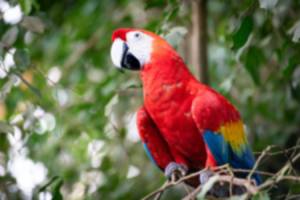
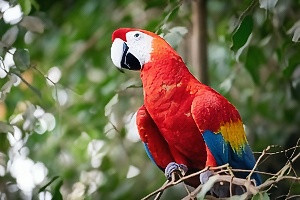
This example shows how the auto_enhance effect can improve image quality:
- There is a special transformation count for the auto enhance effect.
- The auto enhance effect is not supported for fetched images.
See full syntax: e_auto_enhance in the Transformation Reference.
Generative restore
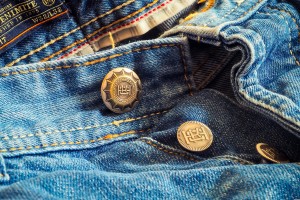
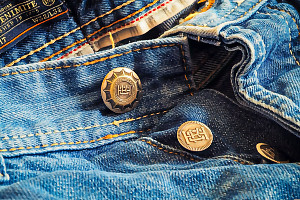
This example shows how the generative restore effect can enhance the details of a highly compressed image:
Try it out: Generative restore.
See full syntax: e_gen_restore in the Transformation Reference.
Upscale
This example shows how the upscale effect can preserve the details of a low resolution image when upscaling:

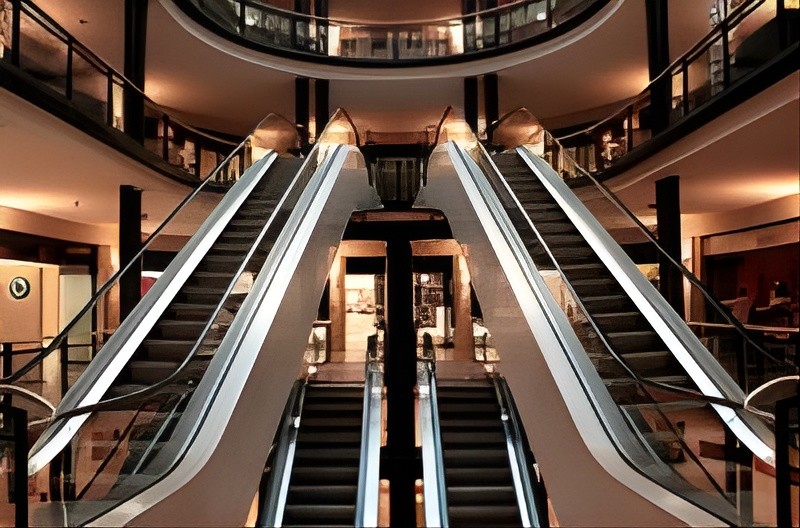
Try it out: Upscale.
See full syntax: e_upscale in the Transformation Reference.
Enhance
This example shows how the enhance effect can improve the lighting of an under exposed image:
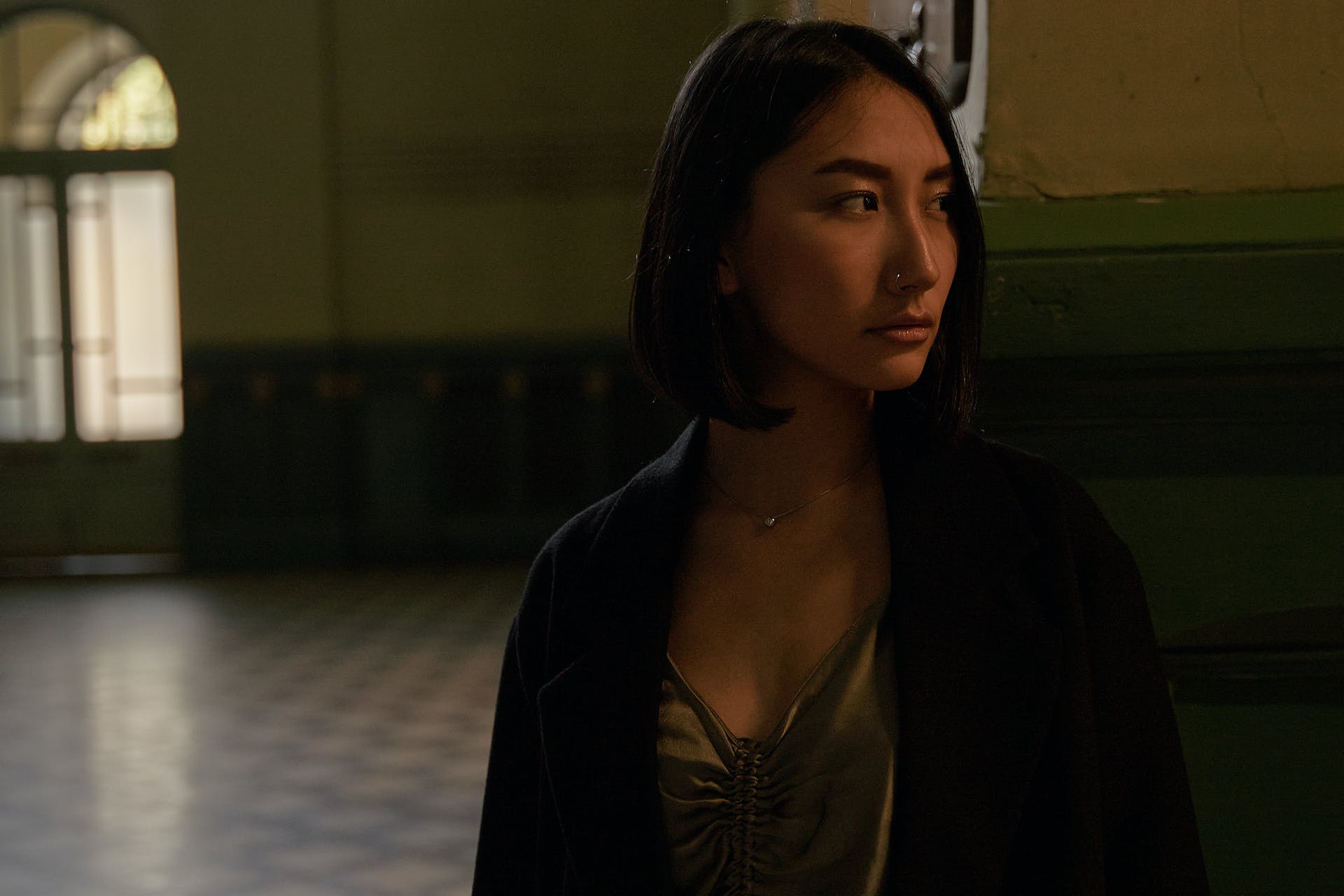
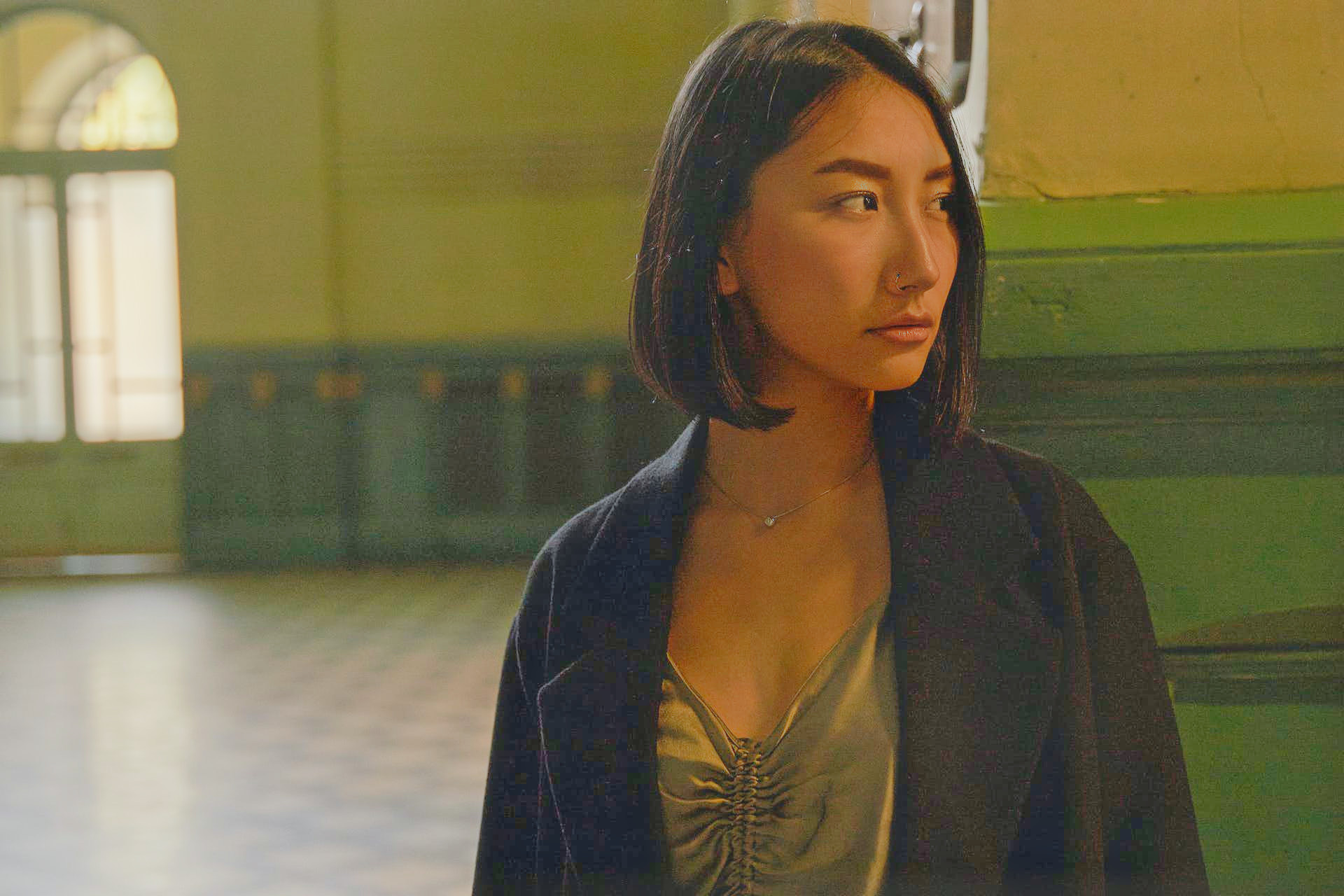
Try it out: AI image enhancer.

See full syntax: e_enhance in the Transformation Reference.
Improve
This example shows how the improve effect can adjust the overall colors and contrast in an image:


See full syntax: e_improve in the Transformation Reference.
- Effects and artistic enhancements: Overview of all image effects and enhancements.
- Color effects: 3D LUTs, background color, color blind effects, replace color, tint, and themes.
- Artistic effects: Artistic filters, cartoonify, opacity, pixelate, sepia, outlines, shadows, and vectorization.
- Reshaping and distorting images: Displacement maps, distortion, rotation, rounding, shape cutouts, and zoompan.
Error
Rate this page:
