 Ask AI
SAML SSO
Last updated: Oct-07-2026
SAML is an industry standard that many SSO IdPs (Identity Providers) use to provide authentication and authorization services. This feature can enable your users to log in to Cloudinary with your organization's SAML-based SSO IdP, such as Okta, Azure AD, OneLogin, etc.
SAML SSO can be used for login only, or it can be further extended to also be used for provisioning, where your SAML-compliant IdP controls both the authentication (login), and the user's creation and authorization (provisioning). This effectively lets you create Cloudinary users on the fly the first time they try to log in to Cloudinary via your IdP, eliminating the need to create them in advance.
Configure SAML SSO in Cloudinary
In order to configure your Cloudinary account to allow SSO for logging in, you will need to supply your application's Identity Provider Metadata, either as a URL to the file (of the form: https://<orgname>.okta.com/app/<random_string>/sso/saml/metadata), or by copy/pasting the data itself (for example in Okta, you can find the URL and metadata by clicking the Identity Provider Metadata link on the Sign On tab of your application's settings).
-
In the Cloudinary Console Settings, access the Account Security page and configure the SAML Login fields as follows:
- To set a URL: Select URL as the Metadata retrieval method and add the URL into the field below.
- To use metadata: Select Inline as the Metadata retrieval method and then copy/paste the metadata XML into the field below.
Decide whether to Enforce SAML login by selecting Enabled. Make sure to first test the SSO works before changing this setting. When enabled, all users must log in to Cloudinary using SAML authentication. Only the Master admin can log in directly using the Cloudinary login screen.
Click Save.
Considerations for SAML SSO with Cloudinary
- Only existing users can login to Cloudinary this way. If you also want to extend this functionality and also create users on the fly the first time they try to log in to Cloudinary, see the SAML Provisioning feature described below.
- The
cloudinary.comdomain is being deprecated in favor ofconsole.cloudinary.com. To ensure compatibility with all login flows, add bothconsole.cloudinary.comandcloudinary.comto your Assertion Consumer Service (ACS) configuration during the Configure SAML settings step.If your IdP doesn't support adding an additional domain, use
console.cloudinary.comand ensure you can log in successfully. If you encounter any issues, contact support.TipLearn more about adding additional requestable SSO URLs in a custom SAML app by referring to Okta's documentation. - The two-factor authentication (2FA) user setting is ignored when using SAML Login to log in to Cloudinary, as the SSO IdP is trusted.
- A Cloudinary account can simultaneously allow both access through SSO using SAML or by using Cloudinary login details (email and password as provisioned via the Cloudinary Console or the Provisioning API). To require all users to log in through SAML, set the Enforce SAML login setting in the User Settings.
- Even if you set Enforce SAML login to Enabled, any user created with the Master admin role will automatically get an invitation to set a Console password and will be able to log in directly to the Console, if needed.
- If you'd like to prevent users with email addresses on your domain from signing up for separate free accounts, which would prevent you from adding them to your main account as a user, please contact support.
-
When a user no longer needs access to Cloudinary, you should remove them from the application access list in the IdP to ensure that they won't be able to log in anymore. However, this user will continue to have an account in Cloudinary, which may take up one user license. If this user isn't expected to use Cloudinary in the future, you should also delete the user from Cloudinary in order to free up the user license, either via the Cloudinary Console, or with custom code using the Provisioning API.
Similarly, groups and product environments aren't deleted, but the user can be de-associated with groups and product environments on an IdP update. Manage groups and product environment permissions and settings in the Cloudinary Console Settings.
This page covers SAML-based SSO for Cloudinary Console login. Other authentication flows (for example, social sign-in or OAuth-based application authentication) are configured separately and aren't part of SAML SSO.
-
Cloudinary cannot enforce SAML login only for a subset of users (for example, internal users only). When Enforce SAML login is enabled, all users (except Master admins) must authenticate through your IdP.
- If you need to grant access to external collaborators while enforcing SAML login, those users must exist in your IdP. A common approach is to create external IdP users using a unique email alias (for example,
jane.doe-external@company.com). - External users might have an email address that is already associated with another Cloudinary account. In this case, they may not be able to use that email address in your account. Common workarounds include using a unique email address under your domain (for example,
user@contractor.company.com) or mapping a SAML attribute to a unique email value used for Cloudinary login.
- If you need to grant access to external collaborators while enforcing SAML login, those users must exist in your IdP. A common approach is to create external IdP users using a unique email alias (for example,
Many IdPs support an IdP-initiated sign-in link for SAML applications (sometimes called a user access URL). If your IdP supports this, you can share that link so users can sign in via the IdP without first using the Cloudinary login screen.
SAML provisioning
With SAML provisioning, you can create users on the fly the first time they try to log in to Cloudinary, eliminating the need to create Cloudinary users in advance. SAML provisioning works with your SAML-compliant IdP to pass the correct user information to Cloudinary. You can both create and modify users this way. The SAML provisioning feature also requires that your organization must have SAML-based single sign-on enabled.
Enabling SAML login entails the following two procedures:
- Configure your SAML IdP for Cloudinary: Okta, Microsoft Active Directory Federation Services (AD FS), or Google Workspace.
- Configure your Cloudinary account to use SSO. Follow the instructions for Configuring SAML SSO in Cloudinary.
Configure Okta for Cloudinary SAML
To add a Cloudinary SAML application in Okta:
- Create a new SAML 2.0 Web application (e.g., in the Okta Admin console, select Applications from the Applications menu, click Create App Integration. Select SAML 2.0 as the Sign on method).

- Give your app a name (e.g., Cloudinary), and then optionally select a logo and visibility options (you can download a Cloudinary logo from our Cloudinary logo kit).

- Configure SAML settings as follows:
- Enter
https://console.cloudinary.com/saml/consumeas the Single sign on URL for both the Recipient URL and the Destination URL. - Enter
https://console.cloudinary.com/samlas the Audience URI. - Select
EmailAddressas the Name ID format.

- Click Show Advanced Settings, then add
cloudinary.com/saml/consumeunder Other Requestable SSO URLs.
 NoteIf your IdP doesn't support adding an additional domain, ensure you can log in successfully. If you encounter any issues, contact support.
- Enter
-
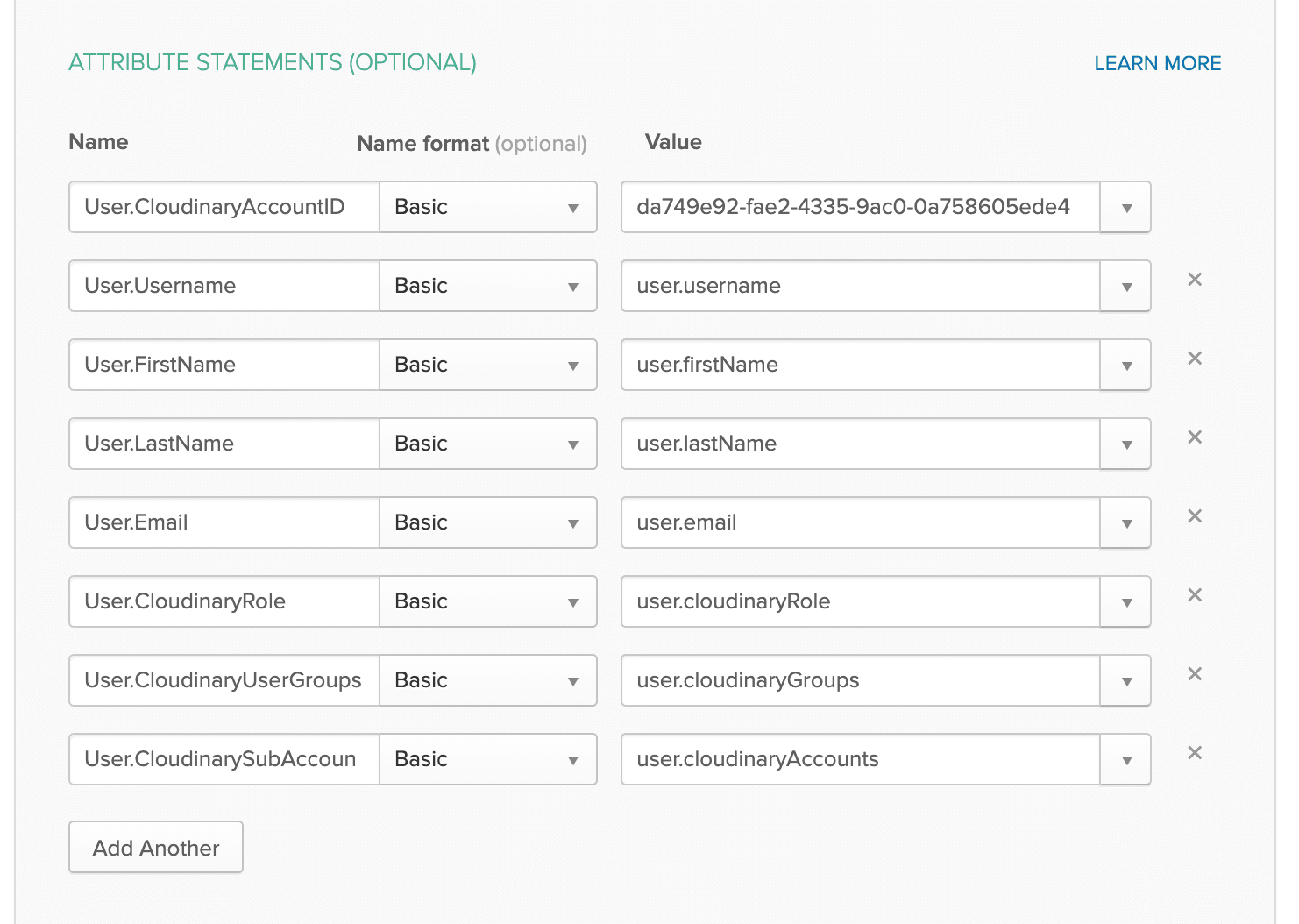
Federate Okta user profile field values to Cloudinary SAML attributes. These are fields and values that Cloudinary expects to receive for each user. Add an attribute statement for the following SAML Assertion Fields, including their corresponding values:
SAML Assertion Field Cloudinary User Field Type Required Notes User.CloudinaryAccountID Provisioning Account ID String Yes Account ID's are located in the Cloudinary Console under Settings > Account Management Keys. User.Username (External) User ID String Yes Must be unique: used as the immutable id for creating a new user in your Cloudinary account. User.FirstName First name String Yes User.LastName Last name String No User.Email E-mail String Yes User.CloudinaryRole Role String (list) No
Default: media_library_userLegacy permissions system:
master_admin; admin; technical_admin; billing; reports; media_library_admin; media_library_userRoles and Permissions system:
-
<cloud_name>::<role_id>— product environment role
e.g.my-org-production::cld::role::prodenv::admin -
*::<role_id>— all product environments
e.g.*::cld::role::prodenv::ml_user -
ACCOUNT::<role_id>— account-level role
e.g.ACCOUNT::cld::role::account::billing
- You can assign multiple roles in a single SAML assertion.
- Legacy role names (e.g.
master_admin) are still accepted for backward compatibility with accounts that haven't migrated to Roles and Permissions. When a legacy role name is provided without a scope prefix, it's applied at both the account and product environment scopes, wherever that role exists at each scope (for example,billingapplies at the account scope only, whilemedia_library_userapplies at the product environment scope only). - Find the
role_idfor each system role in the System roles. - Enterprise customers with custom roles can use the custom role ID, available in Role Management.
-
ROLE_LOOKUP_ERROR: returned when the specified role ID can't be found. -
ROLE_SCOPE_MISMATCH: returned when a role is assigned at a scope it doesn't belong to. For example, inACCOUNT::cld::role::prodenv::ml_user, the product environment-level rolecld::role::prodenv::ml_useris set at theACCOUNT::scope, which causes the mismatch.
User.CloudinaryUserGroups User Groups String array No
If provided, the user is automatically assigned to these groups. If the list includes groups that don't currently exist in Cloudinary, they are automatically created and the user is assigned to them. Note: User groups are relevant only for users with a
media_library_userrole. This setting is ignored for all other roles.User.CloudinarySubAccounts 1 Product environments String array No
Default: all product environments
The string array should contain the cloud names of the product environments that the user will be able to access. You can specify up to 30 product environments; exceeding this limit fails provisioning with a TOO_MANY_SUBACCOUNTSerror.Note: Users with a
master_adminrole have access to all product environments, so this field is ignored for users with that role.TipTransforming and mapping attributes (Okta): Use Okta Expression Language in the Profile Editor (not in the SAML Settings) when creating attributes for your Cloudinary app (for example, on the Okta User to Cloudinary mapping screen).When referencing mapped attributes from the Cloudinary app user profile, use the
appuserprefix (for example:appuser.cloudinaryRole).NoteString array attributes:User.CloudinaryUserGroupsandUser.CloudinarySubAccountsare String array types. A string array can't include null or empty string values. When sending multiple values, the SAML attribute should include one value per item (not a single comma-separated string).By default, Okta concatenates multiple string-array values into a single comma-separated string. If you need multi-value SAML attributes for these fields, ask Okta Support to enable the
SAML_SUPPORT_ARRAY_ATTRIBUTESflag for your Okta org.Example pattern (using
Arrays.flatten()to avoid null/empty values):For example, in Okta:

-
Optionally add Feedback and click Finish when done.


Microsoft Entra ID (Azure AD) SAML configuration
The following steps describe how to configure Cloudinary as a SAML application in Microsoft Entra ID (Azure AD). The Entra UI may vary slightly by tenant and licensing.
- In the Microsoft Entra admin center, go to: Identity > Applications > Enterprise applications.
- Click New application, then choose Create your own application and create a non-gallery application named
Cloudinary. - In the new application, go to Single sign-on and select SAML.
-
In Basic SAML Configuration, set the following values:
-
Identifier (Entity ID):
https://cloudinary.com/saml -
Reply URL (Assertion Consumer Service URL):
https://console.cloudinary.com/saml/consume
NoteThe Identifier (Entity ID) and Reply URL use different domains because they serve different parts of the SAML flow. The Identifier (Entity ID) must match the SAML issuer that Cloudinary sends in its authentication requests, which is the legacy valuehttps://cloudinary.com/saml. The Reply URL (Assertion Consumer Service URL) is where Entra ID sends the SAML response, which ishttps://console.cloudinary.com/saml/consume.Keep the legacy Identifier (Entity ID)
https://cloudinary.com/samlset above so that both IdP-initiated login (for example, from Microsoft My Apps) and Cloudinary-initiated login (via/users/sso_login) work. Cloudinary-initiated login sends this legacy issuer in its authentication request, so an Entra configuration that only recognizeshttps://console.cloudinary.com/samlcan reject that flow even when IdP-initiated login works. For maximum compatibility, if your Entra configuration supports multiple Reply URLs, also add the legacy Reply URLhttps://cloudinary.com/saml/consumealongside the primary one. -
Identifier (Entity ID):
Assign the relevant users/groups to the application in Entra ID (so they’re allowed to access Cloudinary). Ensure the user emails match the corresponding Cloudinary users.
-
From Entra ID, download the Federation Metadata XML. In Cloudinary, configure SAML Login as described in Configure SAML SSO in Cloudinary.
When configuring metadata in Cloudinary, you can either:
- Provide a URL to the metadata XML, or
- Select Inline and paste the metadata XML into the SAML Metadata field.
Configure Microsoft Active Directory Federation Services for Cloudinary SAML
Use the steps below to configure Microsoft Active Directory Federation Services (AD FS) as a SAML Identity Provider for Cloudinary.
Create a relying party trust
- Open the AD FS Management console.
- In the Actions pane, click Add Relying Party Trust.
- Choose Claims aware, then click Start.
- Select Enter data about the relying party manually, then click Next.
- Enter
Cloudinaryas the Display name, then click Next. - Select AD FS profile, then click Next.
- Since a token encryption certificate is not required, click Next.
- Check Enable support for the SAML 2.0 WebSSO protocol.
- Set Relying party SAML 2.0 SSO service URL to:
https://cloudinary.com/saml/consumethen click Next. - Enter your Cloudinary cloud name (available in your Cloudinary Console dashboard) in the Relying party trust identifier field, then click Next.
- Configure multi-factor authentication, or skip this step if not required.
- Select which users are permitted to access Cloudinary, then click Next.
- Review the configuration, click Next, then click Close.
Configure claim issuance policy
- Click Edit Claim Issuance Policy.
- Under the Issuance Transform Rules tab, click Add Rule.
- Select Send LDAP Attributes as Claims, then click Next.
- Enter a claim rule name (for example,
Get Attributes) and configure:-
Attribute store:
Active Directory -
LDAP Attribute:
E-Mail-Addresses -
Outgoing Claim Type:
E-Mail Address
-
Attribute store:
- Click Finish.
- Click Add Rule again under the Issuance Transform Rules tab.
- Select Transform an Incoming Claim, then click Next.
- Enter a claim rule name (for example,
Name ID Transform) and configure:-
Incoming claim type:
E-Mail Address -
Outgoing claim type:
Name ID -
Outgoing name ID format:
Email - Select Pass through all claim values
-
Incoming claim type:
- Click Finish, then click OK.
Update relying party advanced settings
- Open Relying Party Trusts, under Trust Properties , and select the Properties for Cloudinary.
- Open the Advanced tab and change the Secure hash algorithm to:
SHA-1 - Click OK.
Enable Forms Authentication (if required)
This step is required only if Forms Authentication is not already enabled.
Note that enabling Forms Authentication applies globally to all configured sites.
- Go to Edit Authentication Policies.
- Under Primary Authentication Global Settings, click Edit.
- Under Intranet, enable Forms Authentication, then click OK.
Alternatively, you can enable Forms Authentication as a fallback method using PowerShell:
Get Identity Provider metadata
The Identity Provider metadata URL, usually under the Sign On tab, typically uses the following format:
Copy this URL and within the Cloudinary Console:
- Go to Settings > Account Security > SAML Configuration
- Set the Metadata retrieval method to URL and copy the URL above.
Cloudinary uses this metadata to automatically retrieve the signing certificate and SAML configuration.
Configure Google Workspace for Cloudinary SAML
You can configure Cloudinary SSO using Google Workspace (formerly G Suite) as your SAML identity provider.
Configure SAML in Google Admin
- Create a Custom SAML App and follow steps 1–5 in Google’s guide for configuring a custom SAML application.
- At step 6 of the Google setup, download the IDP metadata file.
- Continue with the remaining steps as instructed and in the Service Provider Details, use the following values:
-
ACS URL:
https://cloudinary.com/saml/consume -
Entity ID:
https://cloudinary.com/saml -
Name ID Format:
EMAIL
-
ACS URL:
Though the Certificate details may vary, here is an example of a setup:

Configure SAML in the Cloudinary Console
- Go to Account Settings > Account Security > SAML Configuration.
- Set the Metadata retrieval method to Inline, and copy the IDP metadata you downloaded.
After completing these steps, users can sign in to Cloudinary using Google SSO.
Configure Auth0 for Cloudinary SAML
You can configure Cloudinary SSO using Auth0 as your SAML identity provider.
Configure SAML in Auth0
In the Auth0 Dashboard, go to Applications and create a new application.
Give your application a name, for example,
Cloudinary SAML Integration, and select Regular Web Application as the application type.In the application Settings, click Show Advanced Settings, then open the Endpoints tab. In the SAML section, copy the SAML Metadata URL. You'll use this URL when configuring SAML in the Cloudinary Console.
Open the Addons tab and enable SAML2 Web App.
In the SAML2 Web App settings, configure the Application Callback URL:
https://console.cloudinary.com/saml/consume-
Configure the SAML NameID to use the user's email address. For example, in the add-on's JSON settings, include the email claim in
nameIdentifierProbes: Create or verify the users who need access to Cloudinary, and ensure they're assigned to the Auth0 application.
To test authentication, open the application's Usage tab and copy the Identity Provider Login URL. Use this URL to initiate login and verify that the user can authenticate and return to Cloudinary.
- The
cloudinary.comdomain is being deprecated in favor ofconsole.cloudinary.com. To ensure compatibility with all login flows, configure your IdP to support both ACS domains where possible. If your IdP doesn't support adding an additional domain, useconsole.cloudinary.comand ensure you can log in successfully. - Auth0 SAML applications can have authentication connections enabled or disabled. If you use an authentication method other than the defaults, ensure the relevant connection is enabled for this application.
Configure SAML in the Cloudinary Console
Go to Settings > Account Security > SAML Configuration.
Set the Metadata retrieval method to URL.
Paste the SAML Metadata URL copied from Auth0.
Save the configuration.
After completing these steps, users can sign in to Cloudinary using Auth0 SSO.
Considerations for SAML provisioning with Cloudinary
- A new SAML provisioned user to Cloudinary isn't sent an email inviting them to set a password.
- All users' names and sources are available via the User Management page of the Console Settings. Therefore, the Cloudinary Console can also be used for reviewing and updating auto-provisioned user accounts, except for password related fields and options.
- If a user had an account in Cloudinary before the SAML integration and uses the same email in your IdP, the user will now log in through the IdP but will continue to use the same account in Cloudinary.
- Folder-level permissions, collection-level permissions, etc. can't be set directly for users. They're indirectly controlled by the user group associations.
- Cloudinary uses the username field as a unique immutable ID for creating a new user in your Cloudinary account. If any supplied attributes change (including possibly the user email, groups and product environment associations), the user account details will be updated accordingly. This means you should use a unique value for the 'username' field (e.g., if you use the user's email as a username you won't be able to update their email address using a SAML assertion in the future).
- With SAML Provisioning, any login request must include all mandatory fields in the assertion message, where attributes and values are case-sensitive.
- The SAML protocol supports only provisioning. Deprovisioning should be handled with custom code using the Provisioning API. If SSO is enforced on the account, users will not be able to log in if access is removed on the identity provider.
-
(Roles and Permissions) Make sure the product environments listed in
CloudinaryRolematch those provisioned viaCloudinarySubAccounts. If they don't match, the user gets access to all product environments for the specified role.
Error handling
On a failed log-in to Cloudinary, SAML errors are returned to the user's browser in the response body of a 400 error. The response includes an Error Code and Description where possible.
| Error | Description |
|---|---|
| 1 | USER_CREATION_ERROR |
| 2 | MISSING_ACCOUNT_ID |
| 3 | INVALID_ACCOUNT_ID |
| 4 | MISSING_FIRST_NAME |
| 5 | MISSING_EMAIL |
| 6 | INVALID_EMAIL_ADDRESS |
| 7 | ROLE_LOOKUP_ERROR |
| 8 | INVALID_SUBACCOUNT_IDENTIFIER |
| 9 | LICENSE_LIMIT_EXCEEDED |
| 10 | USER_UPDATE_ERROR |
| 11 | PROVISIONING_NOT_ALLOWED |
| 12 | USER_ACCOUNT_MISMATCH |
| 13 | USER_GROUP_CREATION_ERROR |
| 14 | INVALID_NAME_ID |
| 15 | SAML_VALIDATION_FAILED |
| 16 | INVALID_SAML_RESPONSE |
| 17 | ROLE_SCOPE_MISMATCH |
| 18 | TOO_MANY_SUBACCOUNTS |
Error
Rate this page:
