 Ask AI
FADEL integration (Beta)
Last updated: Oct-07-2026
This integration helps organizations that already use, or plan to use, FADEL's Rights Cloud to manage digital rights, while also leveraging Cloudinary's asset management, transformation, optimization, and delivery capabilities.
Enterprise plans:
- The FADEL integration is a premium offering for our Assets product. Availability depends on your account setup and requires that you have an active FADEL account. If the integration isn't yet enabled for your account and you'd like to activate it, please contact your Customer Success Manager.
Free plan:
- This feature isn’t included in the Media Library available with the Assets Free plan, which offers basic management. It's part of the Media Library for Assets Enterprise plans.
- To learn more about the features available in the Assets Free plan and how they can support development workflows, see Media Library for Developers.
- For upgrade options or more information, contact us.
Overview
FADEL's Rights Cloud is a platform for managing rights, licensing, contracts, usage restrictions, and compliance across digital assets.
The FADEL–Cloudinary integration connects your Cloudinary Assets environment with FADEL, ensuring your assets' rights and availability information stays accurate. Cloudinary automatically adds assets marked for tracking to FADEL, and FADEL writes updates, such as new agreements, territories, or usage rules, back to Cloudinary.
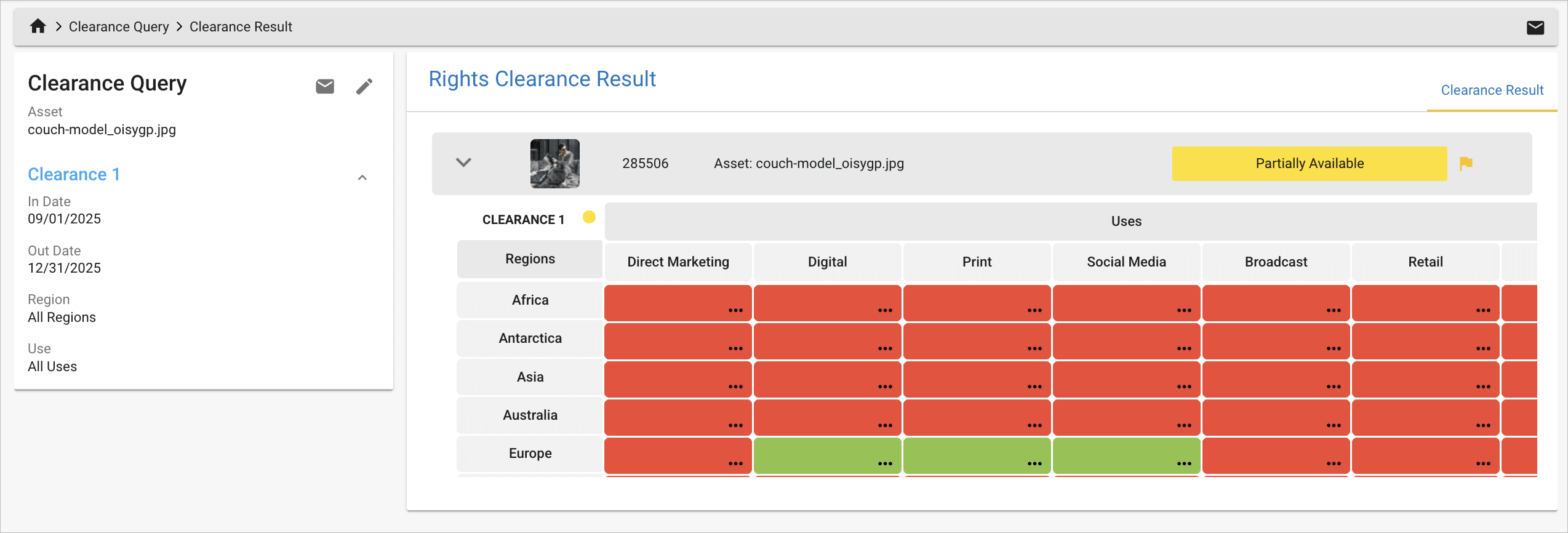
Once configured, users can check an asset's current clearance directly from Cloudinary and view detailed rights information inside the asset's metadata. This workflow keeps compliance aligned without requiring users to leave the Media Library.
Setup
Set up FADEL's Rights Cloud
- Upload and manage licensing and rights contracts.
- Link contracts directly to specific digital assets.
For details, see the Rights Cloud v3.0.7 User Guide (login required).
Set up the integration
To enable the FADEL integration for your Assets environment, contact your Customer Success Manager or submit a support request.
Setting up the integration includes:
Establishing the connection between Cloudinary and FADEL
Configuring authentication for both systems
Creating and mapping structured metadata fields
-
Enabling scheduled sync flows, including:
- Cloudinary > FADEL: asset creation and metadata updates
- FADEL > Cloudinary: rights, agreements, and availability updates
These sync flows rely on structured metadata values to detect which assets require updates.
Label tracked assets (optional)
To visually flag assets managed in FADEL, set the Rights Managed structured metadata field as your primary attribute on the Display page of the Media Library Preferences.
Assets synced with FADEL then show a Yes label, while assets not synced show No. Hovering over the label shows the metadata field: Rights Managed: Yes or Rights Managed: No

Configure FADEL sync on upload (optional)
When an asset is uploaded with the Needs Rights Management structured metadata field set to Yes, the asset is created in FADEL, set up for automatic syncing, and its digital rights information becomes available within the Cloudinary Media Library.
By default, the Needs Rights Management field is set to Yes, meaning every uploaded asset is automatically created in FADEL and set up for syncing. You can change this configuration to require users to explicitly decide for each asset, or to make rights management optional:
To require a sync decision on each upload:
- On the Manage Structured Metadata page, click Needs Rights Management to open the field management pane.
- Ensure the field is set to Mandatory (this is the default setting).
- Remove the default value.
With this configuration, Cloudinary prompts users to choose either Yes (add to FADEL) or No (don't add to FADEL) on upload. If left blank, the upload fails.
To make rights management optional:
- On the Manage Structured Metadata page, click Needs Rights Management to open the field management pane.
- Remove the Mandatory setting.
- Set the default value to No (or leave it empty).
With this configuration, assets aren't added to FADEL by default unless users manually set the field to Yes, either during upload or by changing the metadata field value for existing assets.
Metadata fields
The FADEL–Cloudinary integration uses structured metadata fields to control syncing and capture rights, availability, and agreement information returned from FADEL. These fields are created automatically during setup.

Here's a summary of the structured metadata fields:
| Label | External ID | Possible Values | Description |
|---|---|---|---|
| Needs Rights Management | needs_rights_management |
Yes / No | Mandatory. Default: Yes. Primary control for adding an asset to FADEL. Set to Yes on upload to create the asset in FADEL and enable Cloudinary-FADEL sync. Automatically updates to No after the asset is successfully created in FADEL. Note: You can prevent automatic FADEL integration for all uploaded assets and require users to explicitly choose whether or not each one should be added to FADEL. See Configure FADEL sync on upload. |
| Rights Managed | rights_managed |
Yes / No | Read-only. Default: No. Automatically updates to Yes after the asset is successfully created in FADEL. Can be used as a primary attribute to visually identify assets synced with FADEL. |
| Business Unit | business_unit |
text | Read-only. Identifies the FADEL business unit managing the asset. |
| Force Sync | force_sync |
Yes / No | Default: No. Set to Yes to perform an immediate one-time sync to FADEL. Must be used with Needs Rights Management = Yes. Automatically resets to No after sync. Note: There's only a need to force sync if Rights Managed = No. When Rights Managed = Yes, that means the asset is already created in FADEL and configured to sync with Cloudinary. |
| Project Name | project_name |
text | Optional custom field. Only included if your integration has project metadata sync enabled. |
| Project Type | project_type |
text | Optional. Only included if your integration has project metadata sync enabled. |
| Resource Code | resource_code |
text | Optional. Only included if your integration has project metadata sync enabled. |
| Resource Type | resource_type |
text | Optional. Only included if your integration has project metadata sync enabled. |
| Synced | synced |
Yes / No | Default: Yes. Controls updates from FADEL > Cloudinary. Set to No to refresh rights, agreement, and availability information during the next sync. Updates back to Yes automatically after sync. Note: Cloudinary is automatically updated during the next sync if relevant information is changed in FADEL. |
| Last Sync Date | last_sync_date |
any date | Read-only. Shows when FADEL last updated the rights metadata. |
| External URL | external_url |
URL | Read-only. Contains rights and agreement metadata that FADEL retrieves. |
| FADEL Rights Information | fadel_rights_information |
JSON | Read-only. Shows agreement data that FADEL retrieves for the asset. |
| FADEL Rights Availability | fadel_rights_availability |
JSON | Read-only. Contains where the asset is cleared for use (territories, channels, etc.). |
| FADEL Parties Agreements Information | fadel_parties_agreements_information |
JSON | Read-only. Displays all agreements and parties associated with the asset. |
Workflow
The workflow below describes how the integration behaves at a system level, based on structured metadata values.
Asset creation and initial sync (Cloudinary > FADEL)
When an asset is uploaded with Needs Rights Management = Yes, the integration creates the asset in FADEL and syncs asset information, metadata, and digital rights management information between Cloudinary and FADEL. The same process occurs when a user sets Needs Rights Management = Yes for an existing asset that's not yet added to FADEL. This allows for:
- The Media Library Preview Pane and Manage Page to show FADEL information for the asset (this information may not be up to date).
- Users to select the Check Clearance option in the asset's context menu to view its most current digital rights information in FADEL.
- Automatic periodic syncing to occur from Cloudinary to FADEL whenever custom fields (such as Project Name, Project Type, Resource Code, or Resource Type) are updated.
- Automatic periodic syncing to occur from FADEL to Cloudinary whenever rights management changes occur that affect Cloudinary assets.
When the asset is successfully created in FADEL, Cloudinary automatically:
- Updates Needs Rights Management = No
- Updates Rights Managed = Yes
- Populates additional fields like Business Unit (a FADEL-specific field) and custom fields such as Resource Code that depend on your integration configuration.
Force Sync
Setting the Force Sync field to Yes triggers an immediate asset creation in FADEL instead of waiting for the next scheduled sync. This is primarily used in two scenarios:
- Immediate visibility: When the scheduled sync runs infrequently (e.g., nightly) and you need the asset to appear in FADEL right away.
- Backup for failed creation: When the initial asset creation on FADEL fails and you need to run it again.
When Force Sync is triggered, the integration:
- Creates the asset immediately in FADEL
- Resets Force Sync to No
- Updates Needs Rights Management to No
- Updates Rights Managed to Yes
Rights and agreement updates (FADEL > Cloudinary)
After successful initial upload or forced sync, the metadata states are automatically set to:
- Needs Rights Management = No
-
Rights Managed = Yes
- Synced = Yes
In this state, digital rights management information is only pulled from FADEL to Cloudinary when assets are added to agreements or agreements are updated.
The metadata displayed in the Media Library Preview Pane or Manage page may not reflect the most current information from FADEL. To view the most up-to-date rights information, users should click Check Clearance to open FADEL directly.
Alternatively, setting Synced = No marks the asset for a rights information refresh during the next scheduled FADEL > Cloudinary sync. After that sync completes, the metadata shown in the Media Library is updated.
During the sync, Cloudinary automatically updates:
- Synced = Yes
- Last Sync Date
- FADEL Rights Information
- FADEL Rights Availability
- FADEL Parties Agreements Information
- External URL (link to the corresponding FADEL asset)
Asset deletion
When an asset is deleted in Cloudinary, the integration automatically triggers a flow that removes the corresponding asset from FADEL.
Error
Rate this page:
