 Ask AI
Generate multilingual alt text
Last updated: Nov-05-2026
When you serve images to audiences across different regions and languages, providing alt text in the viewer's language is essential for accessibility and helps screen readers convey meaning accurately. Managing translations manually doesn't scale as your library and markets grow.
This sample PowerFlow automatically translates an asset's primary alt description into multiple languages and saves the results as contextual metadata. You can tailor the target languages to match your localization strategy.
The descriptions are generated when a new image is uploaded to Cloudinary, but you could change this to use an On Manual Run From Media Library block to generate alt text for images that are already in your Media Library.
Learn more about accessible media.
You can watch the following video tutorials about this automation:
- Take a look at a quick overview of this flow and how it works.
- Follow along with a detailed step-by-step walkthrough.
Prerequisites
Before building this flow, ensure you have:
- A Google Cloud project with the Translation API enabled
- A valid Google Cloud API key with access to the Translation API
- The Cloudinary AI Content Analysis add-on enabled
Set up your Google Translate connection
Before using the Translate Text Using Google block in your flows, you need to connect your Google Cloud account in the Apps & Connections page:
- In MediaFlows, navigate to Apps & Connections from the sidebar.
- Find Google Translate in the list and click Connect Your Account.
- In the connection dialog, enter:
- Connection name: A descriptive name for this connection (for example, "Google Translate API")
- API Key: Your Google Cloud API key with the Cloud Translation API enabled
- Click Connect to save the connection.
Once connected, you can select this account when configuring Translate Text Using Google blocks in your flows.
Overview

The PowerFlow uses the following blocks:
- On Asset Upload: Triggers the flow when an image is uploaded to the product environment.
- Generate Image Caption: Automatically generates a description of the image.
- Update Contextual Metadata: Saves the original description and translations to the appropriate contextual metadata fields.
- Translate Text Using Google: Translates the description into another language.
On Asset Upload
When someone uploads an image, Cloudinary sends a webhook notification to the On Asset Upload block, which activates the flow.
Steps:
- Add the On Asset Upload block to your canvas.
- Open the block configuration and clear Trigger for any asset.
- Under Trigger only when the asset's, select Asset type and Image.

Generate Image Caption
The Generate Image Caption block generates a descriptive caption for the uploaded image using the Cloudinary AI Content Analysis add-on.
Steps:
- Add the Generate Image Caption block to your canvas and ensure it's connected to the On Asset Upload block.
- Open the block configuration and ensure that the Use the asset from field is set to On Asset Upload.
- Check the Add-on card to make sure you've got quota for the Cloudinary AI Content Analysis add-on.

Update Contextual Metadata (original language)
Use the Update Contextual Metadata block to store the generated description in the alt contextual metadata field associated with the uploaded asset.
Steps:
- Add the Update Contextual Metadata block to your canvas and ensure it's connected to the Generate Image Caption block.
- Open the block configuration and set the Metadata key to alt.
- Set the Metadata value to the Caption from the Generate Image Caption block by clicking the Insert Value icon to insert the variable.
- Ensure the Action is set to Add or update.

Translate Text Using Google
The Translate Text Using Google block translates the image description into whichever language you select. It uses the Google Translate API.
Steps (for each language):
- Add a Translate Text Using Google block to your canvas and ensure it's connected to the previous Update Contextual Metadata block.
- Open the block configuration and rename it to match the language that it's translating, for example, Translate To French.
- For Google Translate connection: Click Connect and select the Google Translate account you configured in Apps & Connections.
- Set the String to translate to the Caption from the Generate Image Caption block by clicking the Insert Value icon to insert the variable.
- Leave Translate from set to Auto Detect so the block detects the language to translate from.
- In Translate to, select the language to translate the caption to.

Update Contextual Metadata (translations)
To store the translations, use additional Update Contextual Metadata blocks after each of the Translate Text Using Google blocks.
Steps (for each language):
- Add an Update Contextual Metadata block to your canvas and ensure it's connected to the relevant Translate Text Using Google block.
- Open the block configuration and rename it to match the language that it's storing, for example, Update French Contextual Metadata.
- Set the Metadata key to something appropriate for the language, for example, alt-french.
- Set the Metadata value to the Translated text from the relevant Translate Text Using Google block by clicking the Insert Value icon to insert the variable.
- Ensure the Action is set to Add or update.

Execute the flow
Save the flow and test it to check it works before enabling it. Once enabled, you can try it out by uploading an image to your product environment.
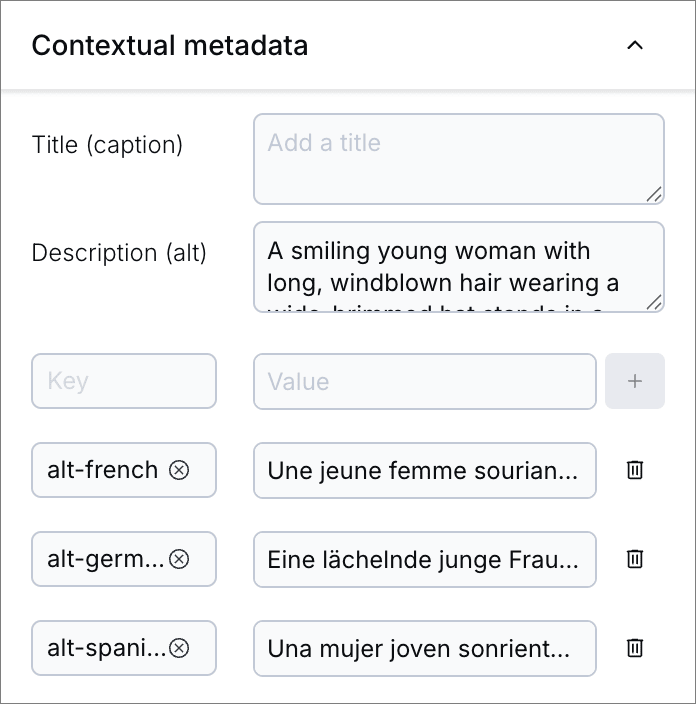
After executing the flow, you can check that the contextual metadata for the image contains the description and translations:
Error
Rate this page:
