 Ask AI
Sync assets to Akeneo
Last updated: Oct-07-2026
When you use Akeneo as your Product Information Management (PIM) system, you may want to sync your Cloudinary media assets to Akeneo and link them to products. MediaFlows provides several approaches to automate this synchronization, from simple manual triggers to fully automated workflows based on metadata changes.
This page describes multiple sample PowerFlows for syncing assets to Akeneo, each suited to different workflow requirements.
- Sync from Assets: Manually trigger syncs from the Media Library, providing parameters (SKU, asset family, attribute) at runtime. Ideal when users need full control over which assets to sync.
- Sync on structured metadata change: Automatically trigger syncs when users update a status field in structured metadata. Perfect for defined workflows where teams prepare asset metadata before syncing.
- Scheduled retry for failed syncs: Periodically search for and retry assets stuck in a "requires link" state, providing a safety net for failed syncs.
Learn more about the Akeneo blocks.
Prerequisites
Before building any of the flows described on this page, ensure you have:
- An Akeneo account with API access credentials (Client ID, Client Secret, Username, Password, and Host URL)
- Appropriate asset families configured in Akeneo with the attributes you need
Set up your Akeneo connection
Before using any Akeneo blocks in your flows, you need to connect your Akeneo account in the Apps & Connections page:
- In MediaFlows, navigate to Apps & Connections from the sidebar.
- Find Akeneo in the list and click Connect Your Account.
- In the connection dialog, enter:
- Connection name: A descriptive name for this connection (e.g., "Production Akeneo")
-
Host URL: Your Akeneo instance URL (e.g.,
https://your-instance.cloud.akeneo.com) - Client ID: From your Akeneo connection settings
- Client Secret: From your Akeneo connection settings
- Username: Your Akeneo API username
- Password: Your Akeneo API password
- Click Connect to save the connection.
Once connected, you can select this account when configuring the Get Tokens From Akeneo block in your flows.
Sync from Assets
The simplest approach lets users manually trigger a sync from the Media Library. Users select an asset, right-click, and run the automation, providing the required Akeneo parameters at that time.
This approach is ideal when:
- Users need full control over which assets to sync
- The sync parameters (asset family, attribute, SKU) vary per asset
- You don't want to pre-configure metadata on assets
Overview

The PowerFlow uses the following blocks:
- On Manual Run From Assets (now called On Manual Run From Media Library): Triggers the flow from the Media Library context menu, collecting user input.
- Get Tokens From Akeneo: Authenticates with Akeneo to get an access token.
- Join Strings: Creates a unique Akeneo asset code by combining the SKU and Cloudinary asset ID.
- Update Structured Metadata (x3): Stores the sync parameters (SKU, family, attribute) on the Cloudinary asset for future reference.
- Create An Asset In Akeneo (now called Create Asset In Akeneo): Creates the asset in Akeneo's Asset Manager.
Metadata setup
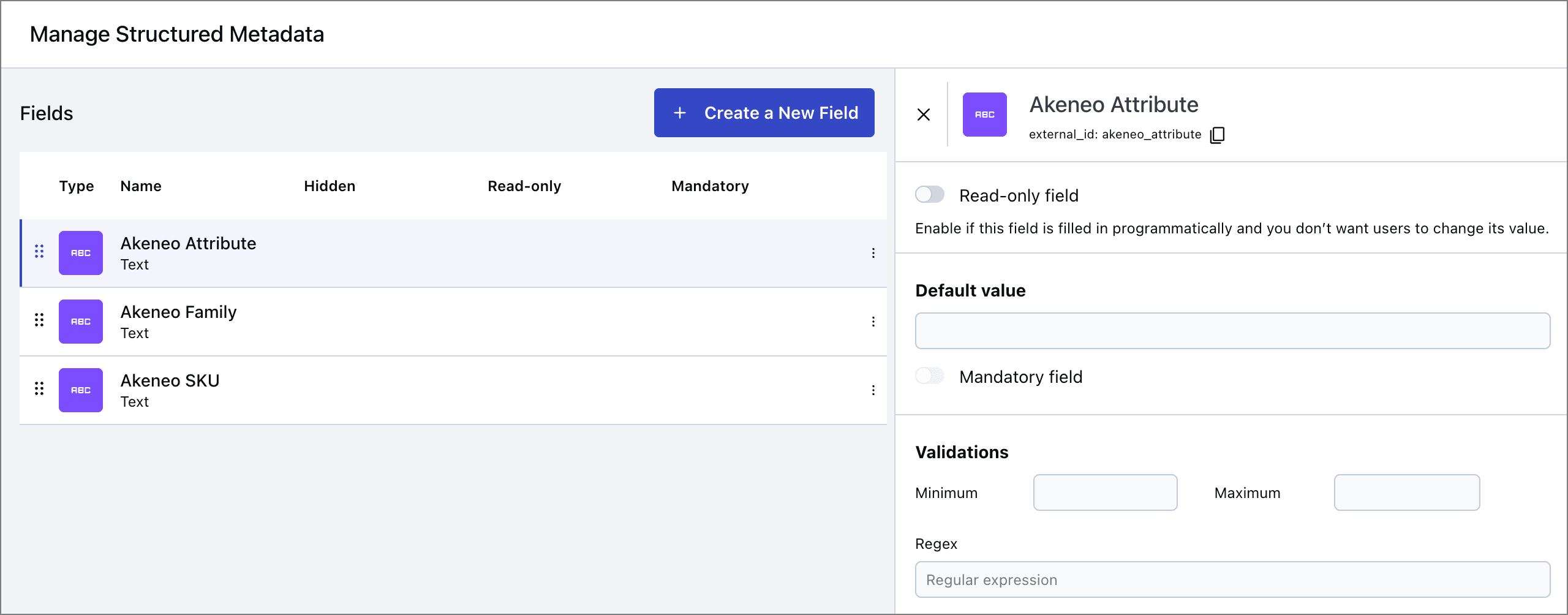
Before building this flow, create the following structured metadata fields in your Cloudinary product environment:
| Field Name | Type | Description |
|---|---|---|
| Akeneo SKU | Text | The product SKU |
| Akeneo Family | Text | The Akeneo asset family |
| Akeneo Attribute | Text | The attribute where the Cloudinary URL will be stored |
On Manual Run From Assets
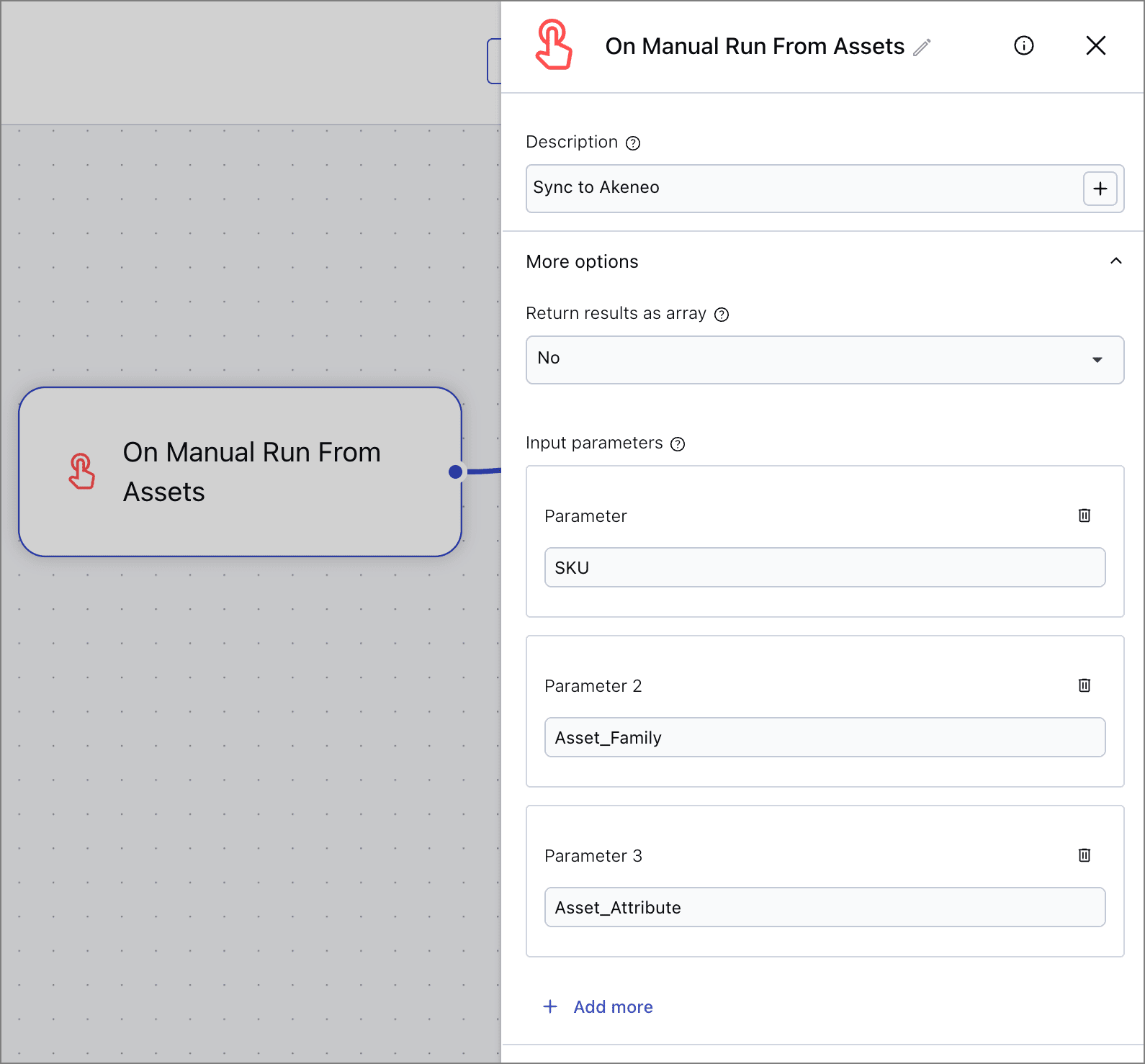
The On Manual Run From Assets block creates a context menu option in the Media Library, allowing users to trigger the sync and provide the required parameters.
Steps:
- Add the On Manual Run From Assets block to your canvas.
- Open the block configuration and set:
-
Description:
Sync to Akeneo
-
Description:
-
Add user Input parameters (under More options):
- SKU: The product SKU to link the asset to
-
Asset_Family: The Akeneo asset family (e.g.,
atmosphere,packshots) -
Asset_Attribute: The attribute where the Cloudinary URL will be stored (e.g.,
link_atmosphere)
Later, the flow will save the values of these parameters as metadata on the asset.
Get Tokens From Akeneo
The Get Tokens From Akeneo block authenticates with Akeneo and provides an access token for subsequent blocks.
Steps:
- Add the Get Tokens From Akeneo block to your canvas and ensure it's connected to the On Manual Run From Assets block.
- Open the block configuration and select your Akeneo connection:
- Akeneo connection: Click Connect and select the Akeneo account you configured in Apps & Connections.

Join Strings
The Join Strings block creates a unique Akeneo asset code by combining the SKU and Cloudinary asset ID. This ensures uniqueness even when linking multiple images to the same product, or the same image to multiple products.
Steps:
- Add the Join Strings block to your canvas and ensure it's connected to the Get Tokens From Akeneo block.
- Open the block configuration and set:
-
First string: Click
+to add the SKU variable from the On Manual Run From Assets block -
Second string: Click
+to add the Asset ID from the On Manual Run From Assets block (enterasset_idin the Manual section) -
Separator: Add the separator
__(double underscore)
-
First string: Click
The resulting asset code format is: {SKU}__{asset_id} (e.g., PROD001__abc123def456).

Update Structured Metadata
Store the sync parameters on the Cloudinary asset using three Update Structured Metadata blocks. This is important for:
- Enabling future searches to find synced assets
- Providing a reference for deletion workflows
- Allowing users to see sync status in the Media Library
Steps:
- Add an Update Structured Metadata block to your canvas and ensure it's connected to the Join Strings block.
- Rename the block to
Update Akeneo SKUby clicking the title. - Configure the block:
-
Structured metadata field: Select
Akeneo SKUfrom the list. - Structured metadata value: Select the SKU from On Manual Run From Assets
-
Structured metadata field: Select
- Add a second Update Structured Metadata block and ensure it's connected to the first.
- Rename the block to
Update Akeneo Family. - Configure the block:
-
Structured metadata field: Select
Akeneo Familyfrom the list. - Structured metadata value: Select the Asset Family from On Manual Run From Assets
-
Structured metadata field: Select
- Add a third Update Structured Metadata block and ensure it's connected to the second.
- Rename the block to
Update Akeneo Attribute. - Configure the block:
-
Structured metadata field: Select
Akeneo Attributefrom the list. - Structured metadata value: Select the Asset Attribute from On Manual Run From Assets
-
Structured metadata field: Select

Create An Asset In Akeneo
The Create An Asset In Akeneo block creates the asset in Akeneo's Asset Manager and optionally links it to a product.
Steps:
- Add the Create An Asset In Akeneo block to your canvas and ensure it's connected to the third Update Structured Metadata block.
- Open the block configuration and set:
- Host URL: Your Akeneo instance URL
- Access token: Select the token from the Get Tokens From Akeneo block
- Media URL: Select the Secure URL from the trigger
- Asset code: Select the result from the Join Strings block
- Asset family: Select the Asset Family from On Manual Run From Assets
- Asset attribute: Select the Asset Attribute from On Manual Run From Assets

Sync on structured metadata change
For a more automated approach, trigger the sync when users update structured metadata on an asset. This workflow lets users prepare asset metadata in the Media Library and then trigger the sync by changing a status field.
This approach is ideal when:
- You have a defined workflow for asset preparation
- Multiple team members need to tag assets before syncing
- You want to separate metadata preparation from the sync action
Overview

The PowerFlow uses the following blocks:
- On Structured Metadata Change: Triggers when the sync status changes to "Requires link".
- Get Tokens From Akeneo: Authenticates with Akeneo.
- Get Structured Metadata (x3): Retrieves the metadata values (SKU, family, attribute) needed for the sync.
- Get Asset Information: Retrieves the asset's secure URL needed for syncing to Akeneo.
- Join Strings: Creates the unique Akeneo asset code.
- Create An Asset In Akeneo: Creates the asset in Akeneo.
- Update Structured Metadata: Updates the status to "Linked" on success.
Metadata setup
Before building this flow, create the following structured metadata fields in your Cloudinary product environment:
| Field Name | Type | Values | Description |
|---|---|---|---|
| Akeneo Status | Single-selection list |
Requires Link, Linked, Requires Unlink
|
Controls the sync action |
| Akeneo Sku | Text | - | The product SKU |
| Akeneo Family | Text | - | The Akeneo asset family |
| Akeneo Attribute | Text | - | The attribute where the Cloudinary URL will be stored |

On Structured Metadata Change
The On Structured Metadata Change block triggers the flow when the Akeneo Status field changes.
Steps:
- Add the On Structured Metadata Change block to your canvas.
- Open the block configuration and set it to trigger whenever the new value for
Akeneo StatusisRequires linkand only for images.

Get Tokens From Akeneo
The Get Tokens From Akeneo block authenticates with Akeneo and provides an access token for subsequent blocks.
Steps:
- Add the Get Tokens From Akeneo block to your canvas and ensure it's connected to the On Structured Metadata Change block.
- Open the block configuration and select your Akeneo connection:
- Akeneo connection: Click Connect and select the Akeneo account you configured in Apps & Connections.

Get Structured Metadata
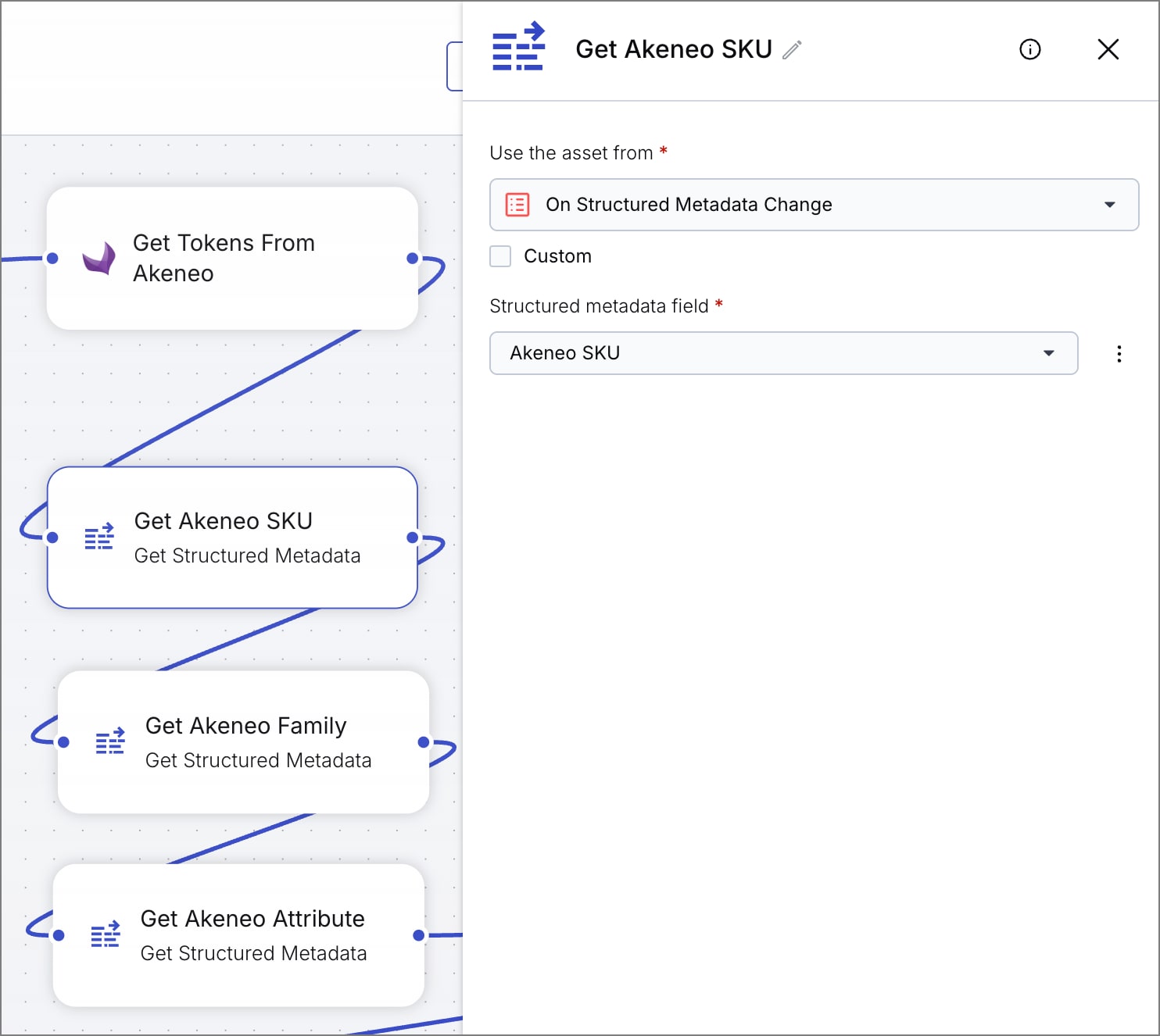
Retrieve the metadata values needed for the sync using three Get Structured Metadata blocks, since the trigger only provides information about what changed.
Steps:
- Add a Get Structured Metadata block to your canvas and ensure it's connected to the Get Tokens From Akeneo block.
- Rename the block to
Get Akeneo SKU. - Configure the block:
-
Structured metadata field:
Akeneo SKU
-
Structured metadata field:
- Add a second Get Structured Metadata block and ensure it's connected to the first.
- Rename the block to
Get Akeneo Family. - Configure the block:
-
Structured metadata field:
Akeneo Family
-
Structured metadata field:
- Add a third Get Structured Metadata block and ensure it's connected to the second.
- Rename the block to
Get Akeneo Attribute. - Configure the block:
-
Structured metadata field:
Akeneo Attribute
-
Structured metadata field:
Get Asset Information
The Get Asset Information block retrieves asset details including the secure URL, which is needed for the Create An Asset In Akeneo block. The trigger doesn't provide the secure URL, so this block is required.
Steps:
- Add a Get Asset Information block to your canvas and ensure it's connected to the third Get Structured Metadata block.

Join Strings
The Join Strings block creates a unique Akeneo asset code by combining the SKU and Cloudinary asset ID.
Steps:
- Add the Join Strings block to your canvas and ensure it's connected to the Get Asset Information block.
- Open the block configuration and set:
-
First string: Click
+to add the result from the Get Akeneo SKU block -
Second string: Click
+to add the Asset ID from the On Structured Metadata Change block (enterresources[0].asset_idin the Manual section) -
Separator: Add the separator
__(double underscore)
-
First string: Click

Create An Asset In Akeneo
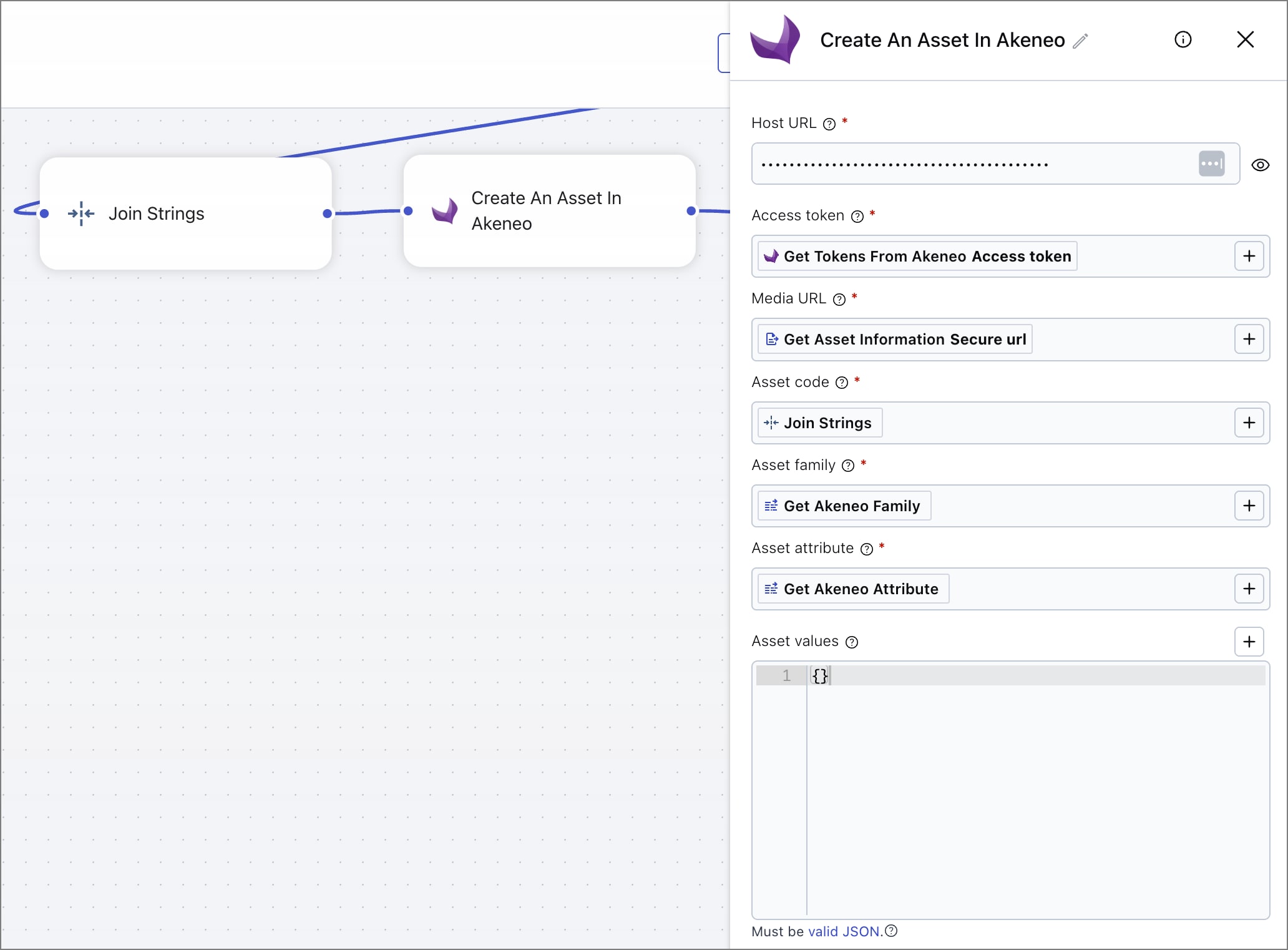
The Create An Asset In Akeneo block creates the asset in Akeneo's Asset Manager.
Steps:
- Add the Create An Asset In Akeneo block to your canvas and ensure it's connected to the Join Strings block.
- Open the block configuration and set:
- Host URL: Your Akeneo instance URL
- Access token: Select the token from the Get Tokens From Akeneo block
- Media URL: Select the Secure URL from the Get Asset Information block
- Asset code: Select the result from the Join Strings block
- Asset family: Select the result from the Get Akeneo Family block
- Asset attribute: Select the result from the Get Akeneo Attribute block
Update status on completion
After successfully creating the asset in Akeneo, update the status to indicate completion:
- Add an Update Structured Metadata block after the Create An Asset In Akeneo block.
- Set
Akeneo StatustoLinked.
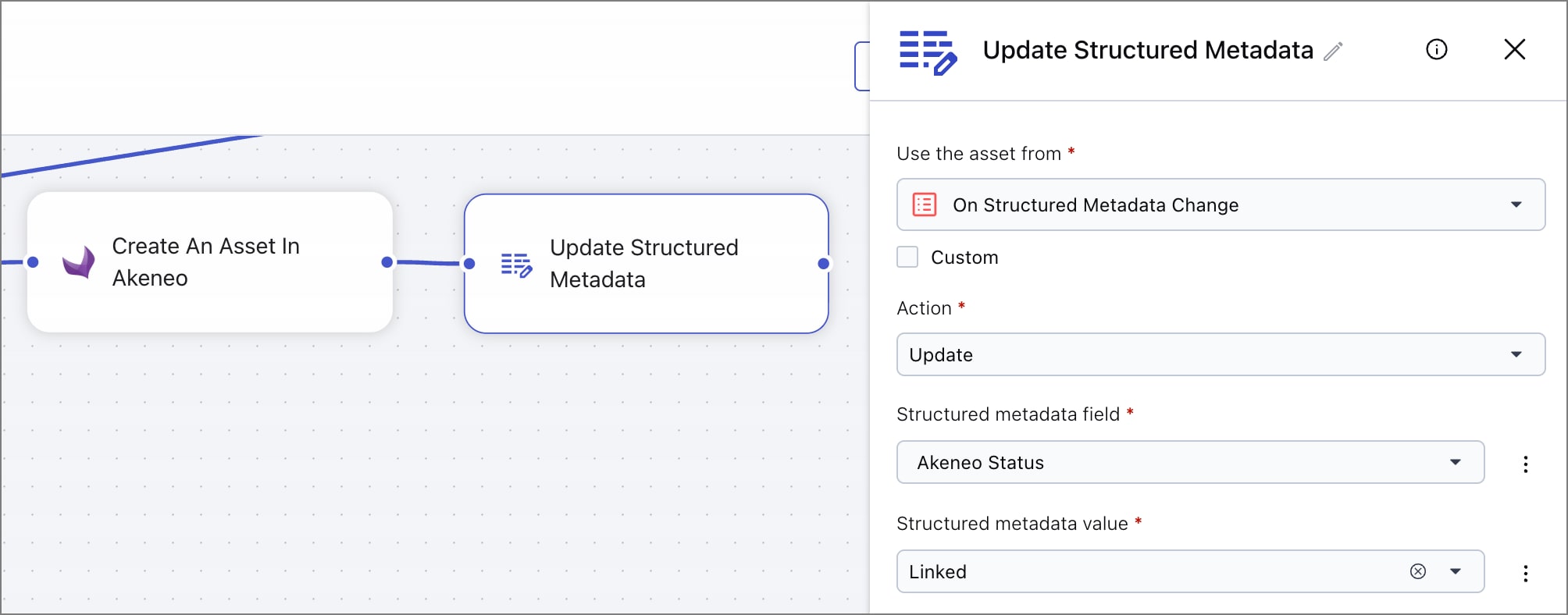
This status update serves multiple purposes:
- Indicates successful sync to users viewing the asset
- Prevents the flow from re-triggering on the same asset
- Enables searching for synced vs. unsynced assets
Delete on status change
To handle asset removal, create a separate flow (or branch in the same flow) that triggers when the status changes to Requires unlink:
- Trigger on
Akeneo Statuschanging toRequires unlink - Get Tokens From Akeneo
- Get Structured Metadata (to retrieve asset family and code)
- Delete An Asset In Akeneo
- Update status to clear the linked state
Scheduled retry for failed syncs
Syncs can fail for various reasons: invalid metadata, network issues, or Akeneo being temporarily unavailable. A scheduled retry flow provides a safety net by periodically attempting to sync assets that are stuck in a "requires link" state.
This approach complements the metadata-triggered flow by:
- Retrying failed syncs automatically
- Catching any assets that were missed
- Providing a backup mechanism for reliability
Overview

The PowerFlow uses the following blocks:
- On Scheduled Search: Runs periodically to find assets needing sync.
- Iterate Assets (now called Repeat For Each Asset): Processes each asset found by the search individually.
- Scheduled Email Report (now called Schedule Email Report): Sends a daily email report summarizing the assets processed by the flow.
- Get Tokens From Akeneo: Authenticates with Akeneo.
- Get Structured Metadata (x3): Retrieves the sync parameters (SKU, family, attribute) for each asset.
- Get Asset Information: Retrieves the asset's secure URL needed for syncing to Akeneo.
- Join Strings: Creates the unique Akeneo asset code.
- Create An Asset In Akeneo: Attempts to create the asset.
- Update Structured Metadata: Updates the status to "Linked" on success.
On Scheduled Search
The On Scheduled Search block runs a search query at specified intervals to find assets that need syncing.
Steps:
- Add the On Scheduled Search block to your canvas.
- Open the block configuration and set:
-
Recurring schedule: Daily (or more frequent as needed),
0 10 * * ? *is every dat at 10am. -
Search expression:
metadata.akeneo_status="requires_link" - Max results: Set an appropriate limit
-
Recurring schedule: Daily (or more frequent as needed),

Iterate Assets
The Iterate Assets block processes each asset found by the search individually, allowing the subsequent blocks to run once per asset.
Steps:
- Add an Iterate Assets block to your canvas and ensure it's connected to the On Scheduled Search block.
- Open the block configuration and set:
-
Source of asset list: Select
resourcesfrom the On Scheduled Search block. -
Run in parallel: Select
Yesto run the flow for all assets simultaneously.
-
Source of asset list: Select

Scheduled Email Report
The Scheduled Email Report block sends a daily email summary of the assets processed by the flow. The email is sent at the configured time and includes details of all the assets that reach this block in a 24-hour period.
Steps:
- Add a Scheduled Email Report block to your canvas and ensure it's connected to the Iterate Assets block.
- Open the block configuration and set:
- Recipients: A comma-separated list of email addresses to receive the report
-
Time: The UTC time that you want MediaFlows to send the email (e.g.,
10:00) -
Report name: The subject of the email, e.g.
Retries for failed Akeneo syncs from metadata -
Description: Text for the body of the email, e.g.
These assets were scheduled for retry syncing to Akeneo.

Here's an example of how the email may look:

Get Tokens From Akeneo
The Get Tokens From Akeneo block authenticates with Akeneo and provides an access token for subsequent blocks.
Steps:
- Add the Get Tokens From Akeneo block to your canvas and ensure it's connected to the Scheduled Email Report block.
- Open the block configuration and select your Akeneo connection:
- Akeneo connection: Click Connect and select the Akeneo account you configured in Apps & Connections.

Get Structured Metadata
Retrieve the sync parameters for each asset found by the search using three Get Structured Metadata blocks.
Steps:
- Add a Get Structured Metadata block to your canvas and ensure it's connected to the Get Tokens From Akeneo block.
- Rename the block to
Get Akeneo SKU. - Configure the block:
-
Structured metadata field:
Akeneo SKU
-
Structured metadata field:
- Add a second Get Structured Metadata block and ensure it's connected to the first.
- Rename the block to
Get Akeneo Family. - Configure the block:
-
Structured metadata field:
Akeneo Family
-
Structured metadata field:
- Add a third Get Structured Metadata block and ensure it's connected to the second.
- Rename the block to
Get Akeneo Attribute. - Configure the block:
-
Structured metadata field:
Akeneo Attribute
-
Structured metadata field:

Get Asset Information
The Get Asset Information block retrieves asset details including the secure URL, which is needed for the Create An Asset In Akeneo block.
Steps:
- Add a Get Asset Information block to your canvas and ensure it's connected to the third Get Structured Metadata block.

Join Strings
The Join Strings block creates a unique Akeneo asset code by combining the SKU and Cloudinary asset ID.
Steps:
- Add the Join Strings block to your canvas and ensure it's connected to the Get Asset Information block.
- Open the block configuration and set:
-
First string: Click
+to add the result from the Get Akeneo SKU block -
Second string: Click
+to add the Asset ID from the Iterate Assets block -
Separator: Add the separator
__(double underscore)
-
First string: Click

Create An Asset In Akeneo
The Create An Asset In Akeneo block attempts to create the asset in Akeneo's Asset Manager.
Steps:
- Add the Create An Asset In Akeneo block to your canvas and ensure it's connected to the Join Strings block.
- Open the block configuration and set:
- Host URL: Your Akeneo instance URL
- Access token: Select the token from the Get Tokens From Akeneo block
- Media URL: Select the Secure URL from the Get Asset Information block
- Asset code: Select the result from the Join Strings block
- Asset family: Select the result from the Get Akeneo Family block
- Asset attribute: Select the result from the Get Akeneo Attribute block

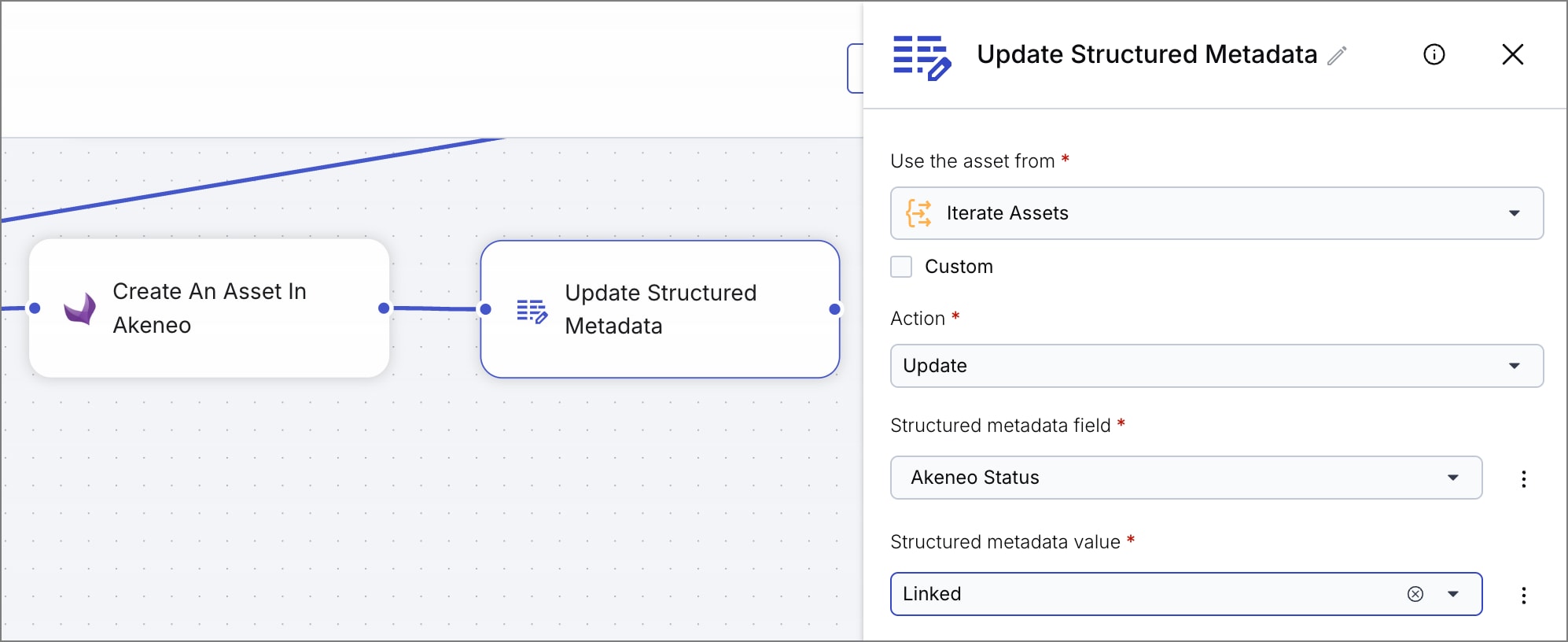
Update Structured Metadata
After successfully creating the asset in Akeneo, update the status to indicate completion.
Steps:
- Add an Update Structured Metadata block to your canvas and ensure it's connected to the Create An Asset In Akeneo block.
- Configure the block:
-
Structured metadata field: Select
Akeneo Statusfrom the list. -
Structured metadata value: Select or enter
Linked
-
Structured metadata field: Select
Sync product information to Cloudinary
After syncing an asset to Akeneo and linking it to a product, you may want to pull product information back to Cloudinary. This enriches your Cloudinary assets with product data like name, description, or category.
Add the following blocks after creating an asset in Akeneo:
- Get Product Information From Akeneo: Retrieves product details using the SKU.
- Update Structured Metadata: Stores selected product attributes as Cloudinary metadata.
This enables:
- Searching for assets by product attributes in Cloudinary
- Displaying product context in the Media Library
- Using product data in transformations or delivery URLs
Error
Rate this page:
