 Ask AI
Content Style Guide
Last updated: Oct-26-2026
Overview
This guide outlines the content standards and style conventions, focusing on UI documentation standards and Console terminology guidelines.
The 10 Commandments of Tech Content
Core principles for creating excellent technical content:
For the complete detailed version, see the Cloudinary Tech Content Guidelines in Confluence.
Keep it short and to the point - Remember your audience level & give only the non-obvious info.
Keep it casual - It's fine to use contractions. You can end a sentence/phrase with a preposition if it would be awkward not to. Casual isn't synonymous with fluffy, long-winded, redundant, run-on descriptions. Casual ain't an excuse for sloppy grammar.
Be consistent with existing writing style and structure - (except when consistency will hinder clarity)
Use consistent capitalization - Use sentence case for doc headings. Use Title Case for Meta-Titles and Blog Headings.
Keep search in mind - Think about how users are likely to search when choosing heading titles and deciding how to break doc pages. Each page should address a specific topic and each title should be useful in a search result. Avoid pages that contain only high-level intro info and/or links. Even top-level pages should teach valuable information, answer questions and/or give useful examples.
Keep SEO in mind, but... - Never let SEO take priority over what's best for users who are looking for answers. Do use invest effort in good meta-titles, meta-descriptions, and consult with the SEO experts for keywords on new pages. Don't implement SEO requests if they don't fit with the purpose of the page.
Proofread your first drafts & get reviews - Test your code examples (or ask someone else to if you don't have the right environment set up yet). Test your links. Re-read your short texts. Get at least one technical review and one peer review for any new content over 1 paragraph, and anything you aren't sure of.
Be generous with links - Link between guide & reference content. Link from blog posts to docs (but usually not vice versa). Link from docs & blog posts to demo apps and video tutorials. Add What's Next/Related topics at the end of pages when relevant, esp. from top level pages to lower-level pages. BUT avoid forcing a user to jump between links to learn how to accomplish a single task.
Terminology guidelines - Use 2nd person and active verbs whenever possible/reasonable. Avoid saying "our/we". Use "you want", not "you wish". In docs, avoid subjective words ("easy", "simply", "always", etc) and superlatives ("great", "best", etc). In technical blog posts or video tutorials, these can be used (but sparingly). See also: Text, Style and Wording Guidelines
Make your content visually appealing and easy to skim - Use bullets, bold signposting, tables, code, and relevant high-quality graphics to help break up paragraph text.
(11) Rules were made to be broken - But you better have a darn good reason...
Text, Style, and Wording Guidelines
Language
- Use American English spelling and conventions (e.g., "color" not "colour", "optimize" not "optimise").
- Avoid "Please" in instructions or error messages.
Title Caps
Title Caps means all words are capitalized except:
-
Short conjunctions:
and, as, but, for, if, nor, or, so, yet -
Articles:
a, an, the -
Short prepositions:
as, at, by, for, in, of, off, on, per, to, up, via
Connection words in hyphenated terms are also lowercase (e.g., Add-on, Plug-in).
All other words (regardless of length) and all 4+ letter connection words (About, That, With) are capitalized, including words after a hyphen (e.g., Full-Time).
Use Title Caps for meta-titles and blog headings. Use sentence case for doc page headings.
User-Defined Values
When referencing user-defined values (asset names, folder names, field labels) in text, surround them with single quotes:
2 assets were added to the 'myfolder' folder.Are you sure you want to rename the 'Red' collection?The date must be later than the one in the 'Start from date' field.
Example Values
Use these conventions for placeholder/example values:
-
Email/web:
mysite.example.com -
Names: Use clearly fake names —
Alice Wonderlin, Bugz Bunny, John Jingleheimer -
Keys/secrets: Use impossible but realistic-looking values —
ABCdef12345
Technical Terms
| Type | Formatting | Example |
|---|---|---|
| Keyboard keys | Title case |
Ctrl, Cmd, Tab, Shift
|
| Keyboard combos | Plus sign, no spaces |
Ctrl+S, Cmd+click
|
| File extensions | Lowercase with dot |
.jpg, .png
|
| File formats | All caps |
JPG, ZIP
|
| File size units | Space + all caps |
100 MB, 500 GB (not 100MB) |
| Speed units | Mbit/s |
Avoids confusion with MByte/s |
Common Spelling & Capitalization
| Term | Usage |
|---|---|
| add-on | Hyphenated. The XXX Add-on, add-on functionality
|
| backend | One word |
| Beta | Capitalized |
| checkbox | One word |
| double click | Two words as verb: Double click the option
|
| drop-down | Hyphenated (unless referring to code class dropDown) |
| Never hyphenate, lowercase | |
| e-commerce | Hyphenated, lowercase |
| frontend | One word |
| home page | Two words |
| internet | Lowercase |
| login (noun/adj) | Your login details |
| log in (verb) | Log in to the application |
| OK | Not "Okay" |
| on-the-fly (adj) | on-the-fly transformations |
| on the fly (adv) | It transforms on the fly |
| online | Lowercase |
| pop-up (adj) | A pop-up window opens |
| pop up (verb) | A window pops up |
| setup (noun/adj) | Run the setup file |
| set up (verb) | Set up your environment |
| URL | All caps |
| username | One word |
| website | One word, lowercase |
Style Guide for Documenting UI
When creating or reviewing UI strings, use the ui-string-assistant Cursor skill. You should just be able to ask Cursor about the string and it should invoke the skill automatically.
Page or Tab names should be written with the same capitalization as the UI itself & shouldn't be bolded.
Option names & section names on a page should be bolded (and no quotes).
Option values—both list values & values to be typed—should be
literal text(code tag).In general, first give the name of the option (or page, tab, section) and then what to select/enter in the option. For example: "In MyOption, select MyValue."
Use arrows to describe a path to an option. For example, In Settings > Upload > ThisSection > MyOption, select MyValue.
-
As long as it's clear enough in the context, just say the name of the option & not what type of control it's:
- "Click Submit" and not "Click the Submit button."
- Select Apple, and not "Select the Apple check box."
Terminology
- Use 'select' for option values from a list. (not 'choose')
-
Use 'enter' for something a user should type. (not 'type')
- Use 'click' for buttons. (not 'press')
Console Terminology and Guidelines
Account vs Product Environment
Where possible & the context is clear enough, avoid (remove) the word 'account' or 'product environment' entirely. Some examples:
- Upload assets to your account > Upload assets to Cloudinary
- Log into your Account > Log into the Cloudinary Console
- You can delete assets from your account by... > You can delete assets by...
When the context requires using 'account' or 'product environment', keep in mind:
Account-specific:
- Plans/pricing/billing
- Users (creating users, user roles, etc)
- Everything in the Account & User pages of the Settings
- A user can be given access to all or only some product environments, but the users & their roles are still defined at the account-level
- Provisioning API & provisioning credentials/SAML, etc
Product-environment-specific:
- Everything related to the main (Upload/Admin/SDK) credentials — cloud name, API key/secret — is per prod env (The title of the section in the Dashboard will be updated to "Product Environment Credentials" hopefully this sprint)
- Everything in the Upload or Security pages of the settings
- Assets are per prod env. For example, Search API is searching for assets that meet certain criteria within your product env, not within your entire account.
- More generally and a useful way to think about it, all the entities you can manage in the Admin API (resources, folders, upload presets, named transformations, search, etc) are all prod-env specific
Console Naming
- Either the Cloudinary Console or just the Console (if context is clear enough).
- Console always capitalized.
- Remove any instances of Management console or Account console or similar
- Links to the console are now all
console.cloudinary.com/console/...This means no more relative links from docs to console - if you find/console/...in a link, need to change it to the full new URL. - Use the names specified in this call out when referring to areas of the Console.

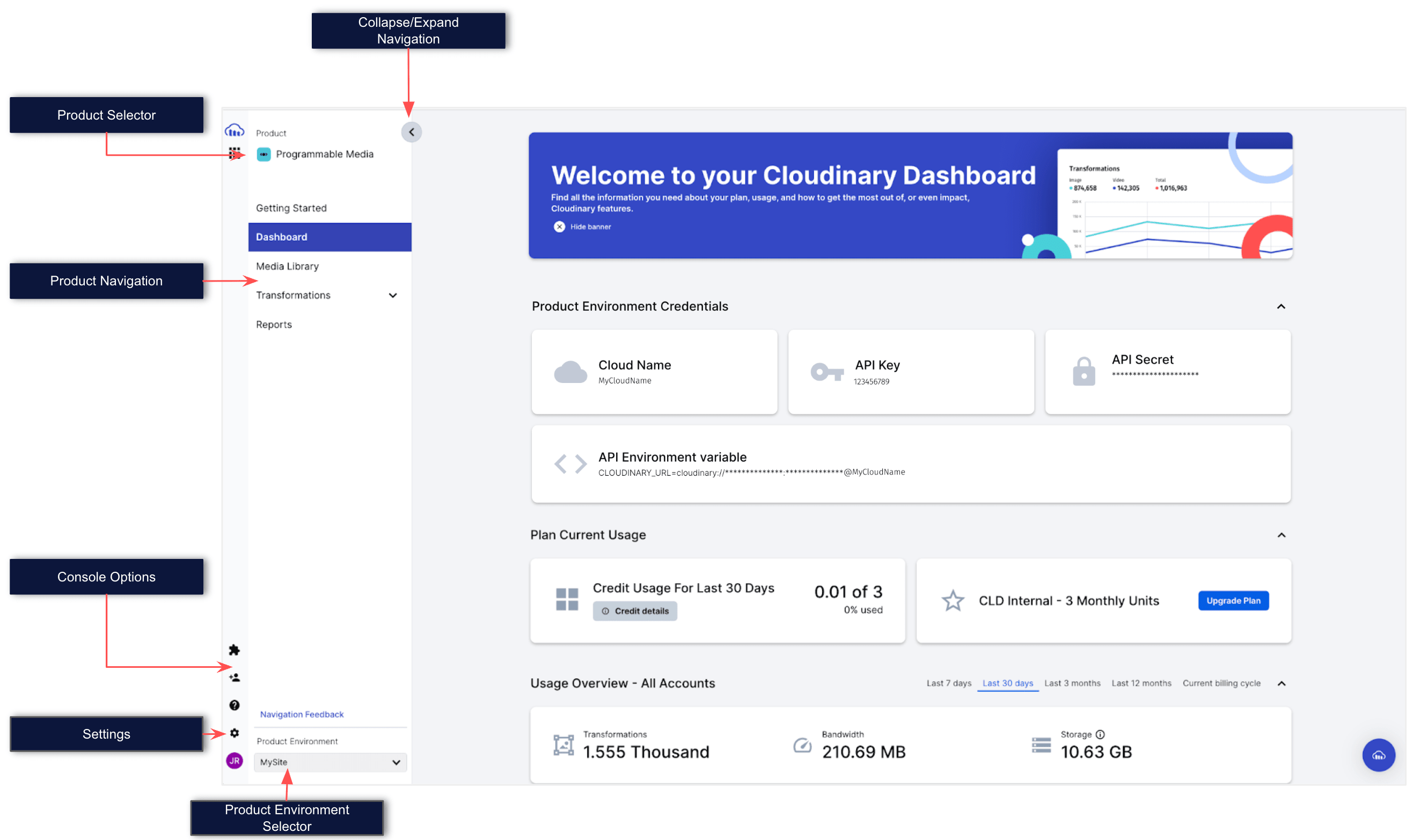
Settings
- Change 'tab' to 'page' - i.e. Upload tab of the Settings is now the Upload page of the Settings
- Settings always capitalized (assuming you're referring to a page in the Settings UI, as opposed to 'settings' as a general concept)
- Naming - Either Console Settings or just Settings if context is clear
- Don't refer to the entire Settings UI as Account settings (You can use Account Settings when specifically referring to the Account page of the Settings and the context is clear enough)
- All of the following are acceptable as works best in the setting:
- In the Upload page of the Console Settings
- In the Upload Settings, ....
- In Settings > Upload,
Sub-Account
The word 'sub-account' shouldn't exist anymore except:
- In select places where clarifying that the term product environment was previously known as sub-account
- In the Provisioning API docs, where sub_account is still used in endpoints/parameters/responses (but the explanation is still explaining that it represents a product environment).
Account Setup Notes
For notes about behavior/UI that might be different for different users depending on account and/or cloud-level flags set by CS - or features that we make clear can be requested from CS (by them activating/clearing flags), we used to have some notes that started with "Depending on your account settings," which is confusing, since "account settings" sounds like it's something a user can change themselves in the Console Settings.
These phrases should usually be changed to use the word 'setup', and usually with the phrasing: "Depending on your account or product environment setup"
- If it's a note where we specifically want users to understand that the 'setup' actually impacts all PEs in the account or that it's a setup that can be different for different PEs, then specifically say "...on your account setup" or "...on your product environment setup"
CSS and Styling Guidelines
Word-wrapping Attributes
We had a lot of problems with word wrapping & word breaking in our docs. The goal is to avoid a word breaking to a new line in the middle of the word. This is usually problematic with code tag where it may be a very long string or a URL.
There are 2 CSS attributes that can help (or cause big problems) with this:
overflow-wrap: break-word (previously known as word-wrap)
From Mozilla: This option tries to avoid breaking in the middle of a word, and instead pushes the whole word to a new line (causing the above line to be quite short). If the whole word is longer than the space available in the line, in that case, it does allow a word to break in the middle rather than overflowing the container.
From Stackoverflow: This property specifies whether the current rendered line should break if the content exceeds the boundary of the specified rendering box for an element (this is similar in some ways to the ‘clip’ and ‘overflow’ properties in intent.) This property should only apply if the element has a visual rendering, is an inline element with explicit height/width, is absolutely positioned and/or is a block element.
To prevent overflow, normally unbreakable words may be broken at arbitrary points if there are no otherwise acceptable break points in the line. This attribute is especially valuable for (CJK) text.
From stackoverflow: Note: It is common to use word-break in conjunction with long strings (such as URLs or lines of code) when you want them to break at the container width — especially if the container is a pre element or table cell where the overflow-wrap property may not work as expected.
Usage Guidelines:
The main place we found that we need it was for long code tags, for example a URL in the middle of a sentence. In that case, just
overflow-wrap:break-word;still allowed the long URL to overflow the table cell.Adding both
word-break&overflow-wrapwith break-word value to the various code tags in the CSS solved the problem.However, using
word-break:break-wordin a table heading or table cell caused excess-wrapping. So if the HTML wants to make a cell smaller in auto-sizing table cells, it uses the word-break to let it break a word in the middle (even breaking after every single character) in order to make the smaller columns super-narrow and allow more space for the largest column.In table header/cell tags, the
overflow-wrapdid the trick, so that the small columns weren't over-wrapping, but long code tags inside table cells were wrapping as expected.
Summary:
- Use both for long code tags and URLs in table cells
- Avoid
word-breakin table headings or cells to prevent excess wrapping -
overflow-wrapalone is sufficient for table cells with long content
Dark/Light Mode Guidelines
Using Filters to Adjust Image Colors
You can use one image and adjust its colors for dark and light mode using filters.
Tools for creating filters:
If you don't get a perfect match, you can keep regenerating the filter.
Best practices:
- This works best if the original image is black with a transparent background
- You can then define filters to change the color for light mode and dark mode
- Define filters in
app/assets/stylesheets/_dark.scssandapp/assets/stylesheets/_light.scss - Use same filter name for both modes
Example:
_dark.scss:
scss
--academy-icon-link-filter: invert(69%) sepia(80%) saturate(1730%) hue-rotate(177deg) brightness(100%) contrast(102%);
_light.scss:
scss
--academy-icon-link-filter: invert(20%) sepia(88%) saturate(1756%) hue-rotate(221deg) brightness(103%) contrast(98%);
_content.scss:
scss
.academy-icon-link {
  filter: var(--academy-icon-link-filter);
}
Usage in markdown:
html
<img class="academy-icon-link"
     src="https://cloudinary-res.cloudinary.com/image/upload/w_90,dpr_2/f_auto/q_auto/docs/academy-logo-black.png"
     width=90 alt="Cloudinary Academy" title="Cloudinary Academy"
     style="margin-right: 10px;display:block;" />
Even if the whole image isn't one color, it may still work. See academy-logo-transparent.png which uses only a filter for dark mode.
Disclaimers
For some features, the user might have to request support to enable it. If so, that needs to be added to the text below. If it's a UI feature, then obviously we should adjust the warning about param names and implementation details to be about changes to the UI, etc.
Alpha Disclaimer
Beta Disclaimer
Title Guidelines:
In most cases, if we publish docs with this disclaimer, we should also put the (Alpha or Beta) in the H1 title (but not the meta or menu (TOC) title). For example, in en.yml:
- Custom Markdown Syntax - Technical documentation syntax
- Adding Documentation Pages - Page creation standards
- Content Creation Guidelines - Content development procedures
Error
Rate this page:
